
Index page overview
The index page of any CRM object combines, top to bottom: the header, with Directory as the module and the active object beside it — Contacts, in the example; the view selector (Table or Pipelines); the quick filters and the Assigned to me switch — see View and filter records —; the record table with configurable columns; and, at the bottom, the total count, the records-per-page selector, and pagination.
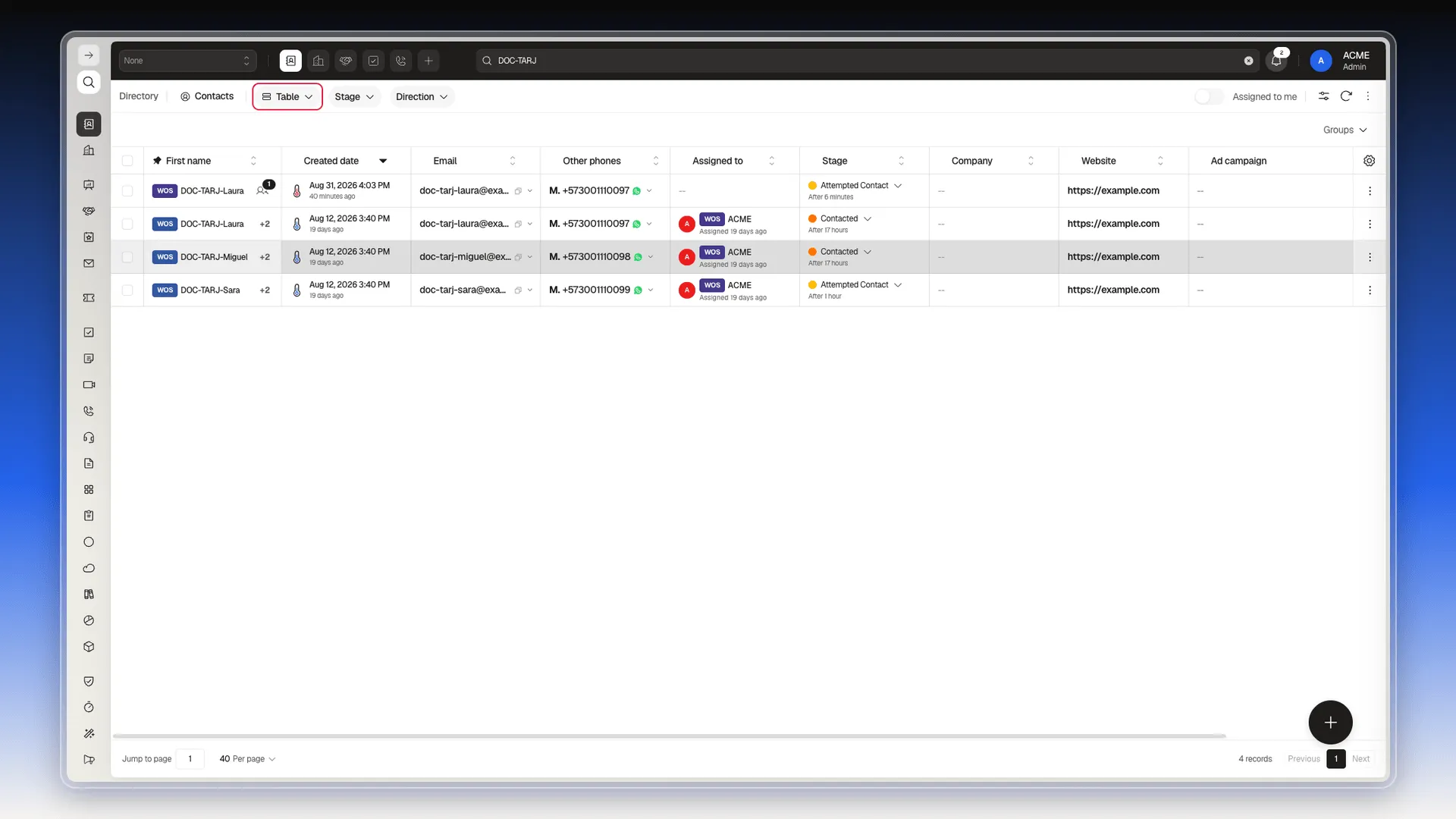
The creation button in the bottom-right corner — New Contact in Contacts — creates a new record. Checking one or more rows switches the bottom of the screen to a bulk-action bar: Download template, Import, Export selection, Edit selected, Delete selected, and Call selected.
Act on one record in the table
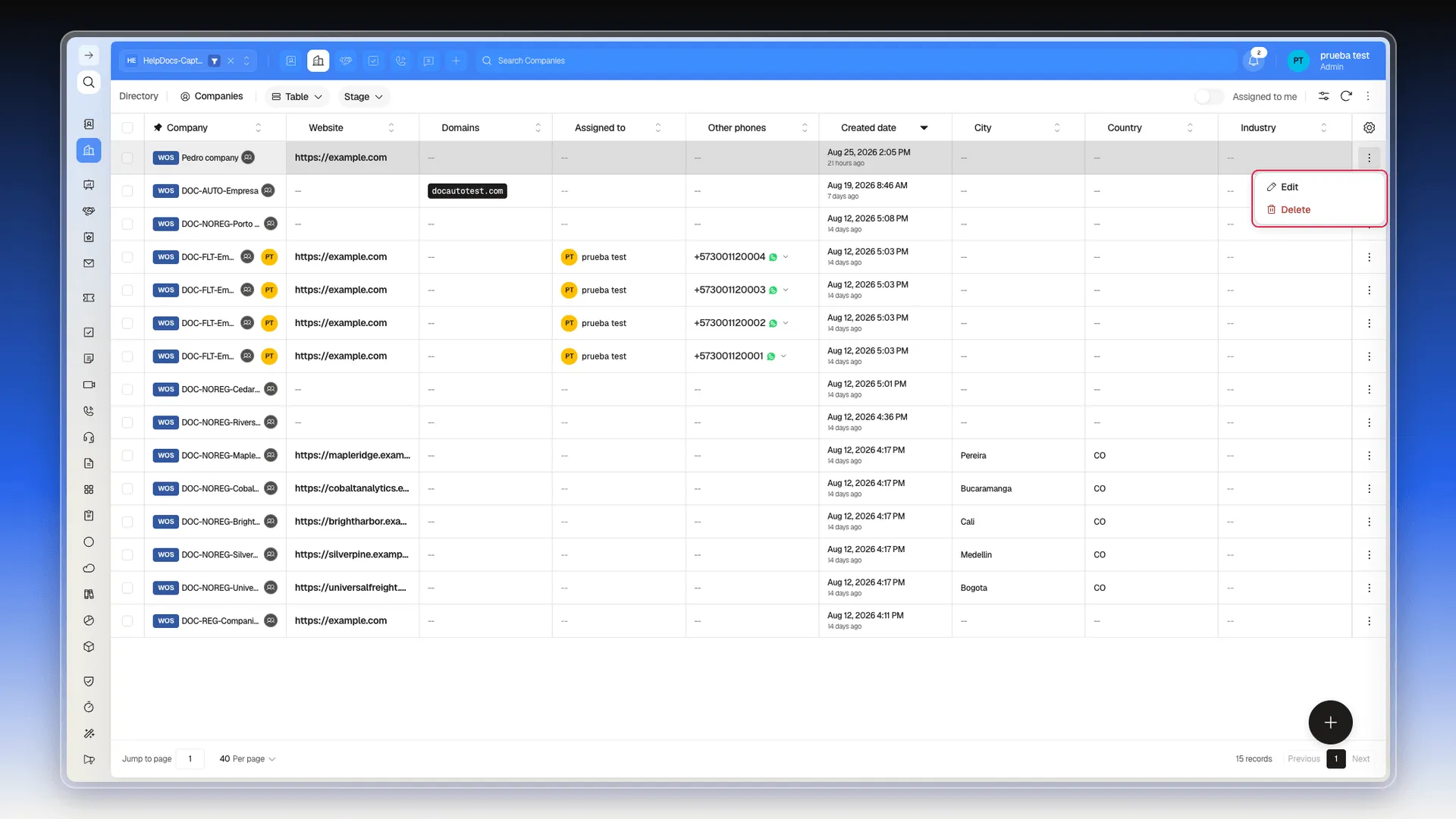
Section titled “Act on one record in the table”You can open a record with a double-click. To act without leaving the list, open the three dots at the end of its row:
- Edit opens the record’s form. Changes are applied only after you save.
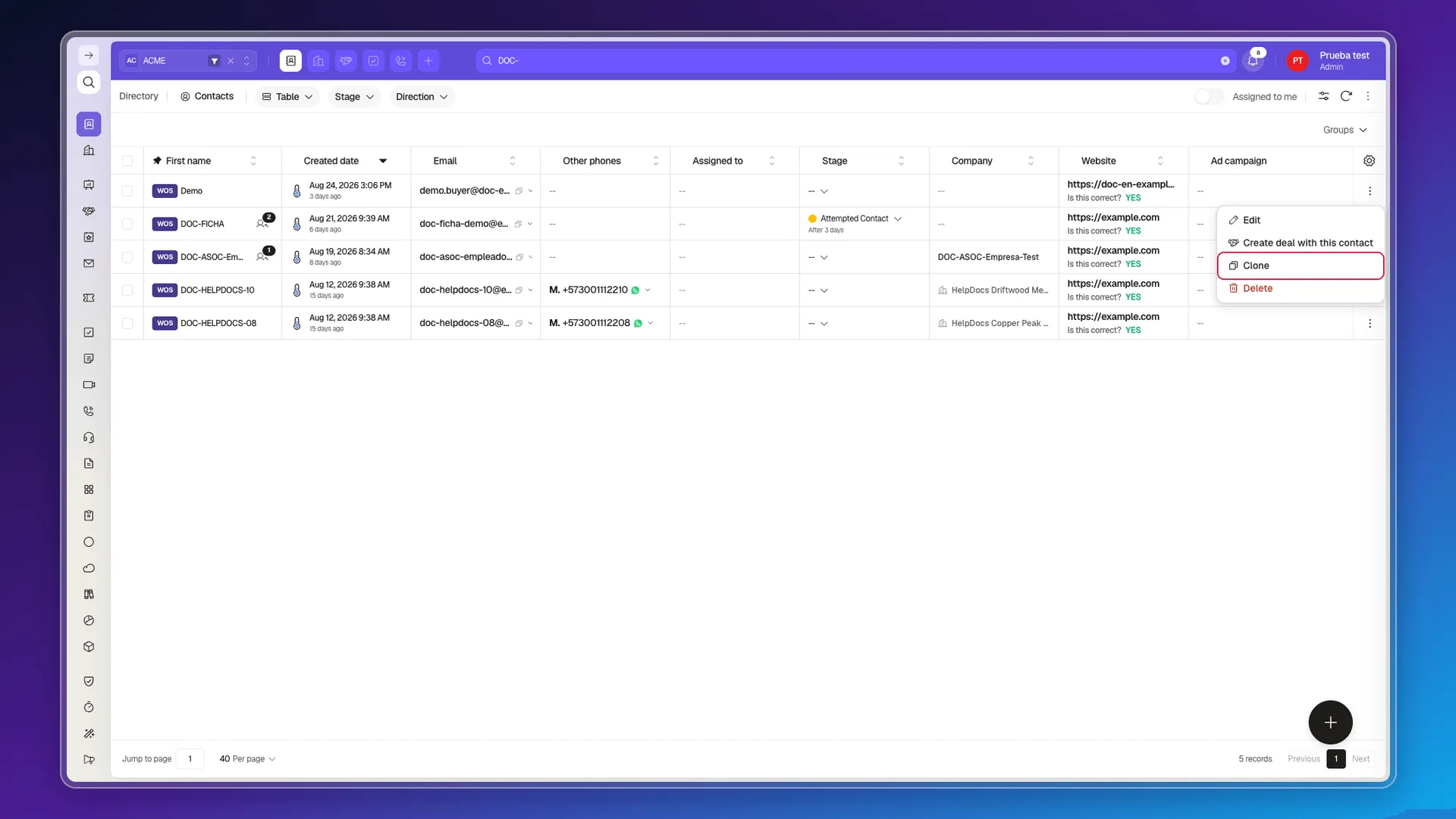
- Clone creates a copy of the record. It has its own section below.
- Delete opens a confirmation; the record is not deleted until you confirm it.
- The menu is not the same for every object. Contacts adds Create deal with this contact, which starts a new deal with that contact already associated. Deals adds Preview, View proposal and Share proposal. In Companies the menu stops at Edit and Delete.
Cloning a record
Section titled “Cloning a record”Cloning lets you start from a record that already exists instead of filling in a blank form: a deal much like last month’s, a contact from the same company, a setup that repeats. You copy it, change what differs, and carry on.
It sits in the row’s three-dot menu, between Edit and Delete:
Choosing it opens the Clone Contact panel — or Clone Deal, depending on the object — with the creation form already filled in from the original, ready for you to change whatever you need before saving:
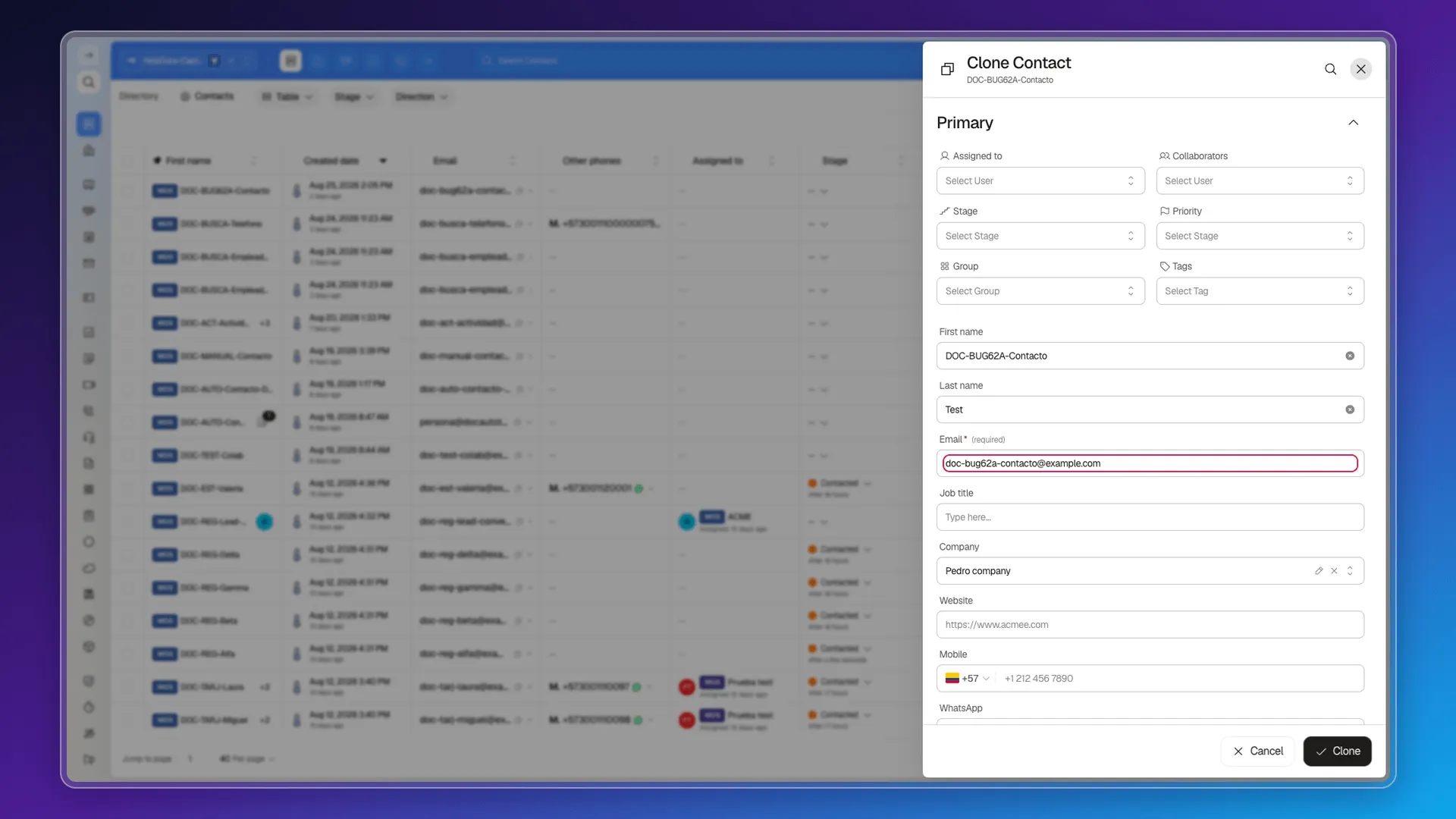
Adjust what you want and confirm with Clone — or leave through Cancel, which creates nothing. The copy comes with:
- The original’s name plus the
(Copy)suffix, so you can tell them apart in the list. - Its own code (
DEA-…on Deals) and the creation date of the moment you cloned it, not the original’s. - The record’s fields: tags, collaborators, stage, company and, on Deals, the proposal with all its versions.
What the copy doesn’t take
Section titled “What the copy doesn’t take”Activities stay on the original. Notes, tasks, calls and meetings don’t travel with the copy: clone a deal that has one note and the copy comes out with zero notes. If what you need is to keep the history, cloning isn’t the way.
On Contacts you have to change the email before saving. Two contacts can’t share an address: the email is the key an import uses to decide whether to update an existing record or create another — see Formatting import files. The form arrives carrying the original’s email as-is, so that’s the one field you have to touch.
For several rows, use the checkboxes and the bulk-action bar. See Bulk-editing records or Deleting CRM records for the task you need.
Frequently asked questions
The module (Directory) and the active object — Contacts, Companies, Deals… —, next to the Table or Pipelines view selector.
At the bottom of the table, next to the pagination and the records-per-page selector.
Yes, with the "Per page" selector at the bottom of the table.
Was this article helpful?
Thanks for your feedback!