
Customize index page columns
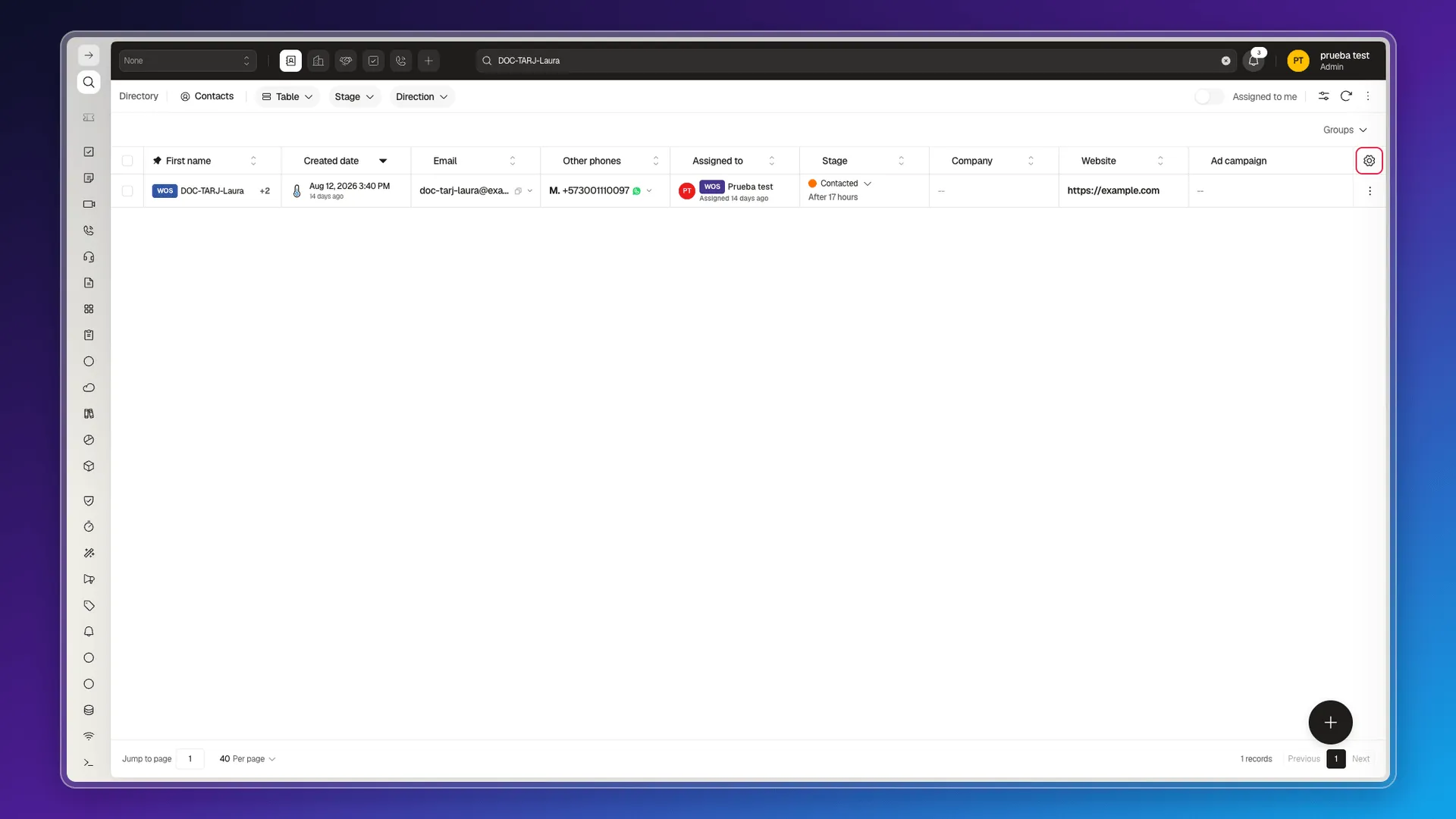
Select the cog at the far right of the table headers to open Configure columns: search for an available field, enable or disable it, and drag selected columns to reorder them. Reset to default restores the starting layout.
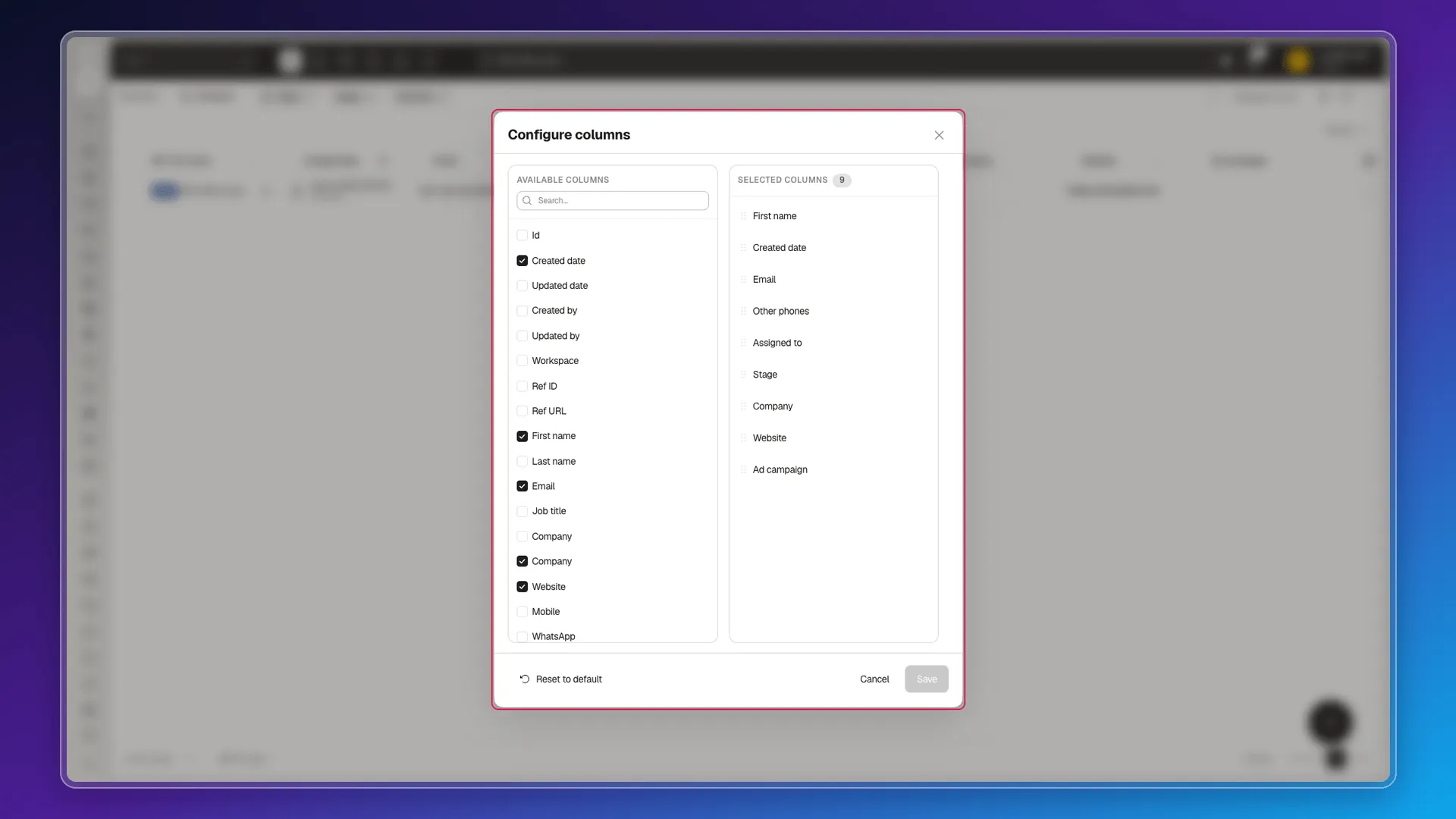
The fields available in the list are the open object’s properties, so what’s on offer changes from Contacts to Companies or Deals. What you leave visible here does not change what an export downloads: the file always carries every field on the object — see Export your records.
Pin a column and filter by it
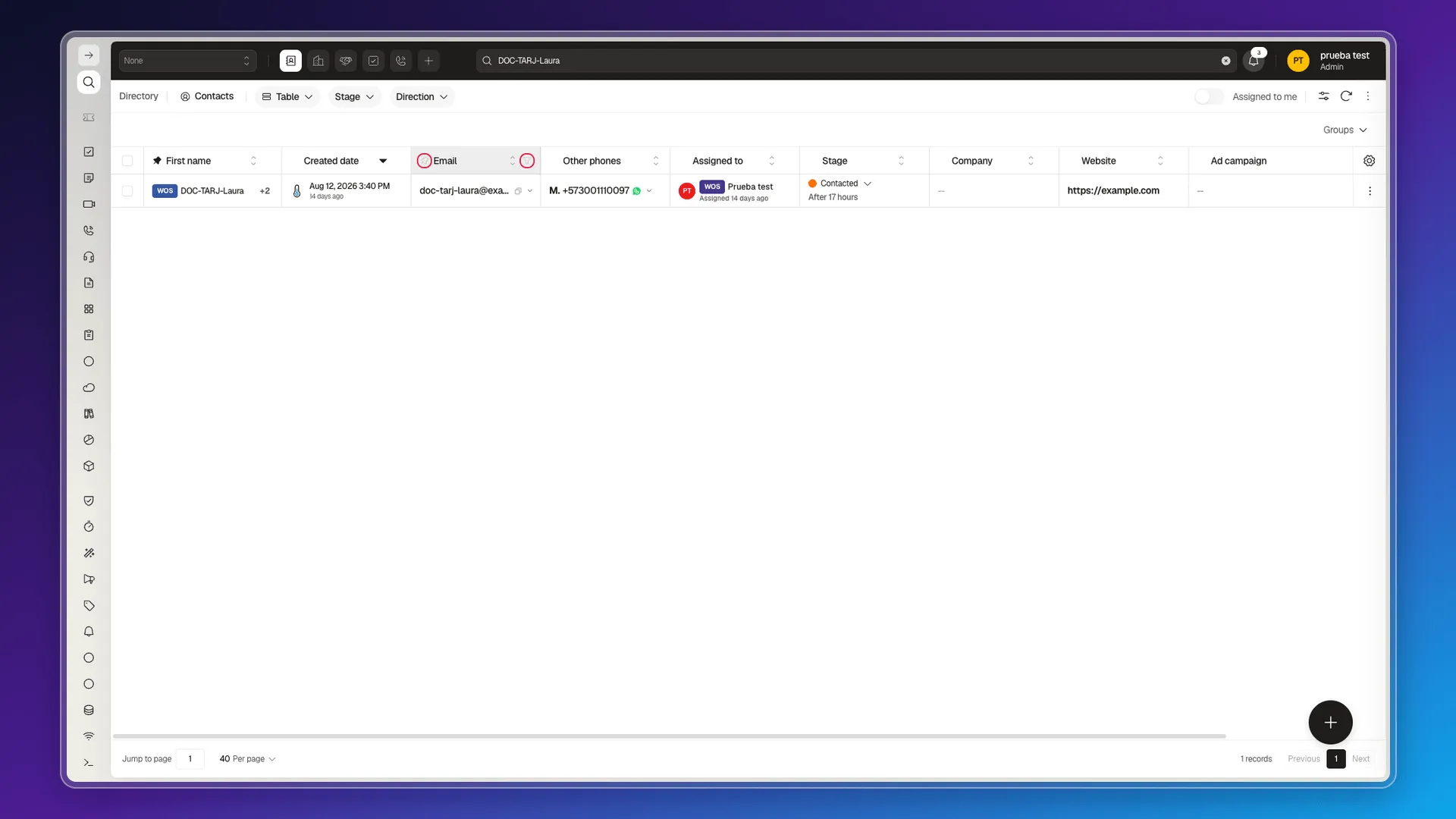
Section titled “Pin a column and filter by it”Hovering a table column header reveals two icons: a pin to the left of the name and a funnel to the right, next to the sort arrows. Select the pin to fix that column at the start of the table; select the funnel to open a quick filter for that column (operator and value) without going through the Filters panel.
To choose which columns show up in the first place, use Configure columns, as explained at the top of this page.
Frequently asked questions
Select the cog at the far right of the headers to open Configure columns, where you can enable, disable, and reorder fields.
Yes, with the Reset to default button inside Configure columns.
Yes. Hovering a column header reveals a pin icon; select it to pin that column (select it again to release it).
Yes, the funnel icon in each column's header opens a quick filter (operator and value) for that specific column.
Was this article helpful?
Thanks for your feedback!