
Saved filters
Building a filter takes a few seconds; building it again every Monday doesn’t have to happen. Any combination of conditions in the Filters panel can be saved under a name and reapplied later, either just for you or shared with your team.
In the app that list is called Saved filters, and it sits at the very top of the panel, above the conditions. The account ships with none: it starts empty until you save your first one.
It helps to know upfront what a saved filter holds and what it doesn’t. It stores the conditions and the visibility — nothing else. Table columns are set separately, with Configure columns, and don’t travel with the filter: two people can apply the same saved filter and see different columns. It also can’t be pinned as an index-page tab or reordered by dragging; a saved filter is always applied from the panel.
Saving the current filter
Section titled “Saving the current filter”Save current takes what is applied, not what you left half-typed in the panel. That’s the usual reason a saved filter comes out “incomplete”: pick a date and save without selecting Apply first, and the filter is saved without that condition.
- Open Filters and build the combination you want.
- Select Apply.
- In the Saved filters section, select Save current.
- Type a name — the field hints at the style with “E.g. Active leads this week”.
- Choose who can see it and confirm with Save filter.
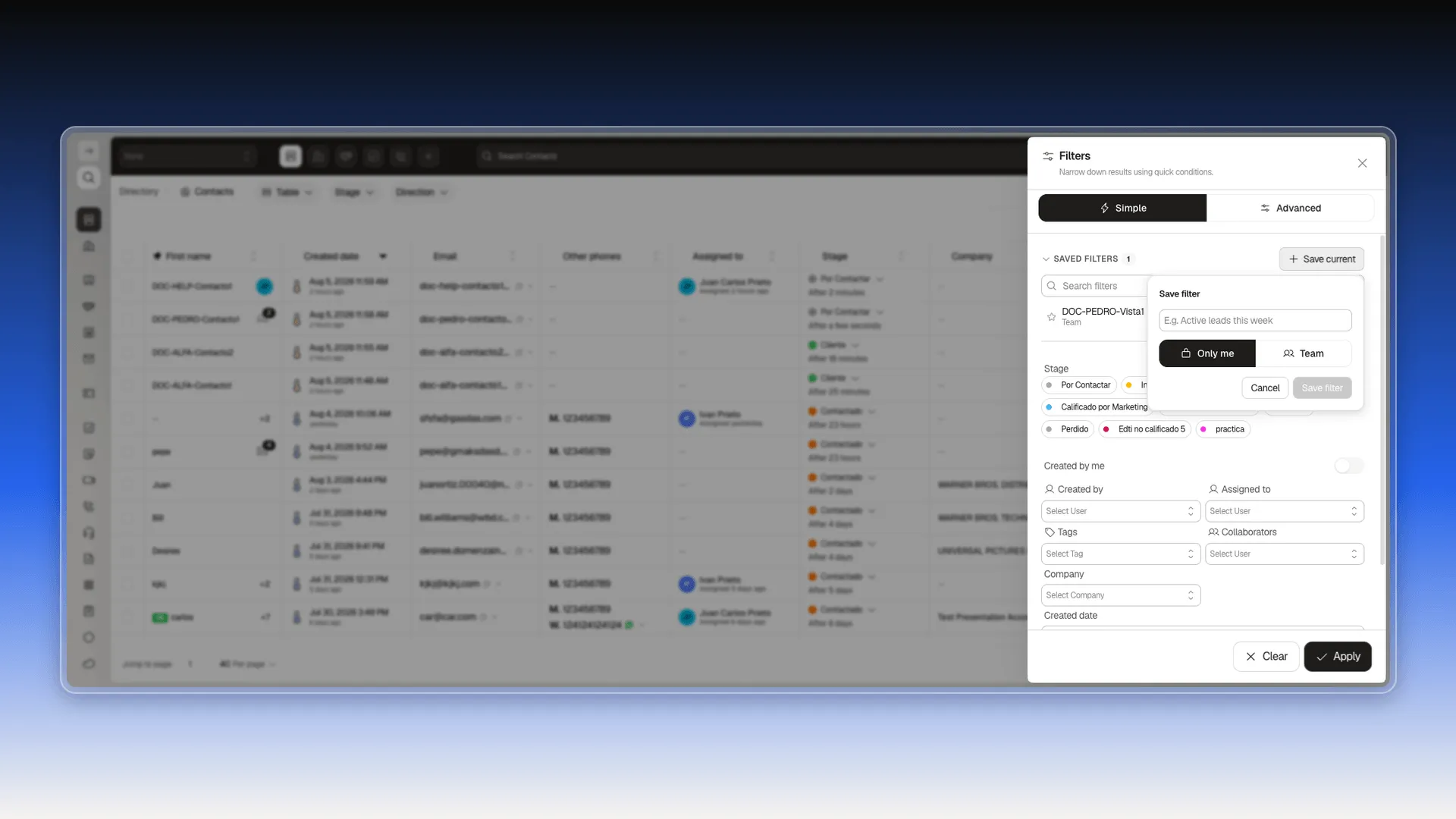
Visibility is decided right there, with two options:
- Only me — private, visible only to the user who saved it.
- Team — visible to teammates too, so they can apply the same combination without rebuilding it.
Applying a saved filter
Section titled “Applying a saved filter”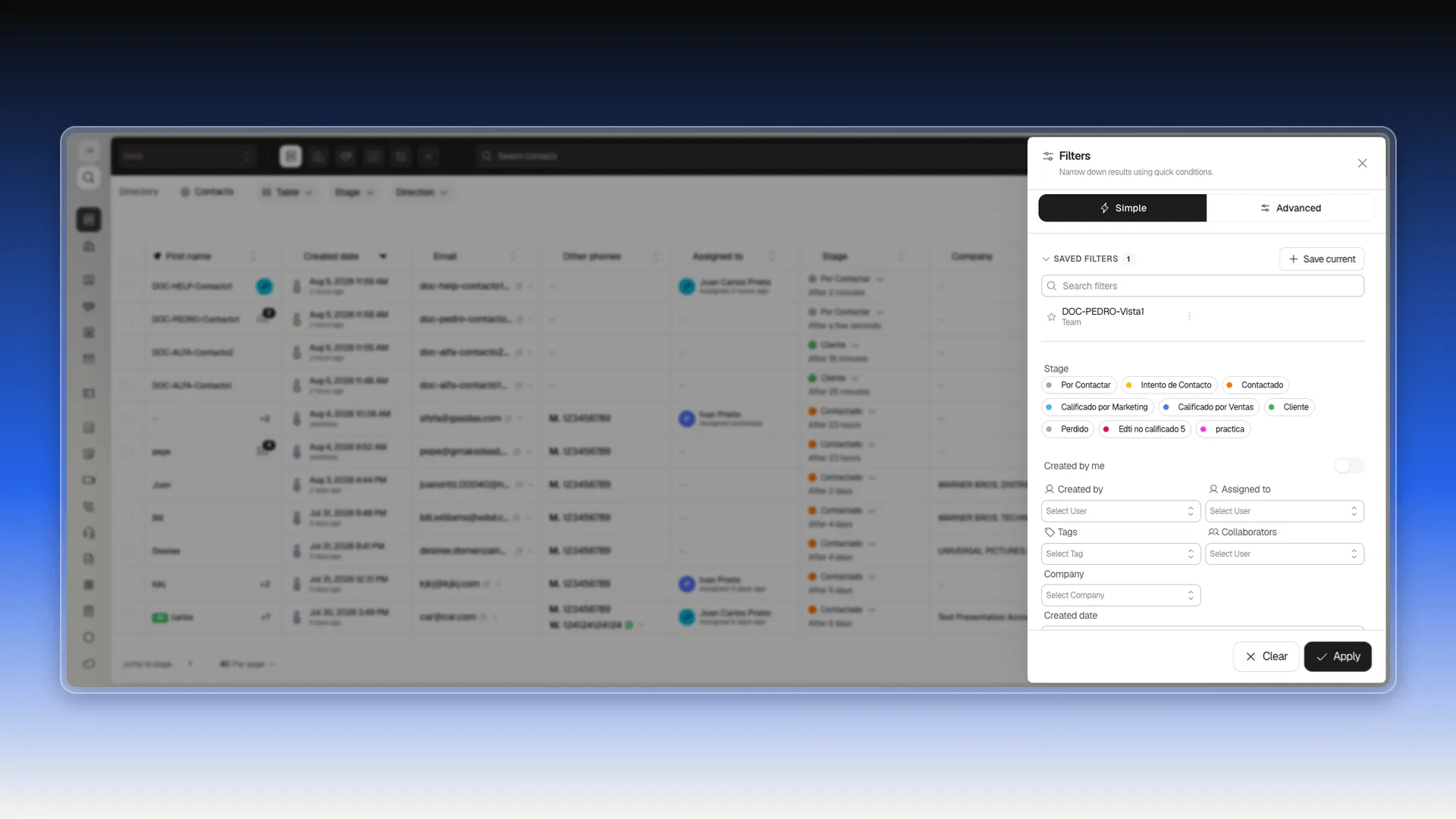
The section title carries a counter with how many filters there are, and the list has a search box for once you have several. Each row sums up the essentials at a glance: the star that marks it as a favorite, the name, whether it’s Only me or Team underneath, and a green Applied tag on the one currently acting on the table.
Select one and it applies immediately on the index page, without going through Apply. If the section gets in your way while you build new conditions, collapse it from its title.
Managing a saved filter
Section titled “Managing a saved filter”Applying a saved filter doesn’t go through any menu: select its name and its conditions load onto the table. The star to its left marks it as a favorite; the mark survives a page reload, but it doesn’t reorder the list or change anything else.
The three-dot menu (⋮) on each row opens the rest:
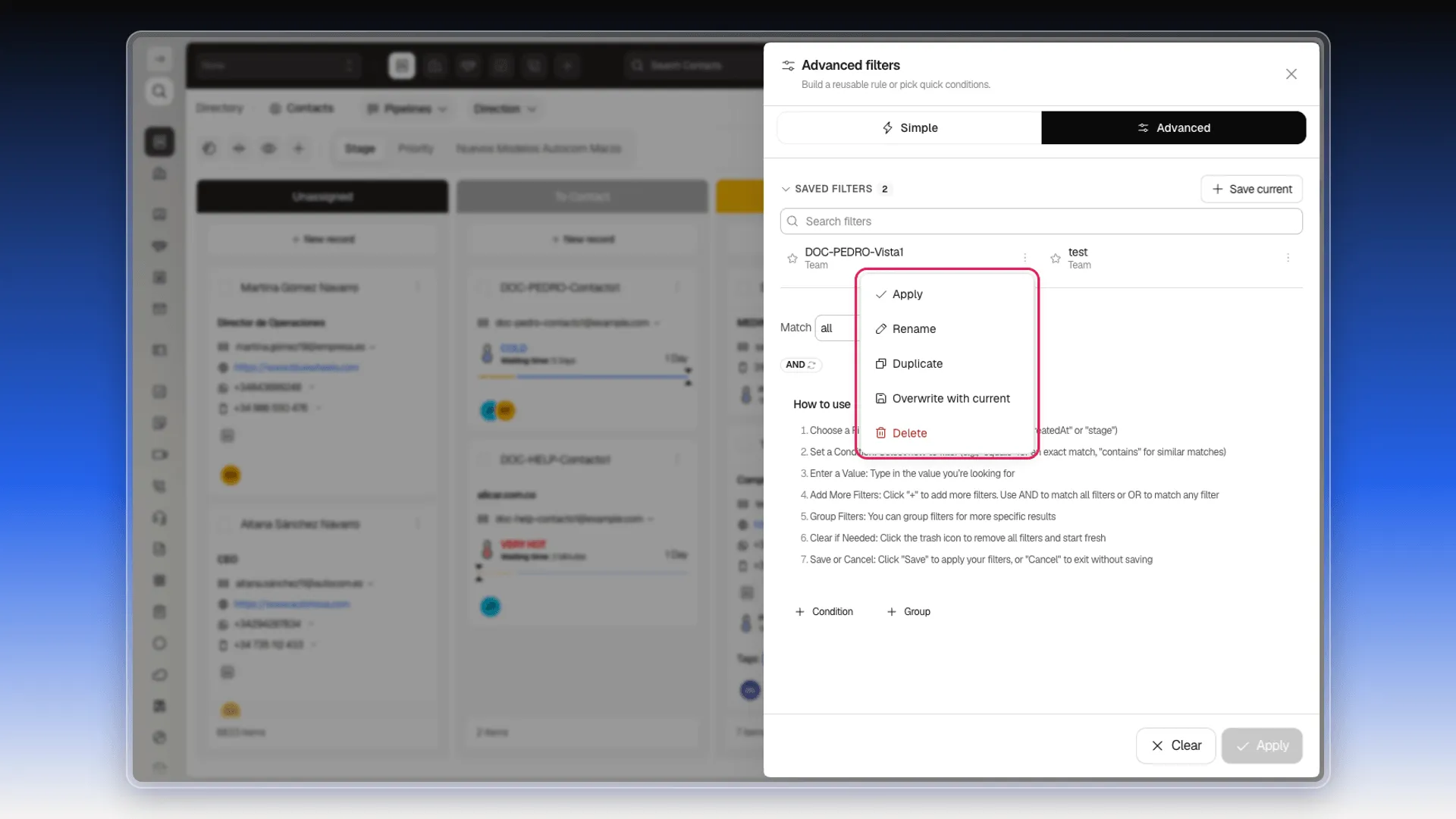
- Apply — loads its conditions onto the table, the same as selecting the name. The option sometimes doesn’t show up, when the filter is already acting on the table.
- Rename — no window opens: the row turns into a text field with the current name already in it. Change it and confirm with Enter. The conditions and the visibility are left alone.
- Duplicate — makes a copy with the (copy) suffix: Active leads becomes Active leads (copy). It inherits the original’s conditions and visibility.
- Overwrite with current — replaces the saved conditions with the ones applied right now. It runs immediately, without asking for confirmation and with no way to undo it.
- Delete — removes it from the list. It sits in red, at the end of the menu, and asks for confirmation in a window that repeats the name.
Changing a saved filter’s conditions
Section titled “Changing a saved filter’s conditions”If you apply a saved filter and then touch its conditions, an unsaved changes notice appears above the table with the filter’s name and two buttons:
- Save — updates the saved filter with the new conditions. Same effect as Overwrite with current, without going through the menu.
- Discard — returns the table to the conditions the filter had saved.
Frequently asked questions
Open Filters, set the conditions you want, apply them, then select "Save current" in the Saved filters section at the top of the panel.
Yes. When saving, choose "Team" instead of "Only me" so teammates can see and apply it too.
Open Filters — the "Saved filters" section lists them with a search box. Select one and it applies immediately, marked Applied.
No. It saves the conditions and the visibility. Columns are set separately with Configure columns and don't travel with the filter.
From the (⋮) menu on its row in the Saved filters list — Apply, Rename, Duplicate, Overwrite with current or Delete. You can also apply it by simply selecting its name, and the star marks it as a favorite.
Was this article helpful?
Thanks for your feedback!