
Editing records in bulk
The checkbox in the table header ticks only the records on the page you’re viewing, not every record there is. With 24 contacts split across three pages of 10, ticking it announces “10 items selected” in the bar. There’s no shortcut to select all 24 at once; if you need more than one page, tick them page by page — the selection survives as you move between pages.
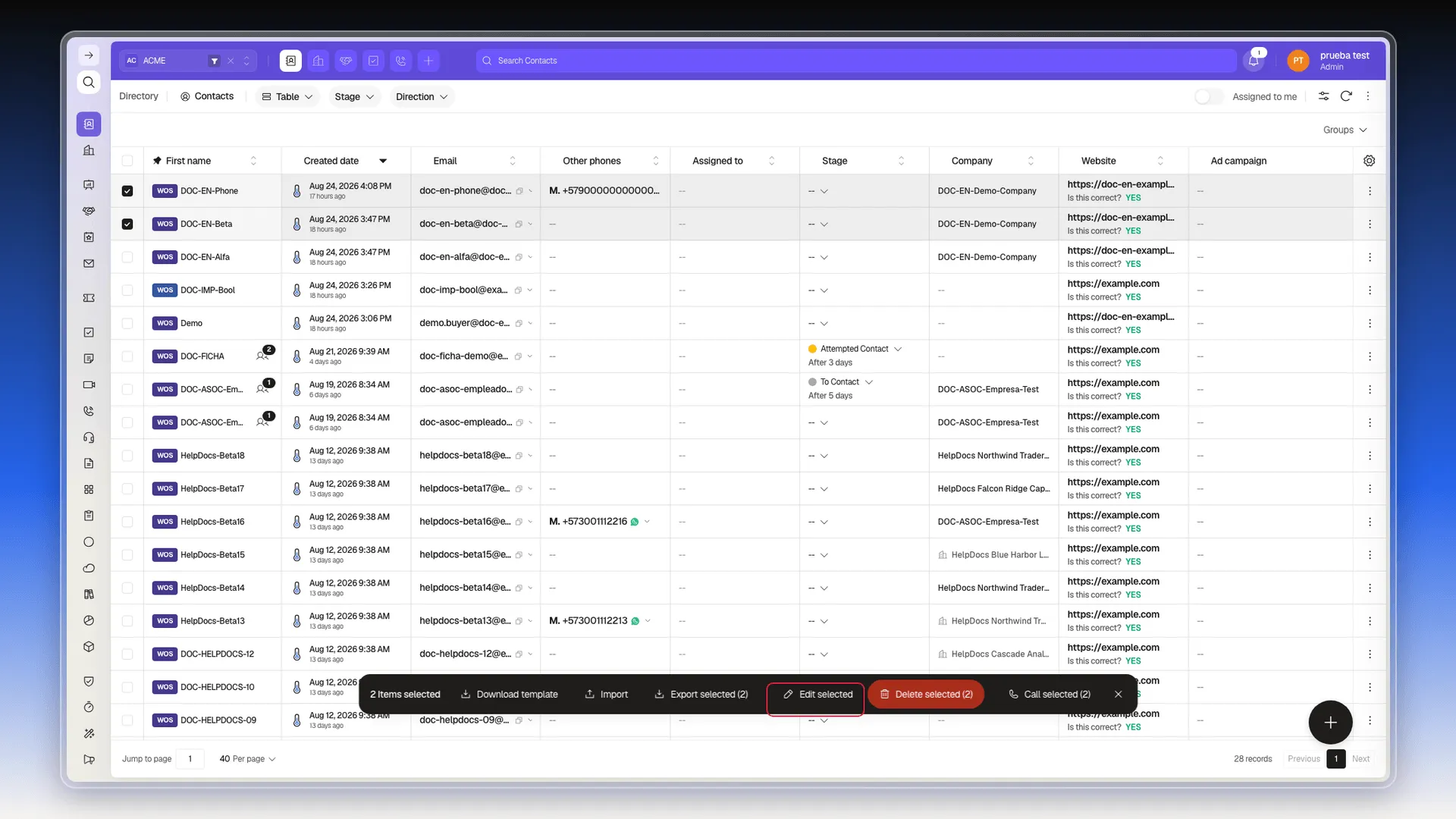
After selecting several records, use Edit selected from the bulk-action bar to change a field on all of them at once. A dialog opens that confirms how many records the change will apply to.
That same bar gathers the rest of the actions on the selection: Download template, Import, Export selected, Delete selected and Call selected, each with the number of checked records in parentheses.
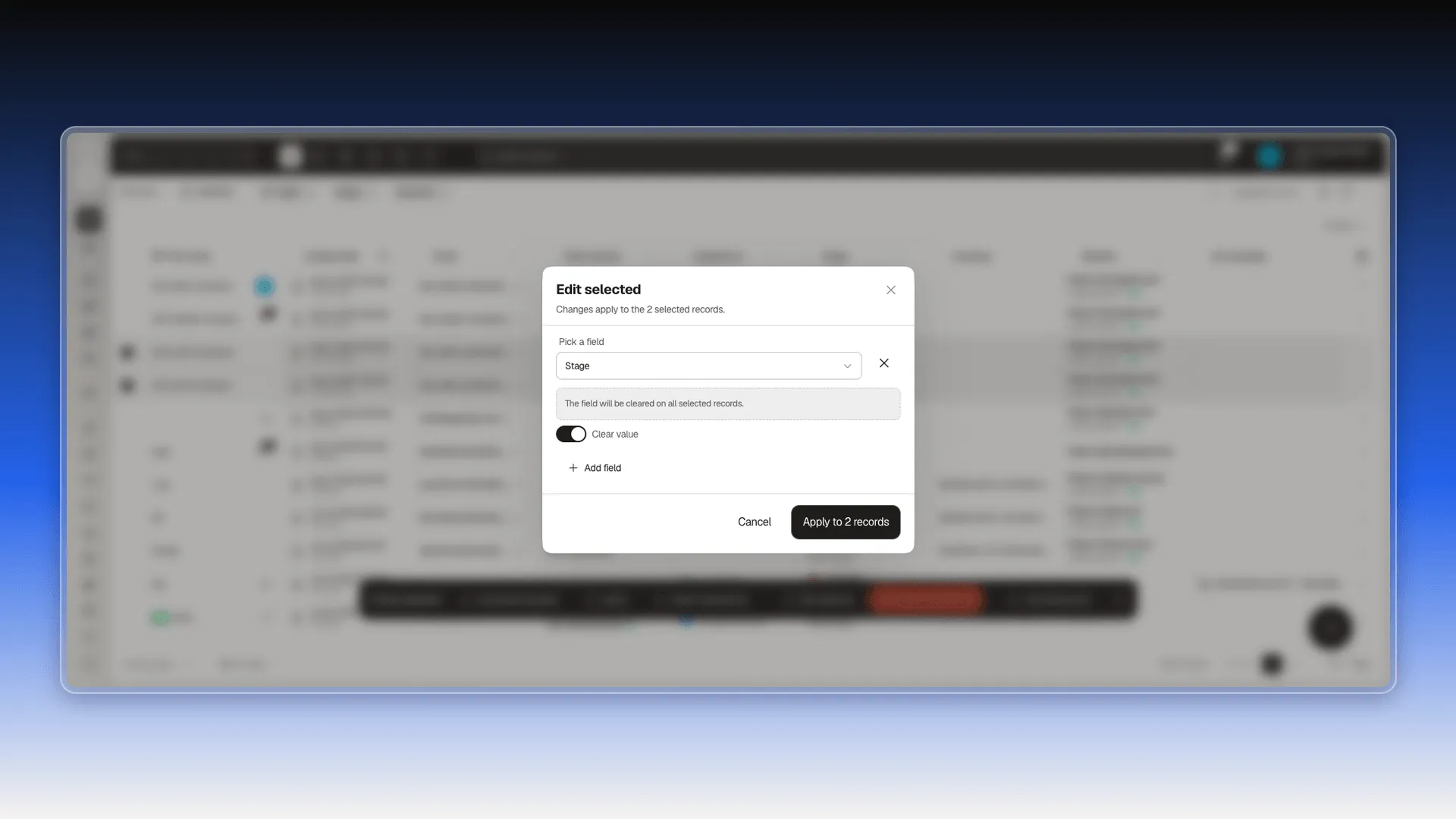
Search for the field you want to change — any property, including Stage — and pick the new value. The Pick a field selector carries its own search box and lists properties alphabetically; the ones you created show up as Custom fields · name. The value control appears under the chosen field, with an X beside it that drops that field from the edit.
Add field lets you update more than one property at once; if you’d rather leave the field blank on every record instead of assigning a value, turn on Clear value: the value control is replaced by the notice “The field will be cleared on all selected records”.
On a multi-value field like Tags or Collaborators, the new value replaces whatever was there — it isn’t added on top. A contact that already had the Cartera tag ends up with only Servicio after applying it through bulk edit. That’s the dialog’s expected behavior: it edits the whole field and offers no “add” mode, so before bulk editing a multi-value field, check what the selected records already hold — anything you leave out of the new value disappears.
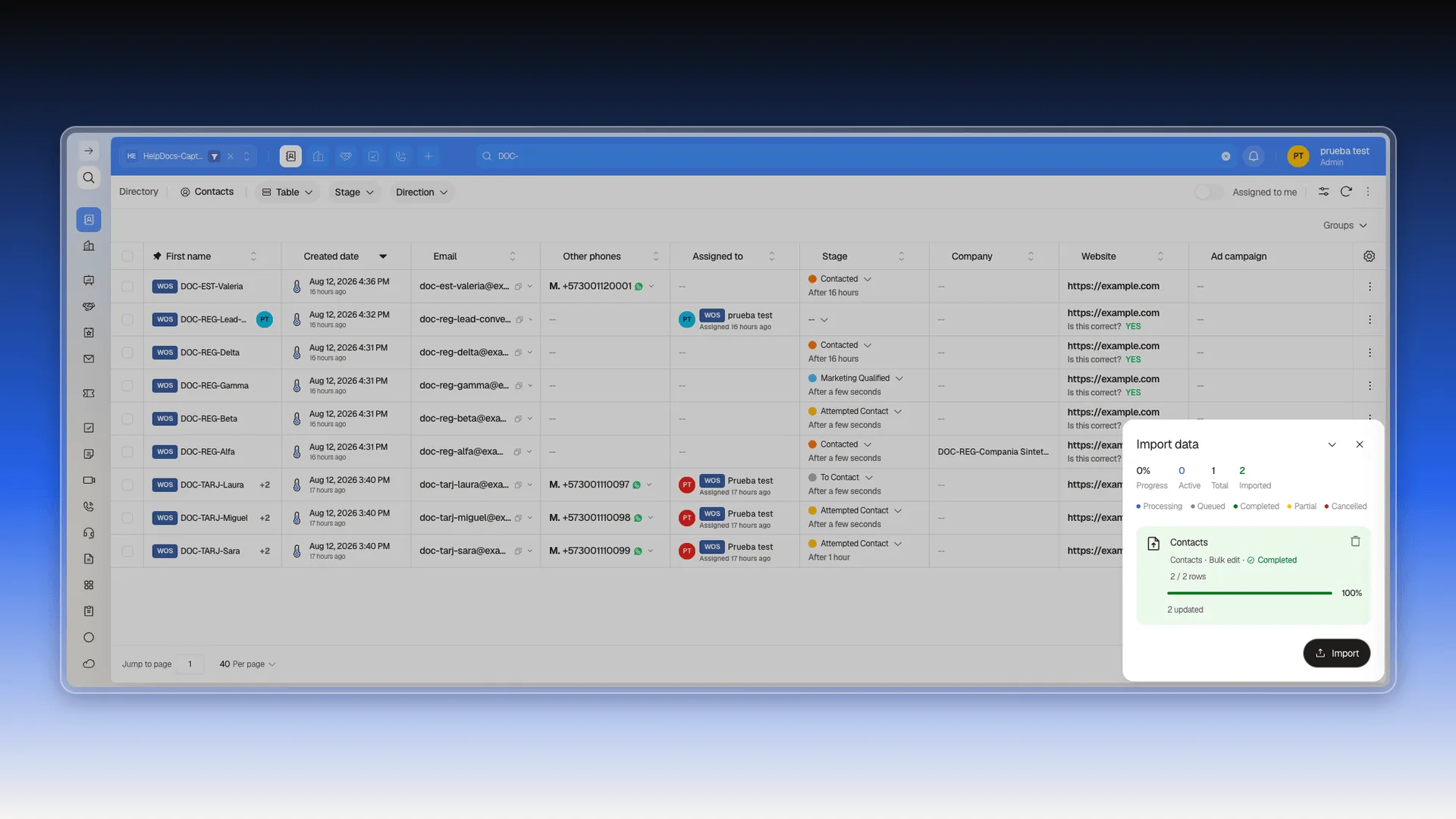
Confirm with Apply to [N] records. The button stays greyed out until the field has a value picked or you turn on Clear value. The change runs as a background job — it shows up in the Import data panel labeled “Bulk edit” — and displays progress until it finishes.
To change a single record instead of several, see Edit.
Call selected is a dialing campaign, not a one-off log
Section titled “Call selected is a dialing campaign, not a one-off log”Call selected is an action specific to Contacts, and it doesn’t log a call: it launches a sequential dialing campaign. With two contacts checked, it opens a “You’re about to call 2 contacts” dialog with:
- A Configuration panel with the batch’s parameters: pause between calls, batches, and repetition.
- A per-contact list, each with a checkbox to include or exclude it from the batch and a selector for which number to dial if the contact has more than one.
- A final Call (N) button, which actually starts dialing.
Anyone who clicks this expecting to “log that a call happened” is going to fire real calls, one after another, to every included contact — it isn’t a shortcut for recording something that already took place.
Frequently asked questions
Yes. Select them, open Edit selected, pick the field, and apply the new value to every marked record.
Yes. Inside Edit selected, turn on the Clear value switch on the chosen field instead of picking a value.
Yes, with the Add field button inside Edit selected.
It doesn't log a call: it opens a sequential dialing campaign, with a pause between calls, a choice of which number to dial per contact, and a final button that actually starts calling.
Because the new value is still missing. The button turns on once the field has a value selected, or once you turn on Clear value.
Was this article helpful?
Thanks for your feedback!