
View and filter records
The controls for narrowing an object’s list live in the top bar of its index page: the quick filters, the Assigned to me switch (which keeps only records assigned to your user), and the action bar with Filters (opens the combinable-conditions panel), Refresh, and More actions. For the rest of the page — breadcrumb, table, pagination, and actions — see Index page overview.
The bar’s quick filters change with the object: in Contacts they are Stage, Direction, and the Assigned to me toggle. To choose which columns the table shows while filtering, see Customize index columns.
The Filters panel
Section titled “The Filters panel”Open Filters in the list bar to narrow the visible records. Simple mode offers the open object’s conditions — in Contacts: stage, created by me, creator, assignee, tags, collaborators, company, created date, and ad campaign. Pick the combination you need, then select Apply. Clear removes every condition at once.
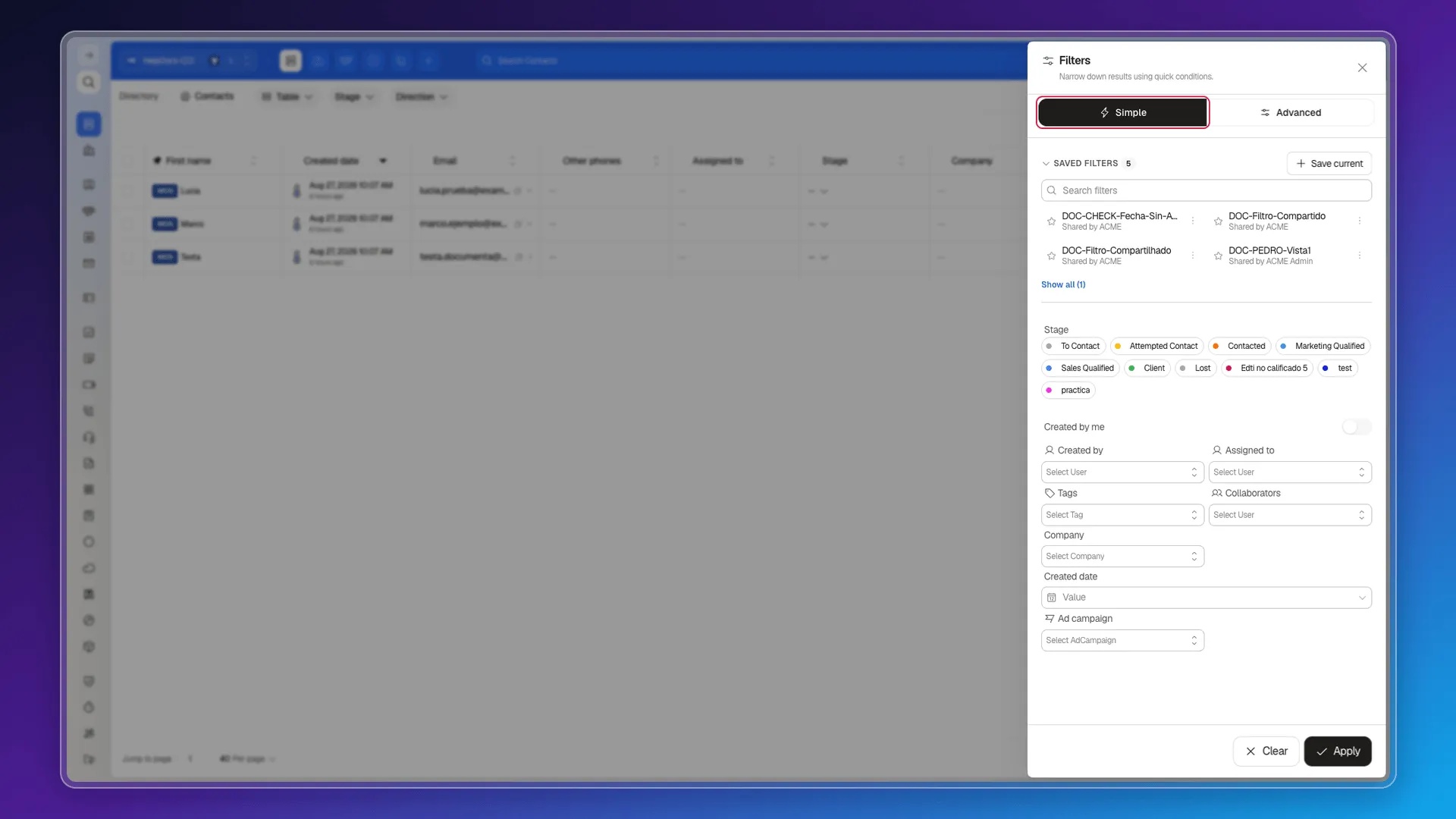
If you’re going to reuse the same combination often, save it — see Saved filters. For advanced conditions outside Simple mode, see Filters.
Filter by workspace
Section titled “Filter by workspace”The control you use is in the workspace selector in the top-left corner. Open it and, at the bottom of the workspace list, turn Only this workspace on or off. It is not a condition in the Filters panel: it applies to Contacts, Deals, and other lists while you work in that workspace.
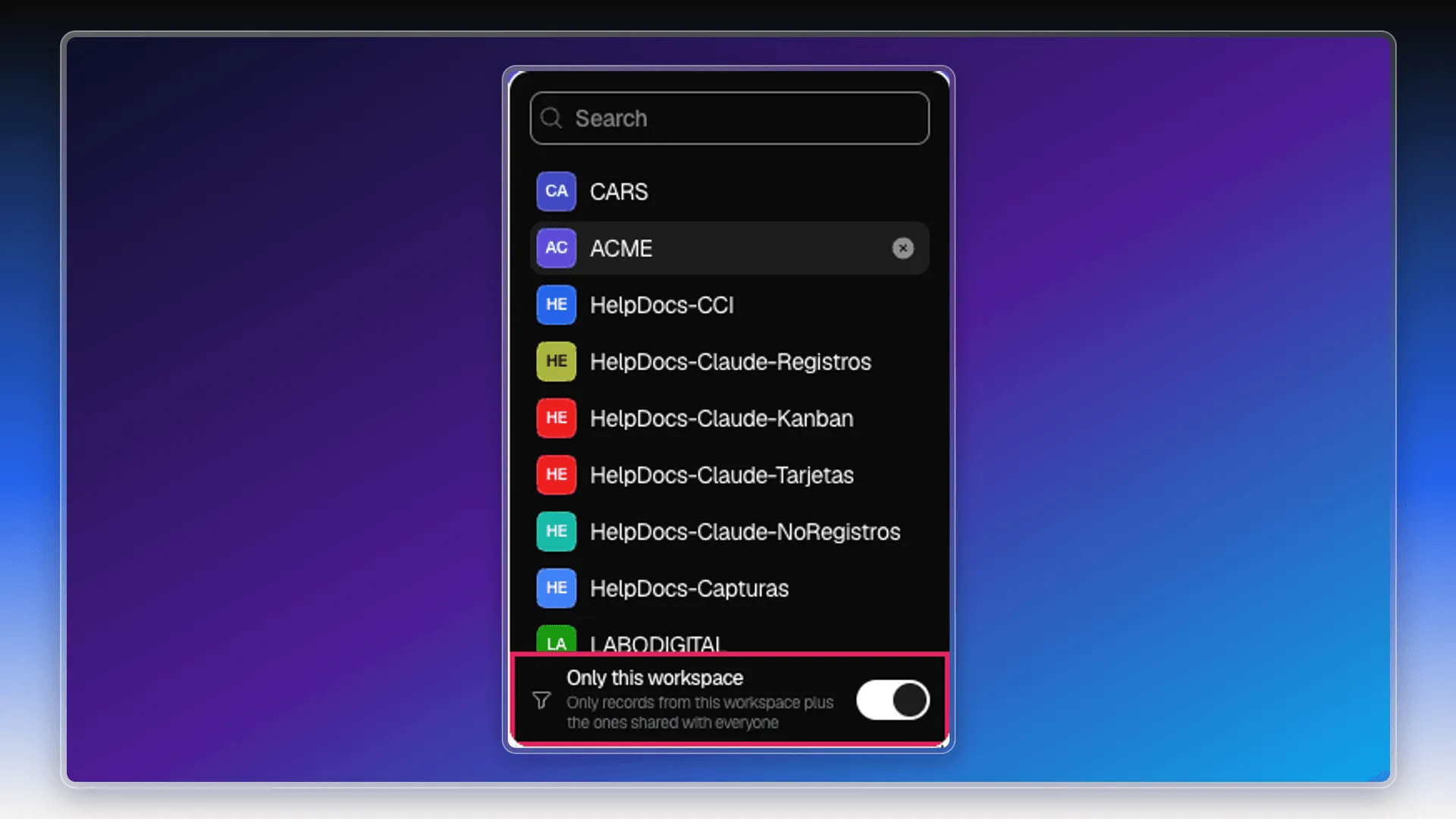
An administrator decides whether that control is shown in Preferences > Security > Permissions Mode, through Strict workspace filter show toggle. That is an administrative setting; daily use always happens in the selector shown above.
The Strict workspace filter enabled switch sets the filter’s behavior:
- On: while a workspace is active, the list shows only its records and records shared with everyone.
- Off: the list can show contacts, deals, and other records from every workspace you can access.
If you do not see Only this workspace at the bottom of the selector, it is not a list error: someone with higher permissions must allow it through Strict workspace filter show toggle. That person can also hide the control and keep strict filtering applied for everyone.
Filters add up with each other
Section titled “Filters add up with each other”Prolibu offers several entry points for filtering the same table — the bar’s quick filters, the Filters panel, and the funnel in each column’s header — and they all accumulate instead of replacing each other.
That means what you see is the intersection of everything you have active at once: if you left a stage selected on the bar and also applied conditions in the panel, the table shows only the records that meet both. It’s the most common cause of “a record is missing from my list” — it’s worth checking all three places before concluding that a record doesn’t exist.
Filtering and choosing columns, on the other hand, are two independent systems acting on the same table, and it’s best not to confuse them: filters decide which rows appear, and columns decide which data from each row is shown — see Customize index columns. Changing one doesn’t touch the other: you can have any combination of filters with any combination of visible columns, and hiding a column never removes rows from the table.
Frequently asked questions
Turn on the "Assigned to me" switch on the index page's bar.
Pick whatever conditions you need in the Filters panel's Simple mode and select Apply; Clear removes all conditions.
Yes, save it as a saved filter — see Saved filters.
Yes. All the filtering mechanisms add up instead of replacing each other, so the result is the intersection of whichever ones you have active.
They're independent. Filters decide which rows appear; columns decide which data from each row is shown. You can combine both freely.
Was this article helpful?
Thanks for your feedback!