
Get a preview of a record
Click a record’s name in the list to open it — a contact, in the example. It opens on the Preview tab, which is the editable one: change fields (see Edit and Properties) and save your changes.
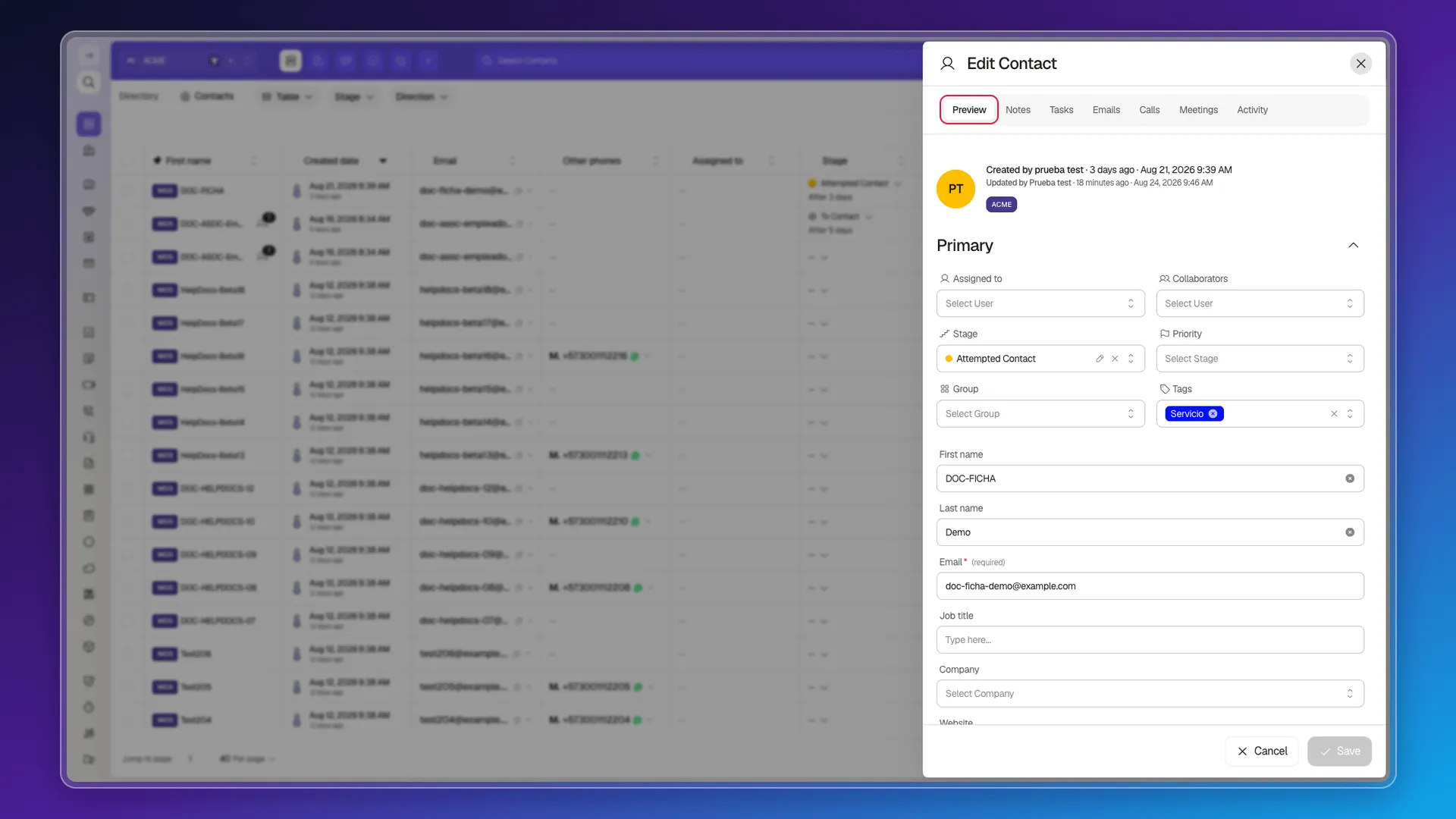
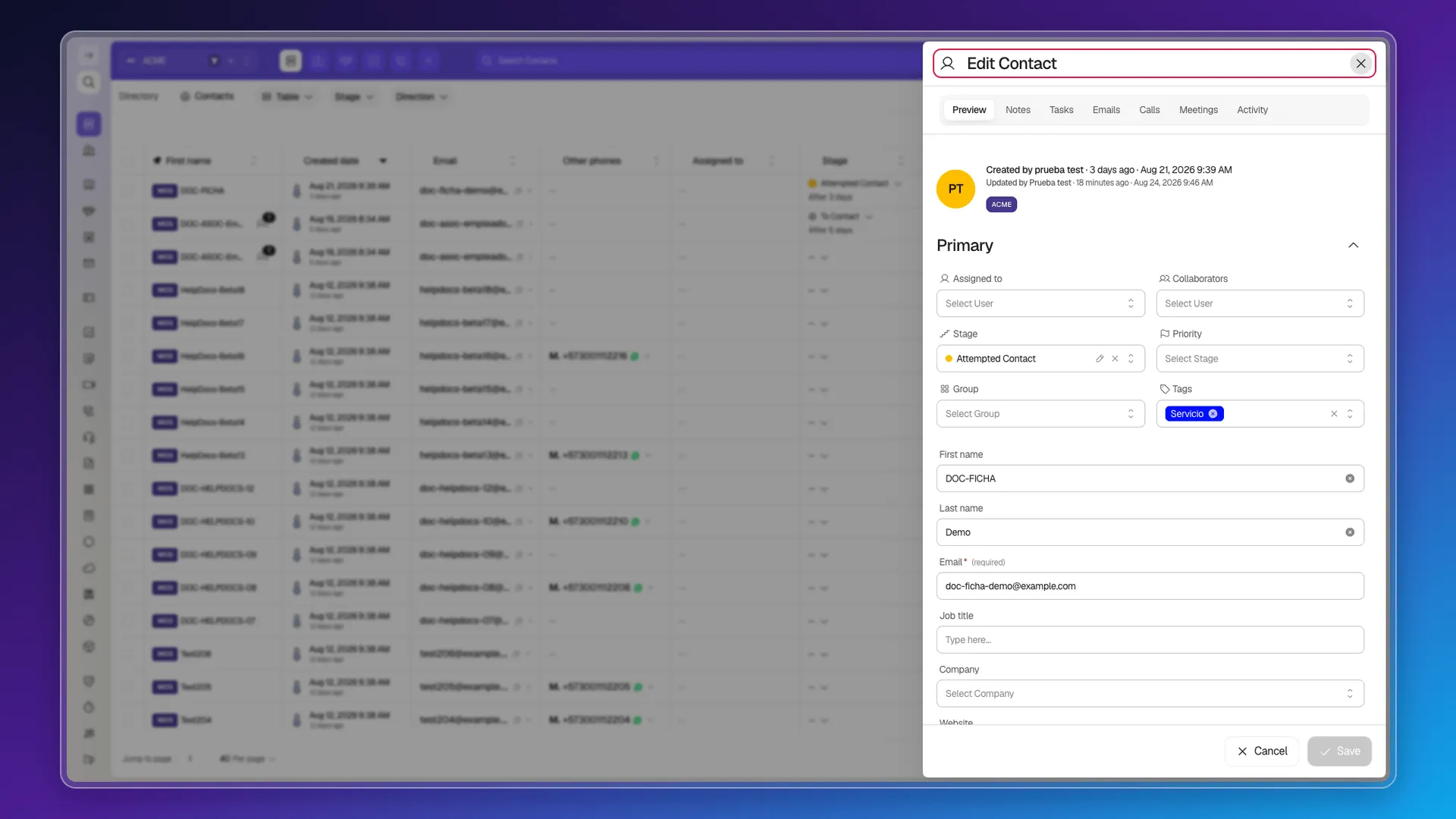
The header
Section titled “The header”The header shows an icon for the record type, the record’s title — Edit Contact for a contact — and a button to close it. Above the fields, the record displays its creator and updater with dates, plus a tag with the workspace it belongs to.
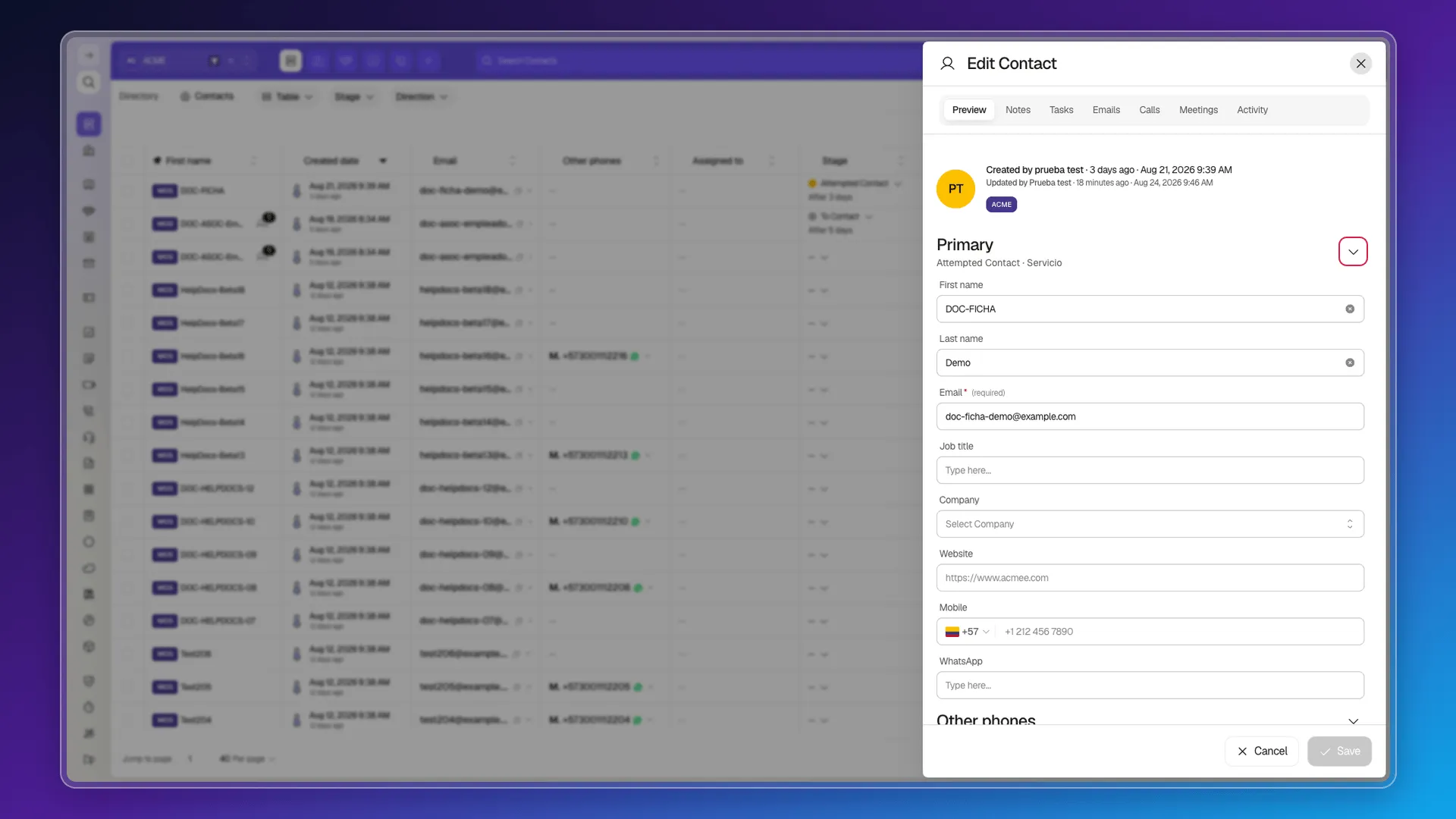
Collapse and expand sections
Section titled “Collapse and expand sections”The fields on the Preview tab come grouped into collapsible sections. Use the arrow at the far right of each title to collapse a section and keep only the fields you care about in view; select it again to expand it.
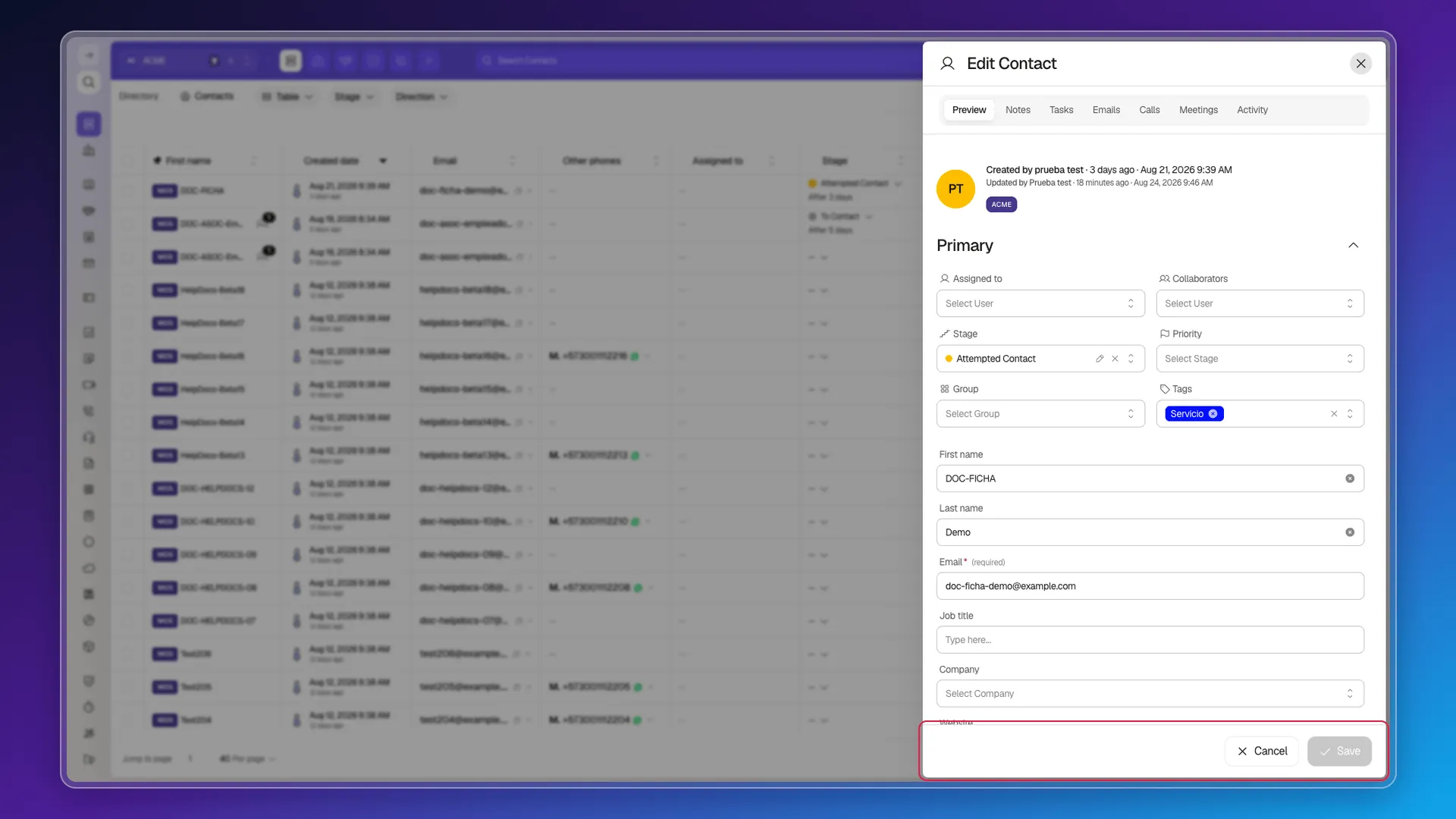
Save or discard
Section titled “Save or discard”At the bottom of the record, Save confirms your changes and Cancel discards them. Until you save, nothing you edit is applied to the record: it does not autosave.
The other tabs
Section titled “The other tabs”The record’s other tabs are the record’s follow-up. In Contacts they are Notes, Tasks, Emails, Calls, Meetings, and Activity; in Companies they’re only Notes, Tasks, and Activity, with no Emails, Calls, or Meetings. Other objects may bring a different set.
Frequently asked questions
Click its name in the object's list — in Contacts, the contact's name in the contact list.
Yes, select Cancel instead of Save to discard the changes made in the Preview tab.
No. The record only applies your edits when you select Save.
Was this article helpful?
Thanks for your feedback!