
Formatting import files
Your file’s columns should match the contact’s fields — see Properties and, if your account added its own fields, Custom fields. The safest way to start with the right format is to download the template — see Generating a sample import file — and fill it in without changing the headers.
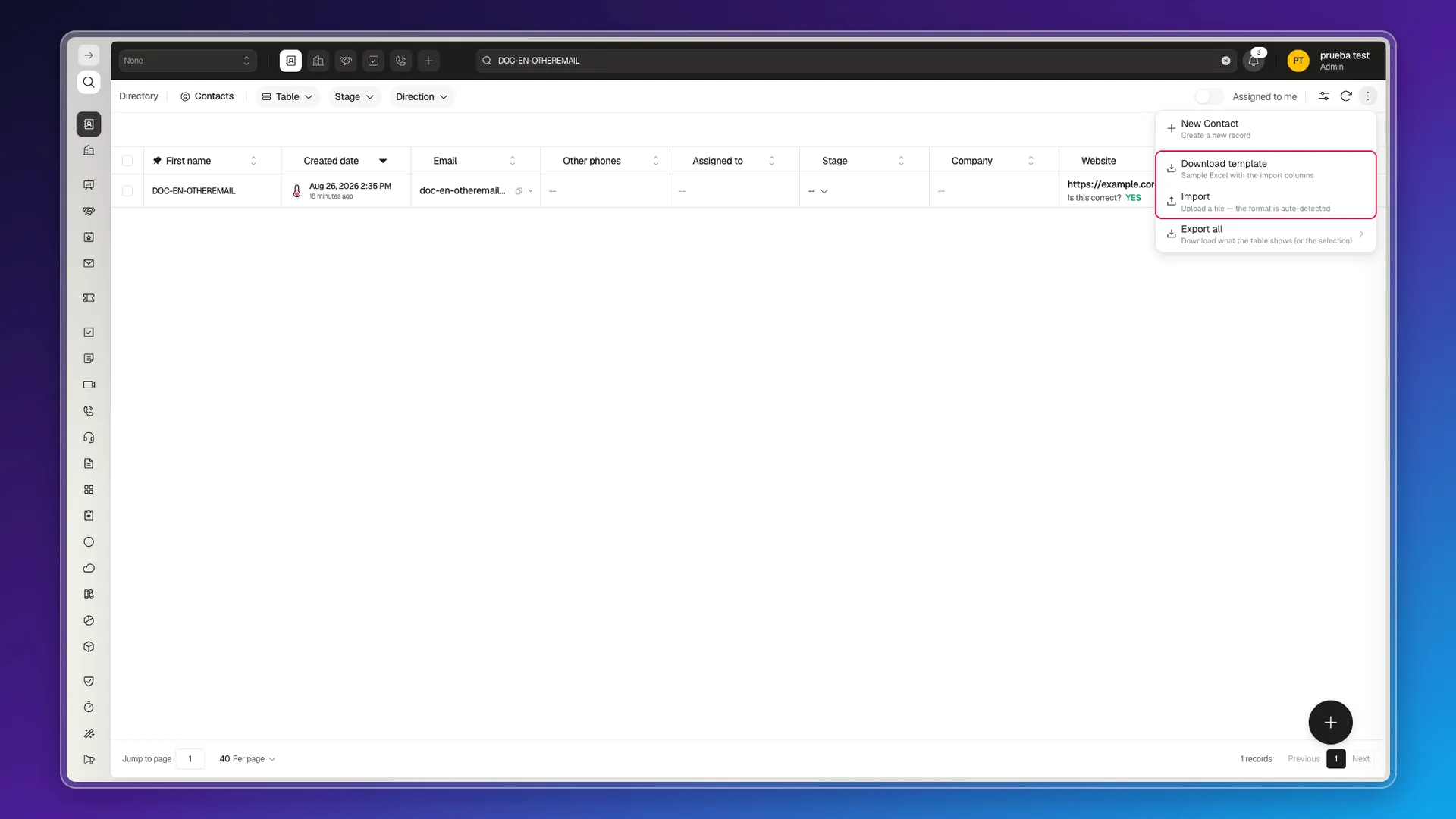
The columns are internal keys, not the UI labels. In the template (datamap.xlsx), the headers on the Contact sheet are technical keys in English — firstName, email, companyName, website, address.city, customFields.<key>, and so on — not “Name” or “Email” as they appear in the table. Keep those headers exactly as they come; don’t translate or rename them.
What a .xlsx file accepts. Starting from the template (datamap.xlsx):
- The template filled in as-is imports with nothing else to do.
- A column the template doesn’t include is ignored, without breaking the import.
- Column order doesn’t matter: you can put
emailbeforefirstName. - A 200-row file processes in around 40 seconds.
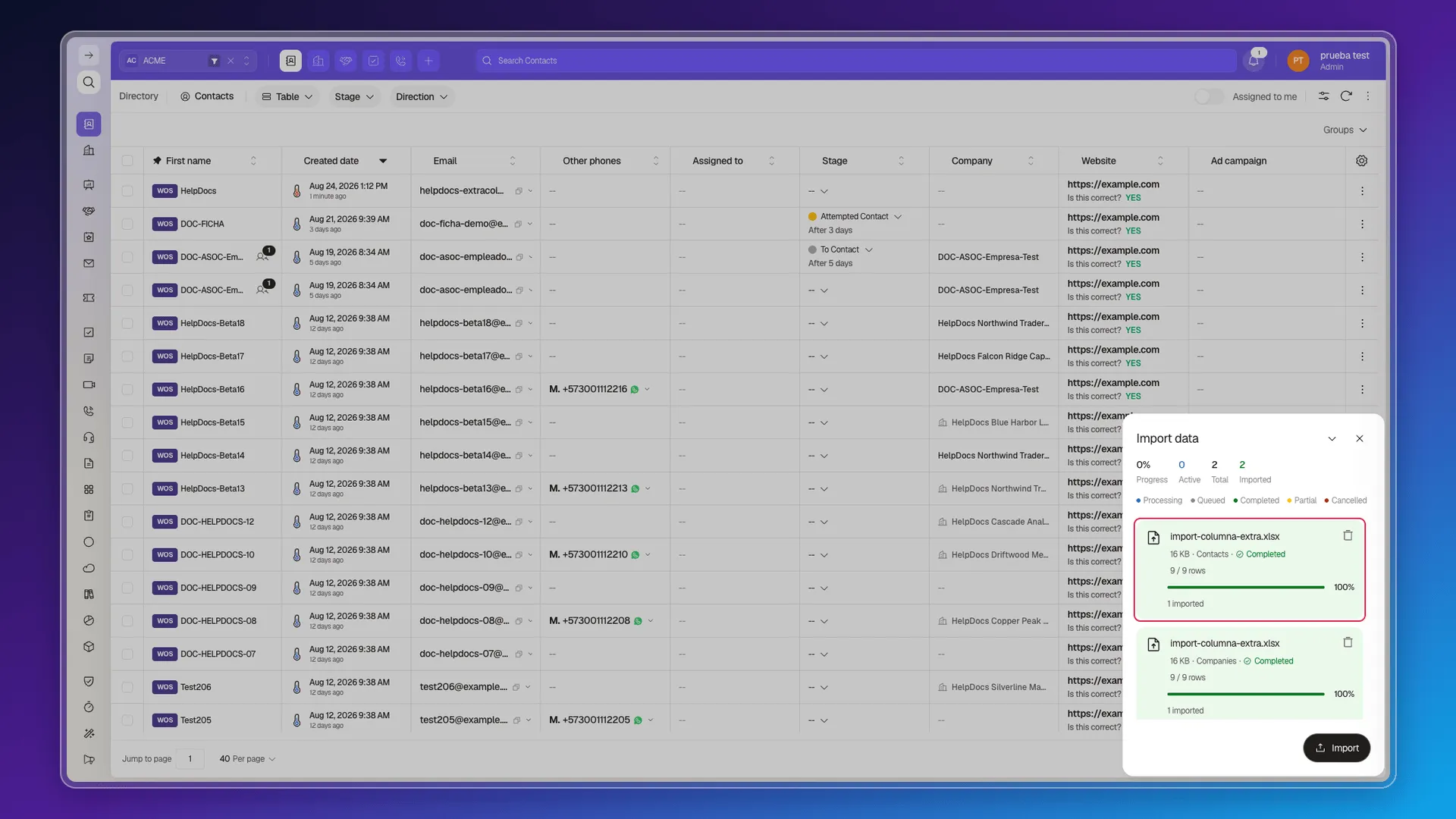
Matching is done by the header text, not by the column’s position. The import panel reads Completed, 100% when it finishes.
How existing contacts are identified
Section titled “How existing contacts are identified”The email address identifies the contact. If you import an address that already exists, the row updates that contact instead of creating a duplicate: the fields the file carries are overwritten and the “Updated by” mark shows the time of the import.
Matching ignores case, so NAME@EXAMPLE.COM updates the same contact as name@example.com. A leading space in the address, on the other hand, does create a new contact — see Reviewing and troubleshooting record import errors.
An empty cell is ignored: the contact keeps the value it already had in that field. To clear a field on purpose, do it from the form — see Edit.
Special-type columns
Section titled “Special-type columns”Some columns aren’t plain text and have their own way of being filled in:
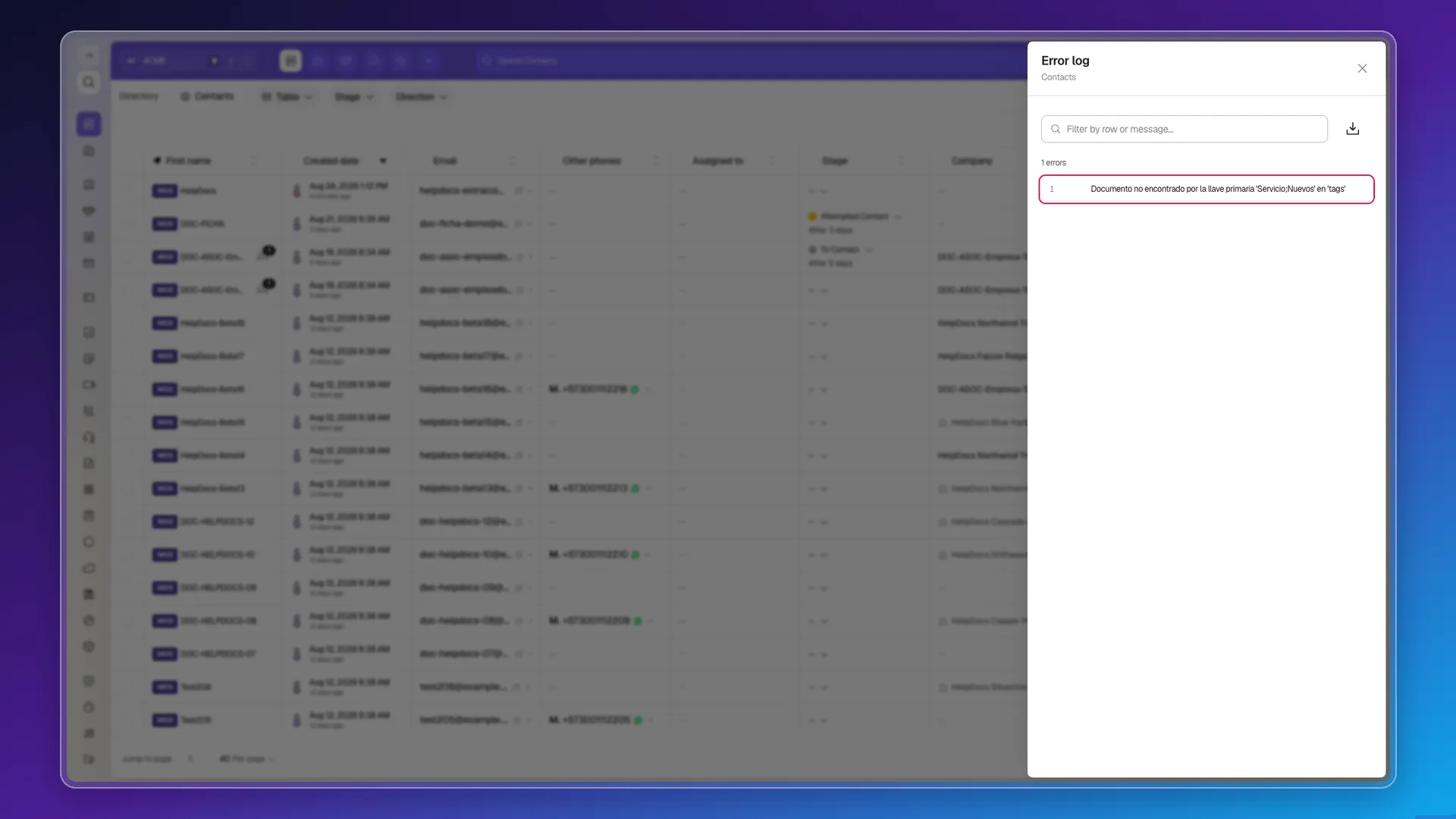
Tags (tags) — one per cell. The cell’s value is looked up as the exact name of an existing tag, so write a single one: Servicio. If you put several separated by ;, the whole cell is taken as one name and the row is rejected with “Document not found by primary key” in the error log.
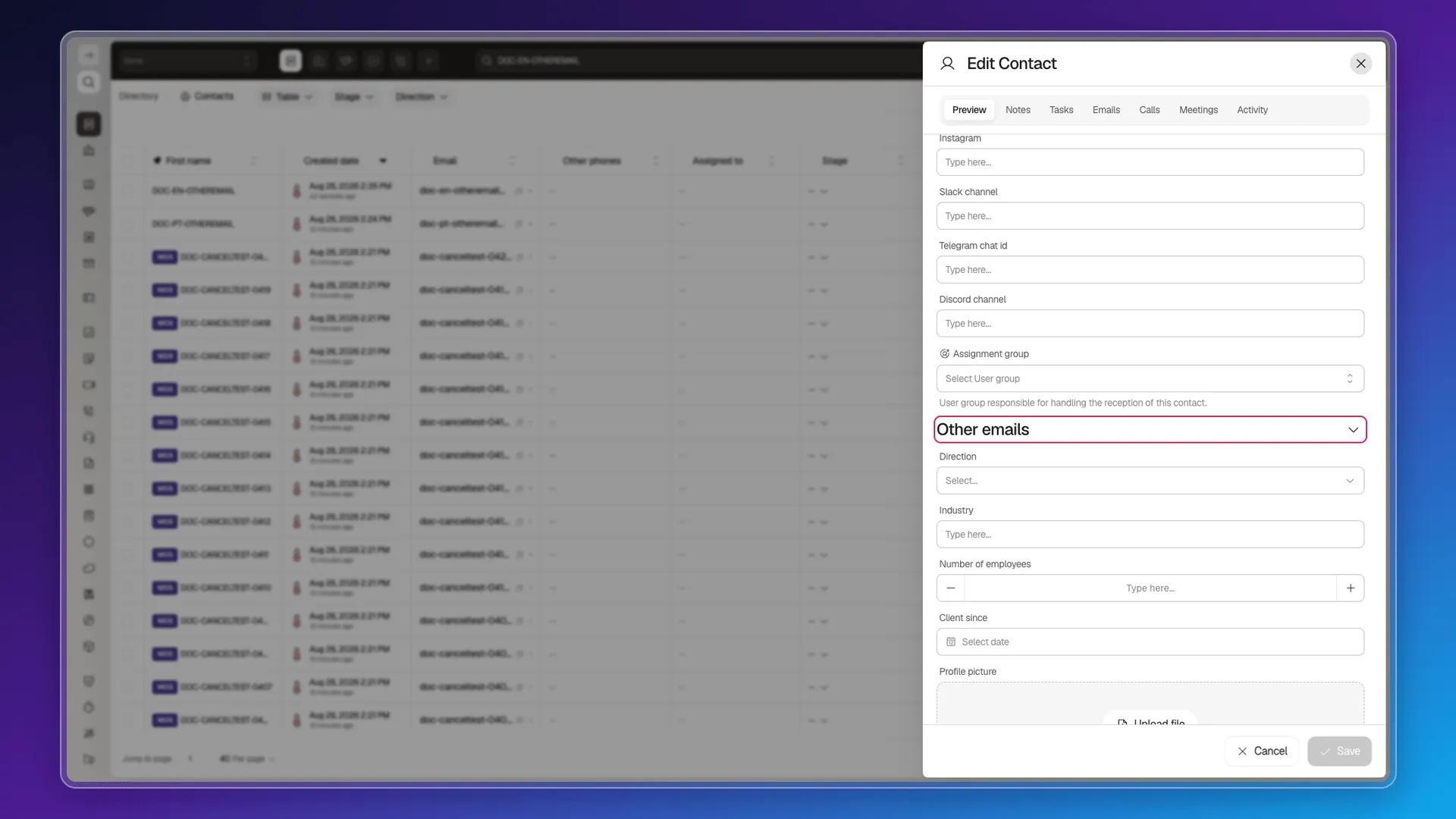
Other emails (otherEmails). This field is made up of Name / Email pairs, and the import doesn’t split them out of a text cell. Add those addresses from the contact’s record after importing.
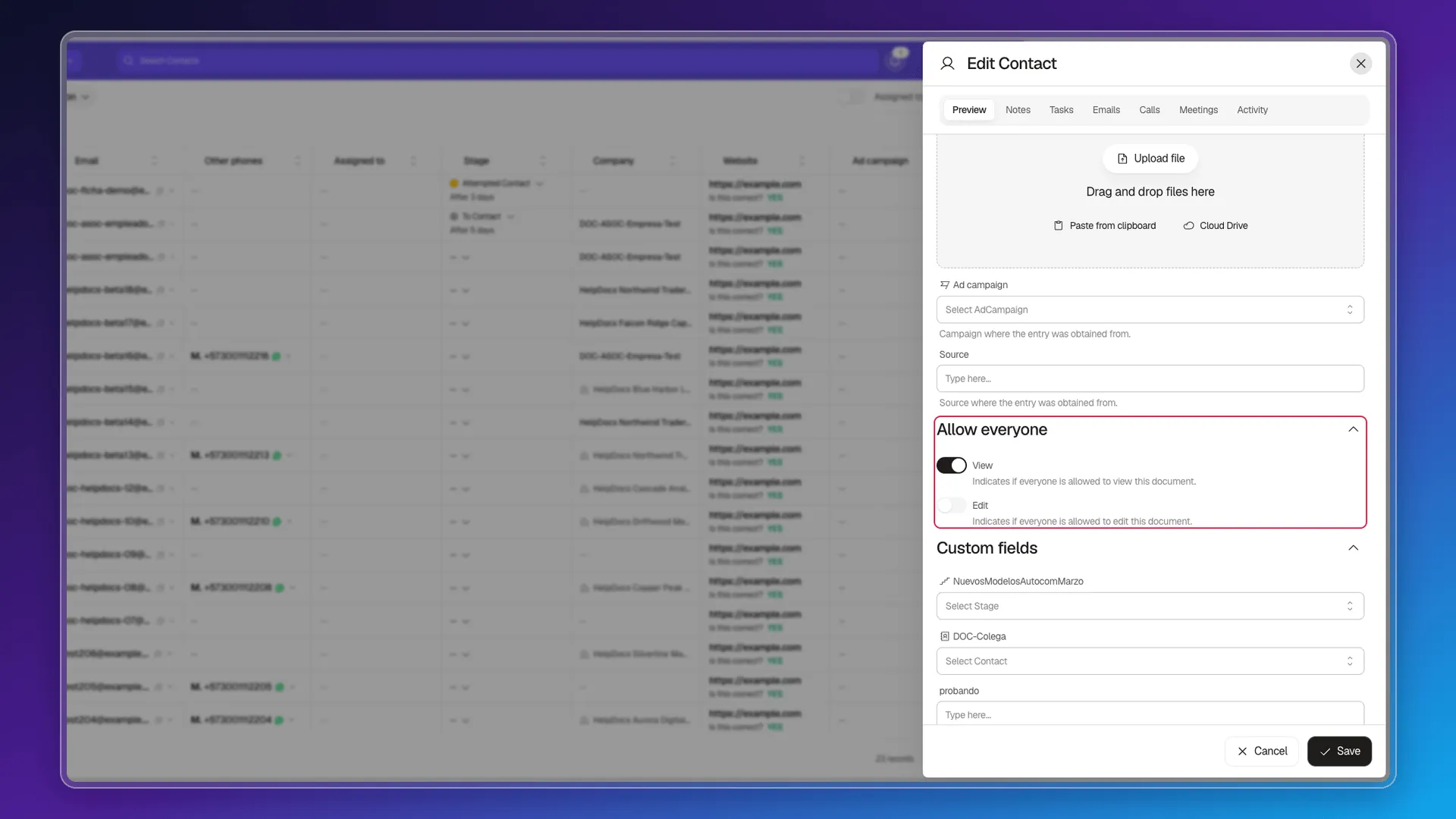
Booleans (allowEveryone.view / allowEveryone.edit). Write true or false, lowercase: the value maps straight onto the matching switch in the Allow everyone section.
Dates. Use the ISO format yyyy-mm-dd (for example 2026-01-15); the contact then shows it as “Jan 15, 2026”.
Reference columns such as stage or companyName look up an existing record by its exact name. If the value matches none, the row is rejected with the same primary-key error.
For what happens when a row does produce a visible error, see Reviewing and troubleshooting record import errors.
Frequently asked questions
The contact's internal field keys (for example firstName, email, companyName), not the labels you see in the table — the template already has them with the right name.
Yes to both, in a .xlsx file. Columns are matched by the header text, not by position, so order doesn't matter and a column that isn't recognized is simply ignored.
Use the .xlsx that Download template generates. A .csv uploads without erroring, but it creates no records and shows no progress panel.
No. It updates the existing contact instead of duplicating it, using the email address as the identifier (case-insensitive). Blank cells in that file are ignored, so they don't clear values the contact already had.
Write a single value per cell. In Tags, several separated by a semicolon make the row fail; in Other emails, the text isn't split into the Name / Email pairs the field expects.
Was this article helpful?
Thanks for your feedback!