
Associate records
Associating two records records that they are related: a contact works at a company, a deal belongs to a contact, a ticket was opened by someone. Prolibu does this in two ways, and they are worth telling apart because they behave differently:
- A reference field. A form field pointing at another record, such as Company on a contact or Contact on a deal. It lives on the record that declares it and holds a single value.
- An action that creates a related record. A button that opens another object’s form with the reference already filled in, such as Create deal with this contact in a Contacts row menu.
Which associations each object has
Section titled “Which associations each object has”There is no configurable catalog of relationships: each object ships with its own, in its own form. These are the ones the CRM ships with:
| From | To | Mechanism | Where it appears |
|---|---|---|---|
| Contact | Company | Company reference field | Contact’s Primary section |
| Contact | Deal | Create deal with this contact action | Row’s three-dot menu |
| Deal | Contact | Contact reference field | Deal’s Primary section |
| Ticket | Contact | Contact reference field | Ticket’s Requester section |
To find out what the object in front of you supports, open one of its records in edit mode and look for the fields that open a searchable picker instead of a text box: those are its reference fields. Actions that create related records live in the row’s three-dot menu.
Three consequences of the model
Section titled “Three consequences of the model”Three rules follow from this:
- A reference holds one value. Choosing another replaces the previous one instead of adding to it. A contact cannot have two companies at once.
- The relationship is not automatically two-way. It lives only on the record that declares it. From the other side you get there by filtering the list by that field, as explained below.
- There are no association labels. You cannot mark what kind of relationship it is (say “decision maker” or “billing”): the reference either exists or it doesn’t.
Permissions to associate
Section titled “Permissions to associate”There is no separate permission named “associate records.” Associating means editing a field, so two conditions are enough: the user can edit that object, and the reference field is not marked as protected against updates for their role.
Put another way: whoever can edit a contact can change its company, unless someone protected the Company field. The Access Control → Roles matrix applies rules by object and field, and holds no row or rule specifically for associations — see Assign access to records.
A reference field in detail: Contact → Company
Section titled “A reference field in detail: Contact → Company”From here on the example is Contact → Company. What follows holds for any reference field: only the field name and the object it points at change.
The contact’s Company field (see Primary) is the association. Choosing a company and saving links the contact to that record. This is the manual route, and it’s the one we recommend using always — see Automatic domain association below for why you shouldn’t rely on the automatic one.
To associate a company by hand:
- Open the contact and go into edit mode.
- In the Company field, click to open the selector and type part of the name of the company you’re looking for.
- Pick the company from the results list.
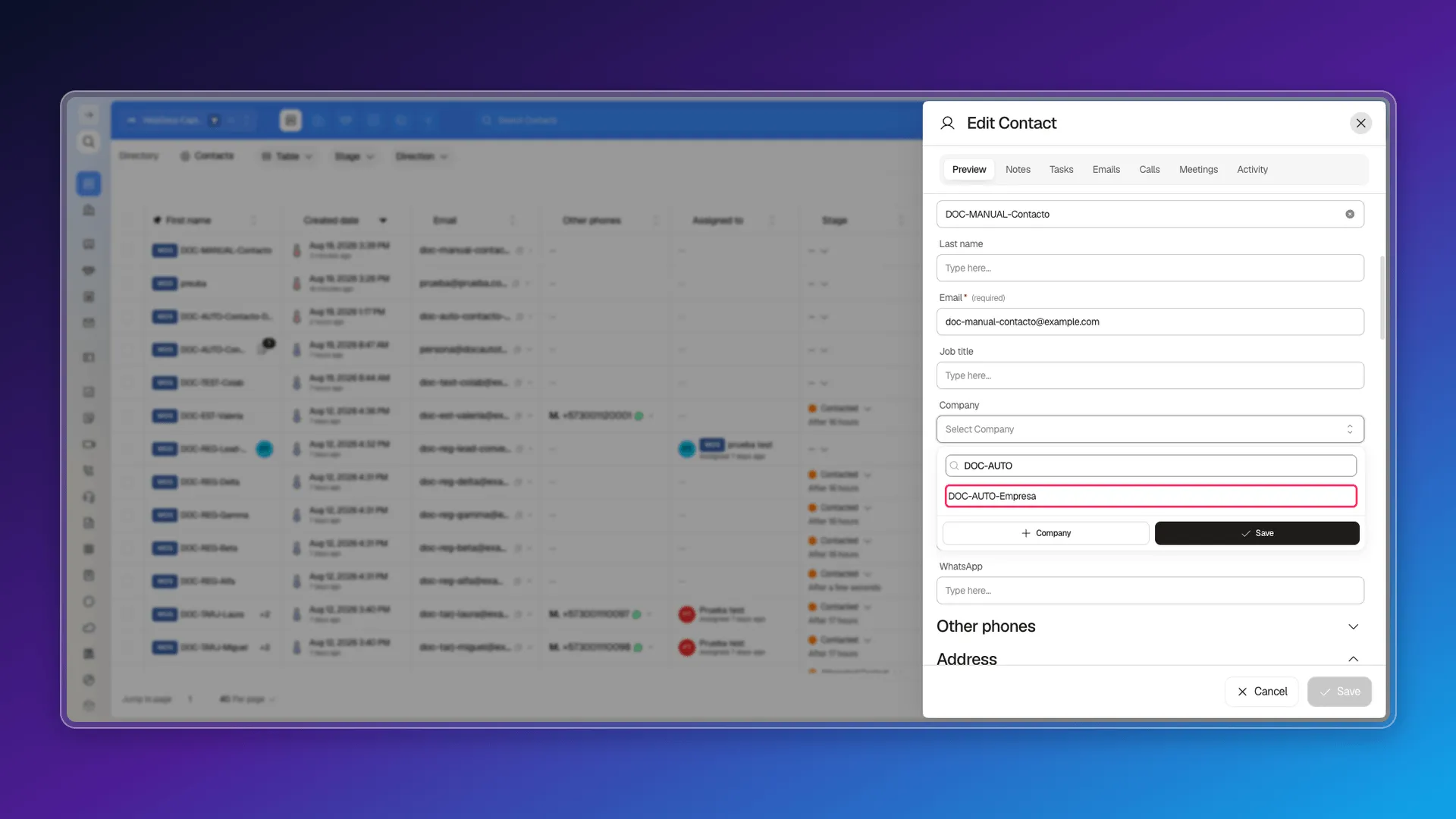
- Click Save. The field is now filled in with the chosen company.
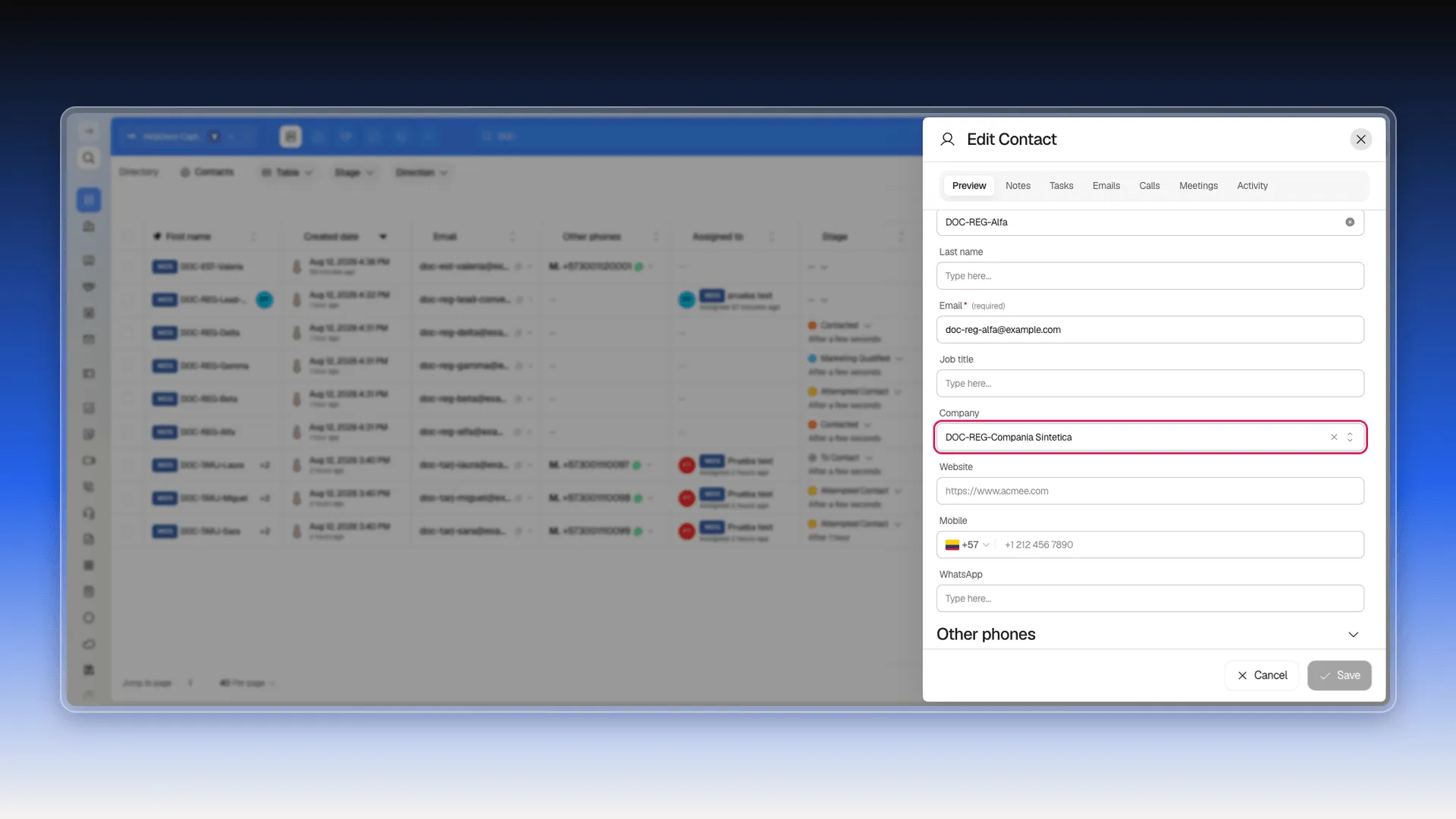
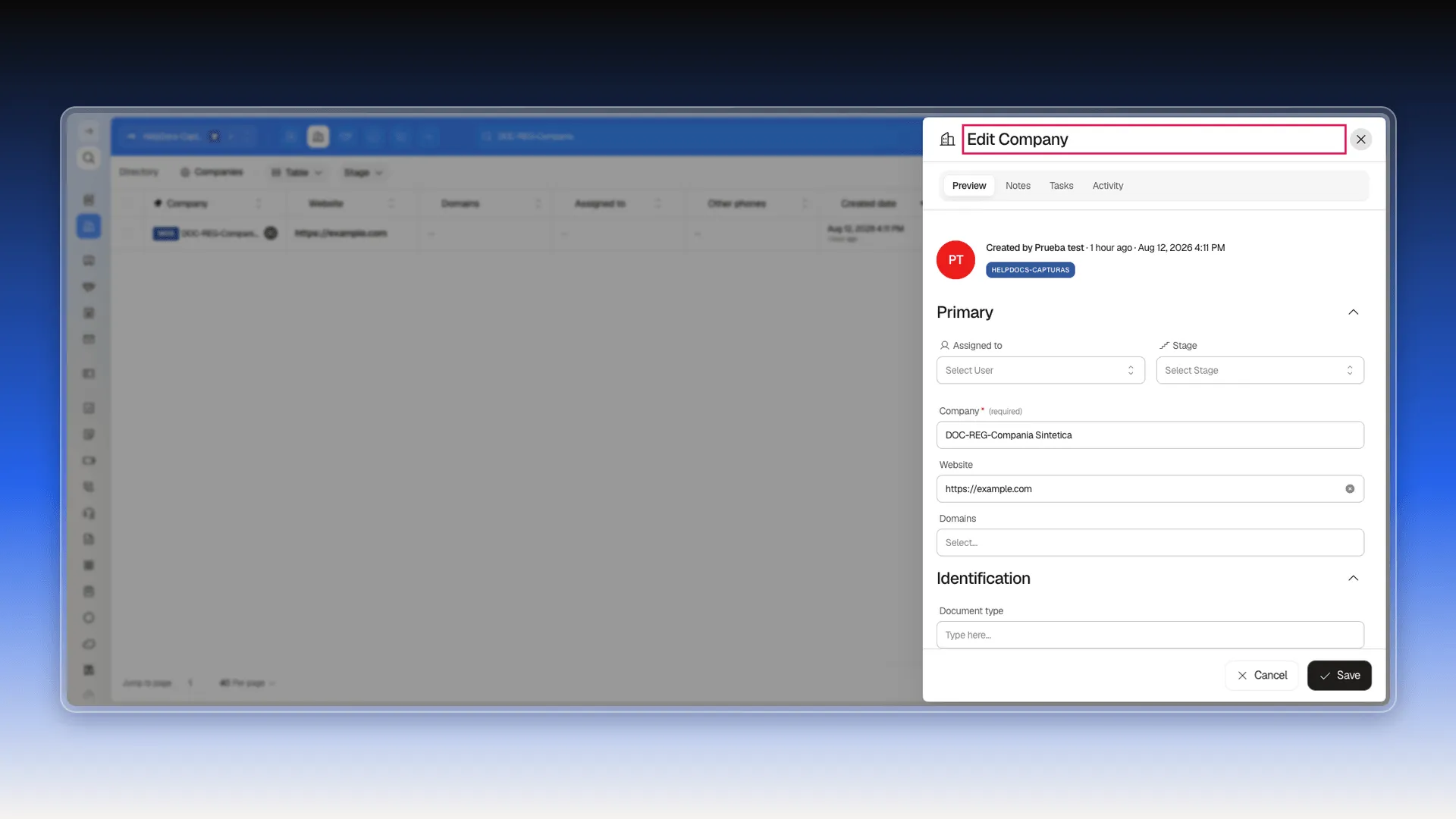
Next to the value are three controls: the pencil opens the related company’s editor in the side panel, the X removes the association (leaves the field empty), and the arrows expand the selector to pick a different company. Only one company can be set at a time — picking a new one replaces the previous one instead of adding to it.
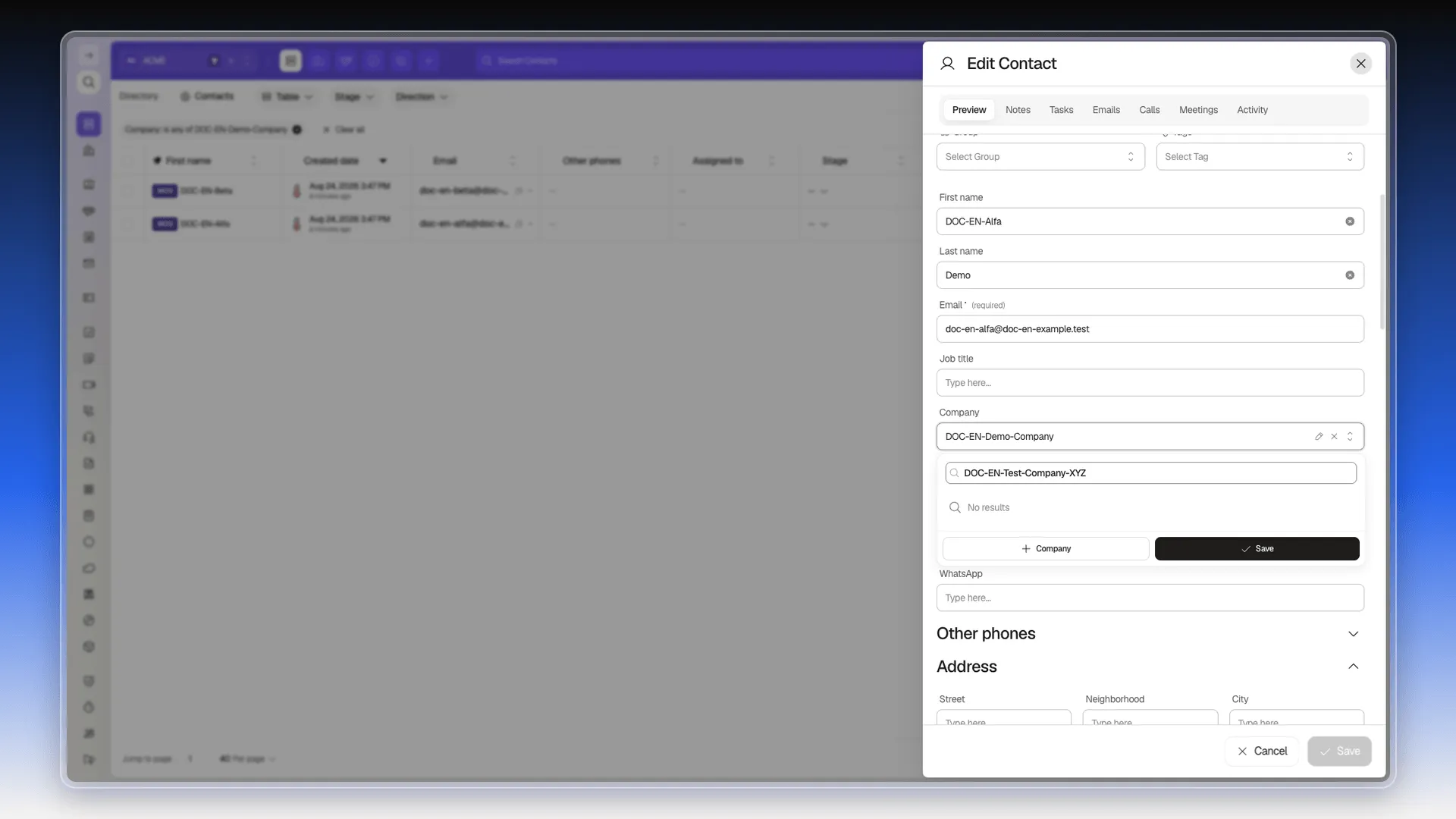
The Company field’s selector also lets you create a new company without leaving the contact’s form: if you search for a name that doesn’t exist yet, a + Company button appears next to the “No results” message.
Automatic domain association
Section titled “Automatic domain association”Prolibu can also fill the Company field on its own, matching the contact’s email domain against a company’s Domains field. There’s an ordering condition for it to fire: save the domain on the company before the contact exists. The rule fires when the contact is created afterward; it does not go back over contacts that already existed.
- Open the company and add the domain (no
http://orwww., just the domain) to the Domains field.
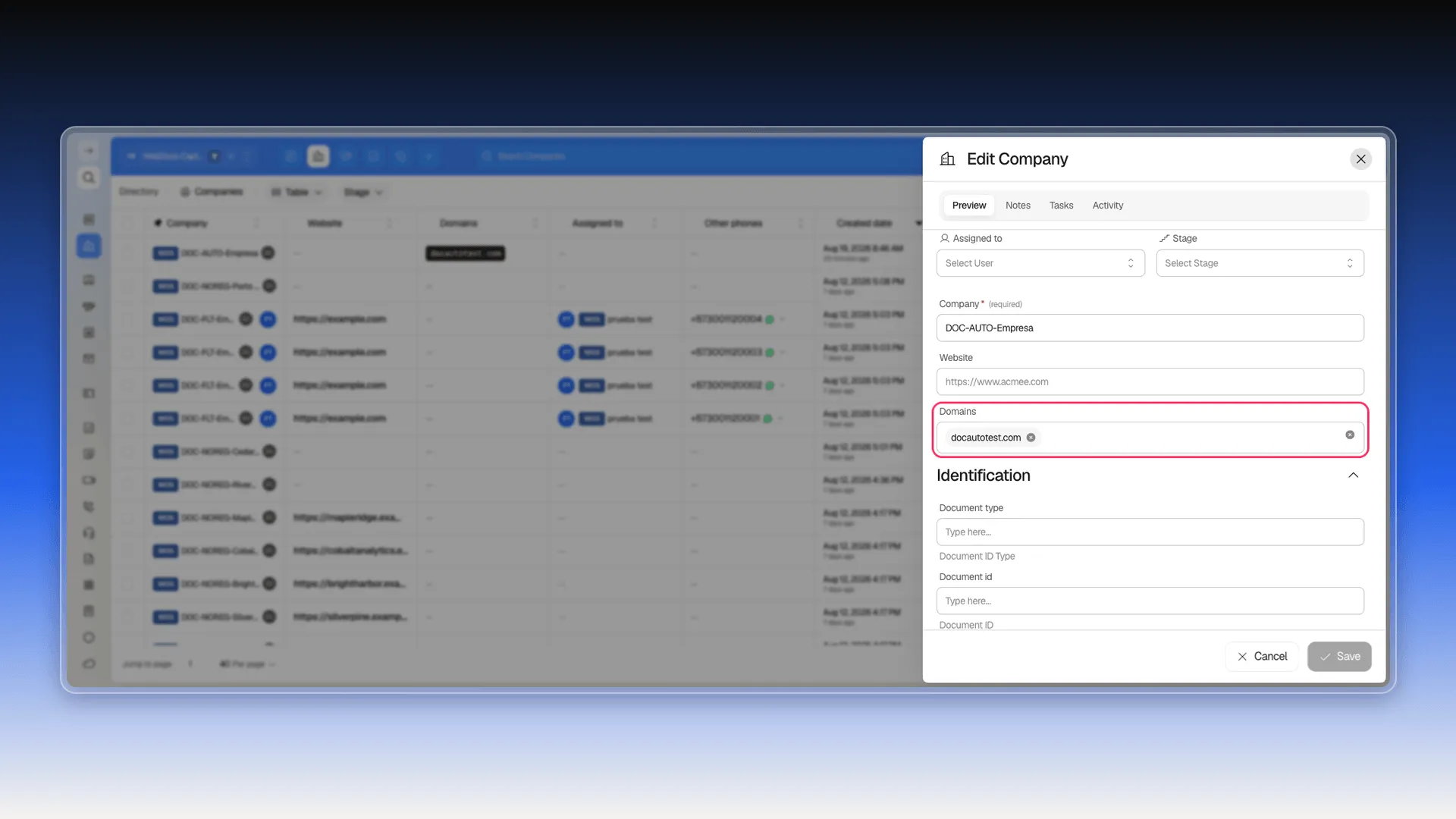
- Create a new contact with an email on that same domain. There’s no need to pick the company by hand: the contact’s Company field already shows it filled in once you save.
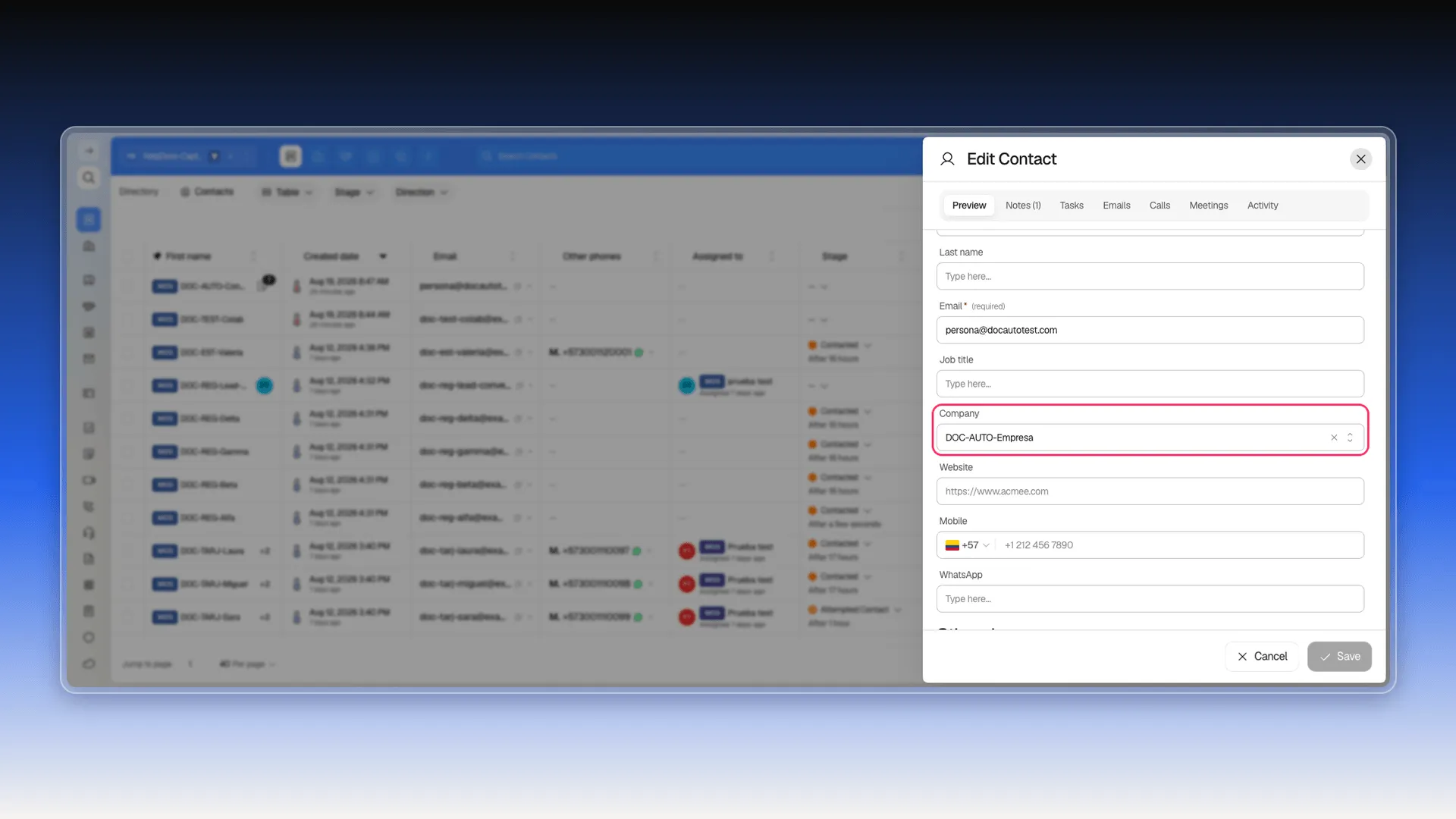
Outside that specific case, choosing the company by hand is still the normal route described above. And whether manual or automatic, the relationship is equally permanent: once assigned, the company stays linked to the contact indefinitely. It doesn’t expire, it isn’t reviewed on its own, and it doesn’t unlink through normal system use; it only changes if someone replaces it with another one or clears it from the Company field itself.
Getting there from the other side
Section titled “Getting there from the other side”Here the model’s second consequence shows up: because the reference lives only on the record that declares it, the record being pointed at carries no list of what points to it. There is no array or Contacts tab on the company’s own record.
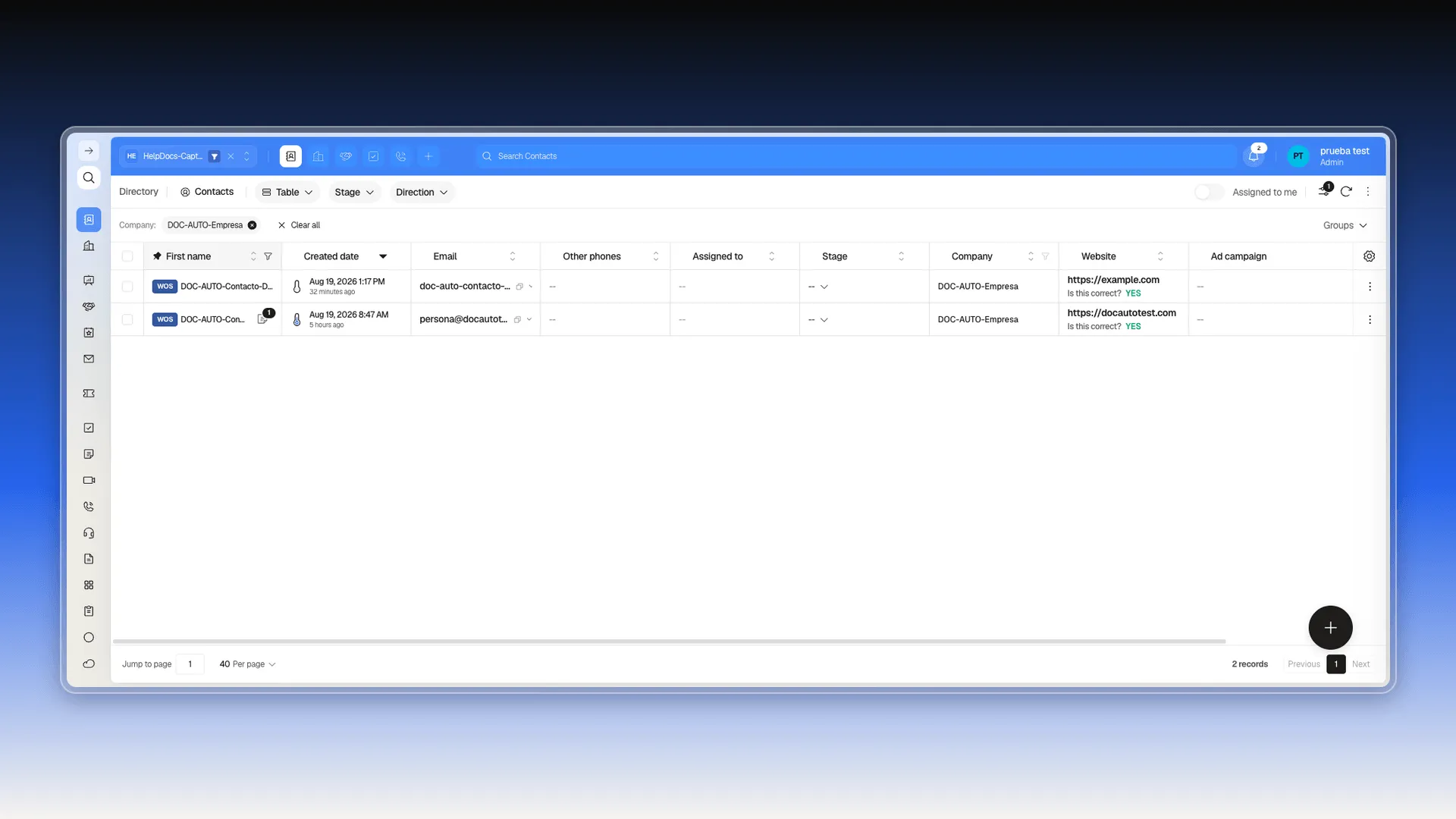
The general route, valid for any reference field, is to filter the list of the object that declares the reference by that field. In this example: in the Contacts list, filter by the Company column and pick the company you’re looking for.
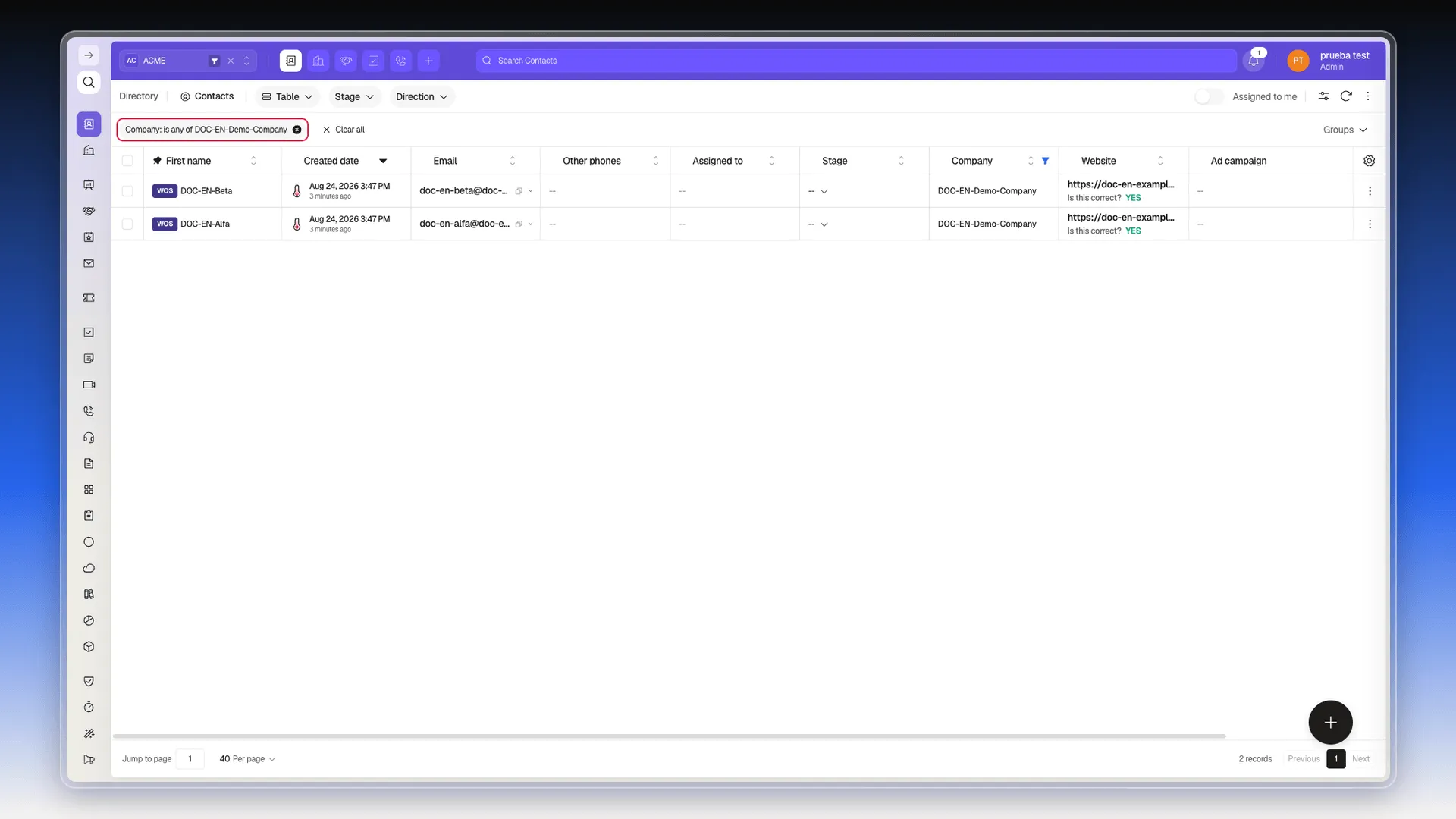
The View related records (“View company contacts”) button that appears next to some companies in the Companies list does this same filter for you, using that row’s real identifier, so it returns exactly the contacts of that company.
An action in detail: Contact → Deal
Section titled “An action in detail: Contact → Deal”The second mechanism does not fill in a field on the record you have open: it creates another record that points back at it. A contact doesn’t carry a list of deals on its own record. That association is created with the Create deal with this contact action, and the result shows up afterward in the contact’s activity.
This is the only way to return from a contact to the deal that was created: open the creation entry in its activity.
Bulk associate and disassociate
Section titled “Bulk associate and disassociate”This is possible, in four ways:
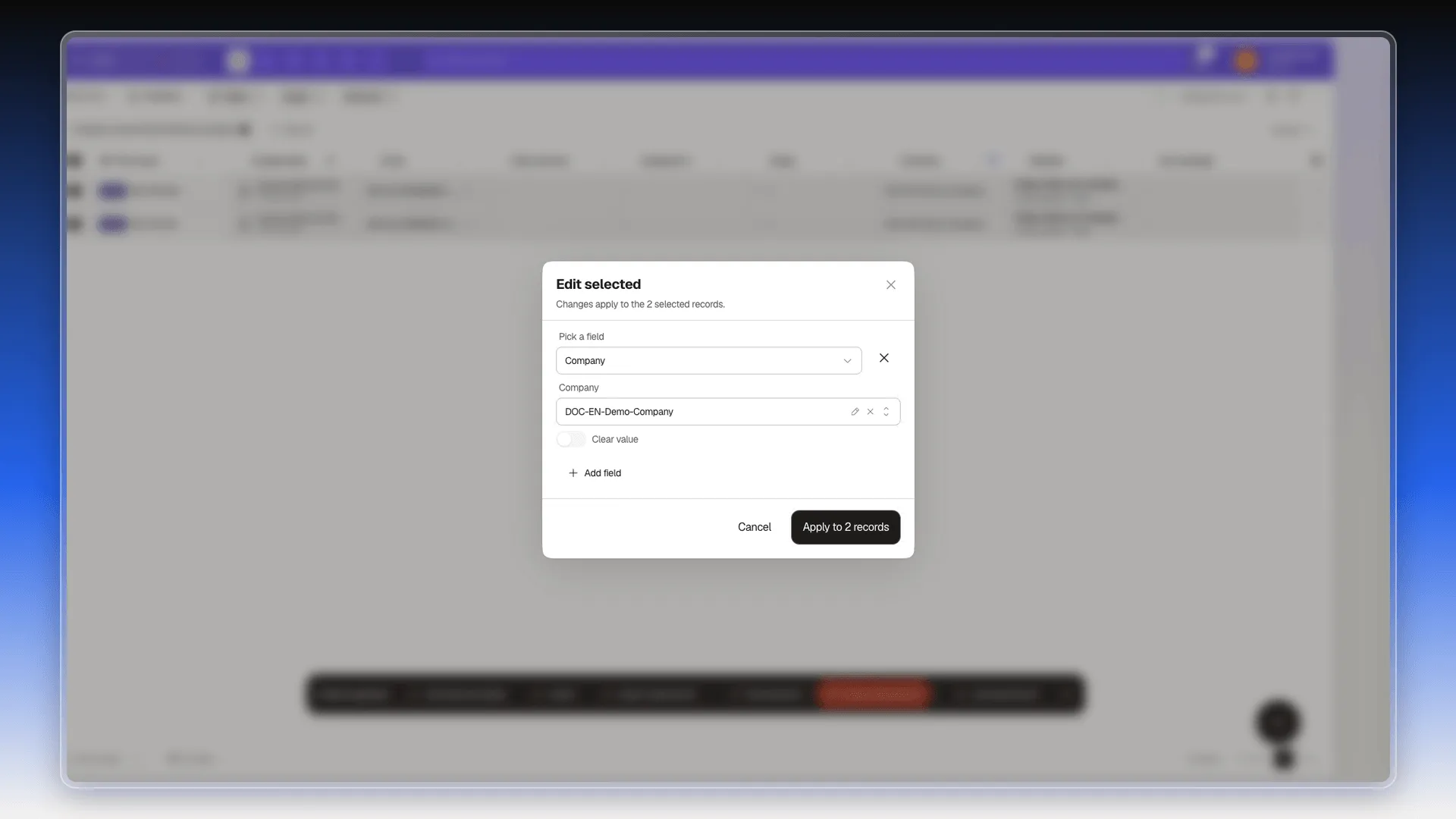
- From the interface: since a reference field is just another field, it can be changed in bulk like any other. Check several records in the list with each row’s checkbox and use the Edit selected action from the bar that appears at the bottom (“N Items selected”). In the dialog, pick the Company field, choose the company (or turn on Clear value to bulk-disassociate) and confirm with Apply to N records. The same mechanism works for any other bulk-editable field, not just Company — see Editing records in bulk.
- Through import: the
companyNamecolumn in the Contacts import file links each row to an existing company, as explained in Formatting import files. It’s a reference to a company that already exists, not the creation of a new one in the same upload — see Importing records for multiple objects. - Through the API: manual association also works when updating the contact:
PATCH /v2/contact/:idwith the company identifier in thecompanyfield. - By email domain: if the company already has its domain saved beforehand, any new contact with an email on that domain gets associated with it on its own, without being picked by hand (see the Automatic domain association section above).
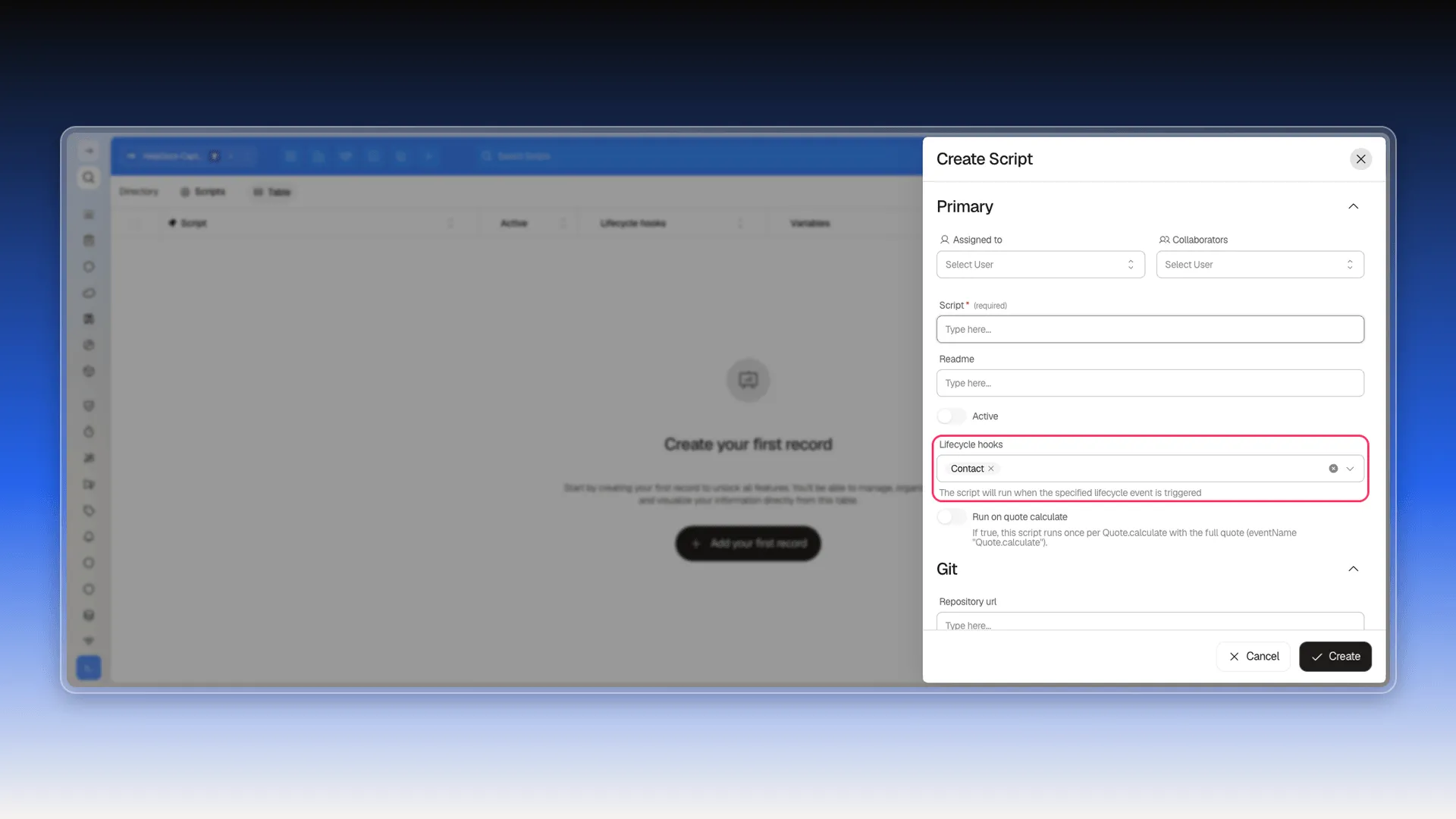
- Through Scripts: Scripts (Development → Scripts) is code that runs when a lifecycle hook fires for a chosen object — for example, every time a Contact is created or updated. The mechanism — arbitrary code triggered by an object event, with read/write access — supports implementing that logic.
The same pattern on other objects
Section titled “The same pattern on other objects”None of the above is exclusive to Contacts: it is the pattern the rest of the CRM objects follow.
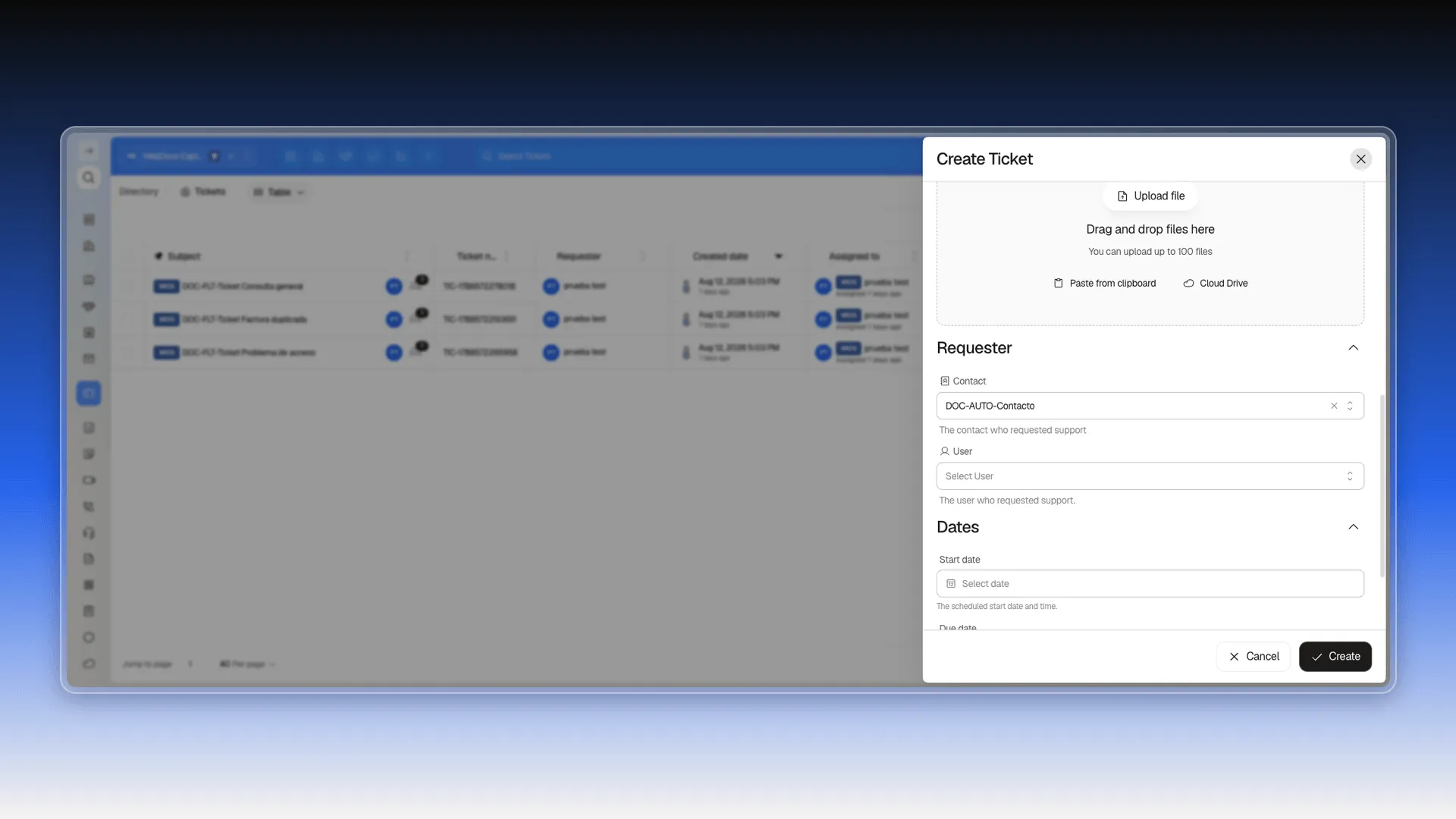
Tickets shows it from the other side. Its Create Ticket form has a Requester section with two reference fields, Contact and User — the first behaves exactly like a contact’s Company field (one value, searchable picker, relationship stored on the record that declares it), except here the ticket is the one declaring it.
Deals does the same with their Contact field, in the Primary section. That field is the counterpart of the Create deal with this contact action: when you use the action from a contact, what gets filled in is precisely that field on the new deal.
Meetings, Courses, Listings, and Services are CMS Hub concepts with no known equivalent in Prolibu, so they don’t apply.
See also
Section titled “See also”- Create deal with this contact — the example’s action, in detail.
- How to use objects for business processes — which objects exist, and when to relate them instead of adding fields.
- View and filter records — to get there from the record being pointed at.
- Editing records in bulk — to associate or disassociate in bulk.
- Formatting import files — to associate during an import.
Frequently asked questions
By selecting that company in the contact's Company field. The relationship is stored as a reference — no separate action is needed.
Yes, filter the Contacts list by the Company field and pick the company's name.
Yes, the pencil icon next to the Company field opens that company's editor in the side panel.
No. The Company field holds a single value; to relate the contact to another company you have to replace it.
Yes, under one condition: if the company already has that domain saved in its Domains field, a contact created afterward with an email on that domain gets associated with it on its own, without being chosen by hand. There's no way to turn this behavior off, so we recommend always associating manually instead of relying on it.
Was this article helpful?
Thanks for your feedback!