
Import records for multiple objects
You can import more than one object type — Contacts and Companies, for example — in a single upload. The key is the template’s datamap sheet, which until now only had one row.
What the default template ships with
Section titled “What the default template ships with”The template downloaded from More actions → Download template ships three sheets: README (technical instructions for importing via the API), datamap (the map of which sheet maps to which object), and a sheet named after the object (Contact, Company…) with the real columns.
The datamap sheet looks like this:
| sheetName | objectType | from | to | skip |
|---|---|---|---|---|
| Contact | Contact | false |
Each row tells the importer: “process the sheetName sheet as records of the objectType object.” By default there’s only one row — the one for the module you downloaded the template from.
Adding a second object to the same upload
Section titled “Adding a second object to the same upload”To import Contacts and Companies together, for example:
- Download the Contacts template (or open one that already has data).
- Also download the Companies template and copy its entire
Companysheet (with its columns) into the same file. - In the
datamapsheet, add a second row:sheetName = Company,objectType = Company. - Fill in the data on each sheet as usual and save the file.
- Upload the file once from More actions → Import, in either of the two modules.
The datamap sheet ends up looking like this:
| sheetName | objectType | from | to | skip |
|---|---|---|---|---|
| Contact | Contact | false | ||
| Company | Company | false |
Prolibu processes each declared sheet as an independent import, but within the same upload: the Import data panel shows a combined counter (2 Total, 2 Imported in this example) with its own progress bar per object.
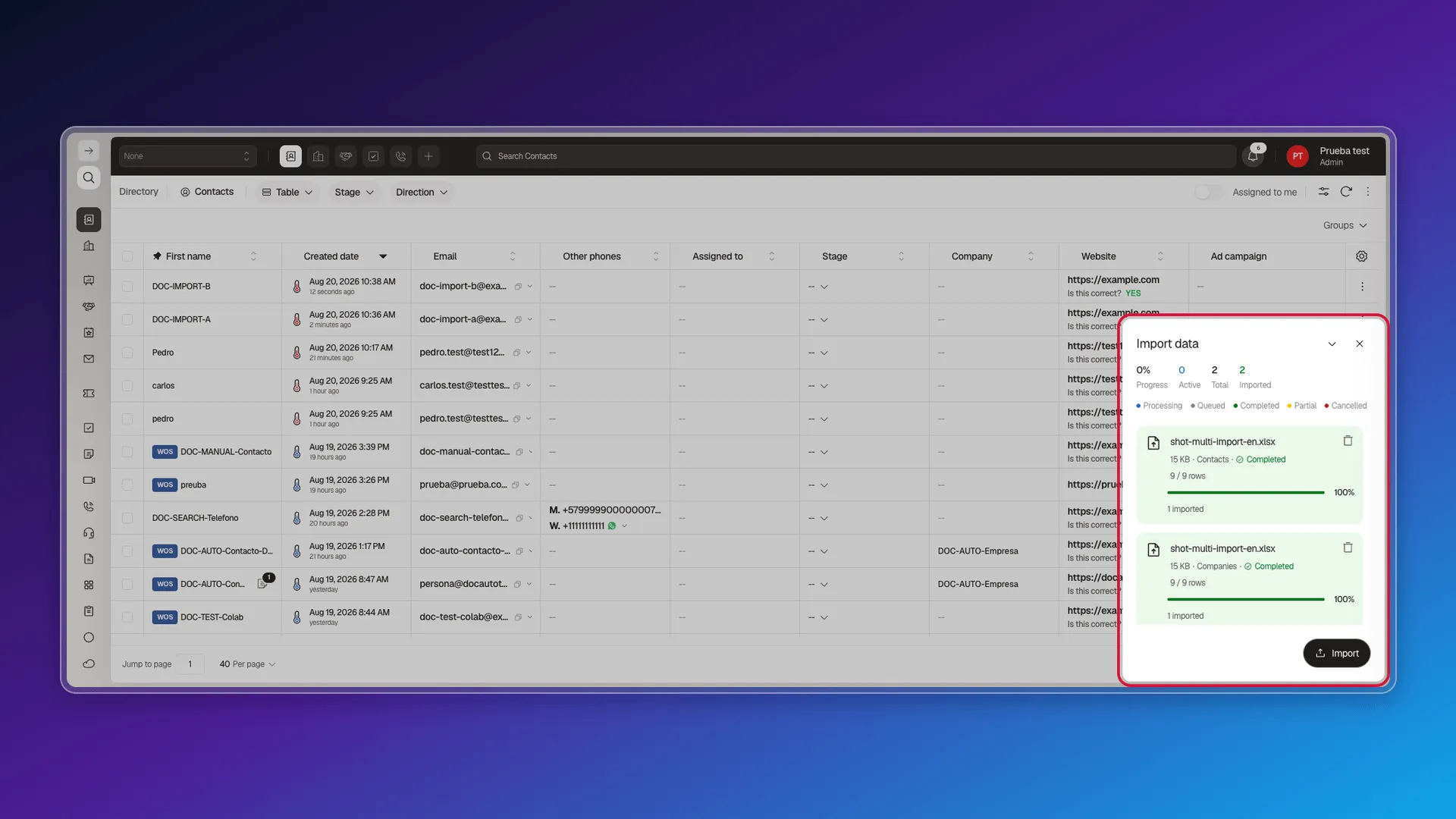
If you need to load several record types without linking them to each other — the most common case — this already solves it: two objects, one file, one upload.
Linking the records: the company has to exist first
Section titled “Linking the records: the company has to exist first”The company reference column only resolves against a company that already exists at the moment that contact row is processed — not against a row further down the same file. That gives two valid paths, and in both the field that links is the same: company must carry the company’s companyCode, not its refId or its name.
In the same upload, with the right order in datamap
Section titled “In the same upload, with the right order in datamap”If Contacts and Companies go in the same file (see above), the importer processes sheets in the order they appear in datamap. Put the Company row before the Contact row:
| sheetName | objectType | from | to | skip |
|---|---|---|---|---|
| Company | Company | false | ||
| Contact | Contact | false |
With that order, by the time it’s the Contact sheet’s turn the company already exists and the company column finds it: open the contact’s record and the Company field is genuinely linked, not just the plain name the table shows. Reverse the order (Contact before Company) and the contact upload fails row by row with “Document not found by primary key ‘‹code›’ in ‘company’”, because at that point in the process the company doesn’t exist yet.
In two separate uploads
Section titled “In two separate uploads”If you’d rather not depend on sheet order — or the company already existed — upload companies first and contacts next:
- Companies first. Upload the file with the
Companysheet and give each one its owncompanyCode. - Contacts next. In the
Contactsheet, fill thecompanycolumn with that samecompanyCode.
companyCode also works as a unique key, so re-uploading the same Company sheet updates the company instead of duplicating it.
Frequently asked questions
Yes. The template ships a "datamap" sheet that declares which sheets in the file to process and which object each one maps to — add one more sheet (for example Company) and one more row in "datamap" to include it in the same upload.
Yes, under two conditions. The contact's "company" column must carry the company's companyCode (not its refId or its name), and in the "datamap" sheet the Company row must come before the Contact row: the importer processes sheets in that order, so the company has to exist already by the time it's the contact's turn. With the order reversed, the contact upload fails row by row with "Document not found by primary key", because it's looking for a company that doesn't exist yet.
No. You upload the file once, from More actions → Import in any of the modules involved; Prolibu processes each sheet declared in "datamap" as an independent import, all within the same upload.
Because you filled in the companyName column, which is plain text: the table's Company column shows the name, but the contact's record leaves the Company field empty. The one that links is the company column, with the company's companyCode.
Was this article helpful?
Thanks for your feedback!