
Share records with users and teams
The default rule
Section titled “The default rule”Who can view or edit a record without it being shared directly depends on the user’s role, not the record itself — that’s set for the whole account and object by object, not record by record. The Owned or Assigned rule already recognizes collaborators: it limits access to documents “created by the user, assigned to them, where they appear as a collaborator, or shared with them through the share action”.
Direct mechanisms: Collaborators and Allow everyone
Section titled “Direct mechanisms: Collaborators and Allow everyone”Beyond that default rule, you have two direct mechanisms for sharing a record one-off — use them separately or combine them:
- Collaborators (Primary section): grants access to specific users, one at a time, without changing who’s in Assigned to.
- Allow everyone: a collapsible section (closed by default, showing the “No · No” summary) that expands into two independent switches, View and Edit, each with its own description (“Indicates if everyone is allowed to view/edit this document”).
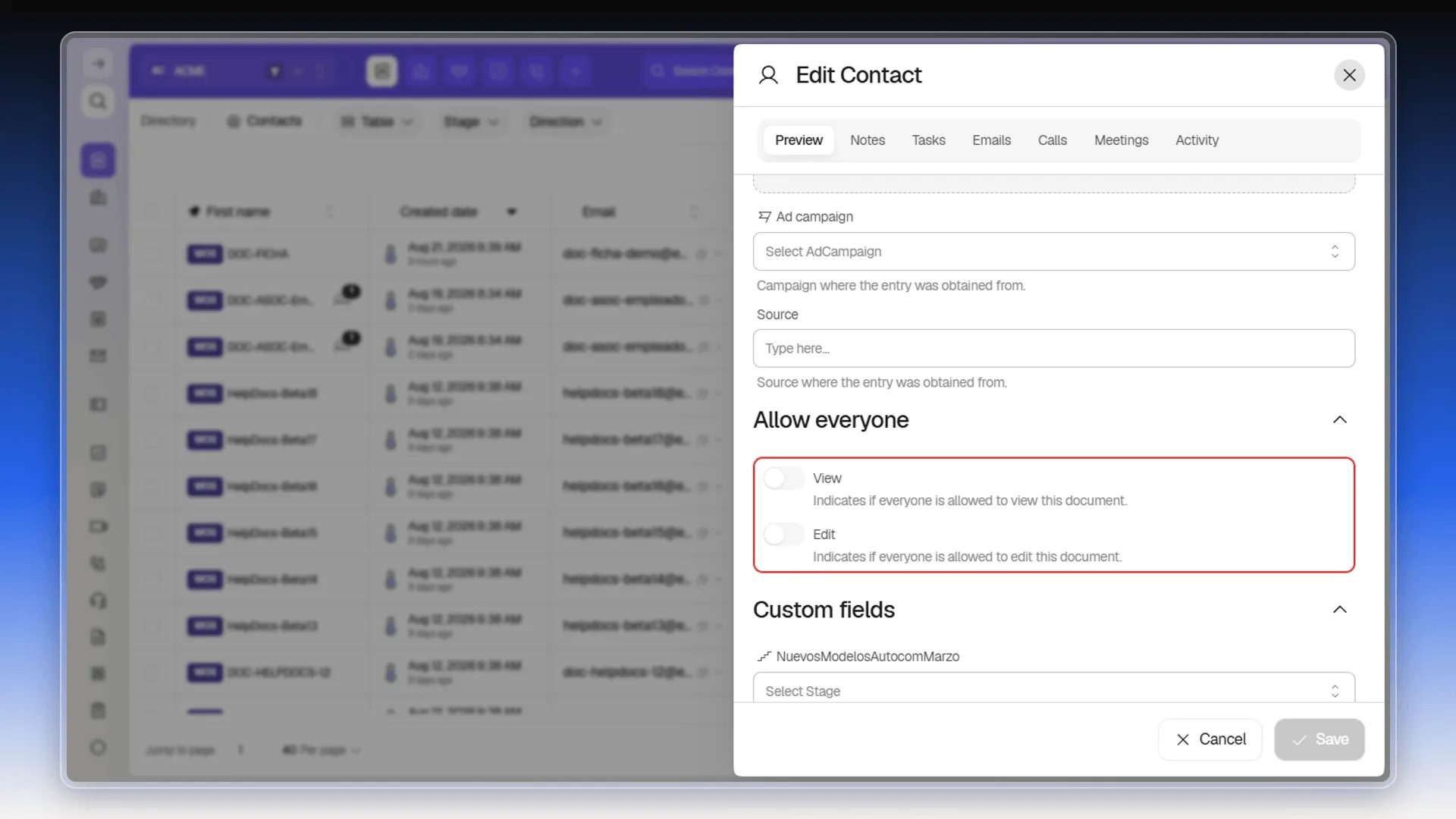
The difference between the two is reach: Allow everyone opens the record to the whole account in one move; Collaborators opens it only to whoever you pick, one at a time. If you need to share with a specific group of people, Collaborators is the way.
Adding and removing collaborators
Section titled “Adding and removing collaborators”To add someone, open the record’s Primary section, open Collaborators, search for and select the person, then save — each selected person gets linked to the record and can view or work on it according to their own permissions. To remove one person, use the remove icon next to their name and save; the rest of the collaborators stay. To clear the field entirely, use the X at the far right of the selector (to the right of the +N count if there are several people) and save to confirm — closing the record without saving doesn’t apply the change.
A collaborator’s access works the same as the person in Assigned to: it depends on their own permissions for that record, their account type, and any applied restrictions. Adding someone doesn’t by itself expand the security rules configured for the account. To add, edit, or remove collaborators you need permission to edit the record, and the Collaborators field must not be protected for your role — if it’s protected, Prolibu discards the change when you save.
Sharing several records at once
Section titled “Sharing several records at once”No need to repeat the process record by record: select the records in the list, click Edit selected, and pick the Collaborators field. The users you add there apply to every selected record in a single operation.
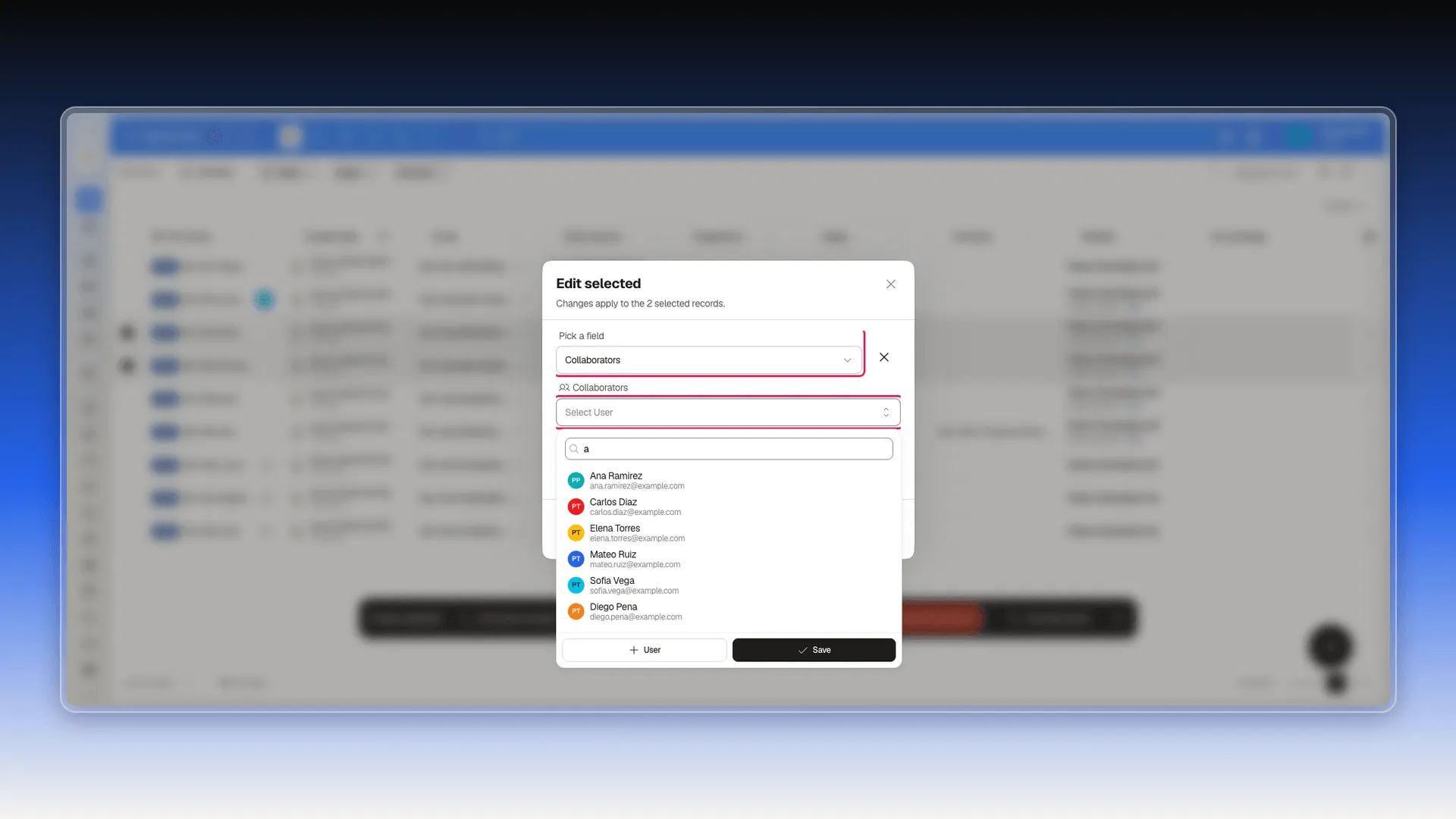
Before applying it, carefully check the selected records and the field value. For an update from a file, see Importing records for a single object and Prepare an import template.
Scope and automation
Section titled “Scope and automation”This page’s example is Contacts, but neither mechanism is exclusive to it: the Collaborators + Allow everyone pair reappears on other objects’ forms in the account — including Deals — for example when creating a tag or a scoring, though each form’s detail may differ. If you can’t modify the Collaborators field on a specific record, ask your account administrator to review your access to that record.
If you want to automate collaborator management — adding or removing them when a condition is met —, the route is Scripts: they can read, add, update, replace, or remove collaborators as part of an automated flow.
The Assignment group doesn’t share on its own
Section titled “The Assignment group doesn’t share on its own”In Contacts, the record itself describes the Assignment group field as the “group of users responsible for handling the reception of this contact”. It’s an assignment field, not a permission — and that’s the trap: it looks like it should grant access, but on its own it does nothing.
Whether that group ends up granting access depends on a role rule: Same Group Users (“users in the same user group can access the records”). If the role doesn’t have it enabled, filling in the Assignment group shares absolutely nothing. See Assign access to records.
That rule looks at exactly the contact’s Assignment group: it’s the only link between a contact and a user group. And who belongs to each group is defined on the group itself —under Access Control → User Groups—, not on each person’s record.
Frequently asked questions
With two combinable mechanisms — Collaborators (Primary section) grants access to specific users, and Allow everyone view/edit opens it to the whole account. The Assignment group can add to this, but it depends on the role's access rule.
Yes, with Collaborators — add the people who should have access one at a time. Allow everyone, by contrast, opens the record to the whole account.
Yes, with Edit selected → Collaborators field, but be careful: it replaces the field's value on each selected record, not adds to whatever collaborators it already had.
Permission to edit the record, and the Collaborators field must not be protected for your role. If the field is protected, Prolibu discards the change when you save.
Was this article helpful?
Thanks for your feedback!