
Search your CRM
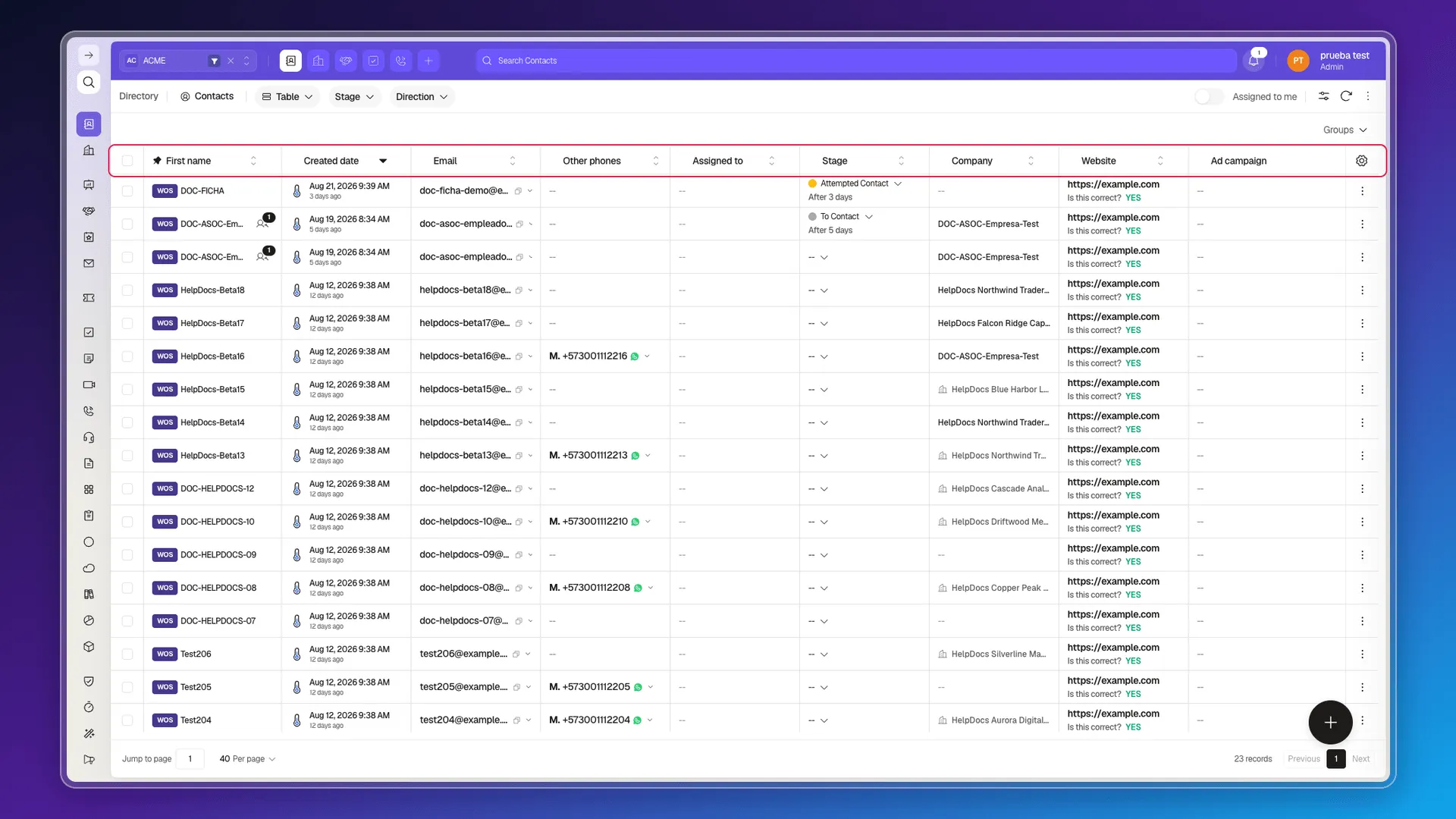
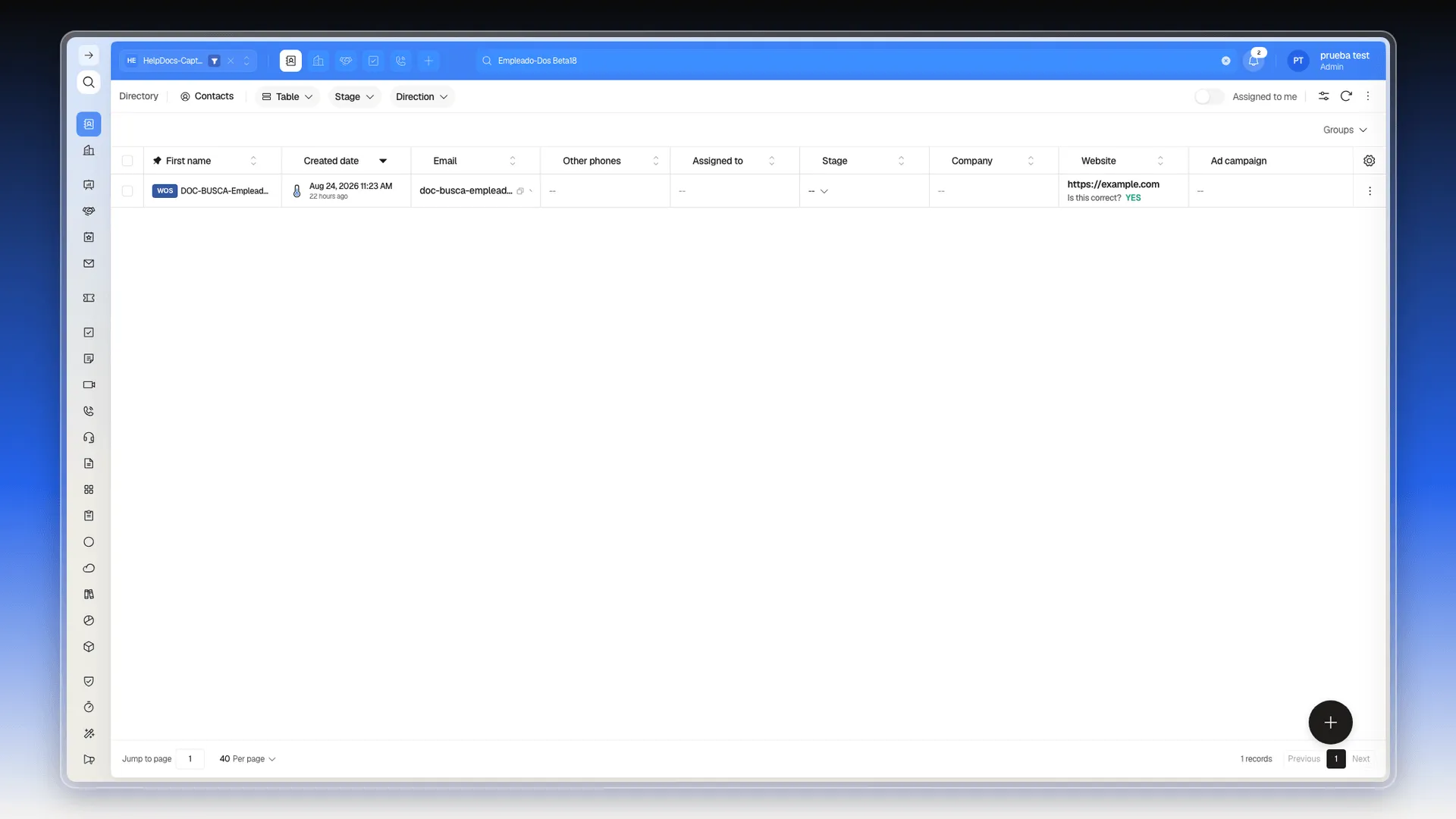
Each object comes with its own default columns: in Contacts they are First name, Created date, Email, Other phones, Assigned to, Stage, Company, Website, and Ad campaign. Header indicators let you sort each column; to change which ones appear, see Views and columns.
Search in the open table
Section titled “Search in the open table”- Enter a name, email address, or other identifying text in the top bar’s search field; it takes the name of the active object (Search Contacts, in the example).
- Wait for the result: the table updates as you type, without pressing Enter.
- Use the X in the field to return to all records.
How search works
Section titled “How search works”The same top-bar search box exists in every module of Prolibu Suite, not just Contacts: it filters the table in the module you have open. It is not a global search — when you move from Contacts to Companies, both the field name (from Search Contacts to Search Companies) and the records being queried change. To check another record type, open its module first. The command palette helps you locate and open modules; it does not return records that match the text you enter.
What it searches
Section titled “What it searches”Search compares your text with data in the module table. In Contacts, it matches by name, email address, phone, company, and website. In other modules, the data that can produce matches changes with the context of their table; use their filters when you need a specific condition.
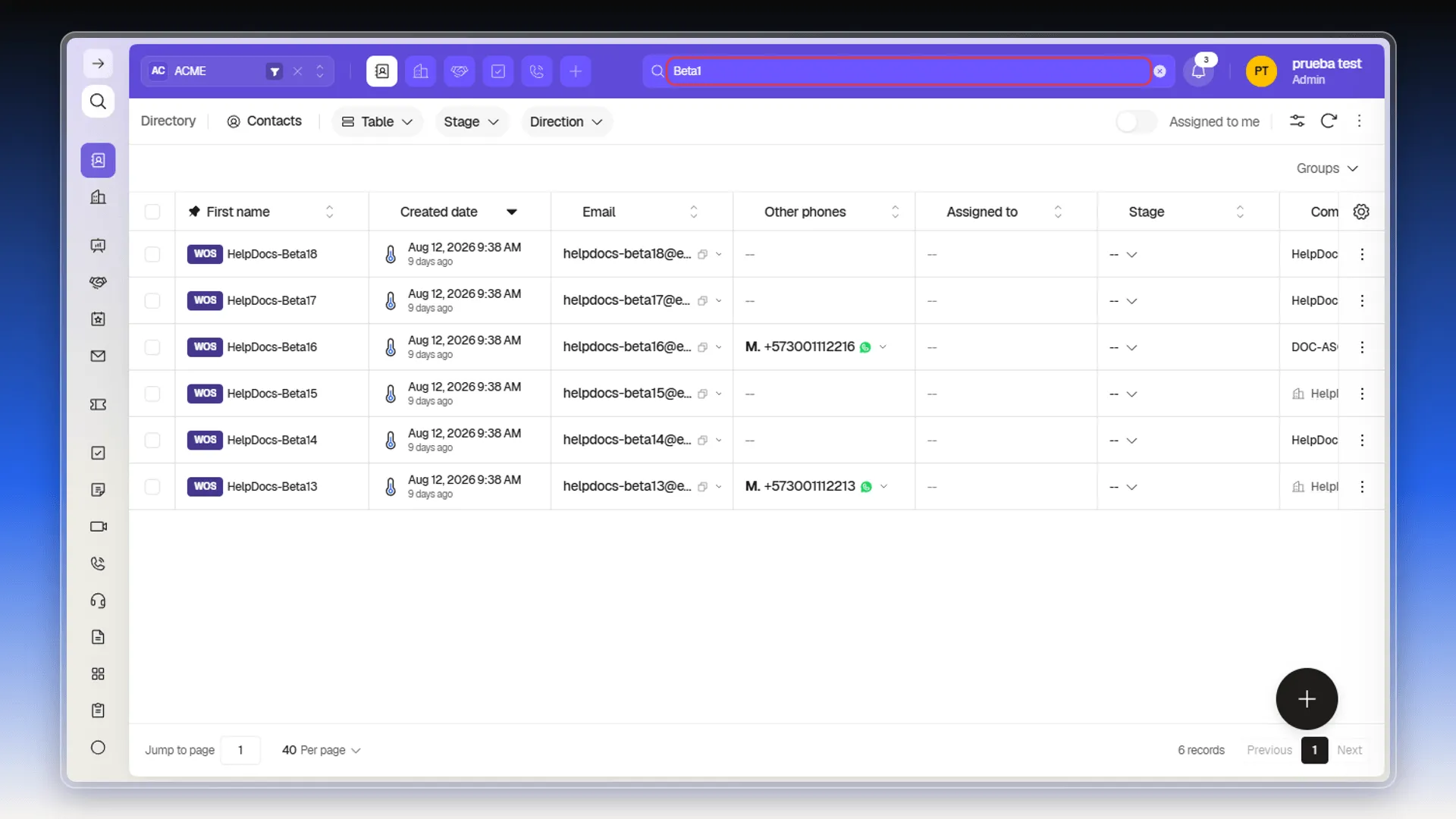
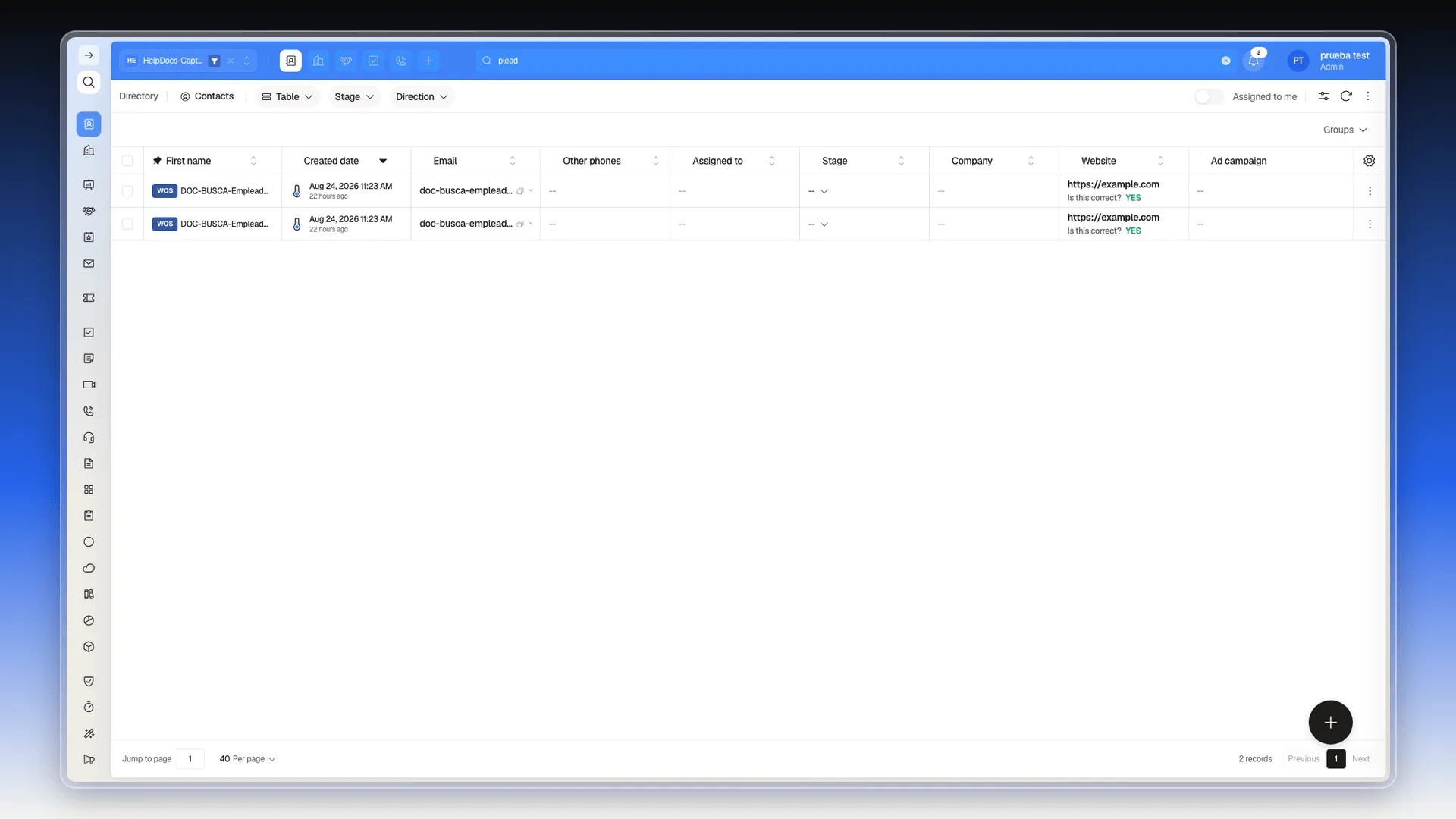
The match does not require a whole word: a fragment in the middle of a name, email, or company also counts, even if you don’t know where the word starts.
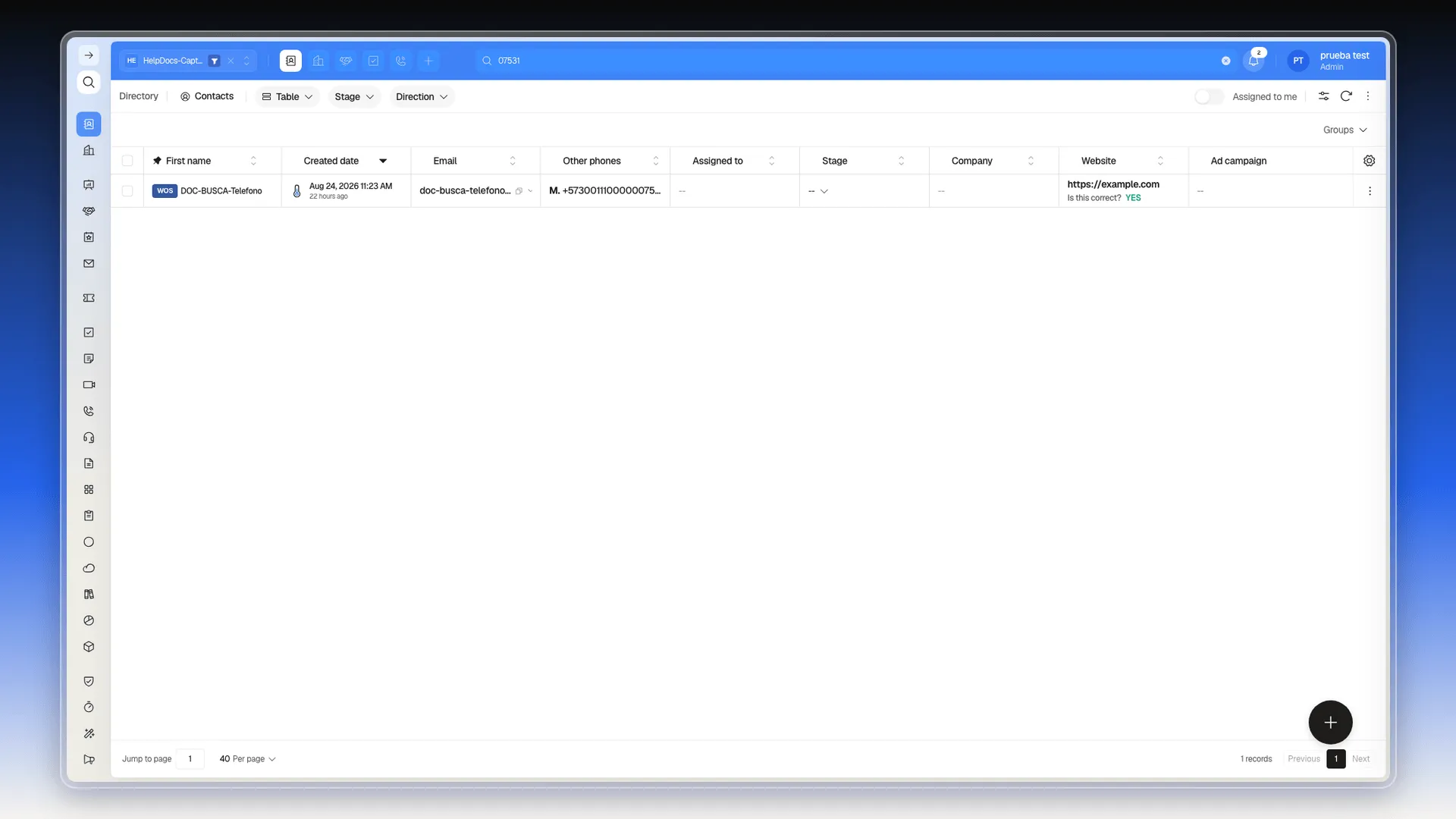
The same applies to phone numbers: you can search with any part of the number, no matter how many digits it has.
Capitalization, accents, hyphens, and phone format
Section titled “Capitalization, accents, hyphens, and phone format”Search does not distinguish uppercase from lowercase, or accented from unaccented letters. Hyphens, however, change the terms being compared: if a hyphenated search has no result, try the same text without that separator or use a filter to make the condition precise.
It also recognizes the same phone number when you enter only its final digits or change its format: 112216, 3001112216, 300-111-2216, and +573001112216 all lead to the same contact.
Multiple terms at once
Section titled “Multiple terms at once”Separate terms with spaces. The table shows the union of everything that matches any of them: search two names at once and both records appear; search three and all three appear.
Repeating the same term does not narrow the result further: searching Beta18 or Beta18 Beta18 returns the same contact.
Quotes for an exact phrase
Section titled “Quotes for an exact phrase”Wrapping the text in double quotes changes the rule: instead of the union of the terms, it requires the text to appear verbatim. For example, Beta18 Beta17 returns both contacts, while "Beta18 Beta17" returns none, because no record contains that literal phrase. Use quotes when your text has spaces and you don’t want each word pulling in results of its own.
There is no OR operator: if you type it, it’s treated as one more term and adds noise — Beta18 OR Beta17 returns five contacts instead of two, because records containing “or” somewhere in their data match too. A space between two terms is enough to search for both at once.
Live results
Section titled “Live results”The table filters as you type; there is no search button and you do not need to press Enter.
Result order and grouping
Section titled “Result order and grouping”Results remain in the table with the columns, sorting, and pagination already set in that module. Search does not create groups or a separate results panel; it reduces the available rows and updates the record total.
Open a result
Section titled “Open a result”Select a cell in the record you need. Prolibu Suite opens the record’s detail side panel without taking you away from the table or clearing the search text. Review the information there, then close the panel to continue with the results.
No results
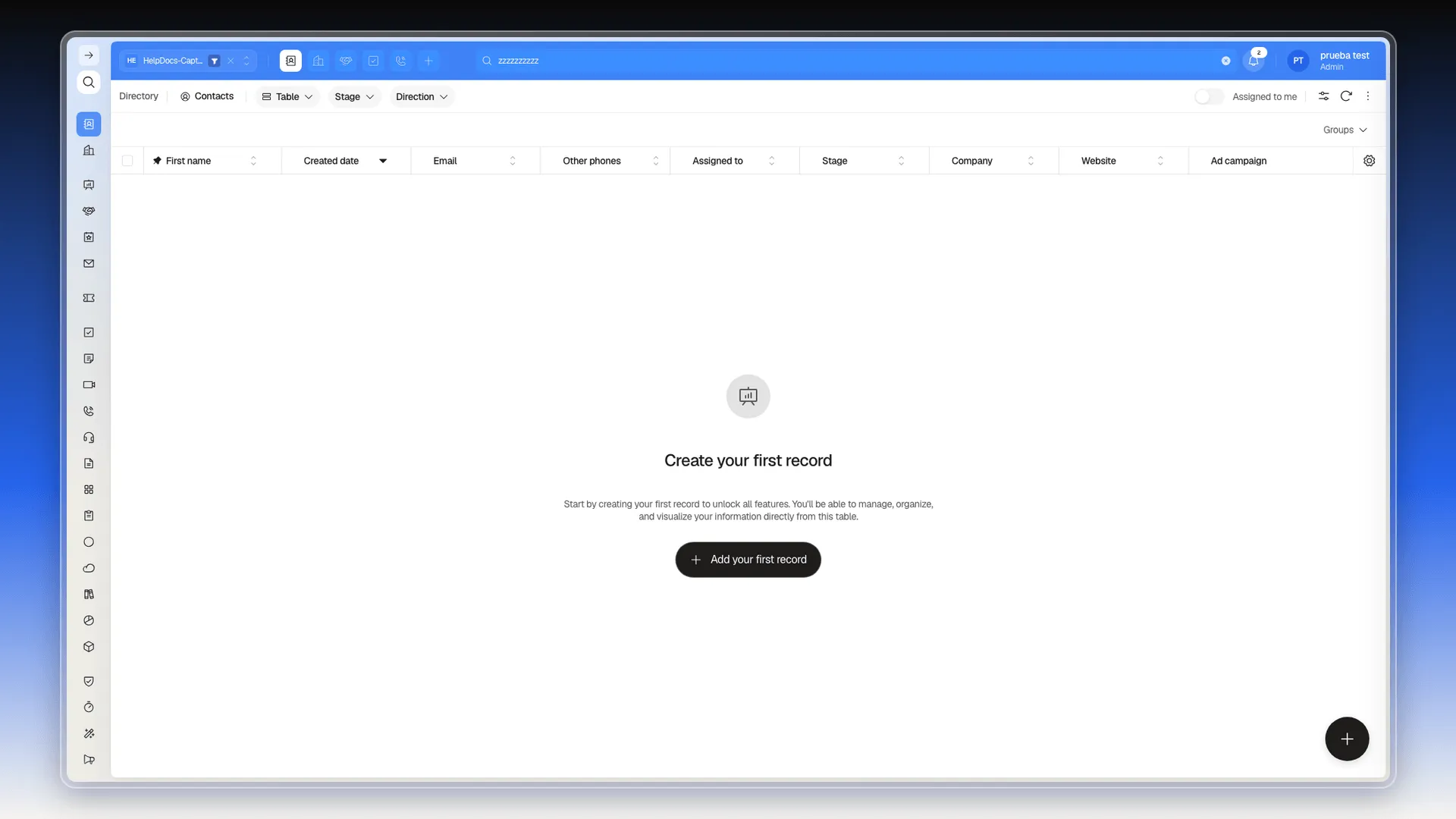
Section titled “No results”When no row matches, the table is empty and, for now, the central area shows the generic Create your first record state with its add-record button — there’s no dedicated “no results” message. You don’t need to create a record to leave that state: clear or correct the text with the clear control in the field.
Keyboard shortcuts
Section titled “Keyboard shortcuts”This search doesn’t have a dedicated keyboard shortcut to focus or close it: type directly in the field and use the clear button that appears once there’s text. Enter doesn’t do anything extra.
If you cannot find the record
Section titled “If you cannot find the record”Clear the text to confirm the record exists in the current table and check that you are in the right module and workspace. If it still doesn’t show up, check the active filters, the group or view applied, your permissions on the record, and whether someone deleted it.
Frequently asked questions
Enter a name, email address, or other identifying text in the open table's search field — Search Contacts, for example; the table updates as you type.
First name, Created date, Email, Other phones, Assigned to, Stage, Company, Website, and Ad campaign.
No. It only filters records in the table and module you currently have open. The command palette helps you locate and open modules; it does not search records.
No. Results update as you type in the search field.
Was this article helpful?
Thanks for your feedback!