
Assign access to records
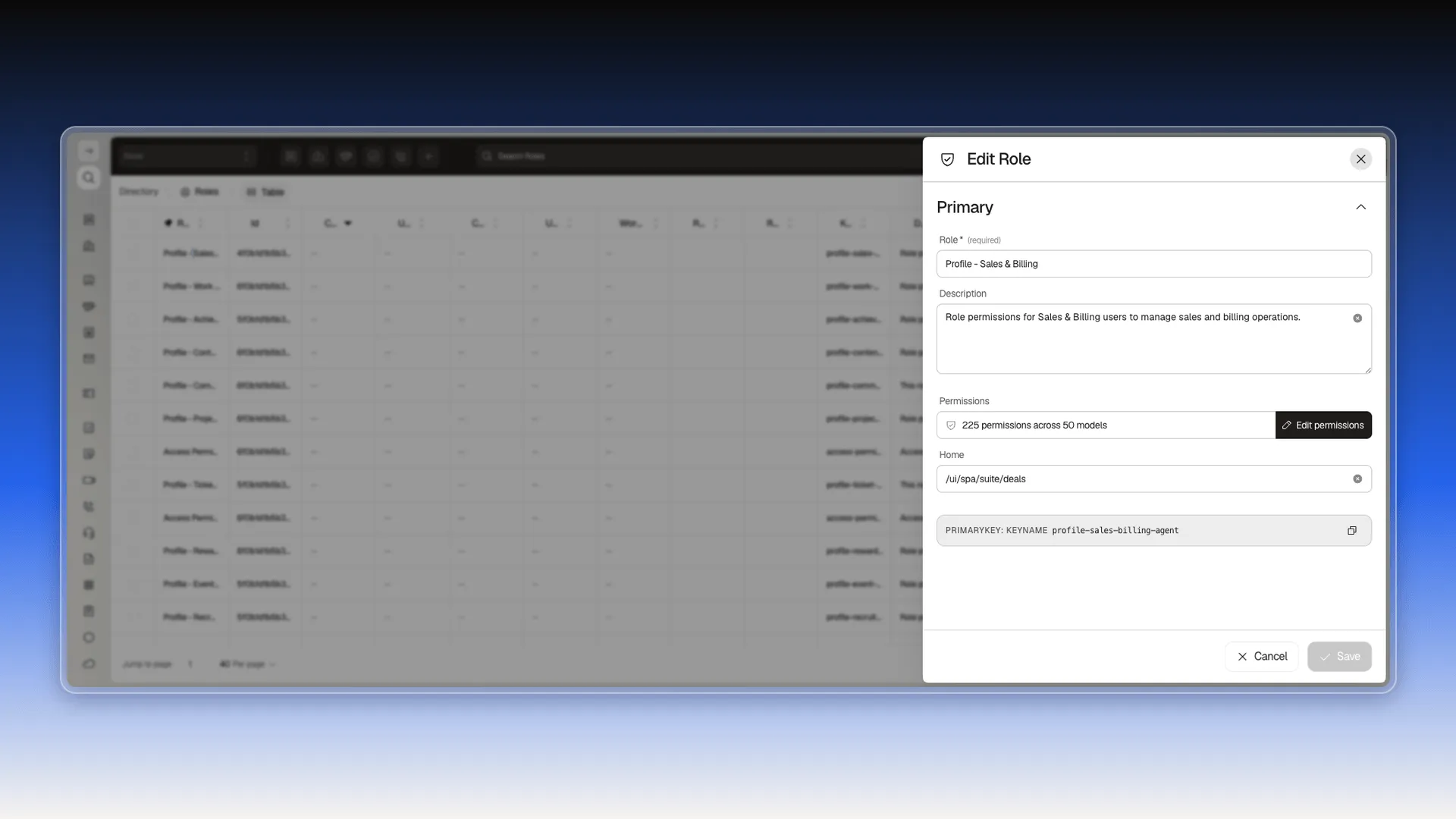
The Allow everyone/Collaborators switches on a record (see Sharing a contact) control that one record. The default access rule — who can see or edit an object’s records without being shared with directly — is configured account-wide, in Access Control → Roles, and set object by object.
Open a role and select Edit permissions.
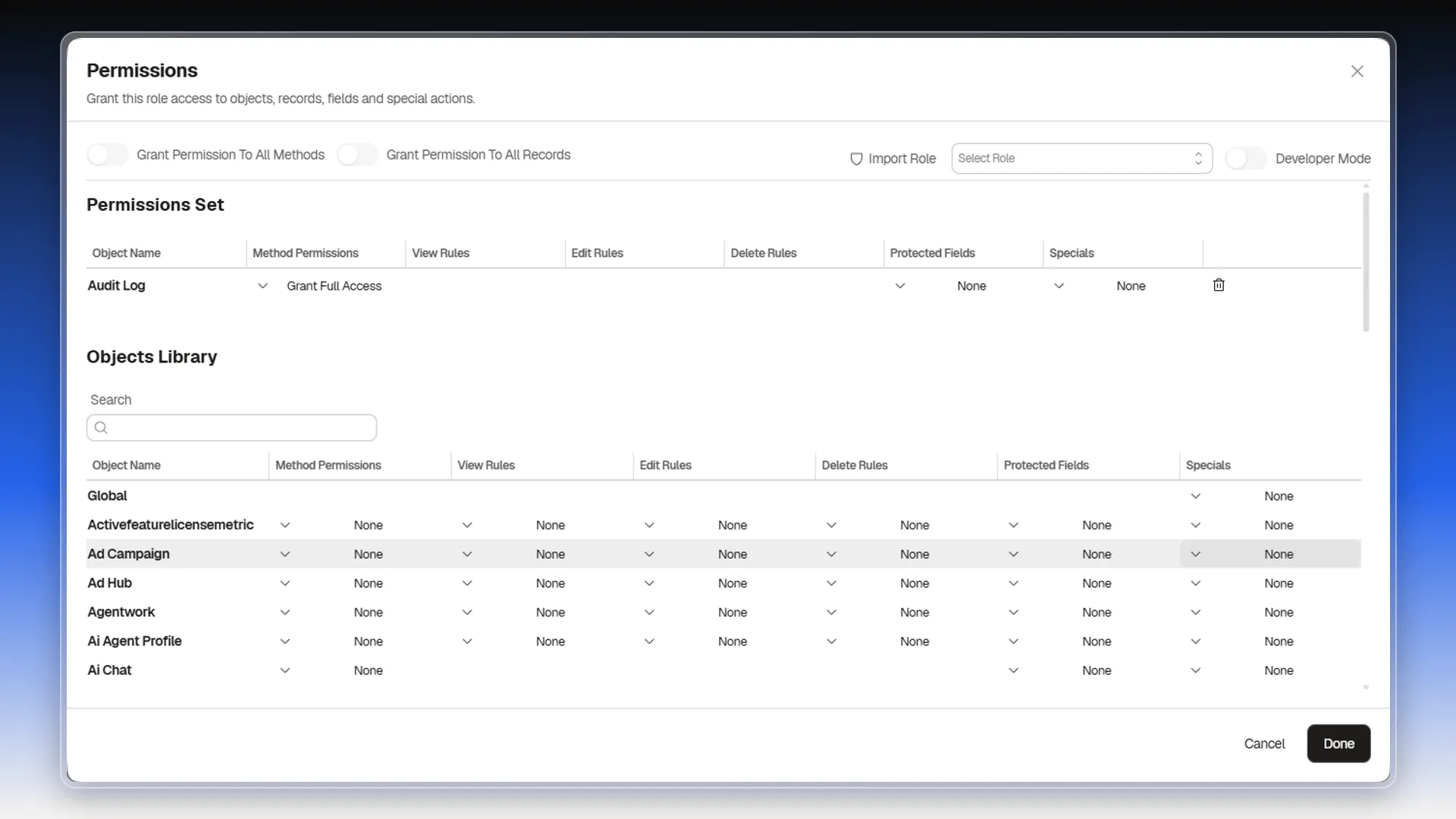
The permission matrix
Section titled “The permission matrix”Edit permissions opens the Permissions editor, which holds two tables. Permissions Set lists only the objects this role already has something assigned on, each with a trash icon to remove it. Below it, Objects Library lists the rest — there are hundreds — with a search box to filter them by name; type the object’s name — “Contact”, “Deal”, “Company” — to reach the row you want.
Both tables share the same columns: Method Permissions, View Rules, Edit Rules, Delete Rules, Protected Fields, and Specials.
Above them sit three shortcuts that apply to the whole role: Grant Permission To All Methods, Grant Permission To All Records, and Import Role, which copies another existing role’s setup. The Developer Mode switch sits on the right.
View, edit, and delete rules
Section titled “View, edit, and delete rules”Selecting a rule cell on an object’s row — here, Contact — opens the same set of options for view, edit, or delete. They are independent switches, so you can combine several:
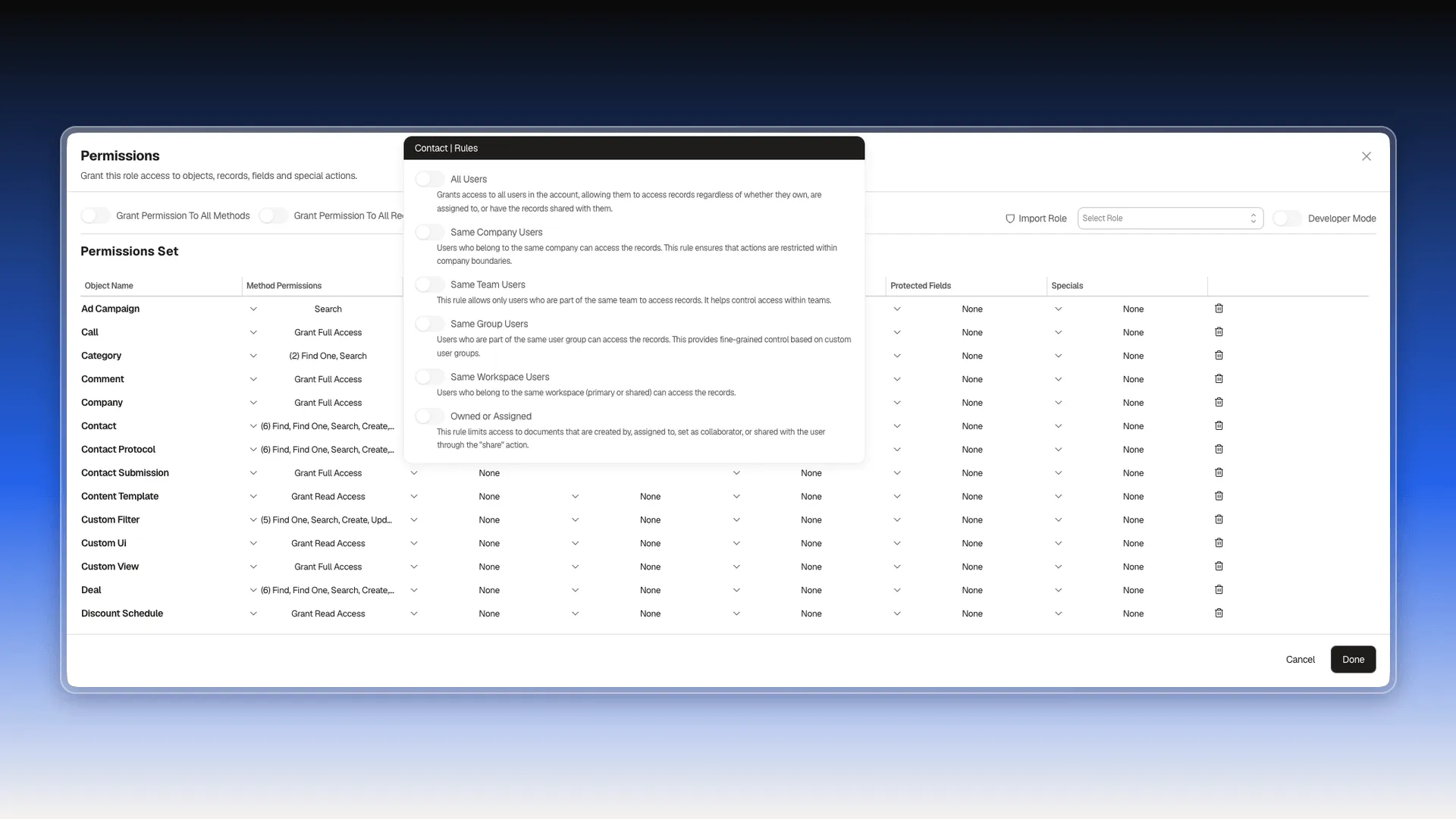
- All Users — any user in the account, regardless of ownership.
- Same Company Users — restricts access to users in the same company.
- Same Team Users — only users on the same team.
- Same Group Users — users in the same custom user group.
- Same Workspace Users — users sharing the record’s workspace (primary or shared).
- Owned or Assigned — limits access to records the user created, is assigned to, is a collaborator on, or that they can access through the record-sharing mechanisms.
Unassigned records fall outside that list: they can be viewed normally and do not require membership of a workspace or a group. There is no checkbox to include or exclude them rule by rule.
Method permissions
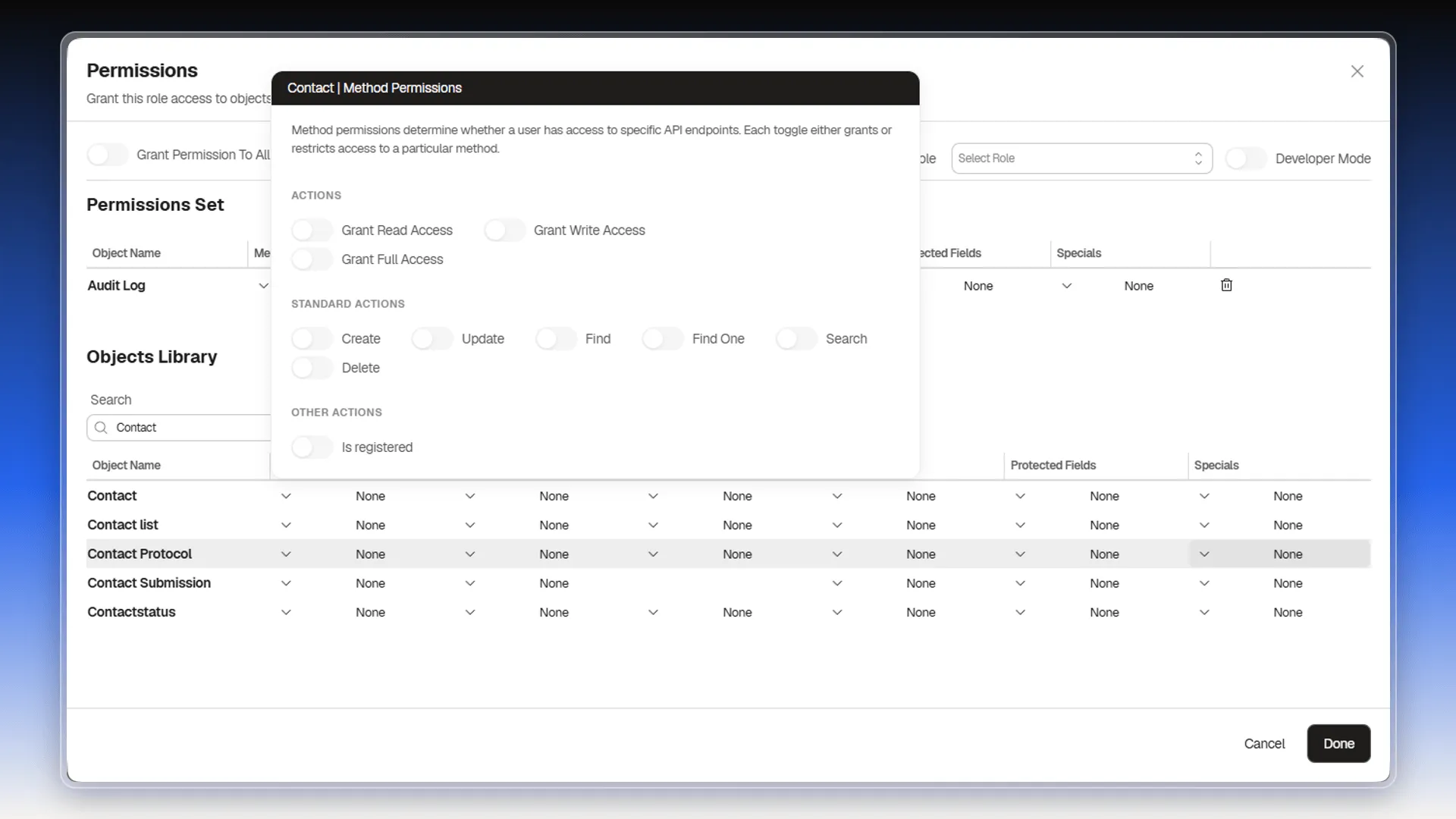
Section titled “Method permissions”The rules above decide which records a user acts on. Method Permissions decides which actions they can run against that object: each toggle opens or closes an API endpoint.
- Actions — Grant Read Access, Grant Write Access, and Grant Full Access, the shortcuts that turn several methods on at once.
- Standard actions — Create, Update, Find, Find One, Search, and Delete, each on its own. This is where you take away the ability to create contacts without touching the ability to see them.
- Other actions — the object’s own methods. On Contact, Is registered.
Specials
Section titled “Specials”The Specials cell opens a list of one-off permissions for the object, with a search box and a counter of selected ones. Contact has three, all about who can delete the record: Allow delete by -, Allow delete by - Assignee, and Allow delete by - Collaborators.
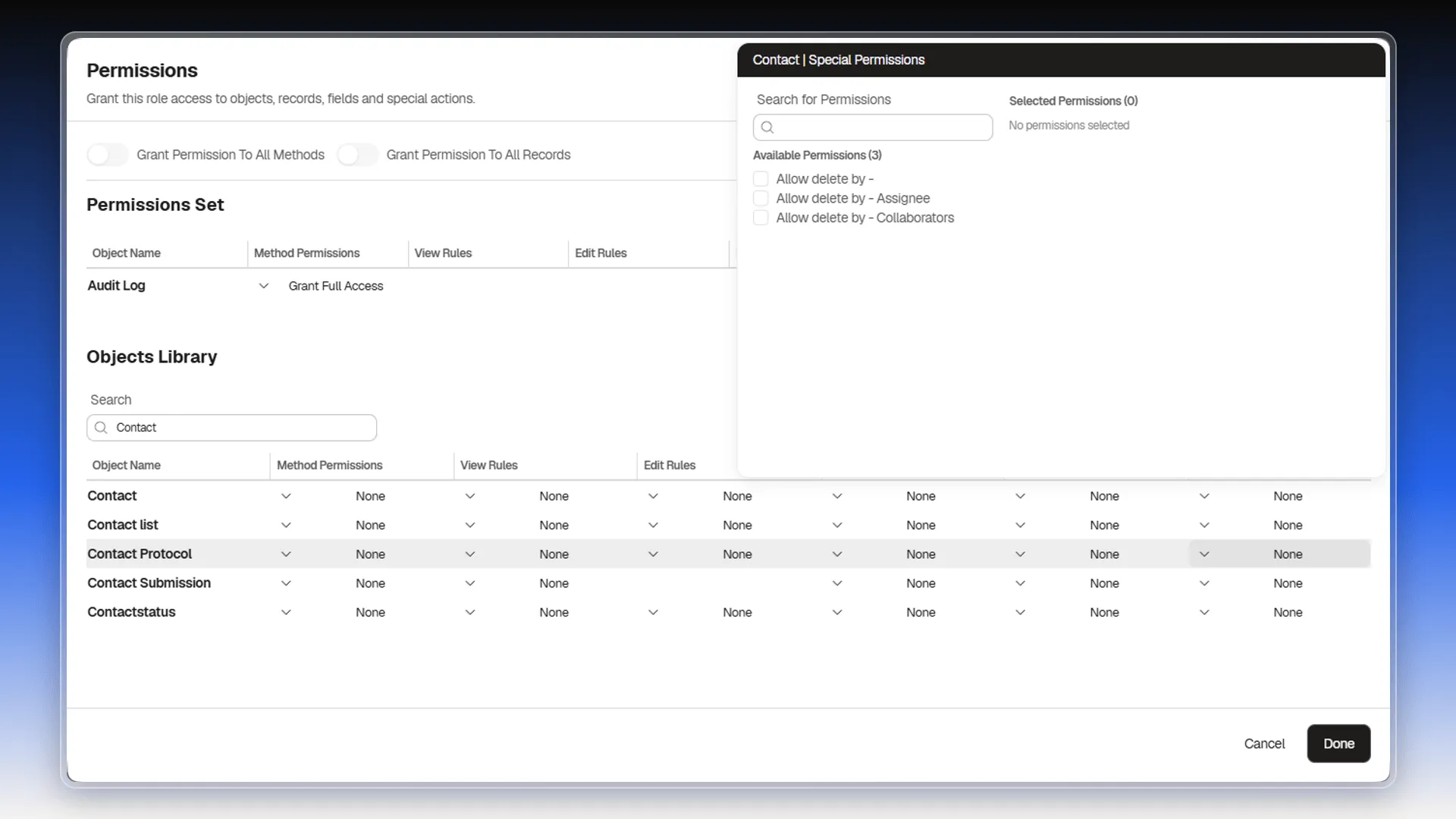
Activity access: it is configured in this matrix, the same as any other object. Call, Email, and Meeting each have their own row with the same set of rules (All Users, Same Company Users, Same Team Users, Same Group Users, Same Workspace Users, Owned or Assigned). To get “view only what I logged,” use Owned or Assigned on the activity’s row.
Protected fields: selecting this cell opens a search picker listing every available field on the object (162 for Contact, custom fields included) with a checkbox each. Checking a field (for example, Job title) reveals three independent toggles — Protect Create, Protect Update, and Protect View — each turned on separately; it isn’t a single “protected” state.
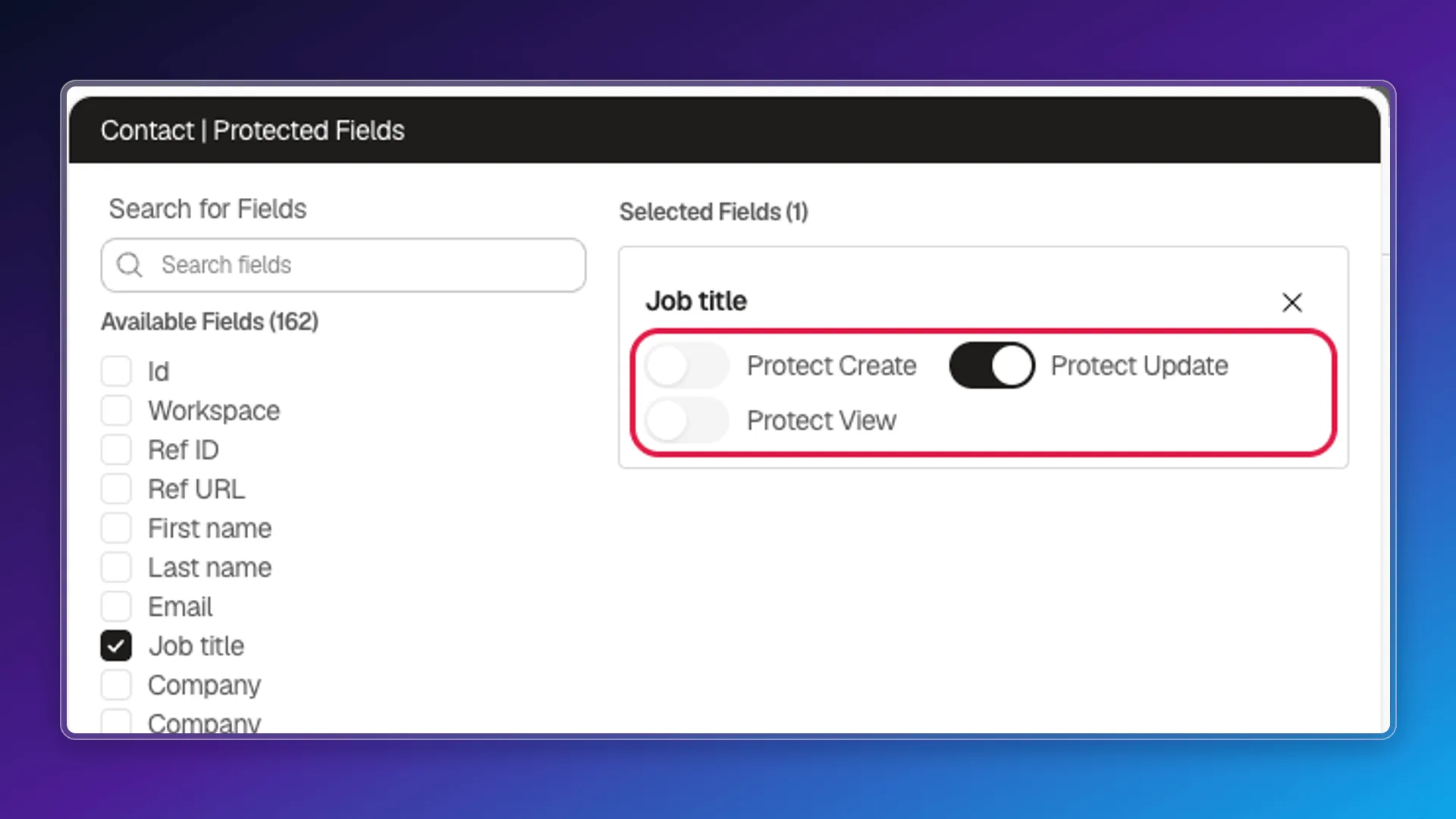
The protection acts on the server, not just in the editor. A user without admin privileges who tries to change a protected field gets the edit rejected with a 403 and the message “Protected Field Violation: The ‘update’ action on field ‘jobTitle’ is forbidden on resource ‘Contact’.” It isn’t a general block on the record: that same user can still edit any field that isn’t protected.
Frequently asked questions
In Access Control → Roles, edit a role's permissions, then open the view, edit, or delete rule for that object's row — Contact, Deal, Company…
All Users, Same Company Users, Same Team Users, Same Group Users, Same Workspace Users, and Owned or Assigned. Unassigned records can be viewed normally, without depending on a workspace or group.
Through the Method permissions cell on its row — Contact, in the example —, which turns Create, Update, Find, Find One, Search, and Delete on and off separately.
Was this article helpful?
Thanks for your feedback!