
Create a scoring and apply it to contacts
Prolibu has a real Scoring module, even though it doesn’t show up in the app’s side menu. To open the scoring list, go directly to /ui/spa/stg/scorings. The Scoring model stores scoringCode, scoringName, type, entity, criteria, bands, normalization, an ai block and active. When a scoring is applied to a contact, Prolibu stores the result in score, scoreBand and scoreDetail.
Before you start: enable scoring on the account
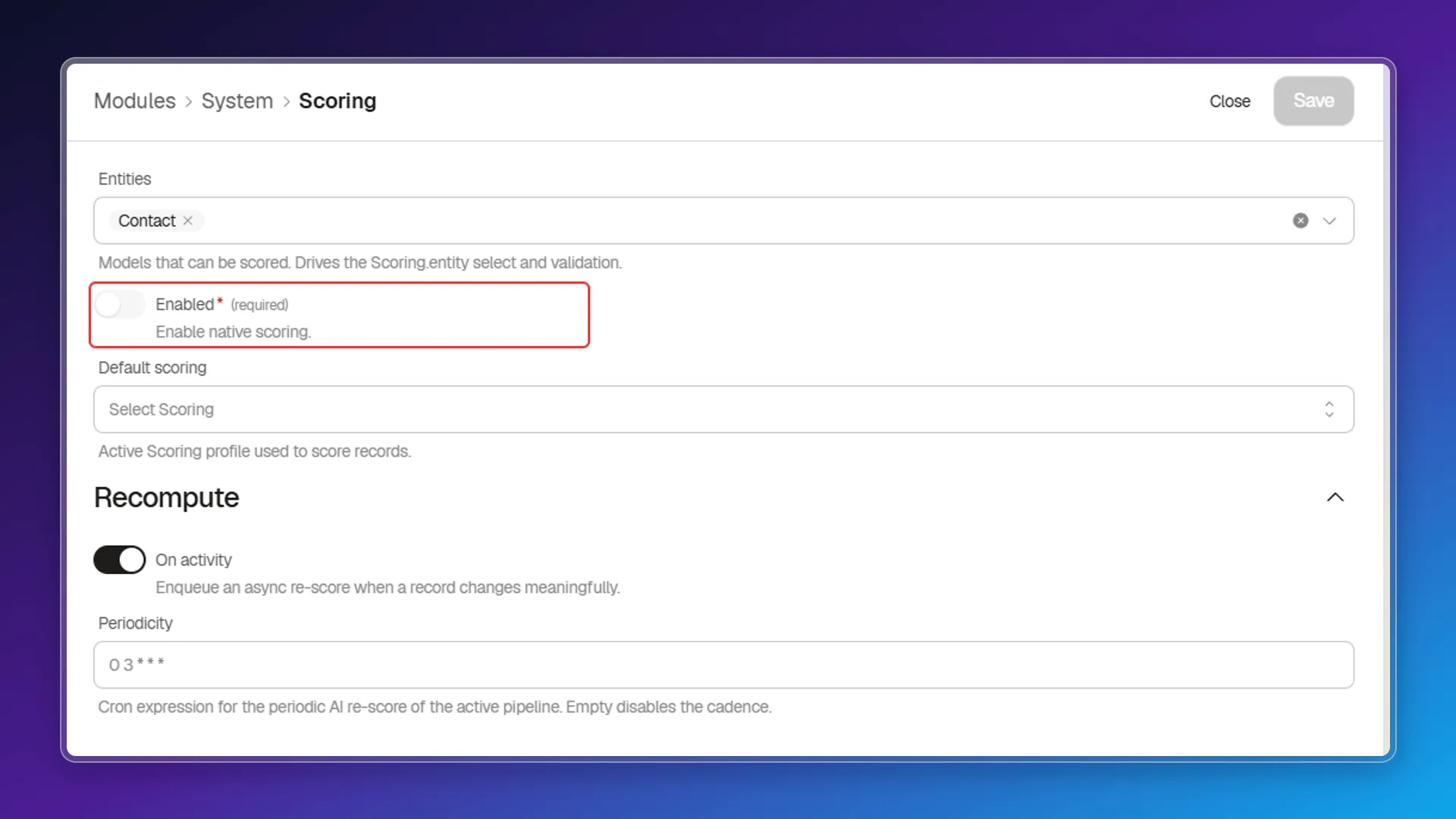
Section titled “Before you start: enable scoring on the account”Creating a scoring and applying it are two different things. The switch that turns the module on lives under Account > Preferences > Modules > System > Scoring:
- Entities: the models that can be scored. It’s the preference that feeds the Entity field in the creation panel and its validation, and it comes with Contact.
- Enabled (required): turns native scoring on. With it off you can still create scoring profiles, but nothing gets scored.
- Default scoring: the profile used to score records. This is where a scoring goes from existing to being applied.
- Recompute > On activity: queues an async re-score when a record changes meaningfully.
- Recompute > Periodicity: cron expression for the periodic AI re-score. Empty, there’s no cadence.
Where it’s created
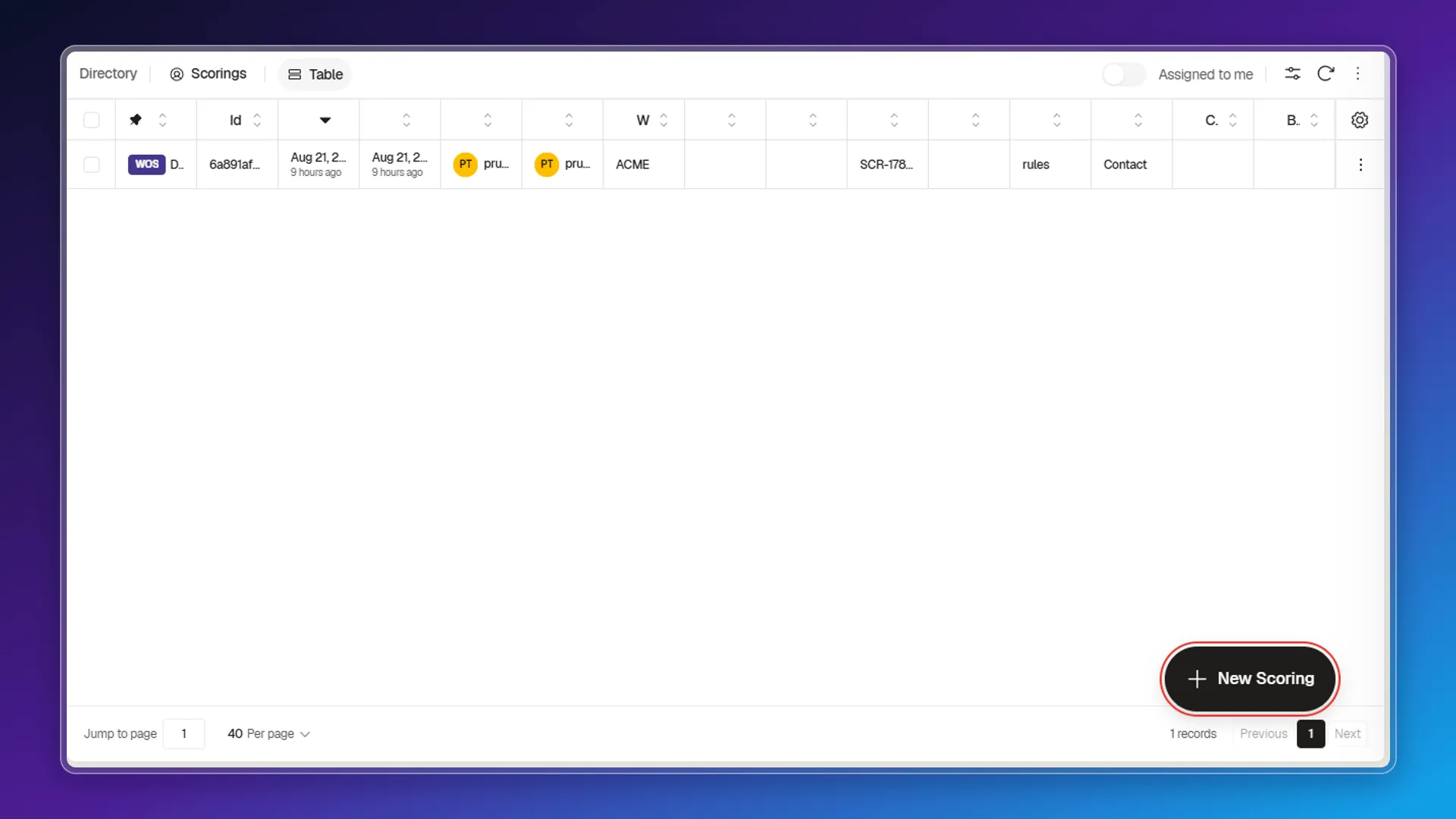
Section titled “Where it’s created”Once the Scorings list is open at /ui/spa/stg/scorings, the floating button in the bottom-right corner opens the creation panel. It sits there as a circle with a plus sign and expands on hover to show its name, New Scoring.
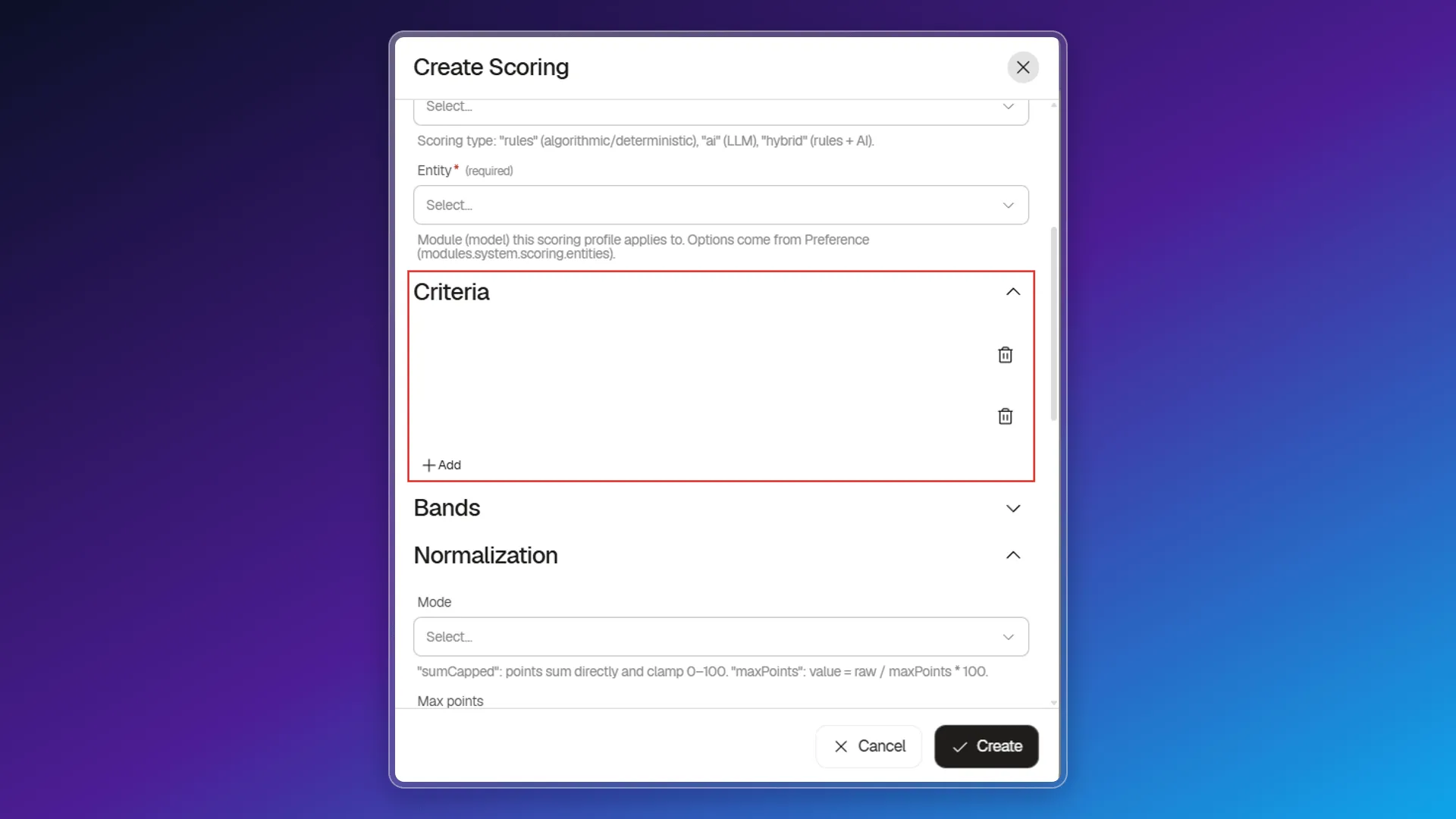
The Create Scoring panel carries these fields in the main section:
- Scoring name (required) and Description.
- Type (required):
rules(algorithmic/deterministic),ai(LLM-based) orhybrid(combines both) — that’s how the field’s own tooltip explains it, and those three are the only options in the list. - Entity (required): the model the scoring applies to. Options come from the account preference (
modules.system.scoring.entities), so to see another model here you add it there. - Assigned to and Collaborators, same as any other Directory record.
On save, Prolibu generates its own Scoring Code with the format SCR-<timestamp> (for example SCR-1787370232330) — no need to type it by hand. Reopen the record and that code sits at the foot of the panel, under PRIMARYKEY: Scoring code, with a button to copy it.
Criteria and bands
Section titled “Criteria and bands”The panel has two sections for the scoring’s rules:
- Criteria, meant for the conditions that add or subtract points.
- Bands, meant for grouping score ranges into categories (for example, “Hot” / “Warm” / “Cold”).
Both have an Add button that adds a new row and a trash icon to remove it.
Normalization
Section titled “Normalization”The Normalization section decides how the sum of points turns into a final score:
- Mode:
sumCappedadds the criteria points directly and clamps the result between 0 and 100, ormaxPoints, which computesscore / Max points × 100. The field arrives empty in the creation panel, but leave it that way and the scoring is saved with sumCapped. - Max points: the denominator used by the
maxPointsmode — doesn’t apply when the mode issumCapped.
The AI block
Section titled “The AI block”Only has an effect when Type is ai or hybrid:
- Skill: the Skill whose prompt acts as the AI’s scoring rubric.
- Provider credential: the AI provider credential used to score.
- Weight: how much the AI score weighs when blended with the rules score, under a hybrid scoring’s “weighted” combine mode (0 to 1).
- Combine: how the rules score and the AI score are merged in hybrid mode.
- Min re score minutes: if the last AI score is newer than this threshold (and the band hasn’t changed), a fresh LLM call is skipped.
Touch none of it and the block is saved with Weight 0.5, Combine weighted and Min re score minutes 30; reopen the scoring and the AI section sums those three values up in its header.
Active and visibility
Section titled “Active and visibility”The Active switch determines whether the scoring is in use, and it comes on out of the box: a freshly created scoring lands with active: true. The Scorings index shows that same switch in each row’s Active column.
Allow everyone has two independent switches, View and Edit, that control whether any user on the account can see or edit that scoring — the same permission pattern as other Directory records. Both come off.
Edit, clone or delete a scoring
Section titled “Edit, clone or delete a scoring”In the index, each row’s actions menu (the three-dot icon at the end of the row) offers Edit, Clone and Delete. Edit opens the same panel of fields, now titled Edit Scoring, over the record’s URL; the Criteria, Bands, Normalization, AI and Allow everyone sections arrive collapsed, each summarizing its current values in the header.
Where the result shows up
Section titled “Where the result shows up”The Contact model has score, scoreBand and scoreDetail fields to hold the result of applying a scoring. The Lead model has the exact same three fields, though for Lead to show up as an Entity option it has to be added to the account’s Entities preference.
Frequently asked questions
Open the Scorings list directly at `/ui/spa/stg/scorings`; the module isn't shown in the side menu. Then use the floating "New Scoring" button in the bottom-right corner.
Because the module is enabled separately. Under Account > Preferences > Modules > System > Scoring there's the "Enabled" switch (Enable native scoring) and the "Default scoring" field, which picks the profile used to score records. The switch arrives off, with no default scoring set.
The models listed in the account's Entities preference, which is what feeds the Entity field. Contact is the one that comes listed. The Lead model already has the same scoring fields (score, scoreBand, scoreDetail), so to score leads you add Lead to that preference.
The panel lets you add and remove rows under Criteria and Bands with the Add button and the trash icon. In the current version those rows arrive with no fields to fill in, so the rules are loaded through the API onto the already-created scoring.
sumCapped adds up the criteria points directly and clamps the result between 0 and 100. maxPoints divides the raw score by the Max points value and multiplies by 100. If you leave the Mode field empty, the scoring is saved with sumCapped.
Was this article helpful?
Thanks for your feedback!