
Importing records for a single object
Under More actions, Import opens your computer’s file picker. There’s no wizard and no mapping step: the file is processed as it arrives, and it carries its own mapping inside, in its datamap sheet.
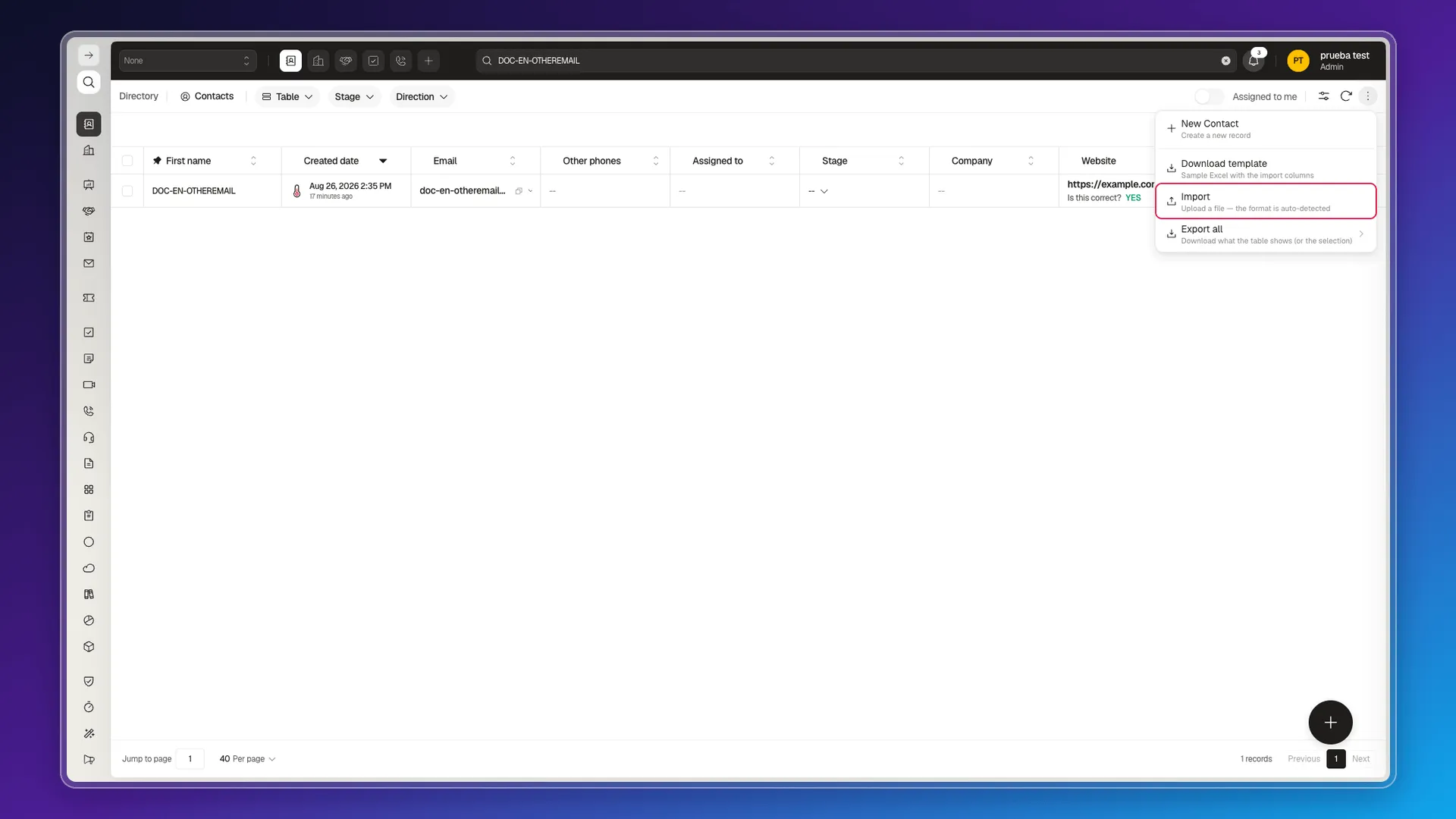
The interface claims it detects the format on its own. That isn’t true for any format: only the .xlsx produced by the template works — a .csv yields nothing at all, see Formatting import files.
What it does with each row
Section titled “What it does with each row”Every import is an upsert by email address, with no mode selector: if the email already exists it updates that contact; if not, it creates a new one. The comparison ignores case, but not whitespace — an invisible leading space in the email creates a duplicate, see Reviewing and troubleshooting record import errors.
By default the template carries a single object: the Contacts one creates or updates contacts, not companies or deals. To load several types at once you add one sheet per object and one row to the data map, as Importing records for several objects explains.
A worked example: Deals
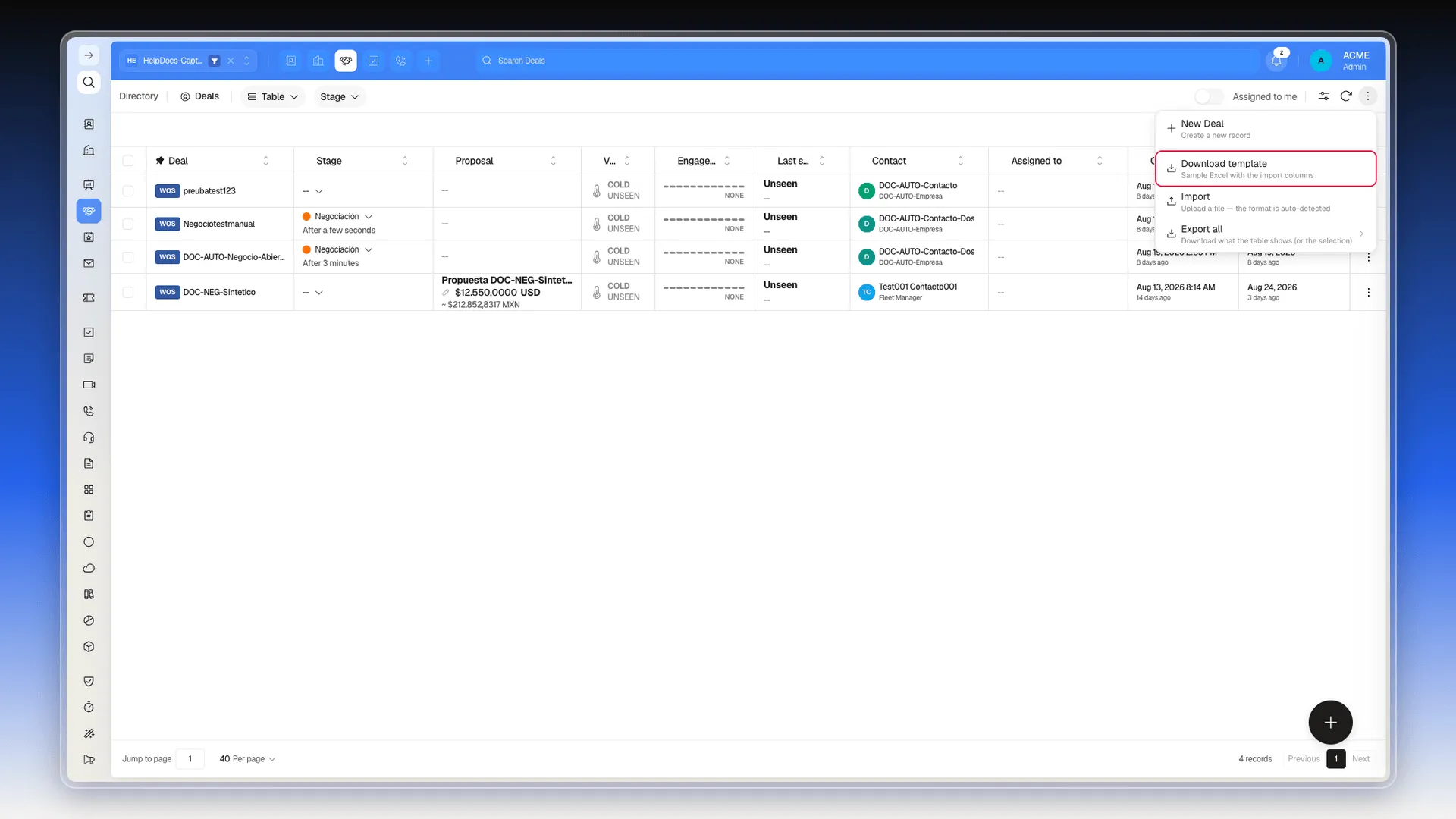
Section titled “A worked example: Deals”In the side menu, select Deals and, under More actions, pick Download template. Each object provides its own template with the columns it expects.
- Fill in dealName, the required field for every deal.
- Add whatever you need: Assignee, Collaborators, Stage, tags, priority and the custom fields on the Deal sheet.
- Save the file without renaming the headers.
- Go back to More actions > Import and select the file.
What each group of columns means
Section titled “What each group of columns means”The Deal sheet keeps the properties’ technical names. Leave empty the ones you don’t need.
| Columns | What they represent | When to fill them in |
|---|---|---|
skip | Whether the row is skipped. | Leave it as it comes unless you need to exclude a row. |
refId, refUrl, _id, dealCode | Internal identifiers and references. | Don’t make them up; they’re for working with existing data. |
dealName | The deal’s name. | It’s the required field when creating a deal. |
contact, adCampaign, group, contracts, proposalWizard | Relationships with other records. | Fill them in only if you’re linking the deal to those records. |
assignee | The user responsible for the deal. | Use it to assign the record to a person. |
collaborators | Additional users involved in the deal. | Use it to load several collaborators without changing assignee. |
stage, priority, pipelineStages, stageMovedMethod | The deal’s status and commercial journey. | Fill in stage and priority when you need the deal classified from the start; leave the history columns alone if you don’t use them. |
tags, source, observations, meta | Classification, origin and notes. | Fill them in when your file has that data. |
closeDate, denied.reason, denied.details | Estimated close date and rejection reason. | Use them only for deals that already have that information. |
proposal.*, proposalVersions.*, thumbnail | Proposal data, versions and related files. | Leave them empty unless the import includes that data prepared. |
customFields.* | Your account’s custom fields, such as customFields.department. | Fill them in only if that field exists on your object and you have a valid value. |
workspace | The workspace the deal belongs to. | Don’t change it without confirming the target workspace. |
The columns change from one module to the next, but the logic is the same everywhere — what each template carries is detailed in Importing and exporting with templates.
After uploading the file
Section titled “After uploading the file”The Import data panel reports progress and the outcome, and keeps one entry per upload for as long as you stay on the page — see Viewing and analyzing previous imports. If something went in wrong, Editing records in bulk fixes it in one go without repeating the import.
Frequently asked questions
Under More actions pick Import and choose the file. The interface says it detects the format on its own, but in practice only the .xlsx that comes out of the template works.
There is no mode selector. Every import is an upsert by email address: if the email already exists it updates that contact, and if it doesn't, it creates a new one.
It depends on the object. Deals need dealName, Companies need companyName and Tasks need title. If it's missing, that row is rejected with a required-value error.
Yes. The collaborators column takes several users without touching assignee, so there's no need to create the record first and edit it afterwards.
Leave them empty. They're for working with records that already exist; if you're creating new ones, don't make them up.
Was this article helpful?
Thanks for your feedback!