
Create color-coded object tags
Tags is a multi-value selector, available on the objects that include it — on the contact form it lives in the Primary section. Each tag shows as a color chip — for example, the “tagPrueba” tag shows in yellow.
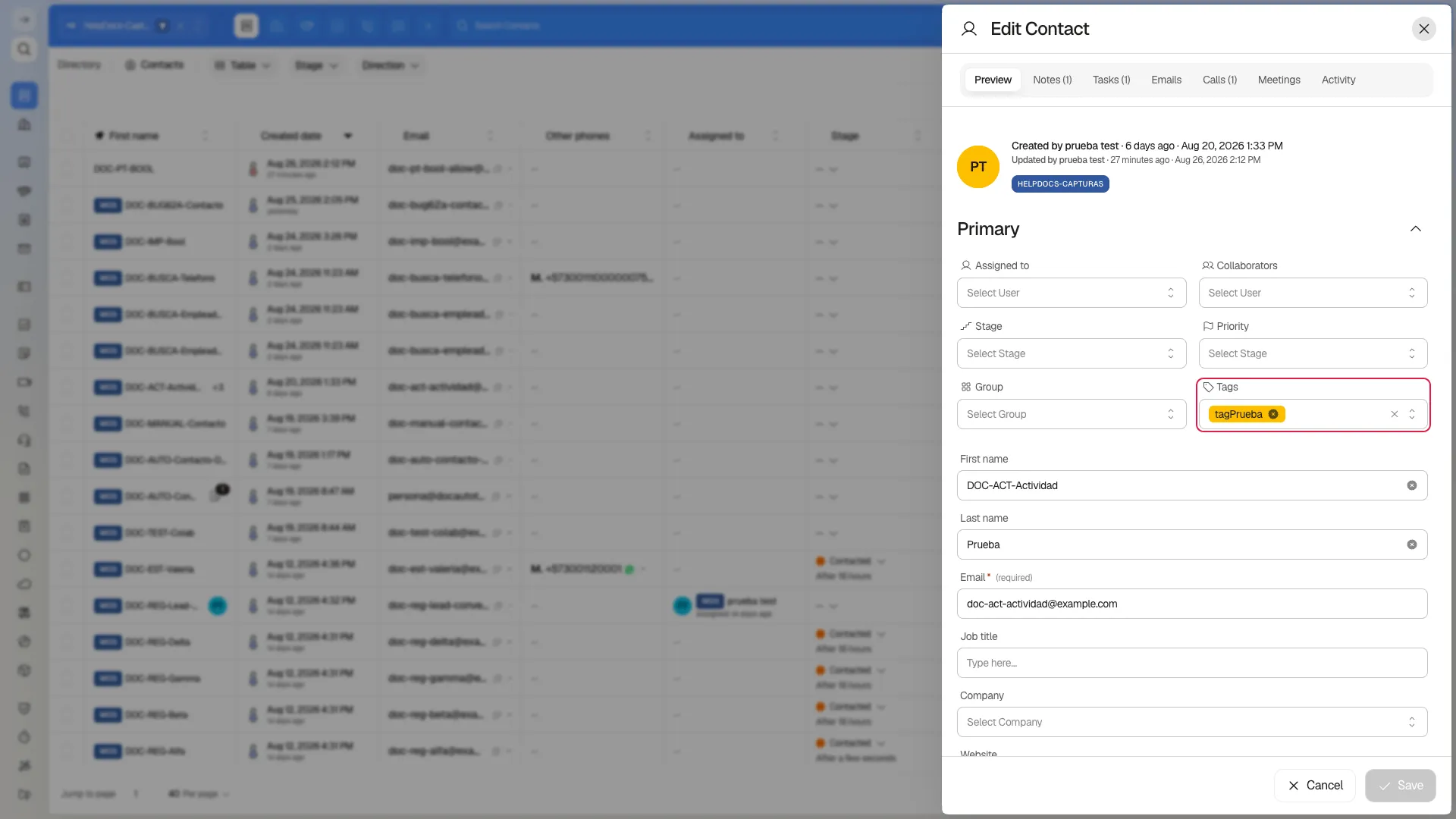
Tags categorize the record itself — its segment, its source, its priority — and travel with it wherever it shows up: on the record, in the table’s Tags column, and in the tag filter.
They are not association labels: Prolibu has no way to label the type of relationship between two records, such as “decision maker” or “billing” — see Associating records.
How to add a tag
Section titled “How to add a tag”Open the record in edit mode and select the Tags field. Pick an existing tag from the list, or type a new name to create it directly from the selector. You can add more than one tag to the same record; save the changes to apply them.
How to create a custom tag
Section titled “How to create a custom tag”If you type a name in the selector’s search box that doesn’t match any existing tag, “No results” appears next to a + Tag button. Selecting it opens the Create Tag form, with these fields:
- Collaborators — who the tag is shared with; it arrives empty.
- Tag name (required).
- Description (optional).
- Color — a color picker, with a random hex value by default.
- Allow everyone — a collapsible section holding the access switches, closed by default.
- Model — fixes which object the tag belongs to (for example “Contact”). It’s filled in automatically based on the form you’re creating the tag from, so it arrives empty when you open Create Tag from the Tags module itself.
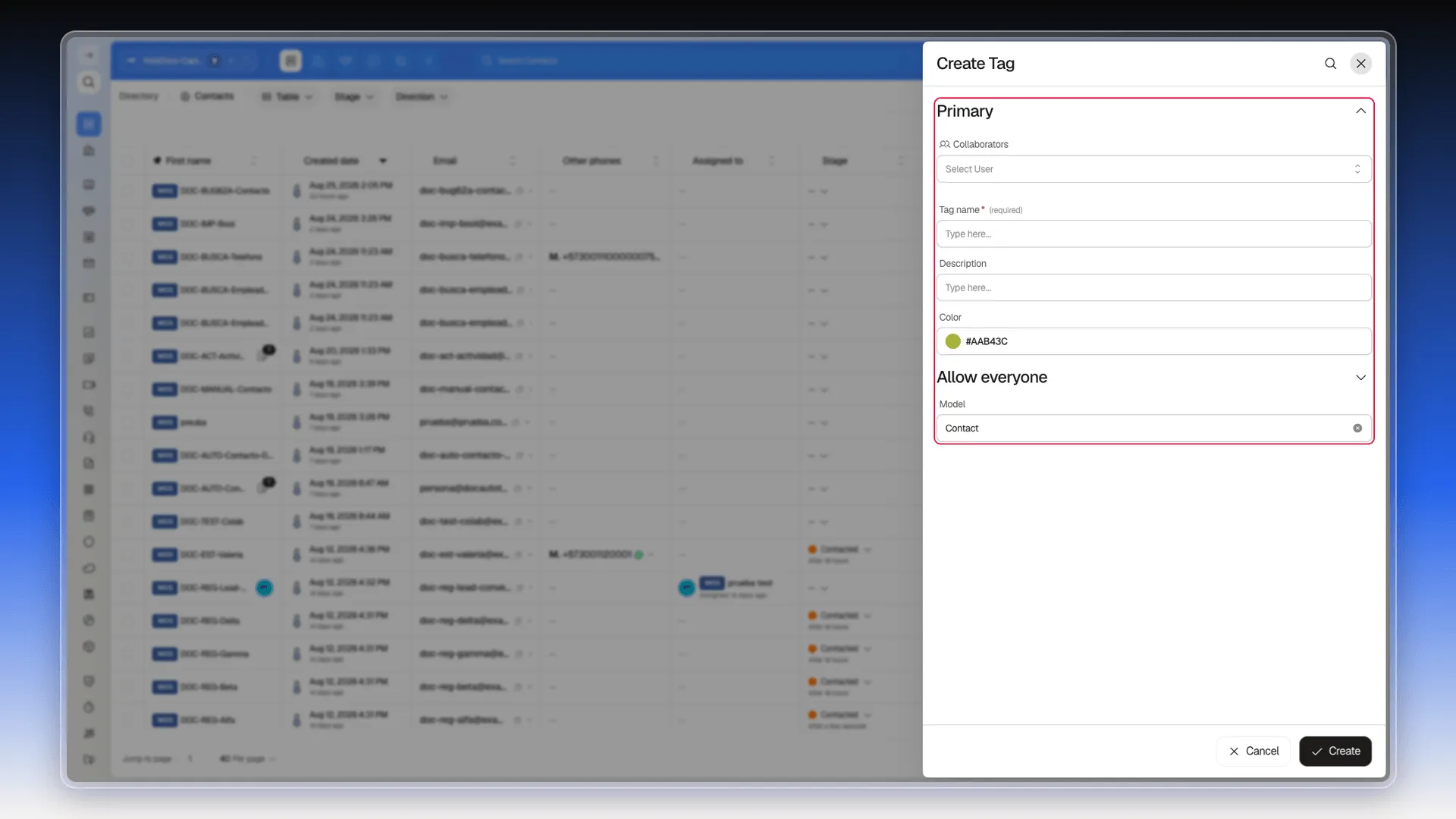
The tag is created right away and gets selected on the record; you don’t need to save the record for the tag itself to be recorded in the catalog.
Are tags shared across modules?
Section titled “Are tags shared across modules?”No. The Tags field also exists on the Deal form (same location, same interaction), but its catalog is independent: a tag created from a contact doesn’t show up when editing a deal, and vice versa. A deal with no tags of its own shows “No results” in its Tags selector even though the contact already has several tags created.
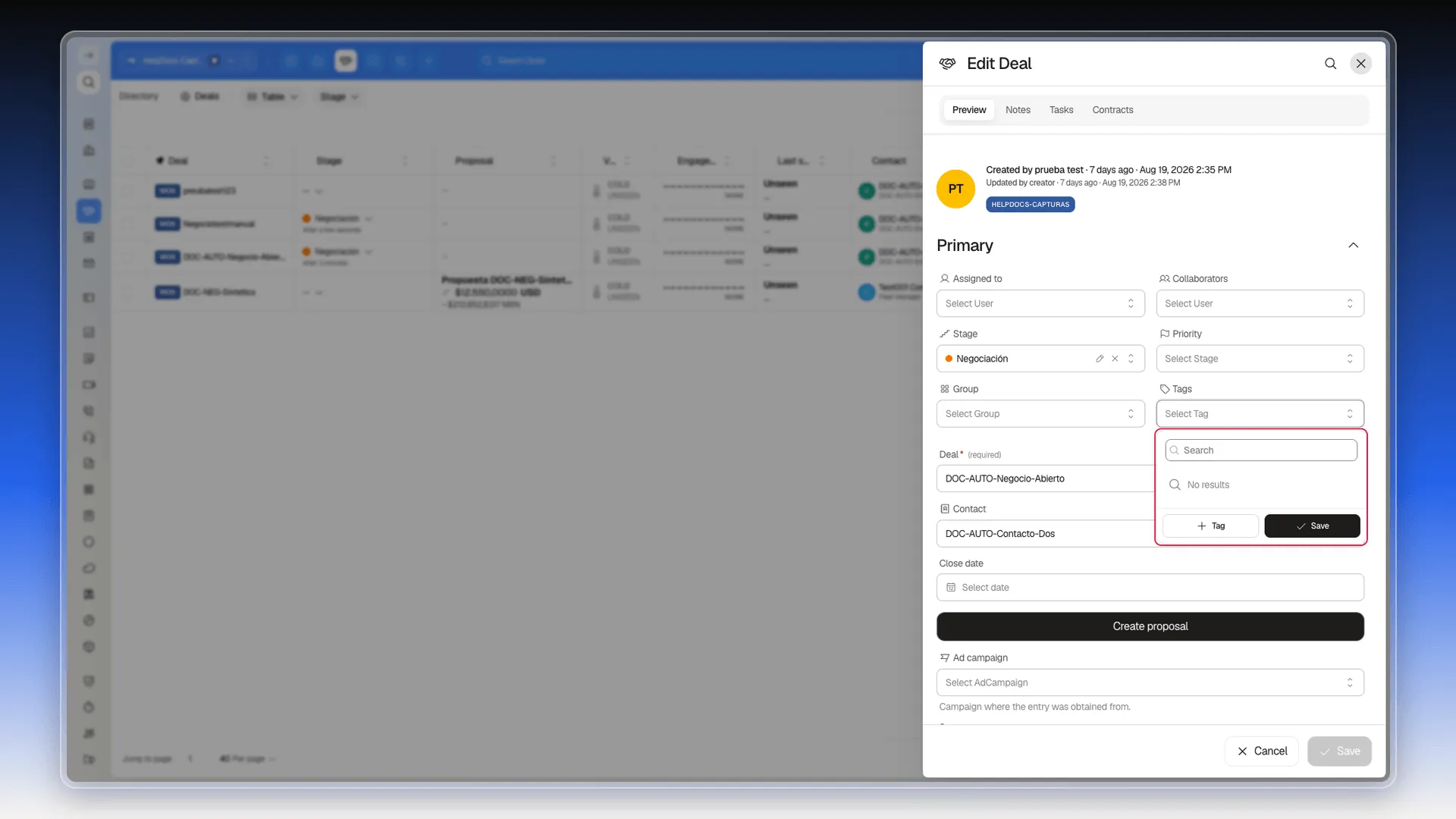
Companies doesn’t have a Tags field at all — it isn’t available on its edit form.
Managing the full catalog
Section titled “Managing the full catalog”The selector on the form lets you create a tag, but not edit or delete it. For that, select Tags in the side menu. This opens a table with the whole catalog — name, color, the object it belongs to (Contact, Task, Call, Meeting, Contract…), who created it, and when.
Each row’s three-dot menu offers Edit and Delete. Editing lets you change its name, description, color (as a hex value), and Model — that is, the object it applies to.
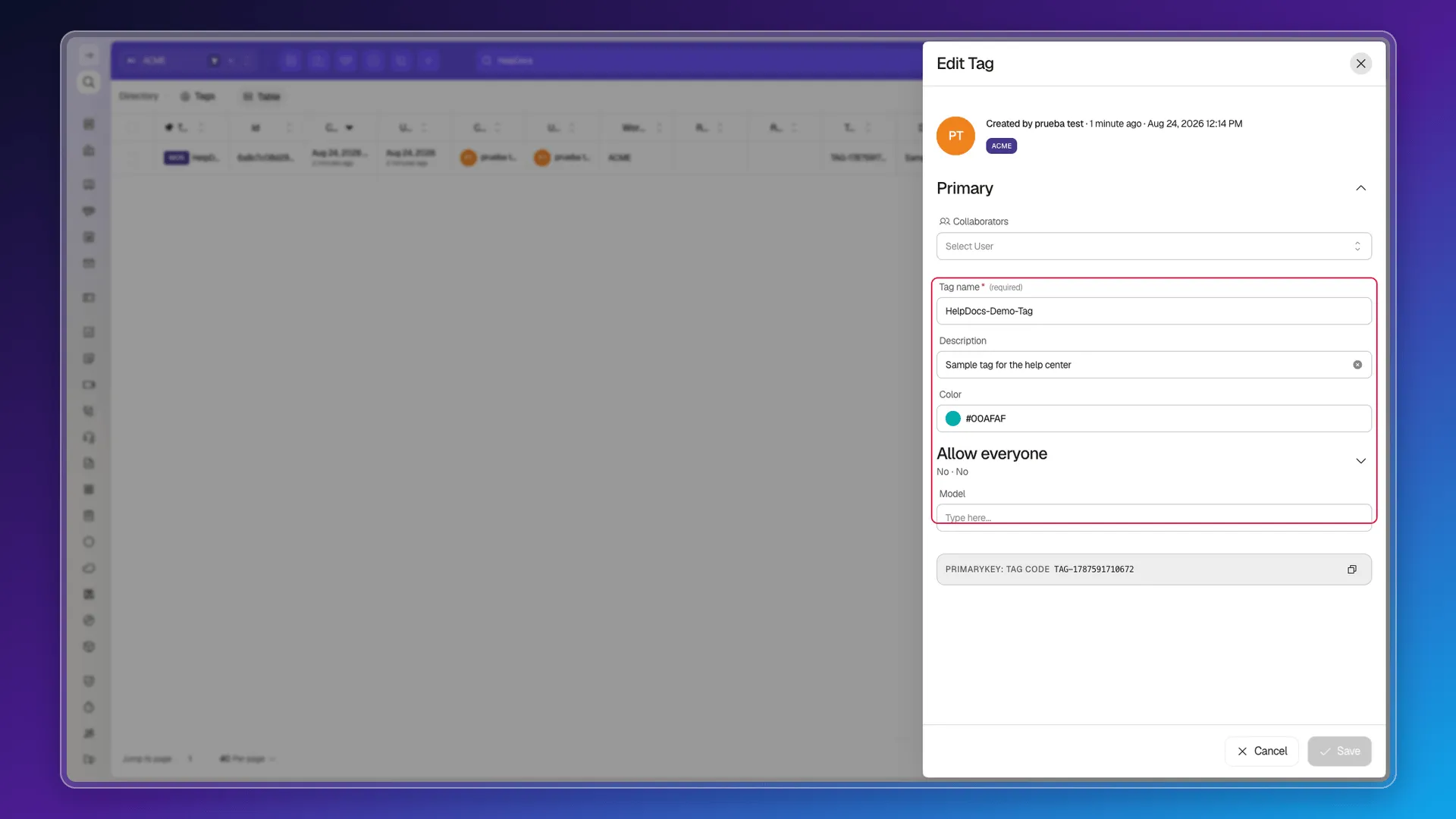
That Model field is the flip side of what’s explained above: because every tag belongs to one object, the Contacts catalog and the Deals catalog never overlap.
Tagging several records at once
Section titled “Tagging several records at once”To put the same tag on a group of records, check them in the list and use Edit selected with the Tags field — see Editing records in bulk. That’s how you tag in batches without opening one record at a time.
Frequently asked questions
Yes, each tag shows as a color chip — for example, yellow — in the selector and on the record.
Yes, the Tags field is a multi-value selector.
Yes. If the name you type doesn't match an existing tag, a "+ Tag" button appears that opens a form to create it with a name, color, and description.
No. Deals has its own Tags field with an independent catalog — a tag created from Contacts doesn't show up there. Companies doesn't have a Tags field at all.
Under Tags, which opens from the side menu. It's a table with the whole catalog, and each row's three-dot menu offers Edit and Delete. From the contact form's selector you can create new tags, but not edit or delete them.
Was this article helpful?
Thanks for your feedback!