
Managing records in board view
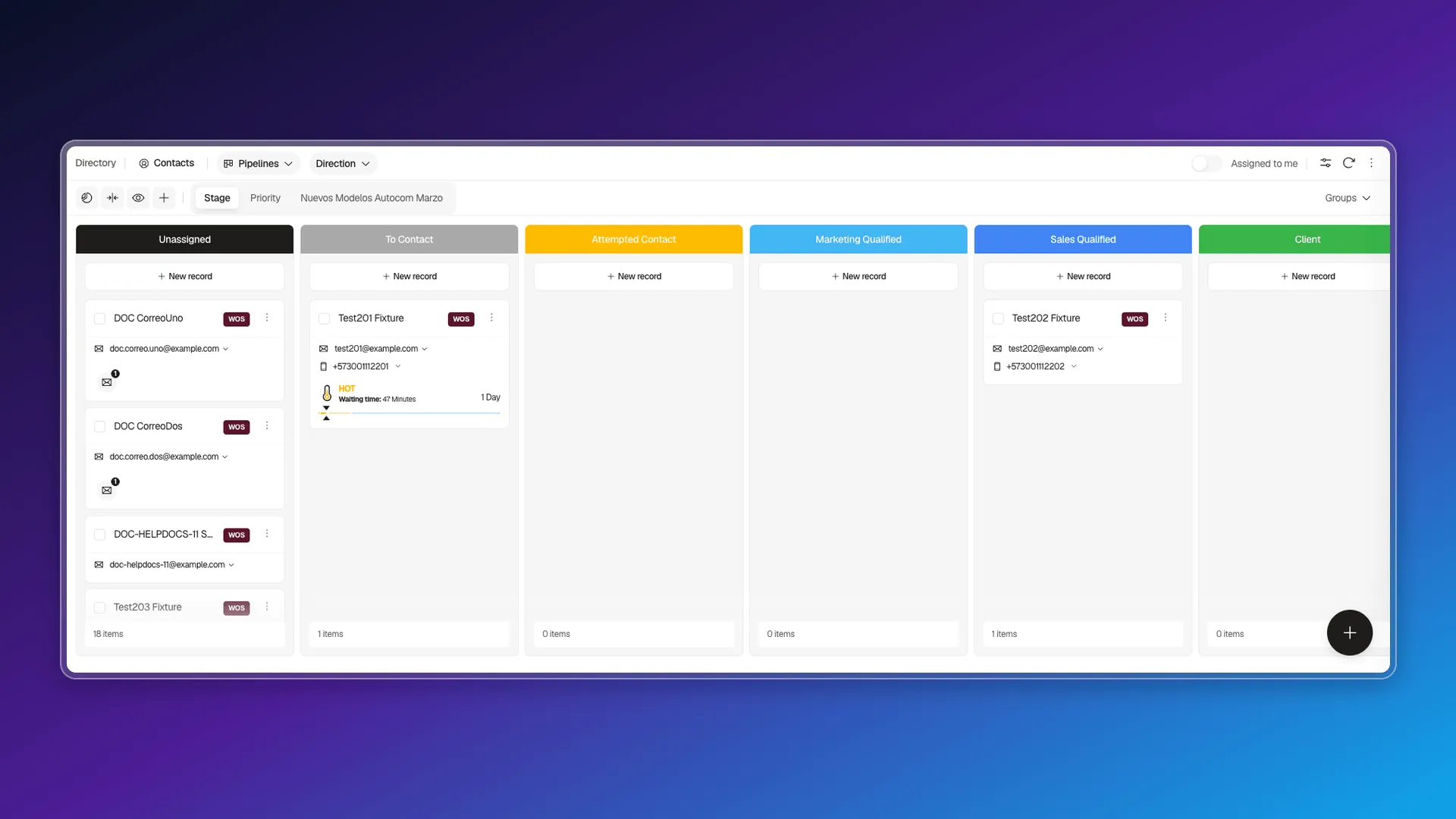
Inside the board view, each column has its own tools for working with the records it holds, without leaving the board.
Create a record on a specific stage
Section titled “Create a record on a specific stage”The New record button at the bottom of each column creates a record directly on that stage — no need to create it first and move it afterward.
Search within a stage
Section titled “Search within a stage”Each column has its own search box (Search in stage…), separate from Search the list: it filters only that column’s cards, not the whole table.
Move a record between stages
Section titled “Move a record between stages”Drag a card and drop it on another column to change its stage: the record moves to the new stage right away, both on the card (which shows the new stage’s label) and in the table index. You can also use Edit and change the Stage selector there, or see Using cards on records for what other actions a card’s menu offers.
Each column also shows an item count at the bottom, so you can tell how many records a stage holds without counting the cards.
Selecting several cards across columns
Section titled “Selecting several cards across columns”Every card has its own selection checkbox, and they don’t need to be in the same column: mark cards from different stages at once and the bottom bar switches to show the number of selected items. With a selection active, the bar enables three actions: Edit selected, Delete selected, and Call selected.
Edit selected opens the same dialog that already works from the table view — see Editing records in bulk for the full detail: pick the field, add more than one, and apply the change to every marked record. There’s no functional difference between doing it from the board or from the table.
Frequently asked questions
Yes, each column has its own New record button.
Yes, each column has its own "Search in stage…" box, separate from the table's general search.
Yes. Drag the card to the new stage's column and the record keeps that stage, both on the card and in the table index.
Yes. Every card has a checkbox, and you can mark cards from different stages at the same time — the selection bar offers Edit selected, Delete selected, and Call selected, same as in the table.
Was this article helpful?
Thanks for your feedback!