
Create custom reports in Reports
A report stores a named query: which object the rows come from, which columns each one carries, and what gets left out. It’s a reusable definition, not a results table you read on screen.
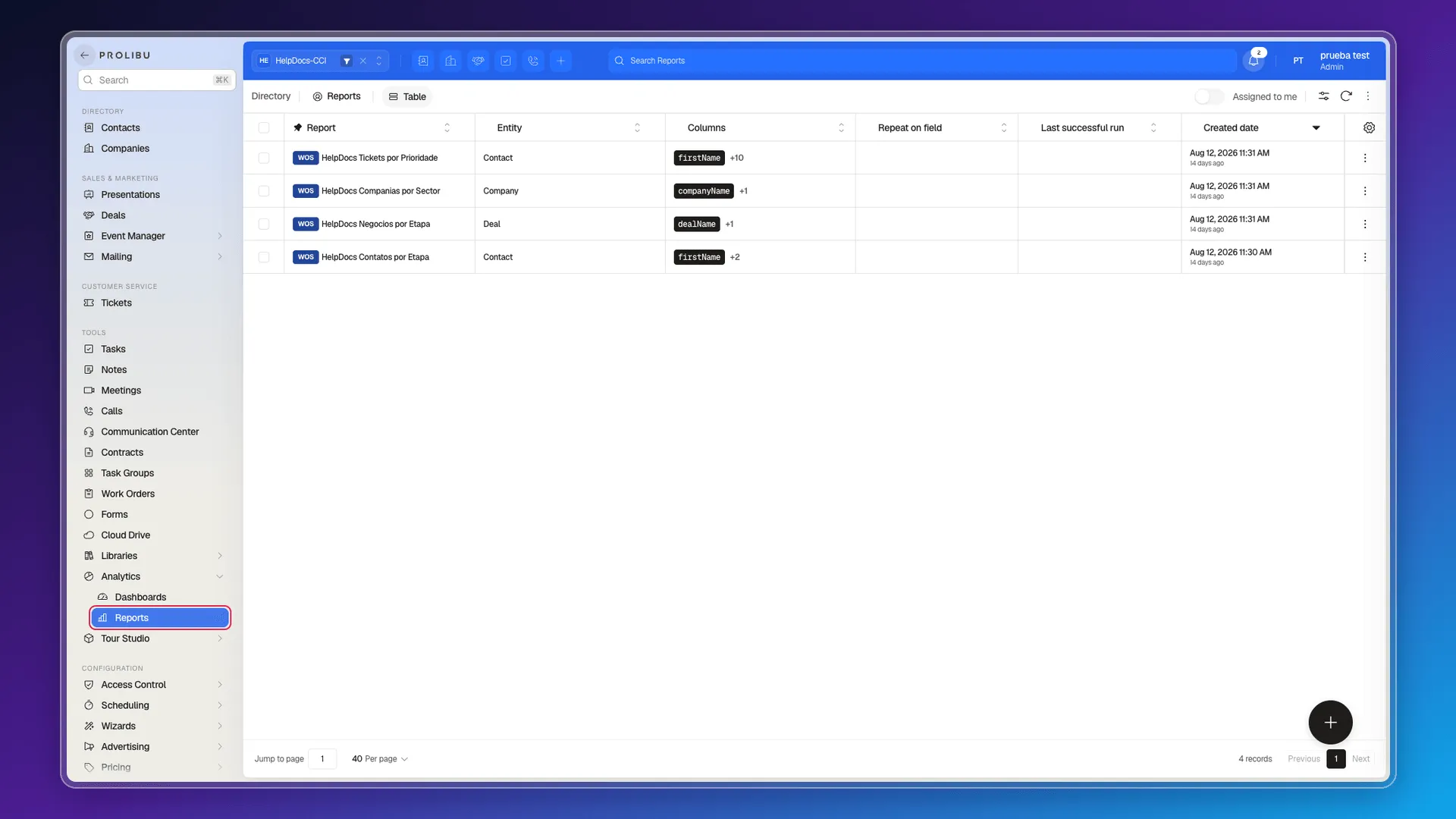
It lives in its own module, outside the CRM: in the side menu, Tools → Analytics → Reports, next to Dashboards. You don’t reach it from a record.
What a report stores
Section titled “What a report stores”The list shows at a glance what defines each one: the Entity the rows come from and the Columns it includes.
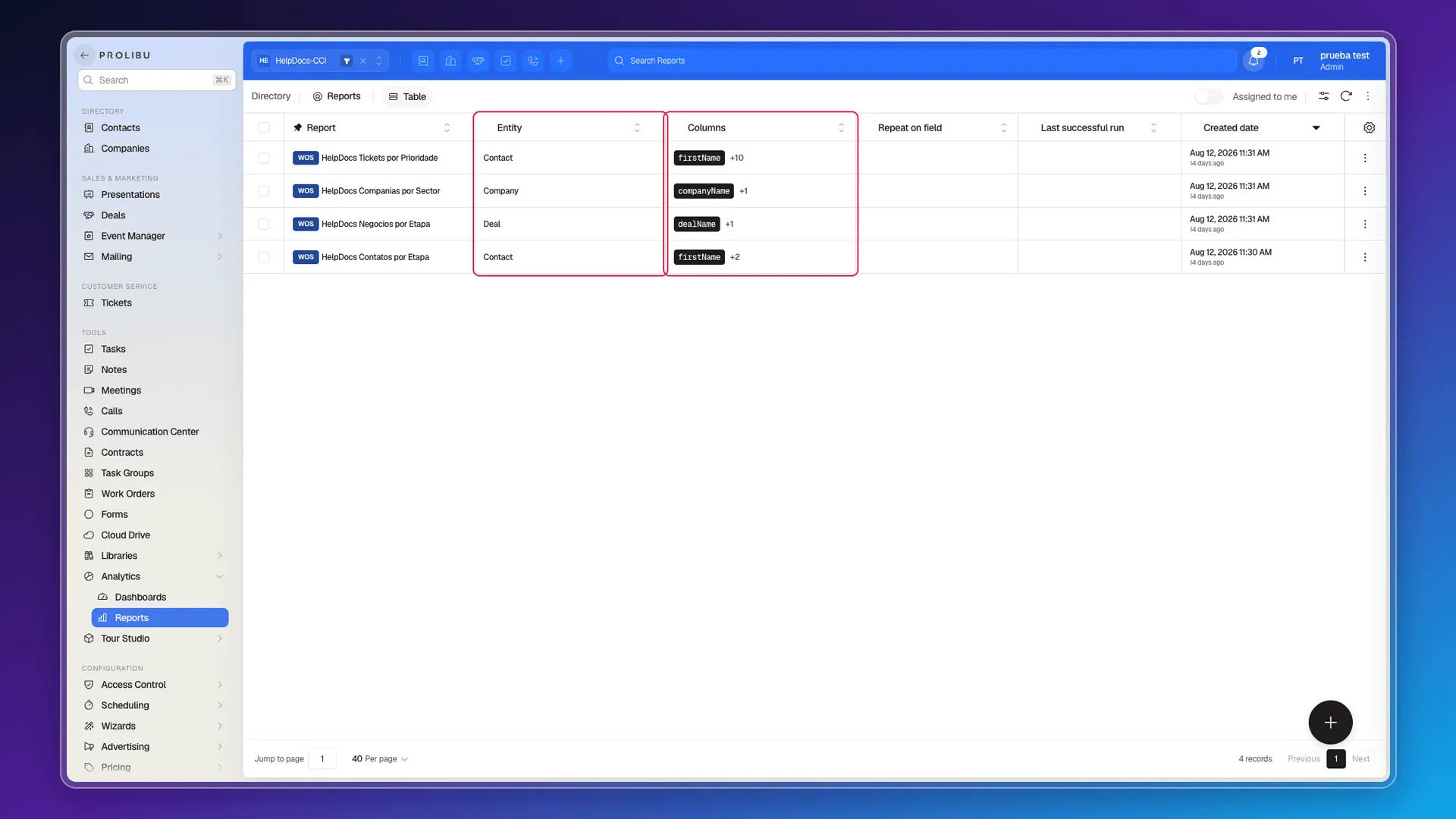
- Entity — the object each row comes from: Contact, Company, Deal, Call… Always exactly one.
- Columns — what data each row carries. Not limited to the entity’s own fields: they can include related collections such as
calls,collaborators,emails,meetings,notesortasks. - Repeat on field — expands a column holding a list into one row per item. Without it, a contact with five calls takes one row with all five bundled; with it, it takes five rows. Use it when you want a line per call or per note rather than per contact.
- Date range and Filter — narrow which records make it in. The filter is written in JSON.
- Last successful run — when it was last resolved.
A report can also be served from a snapshot: a frozen copy of the data, stored as a file, instead of querying live each time.
Creating one from scratch doesn’t work yet
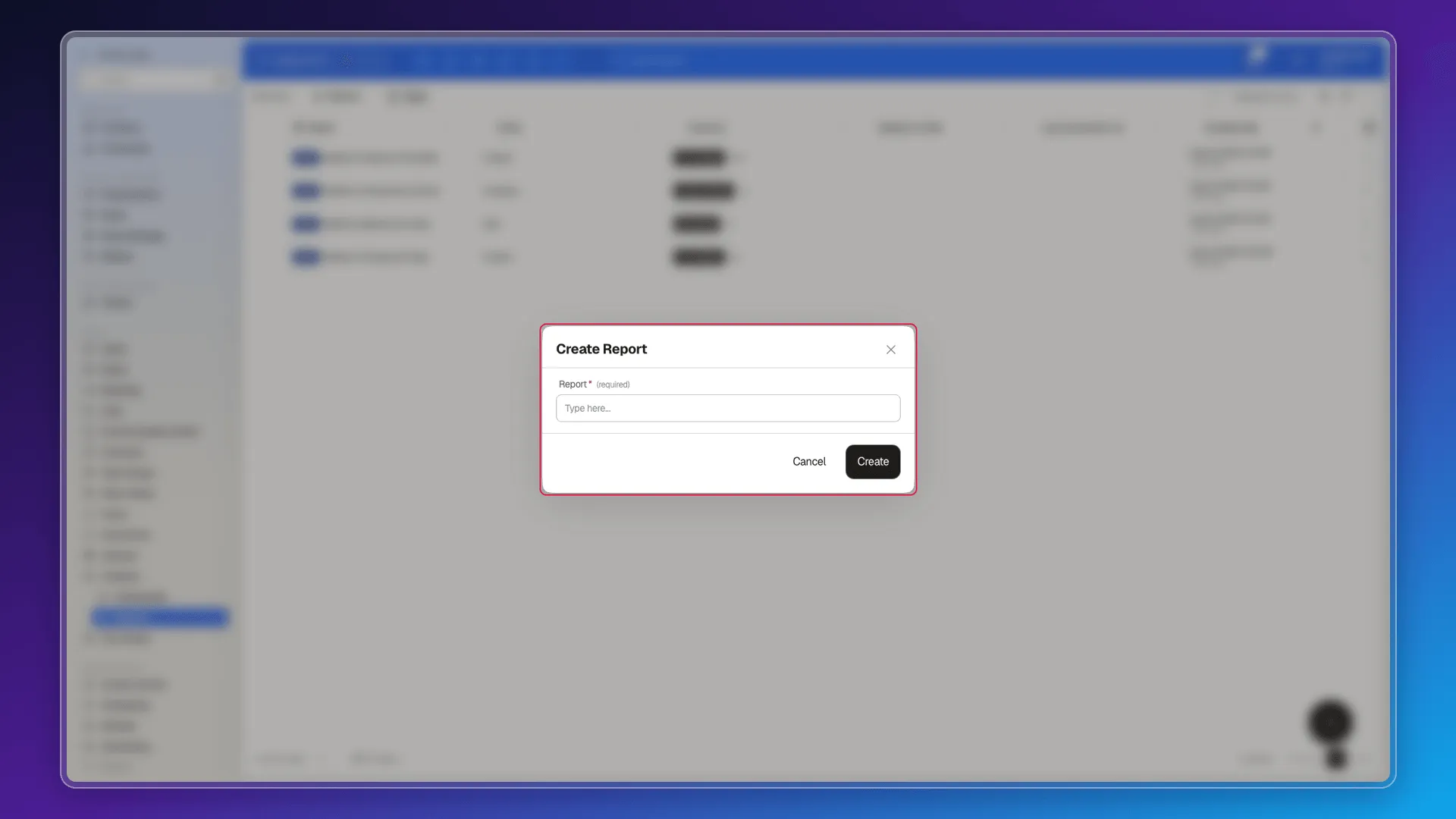
Section titled “Creating one from scratch doesn’t work yet”New Report opens a dialog with a single field, the name. Selecting Create returns an error that Entity is required — but the dialog offers no control to pick one, so there’s no way to complete the creation this way.
Start from an existing one
Section titled “Start from an existing one”While creation stays like this, the way to get a new report is to duplicate one: open the three-dot menu on its row and choose Clone. The copy arrives with the original’s Entity and Columns already set, and shows up in the list with a (Copy) suffix.
From there, Edit on that copy lets you rename it and adjust columns, repeat-on field, date range and filter. It’s also the only way to get a report on an entity you don’t have yet: clone the one that already uses it.
See also
Section titled “See also”- How to use objects for business processes — which objects exist and what each represents.
- Determining filter criteria — to narrow records inside the CRM, without leaving the table.
- Export your records — if what you need is the data in a file.
Frequently asked questions
In the side menu, under Tools → Analytics. Dashboards and Reports live there together. You don't reach it from a record.
A report's Entity is a single object, but its Columns can include related collections — on a Contact report, for instance, calls, collaborators, emails, meetings, notes and tasks.
It expands a column holding a list into one row per item — one row per call, instead of a single row per contact with all the calls bundled together.
Because the Create Report dialog asks only for a name and saving then fails: the server requires an Entity, and the dialog offers no control to pick one.
By duplicating an existing one with Clone, from its row menu. The copy inherits the original's Entity and Columns, and from there you can rename it and adjust the fields.
Was this article helpful?
Thanks for your feedback!