
Using cards on records
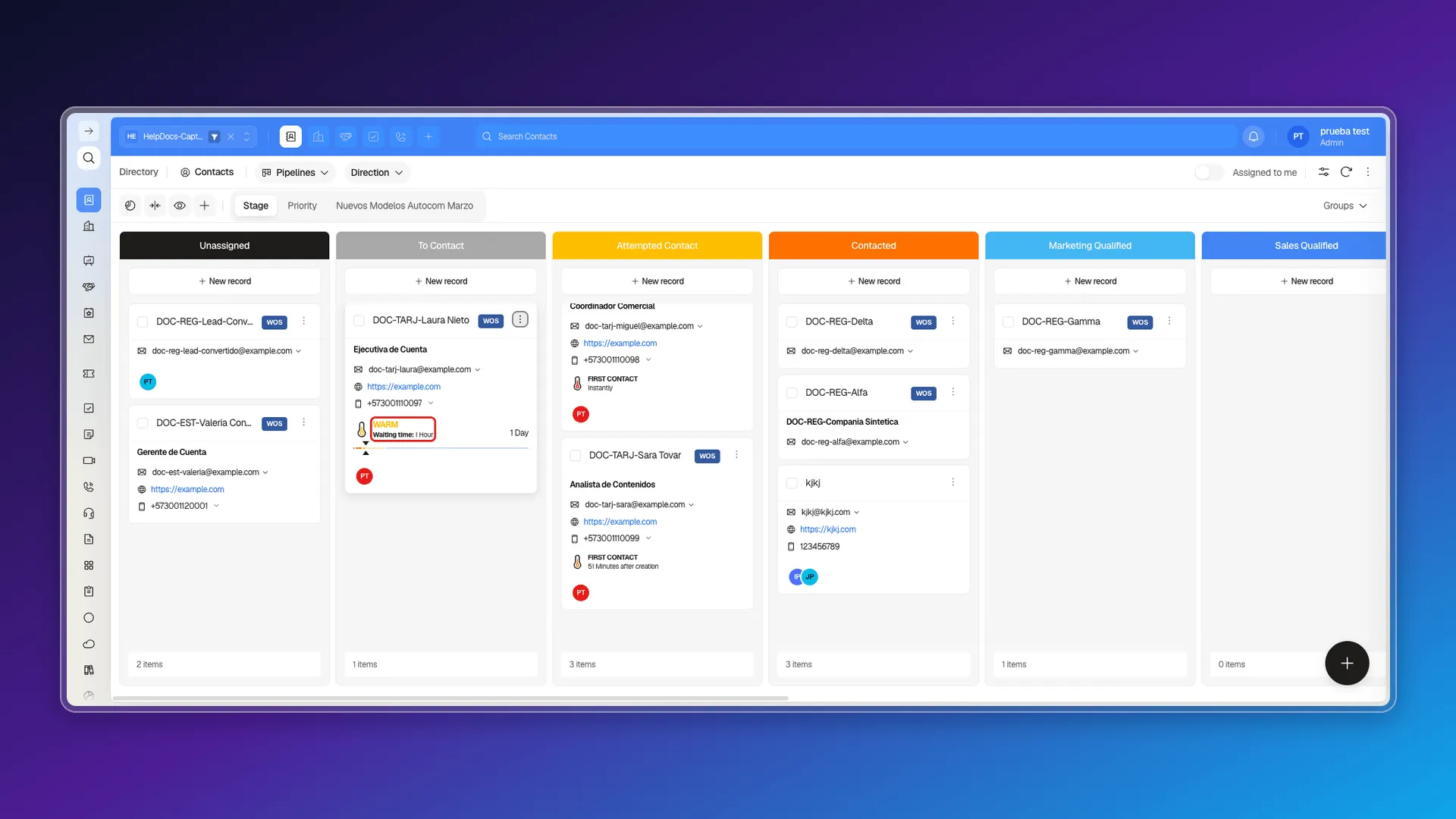
Every card on the board view represents a record of the object — a contact, in the screenshots —, with whichever properties you leave active in Customize board cards.
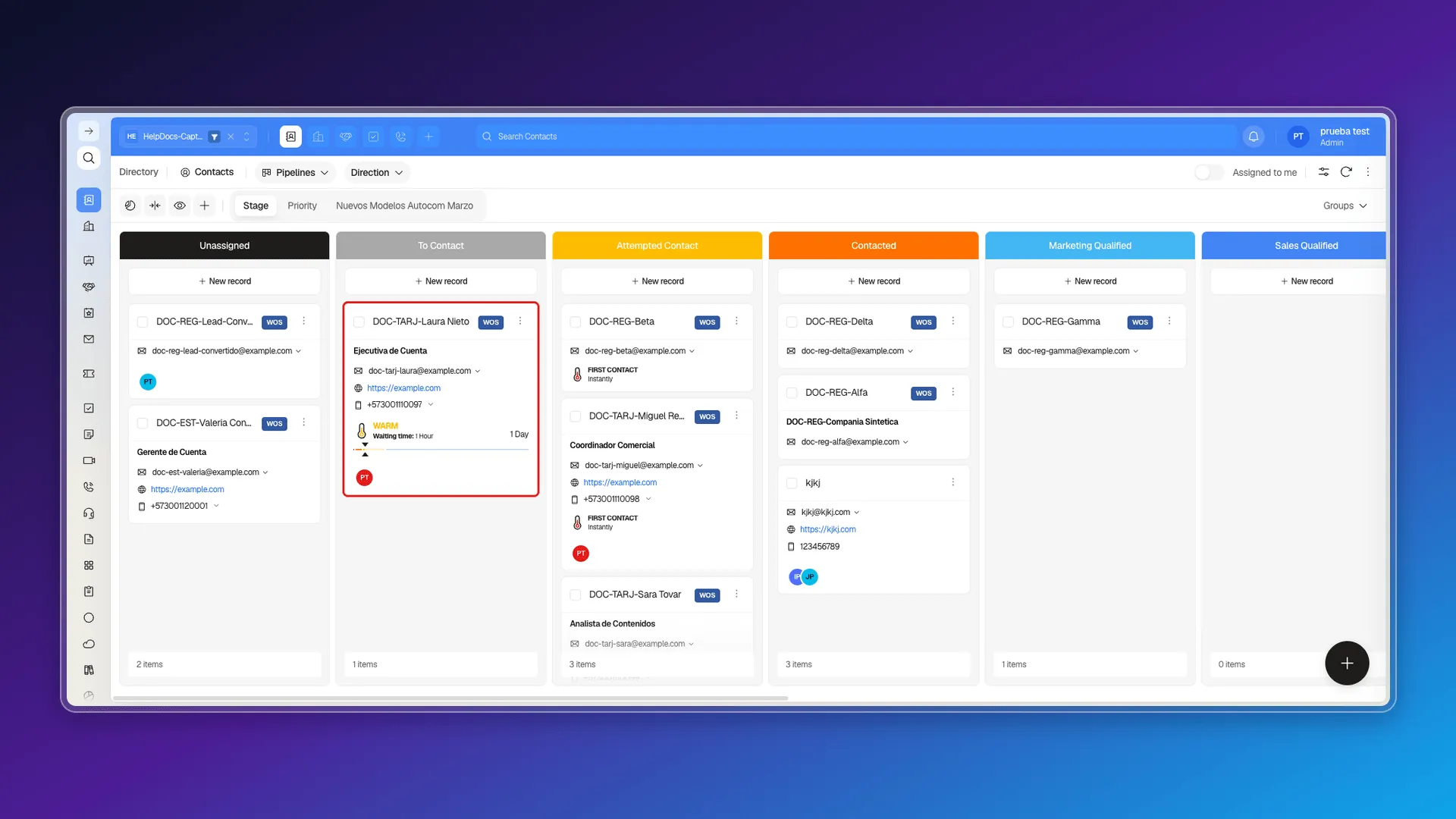
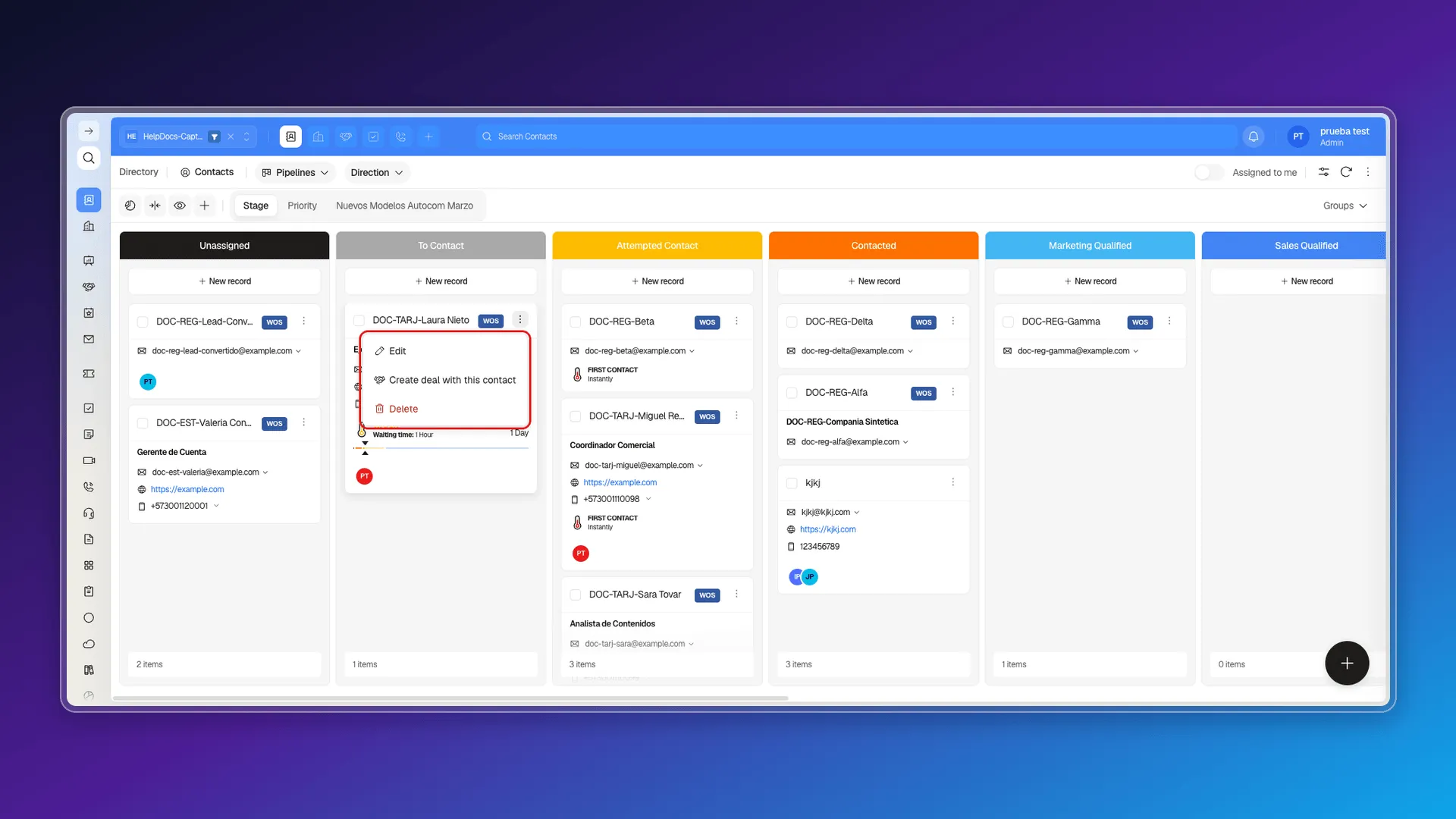
A card’s three-dot menu offers the same actions as that object’s table view; in Contacts: Edit, Create deal with this contact, and Delete.
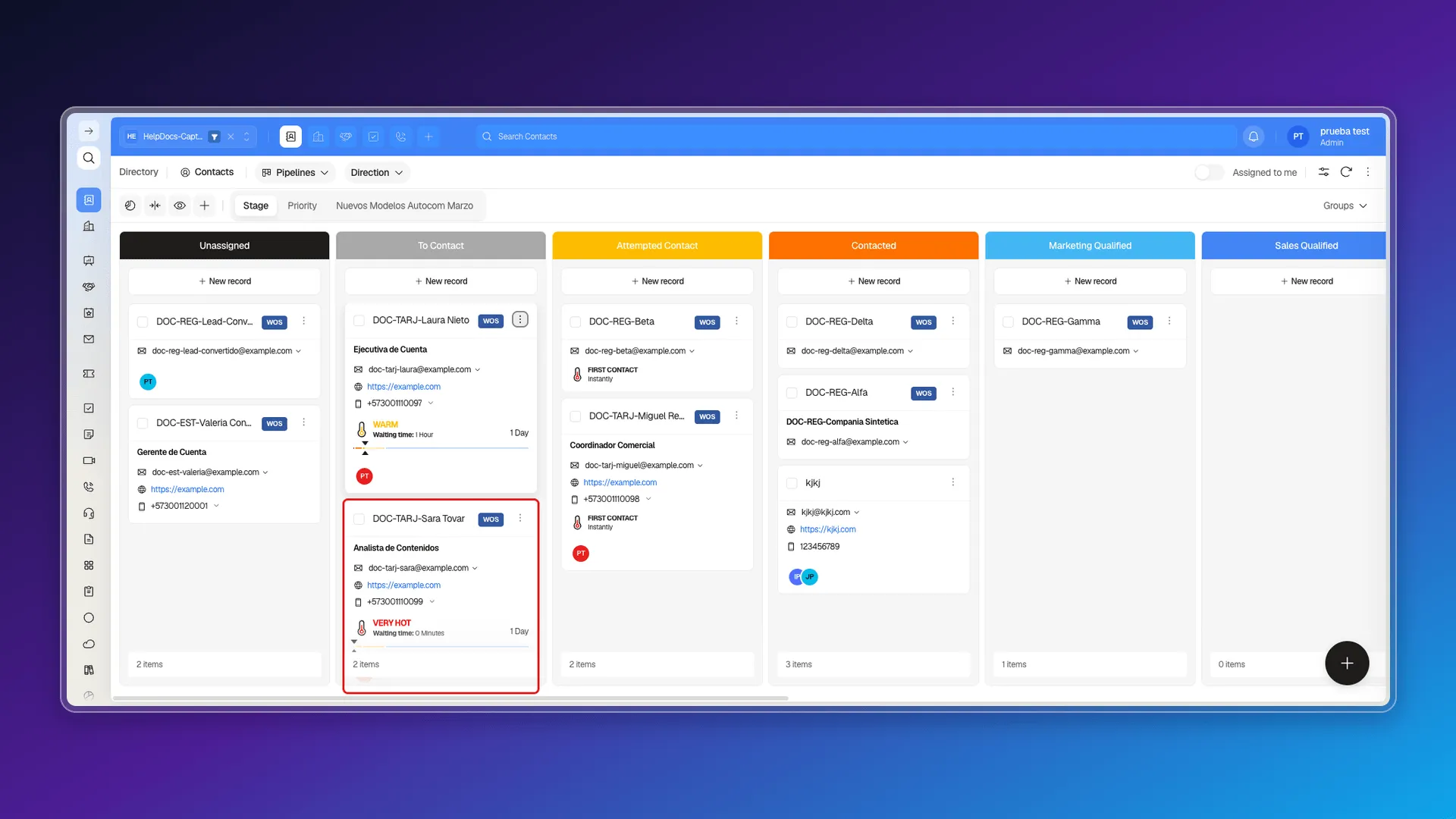
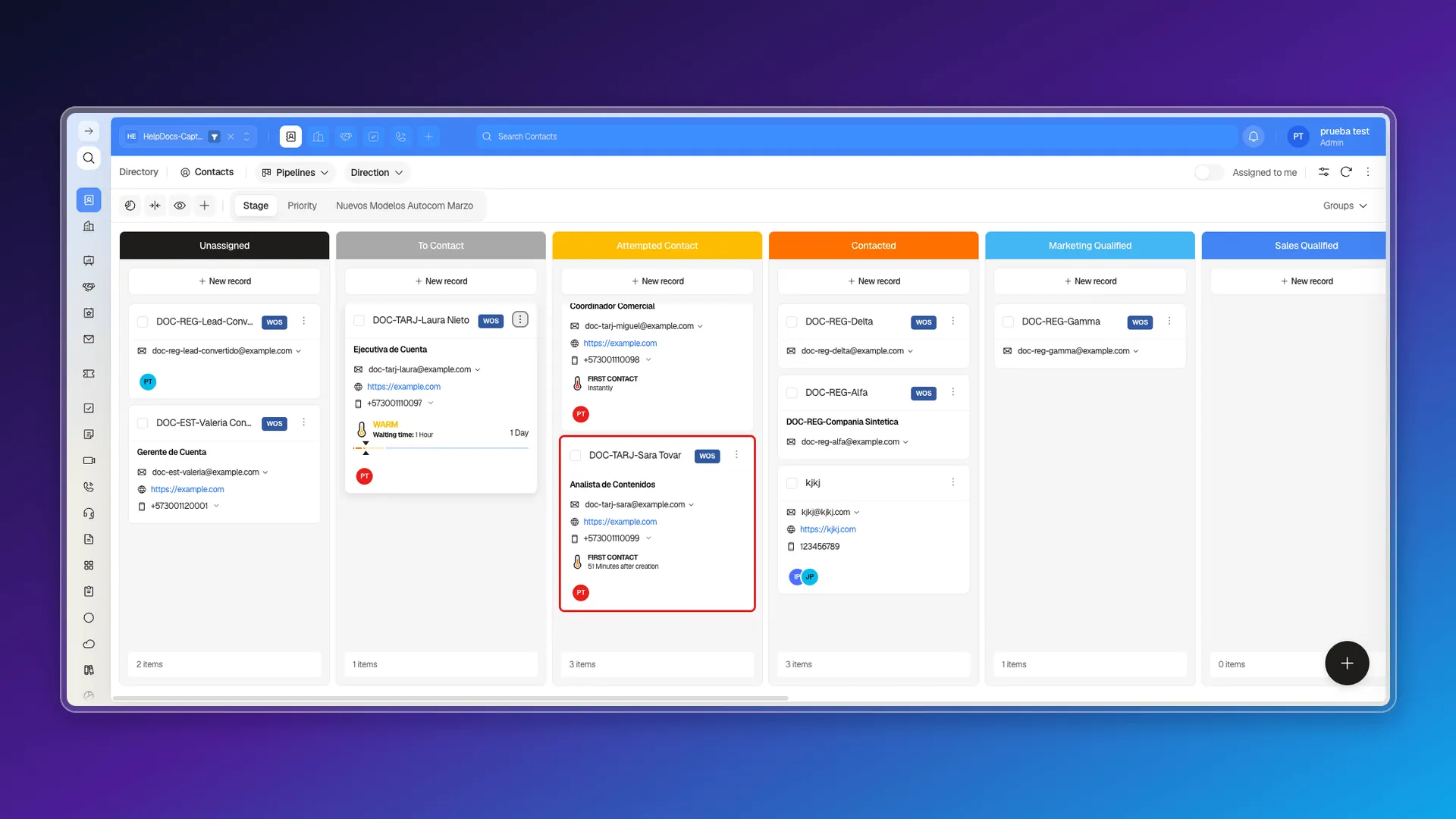
Dragging a card and dropping it on another column does change its stage: the record moves to the new stage right away, both on the card and in the table index. You can also use Edit and change the Stage selector from there.
Every card also automatically calculates its time on the current stage — see Calculated stage properties.
Frequently asked questions
The same ones as the object's table view — in Contacts, Edit, Create deal with this contact, and Delete. It has no shortcut to change stage.
Yes. Drag the card to the new stage's column and the record keeps that stage.
Yes — see Customize board cards.
Was this article helpful?
Thanks for your feedback!