
Setting up your account
When you’re setting up a new Prolibu Suite account, there are several pieces worth reviewing: who can sign in and how, who’s part of the team, what everyone sees by default, and which apps connect to it. This guide brings those pieces together and shows where to find them. These settings are available to administrators only.
Open the account settings
Section titled “Open the account settings”- In the top bar, select your avatar (Account).
- Under other, select Preferences.
A separate panel opens with two zones: on the left, the System navigation (General, Billing, Security, Módulos, Integrations); on the right, the form for whichever section you pick.
Creating your account
Section titled “Creating your account”Prolibu doesn’t have a public sign-up form with email, Google, or Apple ID like you’d see in a self-serve product. New accounts are provisioned on request as part of Prolibu’s commercial process. Once the account exists, an admin can create the users who will join it.
Inviting your team
Section titled “Inviting your team”Team members are added from the Users module, with the Create User button.
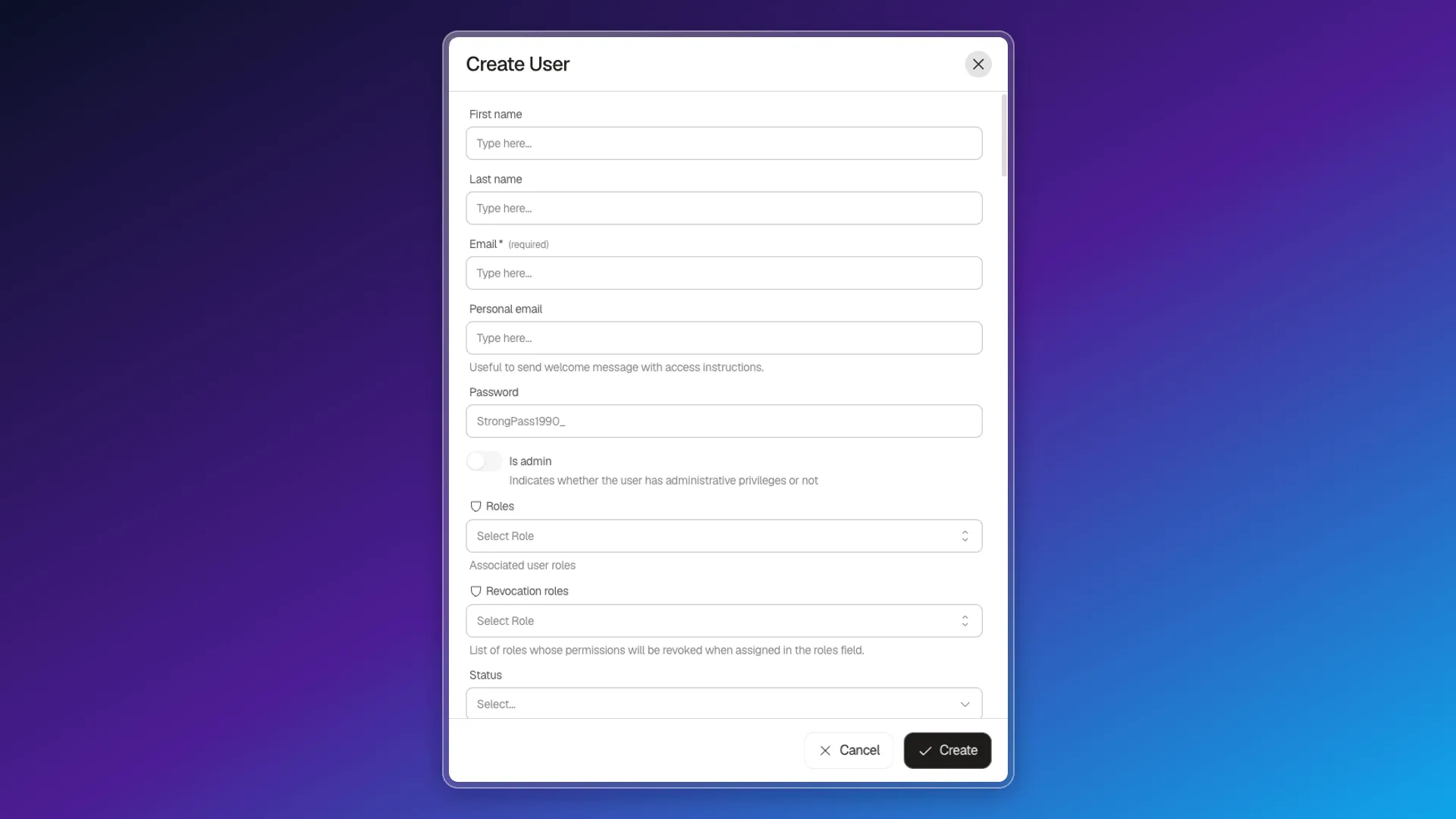
Unlike an email invite the other person accepts, in Prolibu the admin sets the email and password directly in the form. The Personal email field is optional and is used to send a welcome message with access instructions — it doesn’t replace the password you set.
Other fields on the same form:
- Is admin: full administrative privileges, regardless of assigned roles.
- Roles and Revocation roles: granular per-module permissions (see Assign access to records).
- Company, Team, Primary workspace, Shared workspaces, and Selectable workspaces: which data and contexts the person is tied to.
- Their own Language, Time zone, and Currency, independent of the account-wide values described below.
Changing roles and permissions after creating the user
Section titled “Changing roles and permissions after creating the user”Roles and permissions aren’t locked in at account creation: Users → Actions → Edit opens the same form, with Is admin, Roles, and Revocation roles available to change at any time — verified by opening the editor for an existing user, with no need to recreate them.
Default role for new users
Section titled “Default role for new users”System → Security → New Users sets which role gets assigned automatically to every user you create, so you don’t have to pick it each time on the form.
Security
Section titled “Security”System → Security brings together several real controls, not just email-and-password access:
Two-factor authentication (Mfa)
Section titled “Two-factor authentication (Mfa)”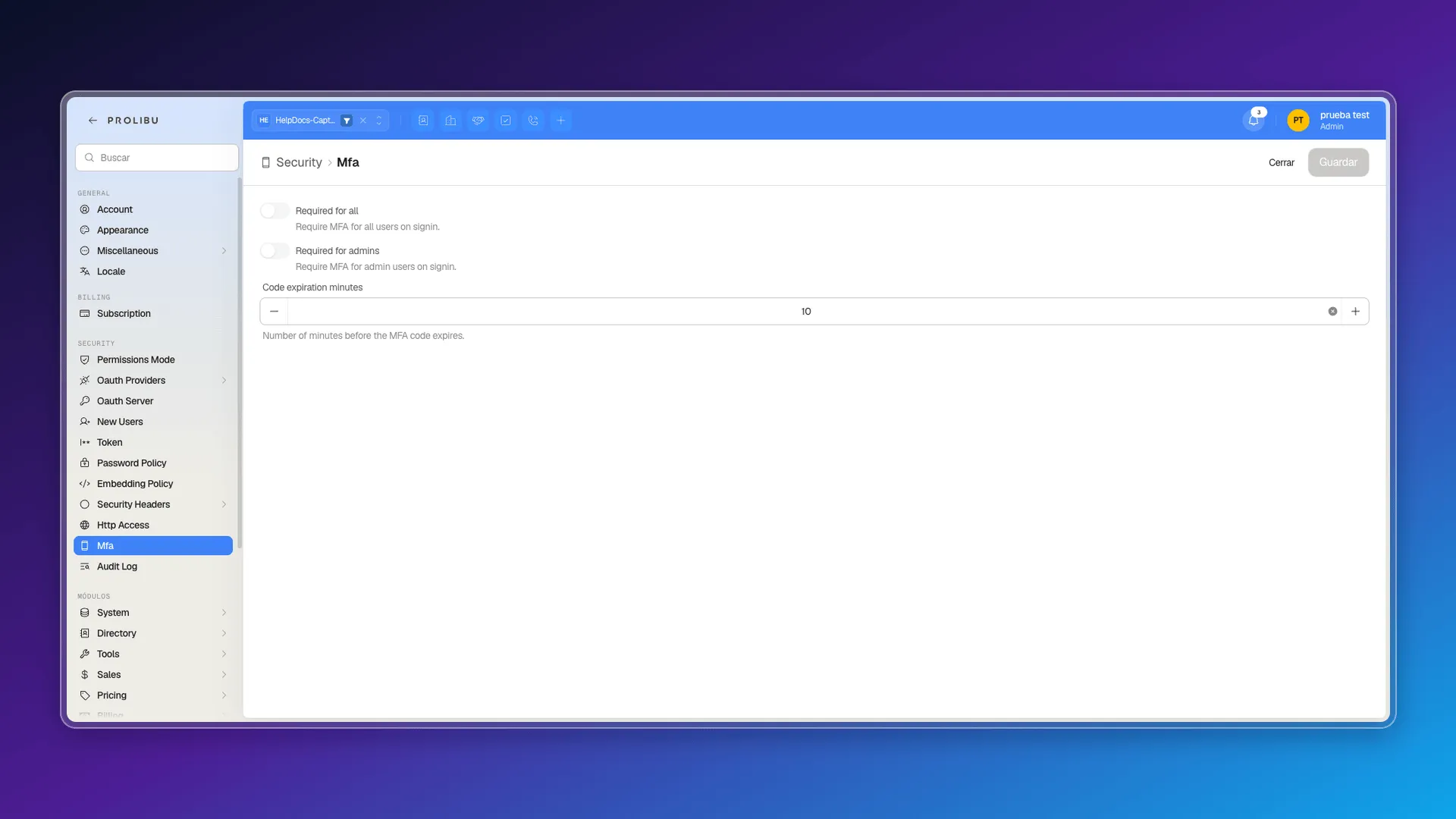
Required for all demands the code from any user at sign-in; Required for admins only requires it for admins. Code expiration minutes controls how long the code stays valid.
Signing in with other providers
Section titled “Signing in with other providers”Oauth Providers has entries for Google, Microsoft, Hubspot, and Okta, each with its own Enabled switch. Google and Microsoft come ready to use: you just flip Enabled and Allow sign in, no credentials of your own needed, and Google also offers extra scopes (sending email on your behalf, reading and writing email, calendar, YouTube).
Okta is different, and it is configurable enterprise SSO: turning it on requires registering your own Client id, Client secret, and Okta domain (your corporate identity provider) — until those fields are filled in, the Enabled switch doesn’t do anything. In this test account it’s disabled and unconfigured, so we couldn’t verify the full end-to-end flow.
Active sessions
Section titled “Active sessions”Sessions (under Account, not System) lists device and IP for every open session, with Close my sessions and Close all sessions buttons — the latter forces a sign-out across the whole account, useful after a suspected unauthorized access.
Permissions mode
Section titled “Permissions mode”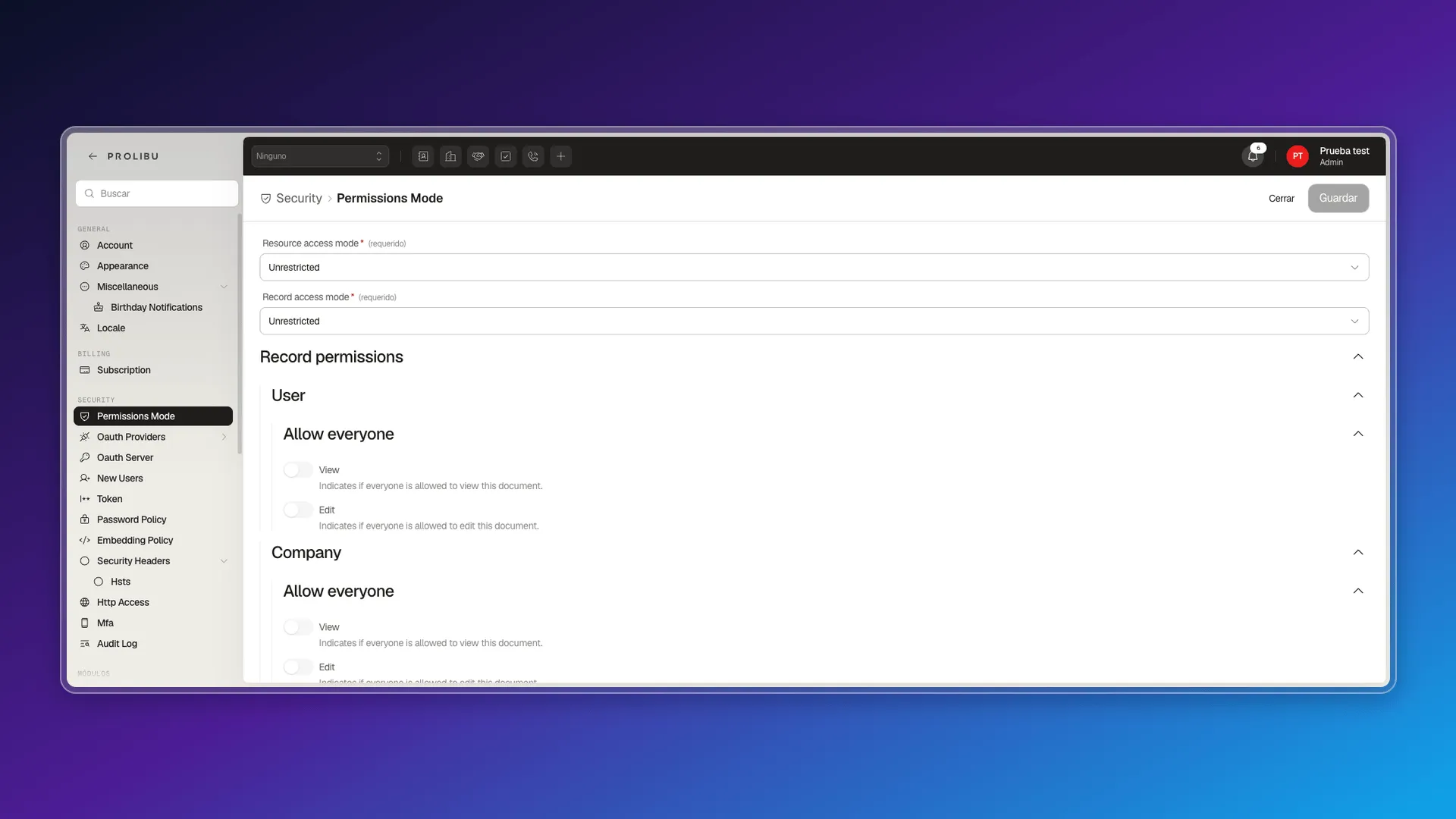
Permissions Mode has two global settings — Resource access mode and Record access mode — each with two possible values: Unrestricted or Strict. Below that, Record permissions expands, object by object (User, Company, and the rest), the same Allow everyone → View/Edit switches you already saw in Collaborators: it’s the panel where that control lives at the whole-account level, not just per role.
Session tokens
Section titled “Session tokens”Token sets Expiration days: how many days a session token stays active before it expires (30 by default).
Password policy
Section titled “Password policy”Password Policy has three controls: Require password change (forces a change after a set period), Password lifetime days (that period, 90 by default), and Prevent password reuse (blocks reusing a previous password).
Iframe embedding
Section titled “Iframe embedding”Embedding Policy decides whether Prolibu Suite can be shown inside an external iframe (Allow embedding), whether it’s allowed from local network IP addresses (Allow origins from local networks), and the specific list of Allowed origins — the domains authorized to embed the application.
Security headers (Hsts)
Section titled “Security headers (Hsts)”Security Headers → Hsts turns on the Strict-Transport-Security header with a Max age in seconds (31536000, one year, by default) and the Include sub domains option. It’s technical web-server configuration; it only takes effect in production, not in the test environment (which uses a self-signed certificate).
IP access
Section titled “IP access”Http Access keeps lists of Banned ips (blocked) and Allowed ips (exempt from rate limits and bans), plus an Enable logs switch to record incoming HTTP requests.
Audit logging (configuration)
Section titled “Audit logging (configuration)”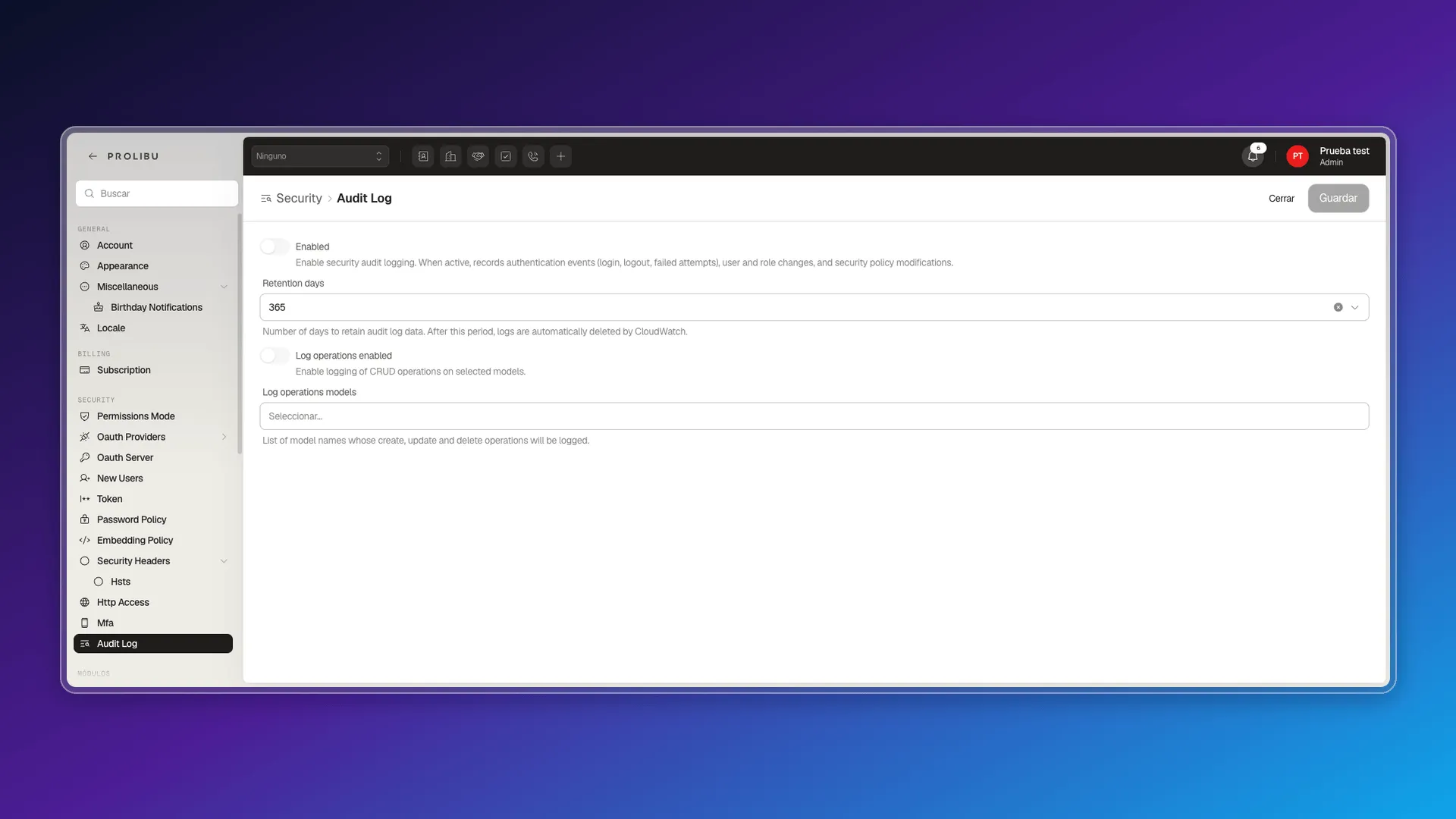
Audit Log has the controls that decide whether the account records security activity: Enabled (turns on logging of sign-ins, user and role changes, and security policy modifications), Retention days (365 by default — after that period, CloudWatch automatically deletes the logs), and Log operations enabled with its Log operations models list, to also log create, edit, and delete operations on the objects you choose.
Per-module configuration
Section titled “Per-module configuration”Below Integrations, the Preferences menu continues with a Módulos section: System, Directory, Tools, Sales, Pricing, Billing, Support, Achievements, Operations, and Communications. This isn’t new account configuration — it’s a shortcut into each module’s own admin panel (for example, the Stage option in the System group opens the Stages configuration, the Scoring option in that same group opens Scoring, and the Contacts option in the Directory group opens the same schema editor as Create and edit properties). The detail for each one lives in that module’s own article, not here.
Account-wide default settings
Section titled “Account-wide default settings”Language, time zone, and currency
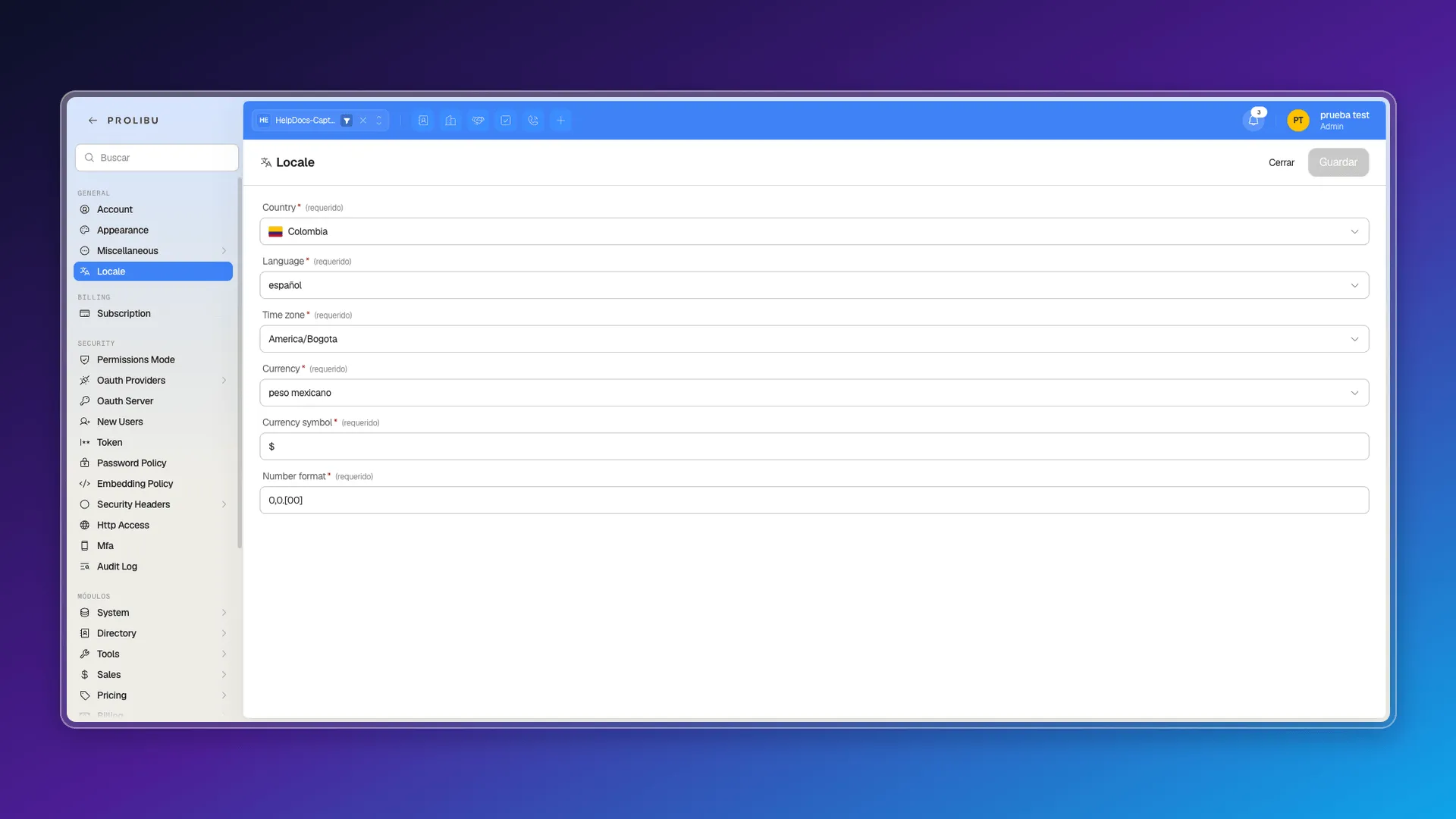
Section titled “Language, time zone, and currency”System → General → Locale sets Country, Language, Time zone, Currency, Currency symbol, and Number format for the whole account — different from the language each person picks for themselves from the flag chip in the Account menu.
Birthday notifications
Section titled “Birthday notifications”General → Miscellaneous → Birthday Notifications has an Enabled switch that turns on birthday reminders for your contacts and coworkers, plus two optional filters: Limit to company (only users in the same company) and Limit to workspace (only the same workspace).
Company branding
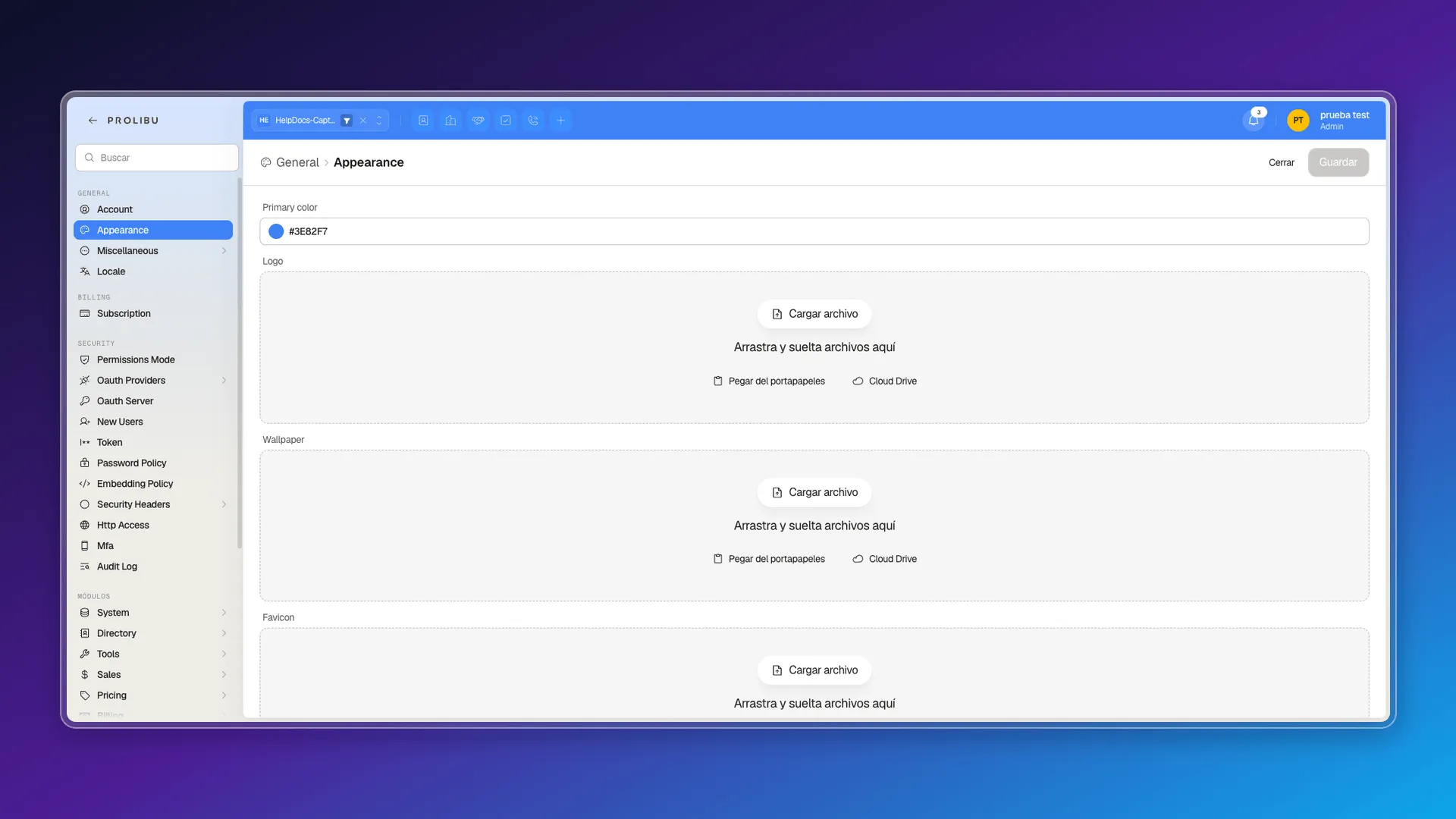
Section titled “Company branding”System → General → Appearance lets you set the Primary color, upload a Logo, Wallpaper, and Favicon, and pick the Font family the interface uses.
Data privacy
Section titled “Data privacy”We didn’t find, within System → Security or the rest of the Preferences panel, a section dedicated to turning on or configuring data privacy as such. Control over who sees what is handled through roles and protected fields (see Assign access to records), which is a different mechanism.
Connecting apps
Section titled “Connecting apps”App center
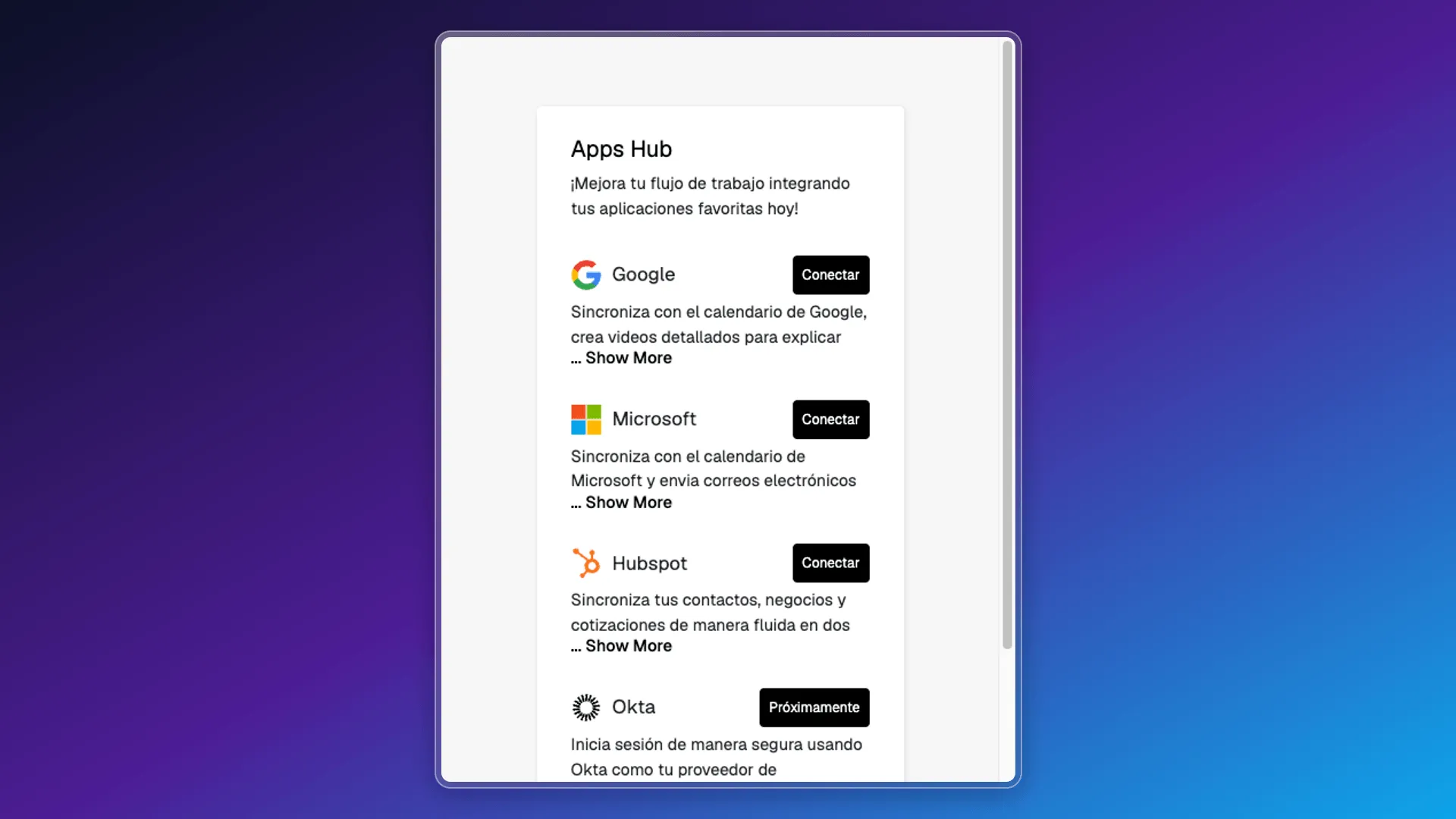
Section titled “App center”From Account → App center, the Apps Hub opens, with Google, Microsoft, Hubspot, and Okta (the last one marked Próximamente / Coming soon).
Technical integrations
Section titled “Technical integrations”System → Integrations expands the list for admins, with these integrations already available:
- Mcp: exposes Prolibu as an MCP server.
- Webhooks: notifies events to a URL of your own.
- Lifecycle Hooks: triggers automations when a record is created, updated, or deleted.
- Sync: syncing with another CRM.
- Payment Providers → Stripe: charges.
- Third Party: Sendgrid (transactional email), Apollo and Kaspr (data enrichment), Open Ai (see AI automation), Ultramsg (WhatsApp), Slack, Telegram, and Discord.
Prolibu as an OAuth provider
Section titled “Prolibu as an OAuth provider”System → Security → Oauth Server works the other way around from the integrations above: instead of connecting Prolibu to another app, it lets third-party apps and MCP clients obtain tokens on behalf of your users (OAuth 2.1, with PKCE and control over token lifetimes). It’s the mechanism that makes it possible to build your own integration against Prolibu beyond just API Keys.
API keys
Section titled “API keys”Account → API Keys lists the tokens you’ve created, with columns for app, last activity, roles, scopes, and expiration date, plus a Create Token button to generate a new one with scoped permissions — Prolibu’s equivalent of a custom API integration.
AI automation
Section titled “AI automation”Open Ai shows up as its own integration inside System → Integrations → Third Party. We didn’t activate it or configure credentials, to avoid altering the shared account’s state; we confirmed the entry exists without verifying the detail of its fields.
Managing your subscription
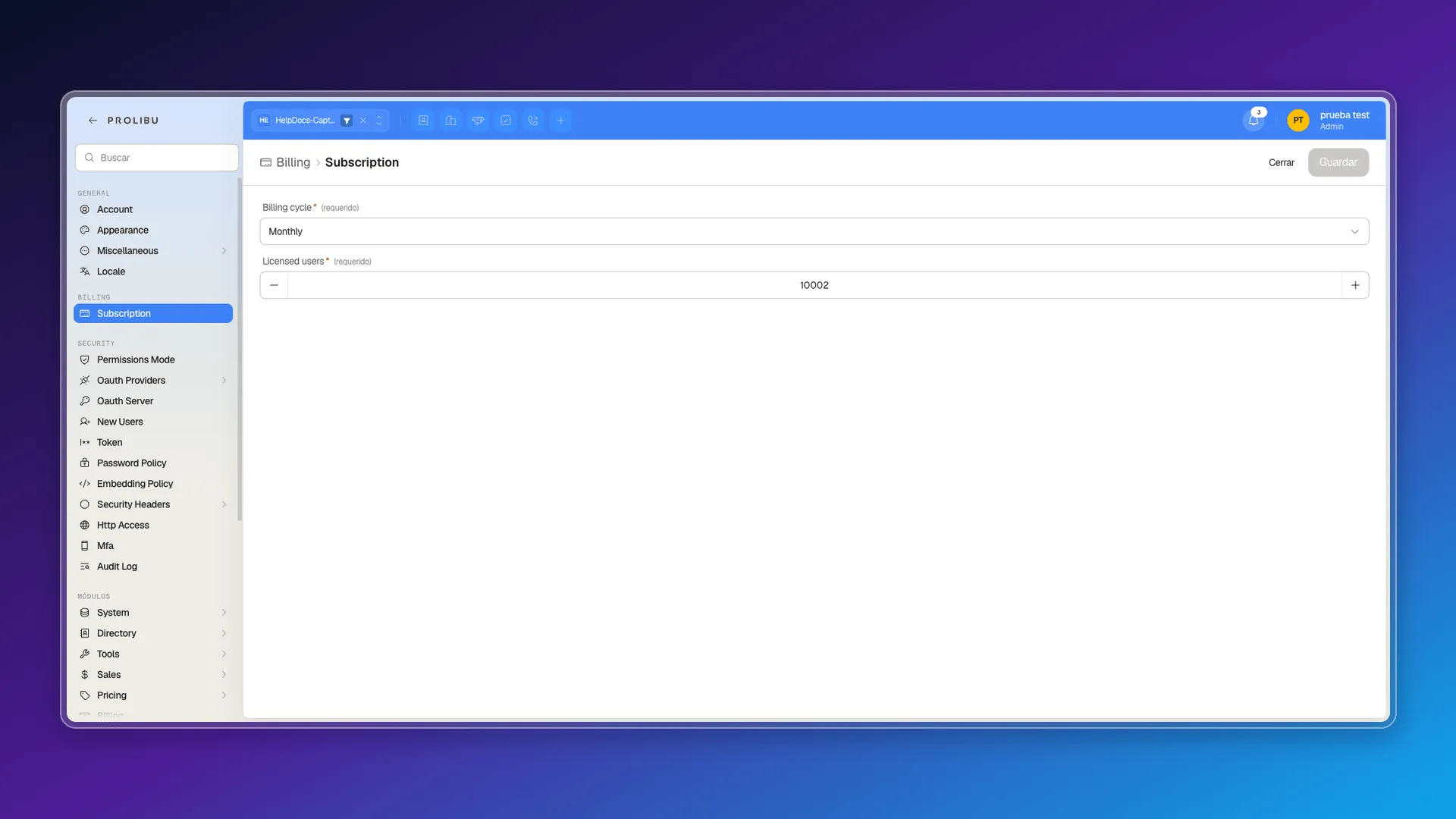
Section titled “Managing your subscription”System → Billing → Subscription has Billing cycle (for example, Monthly) and the number of Licensed users.
Getting help
Section titled “Getting help”Account → Help opens a live chat (tawk.to) to talk directly with support, without leaving your session’s context.
What doesn’t exist
Section titled “What doesn’t exist”- Public account sign-up: there’s no self-serve form with email, Google, or Apple ID; the account is created by Prolibu or an admin. There’s no switch for this either — we checked every user- and OAuth-provider-related setting and none offers “auto-create account on sign-in.”
- Account-wide setting that forces SSO: each OAuth provider adds an extra sign-in path; none of them block password login for the rest of the account.
- Restricting Prolibu employee access: we didn’t find a screen that lists or restricts Prolibu staff access to your account.
- User community: we didn’t find a forum or community space, either inside Prolibu Suite or on its public site.
- Multiple active currencies at once: the account has a single currency configured in Locale.
- Open app marketplace: the App center covers 4 curated integrations, not a catalog of third parties.
- Dedicated data privacy section: we didn’t find it as a standalone setting in Preferences.
See also
Section titled “See also”🎥 Video coming soon.
Frequently asked questions
Account → Preferences opens the System panel, with the General, Billing, Security, Módulos, and Integrations sections.
Yes. System → Security → Mfa has the Required for all and Required for admins switches, plus the code expiration time.
From the Users module, with Create User. The admin sets the email and password directly; it isn't a link-based invite that the person accepts.
Yes. System → Security → Permissions Mode has Resource/Record access mode (Unrestricted or Strict) and a Record permissions matrix with Allow everyone → View/Edit switches per object.
There's a real configuration panel (System → Security → Audit Log, with Enabled, Retention days, and Log operations enabled), and it's off by default. The viewer for that data (Audit logs) is documented as non-functional in this environment.
Was this article helpful?
Thanks for your feedback!