
Edit your profile
Your profile brings together the information Prolibu Suite shows about you and several personal preferences.
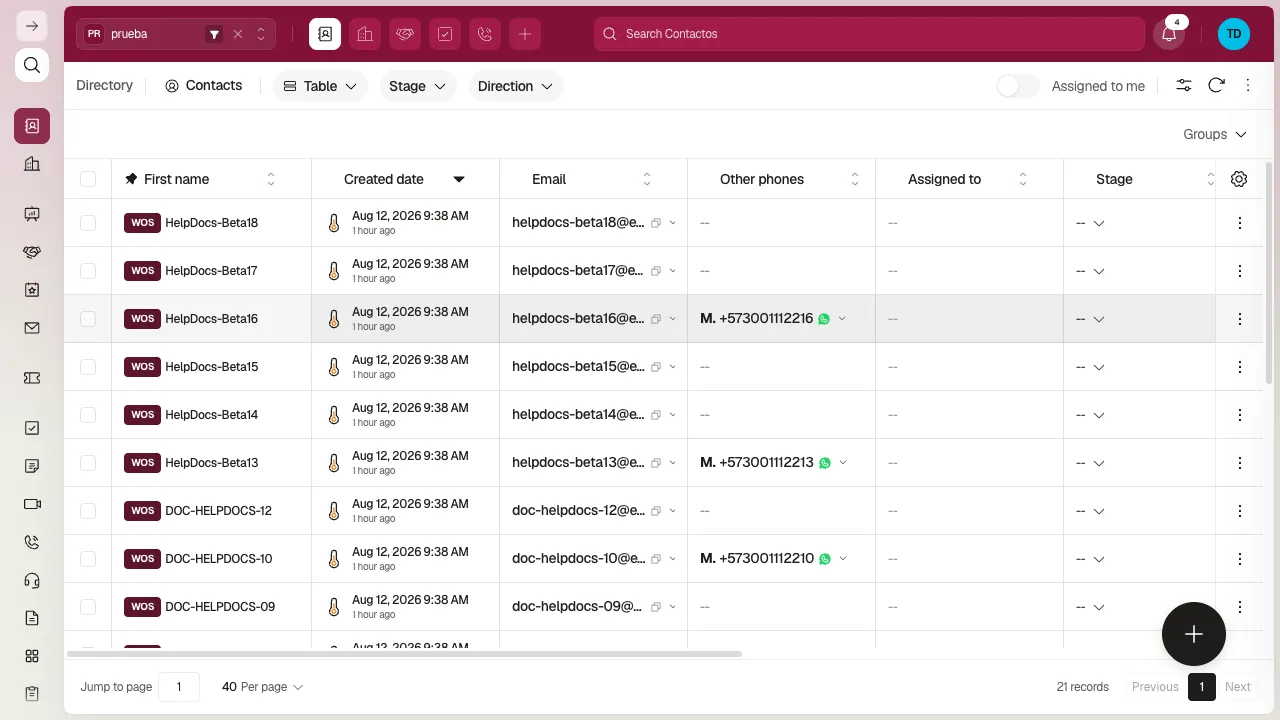
Open profile editing
Section titled “Open profile editing”- On the top bar, select your avatar (Account).
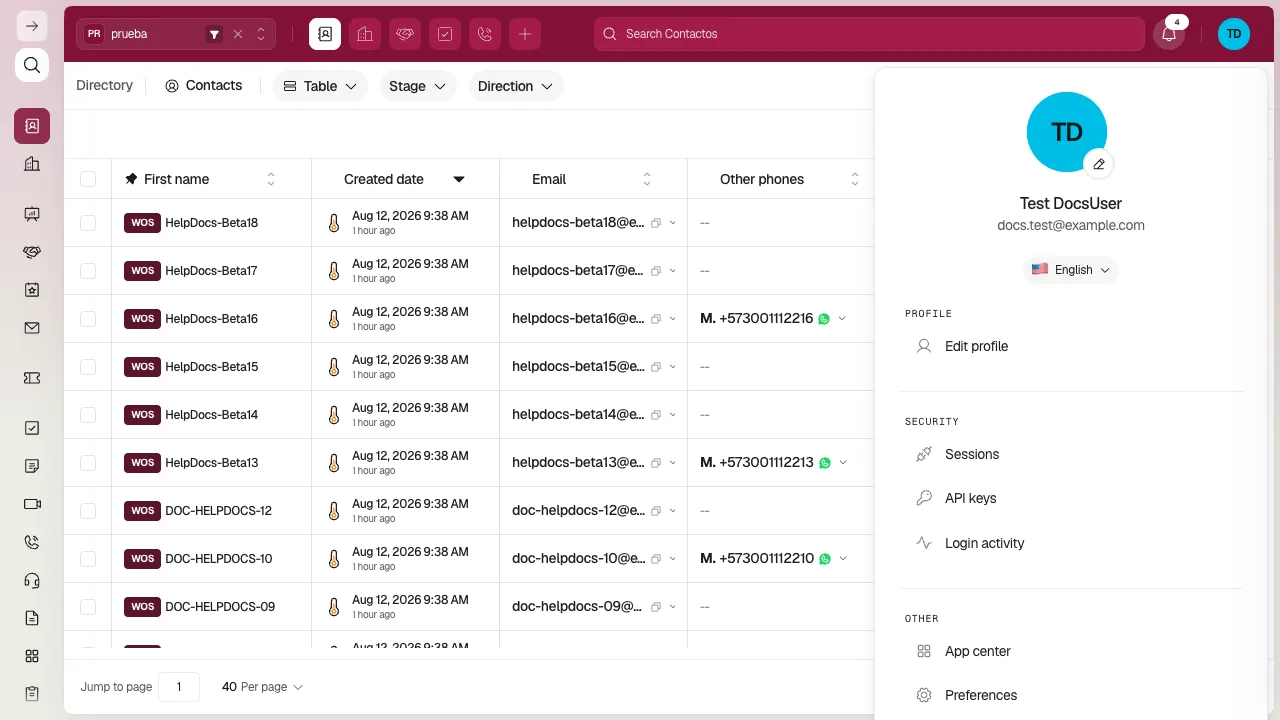
- In the Profile section, select Edit profile.
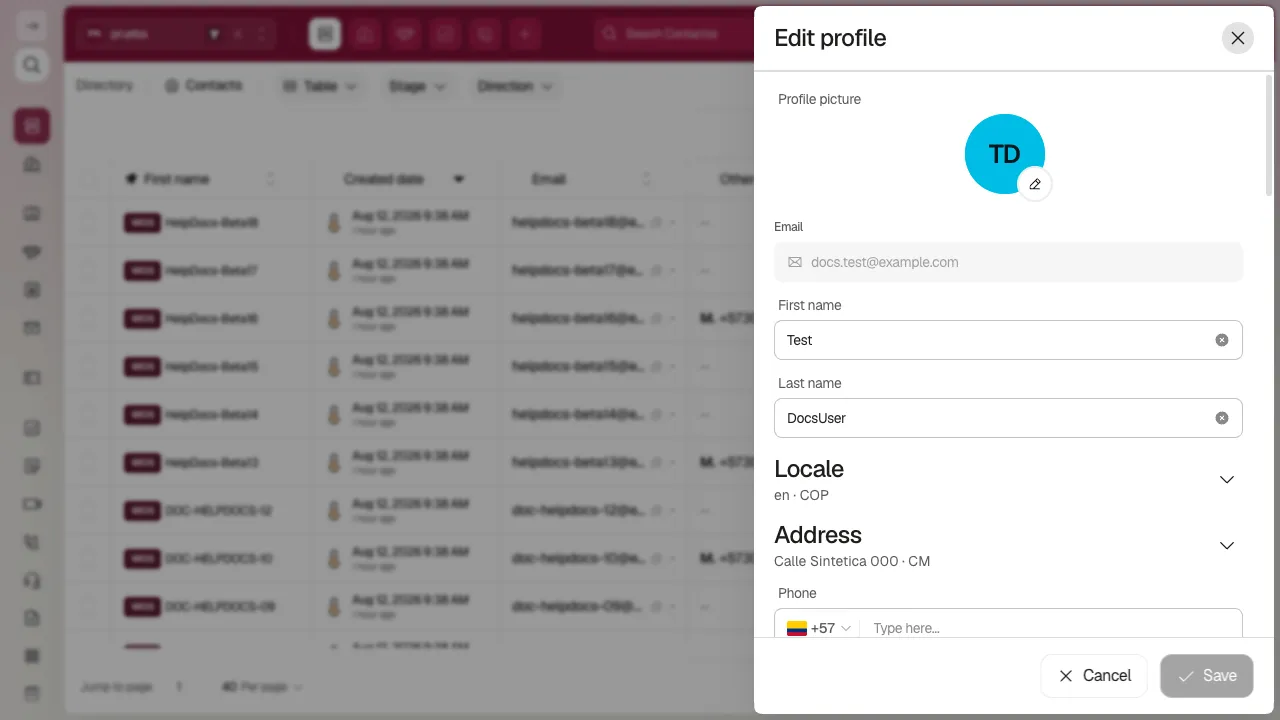
Update your details
Section titled “Update your details”From Edit profile, you can change your photo, first name, last name, and contact details. You can also review your location, address, identification, biography, job title, social links, and email signature.
Change your photo
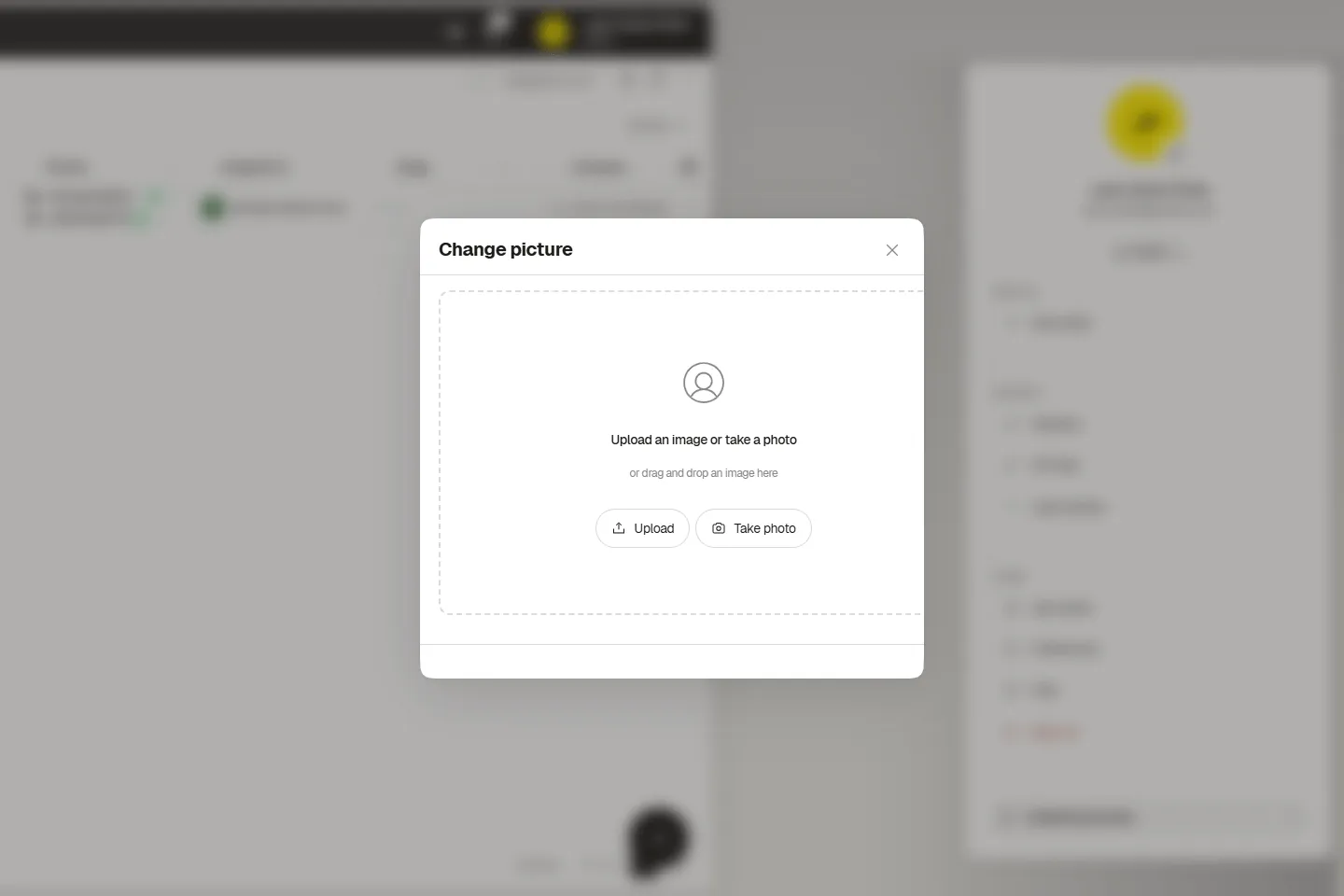
Section titled “Change your photo”Select the current photo to open Change photo. There you can select Upload to choose an image, Take photo to use your camera, or drag and drop a file into the indicated area.
The email field is locked in this form. To change your password, use Change password at the end of the profile.
When you are done, select Save. To leave without applying your changes, select Cancel or Close.
Check before you leave
Section titled “Check before you leave”After saving, open Account again to confirm that the photo and details you edited look as expected. If you only wanted to change your image, you do not need to edit the other fields. If Edit profile is not available in Account, make sure you opened your avatar menu rather than the workspace selector.
🎥 Video coming soon.
Frequently asked questions
Open the Account menu in the top bar and go to profile editing.
You can update the personal information and preferences described in this guide.
Was this article helpful?
Thanks for your feedback!