
Create and edit properties
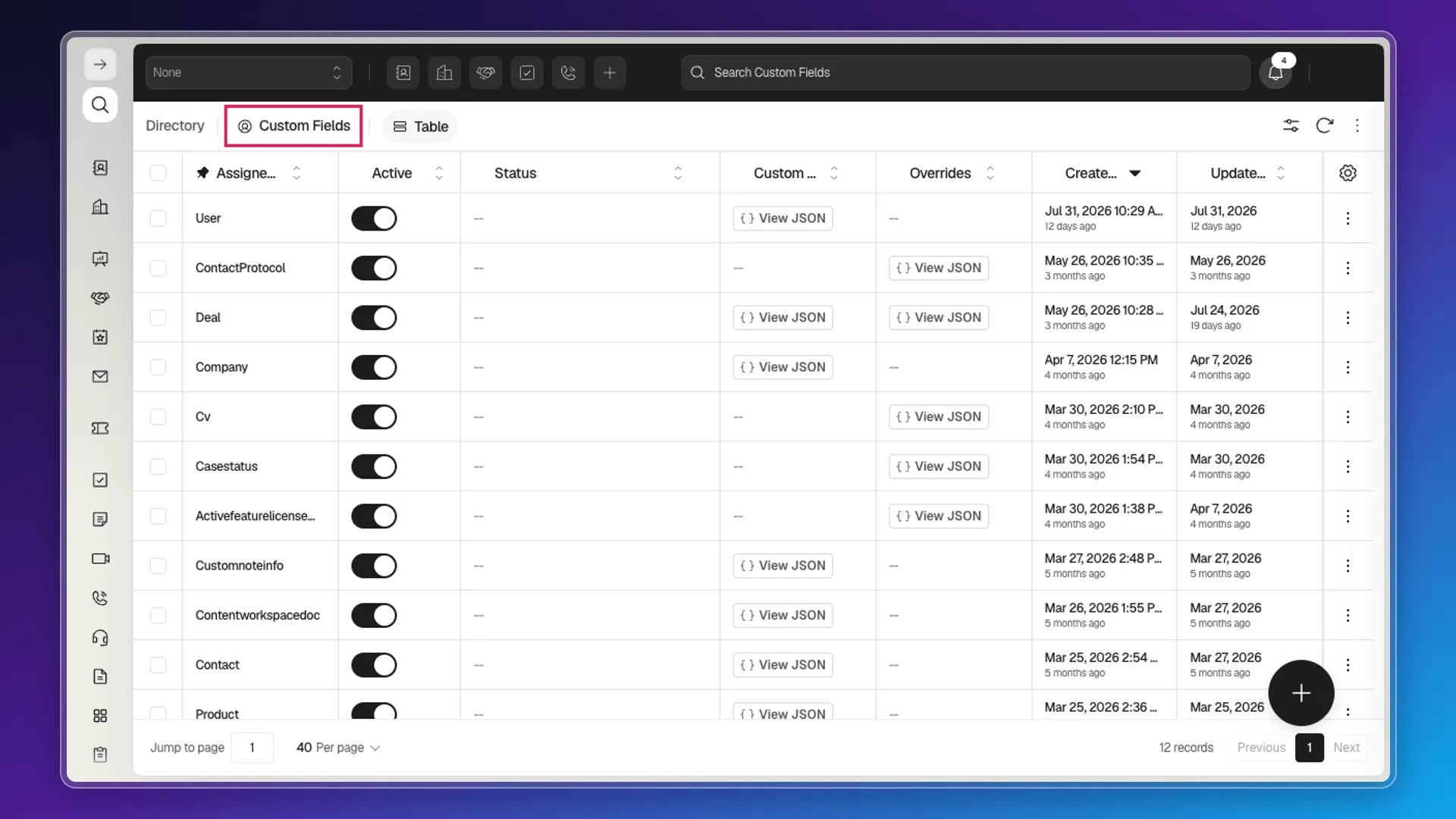
Under Development → Custom Fields you’ll find the objects that have custom fields or overrides registered (Contact, Deal, Company, User, Product, Note…), each with an Active switch to enable or disable its fields without losing data already saved.
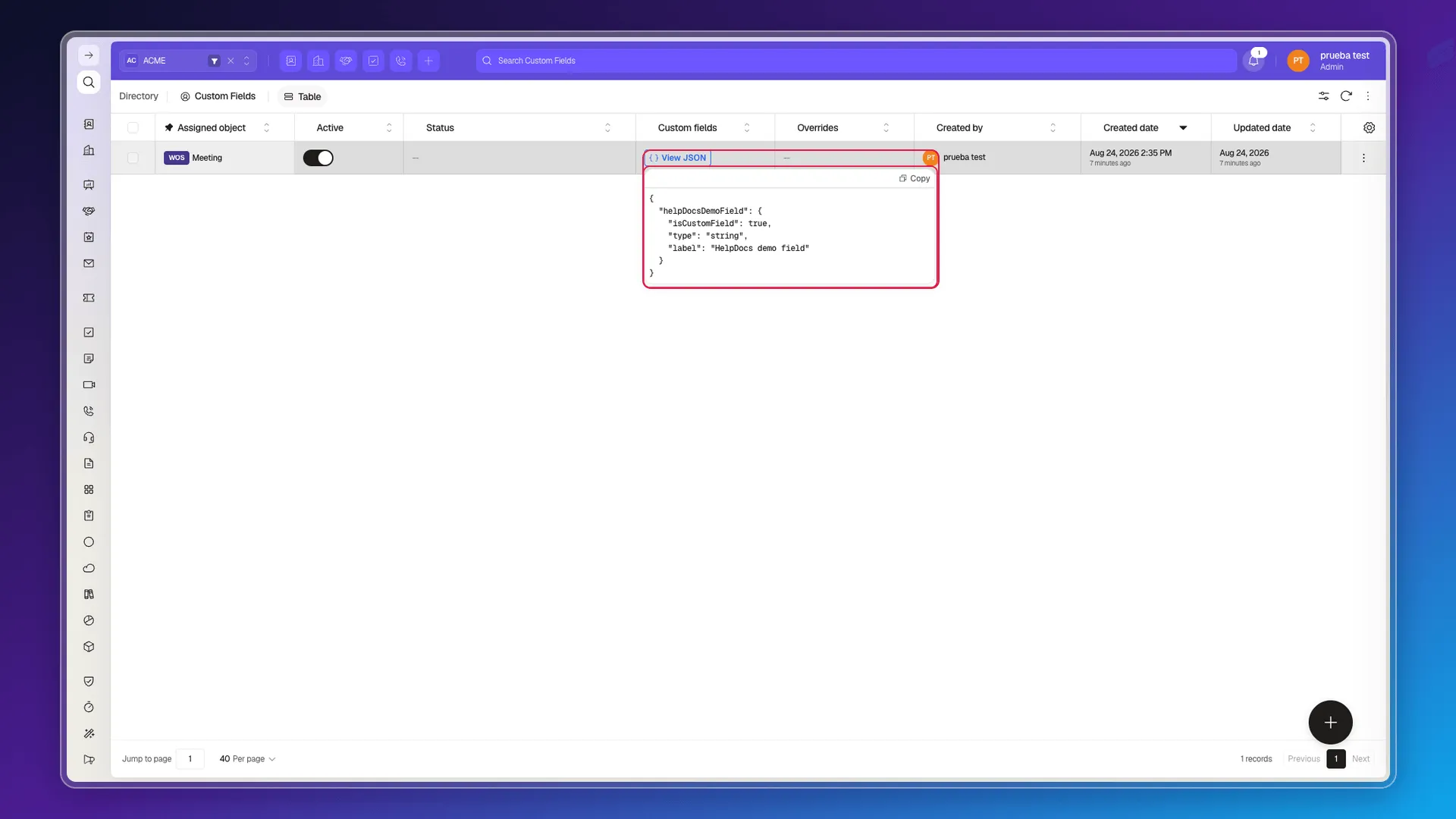
The Custom fields column opens the actual JSON Schema the object uses: each field appears with its type and its label. In the example below the Meeting object carries a single field, helpDocsDemoField, declared as a string.
Adding an object to the list
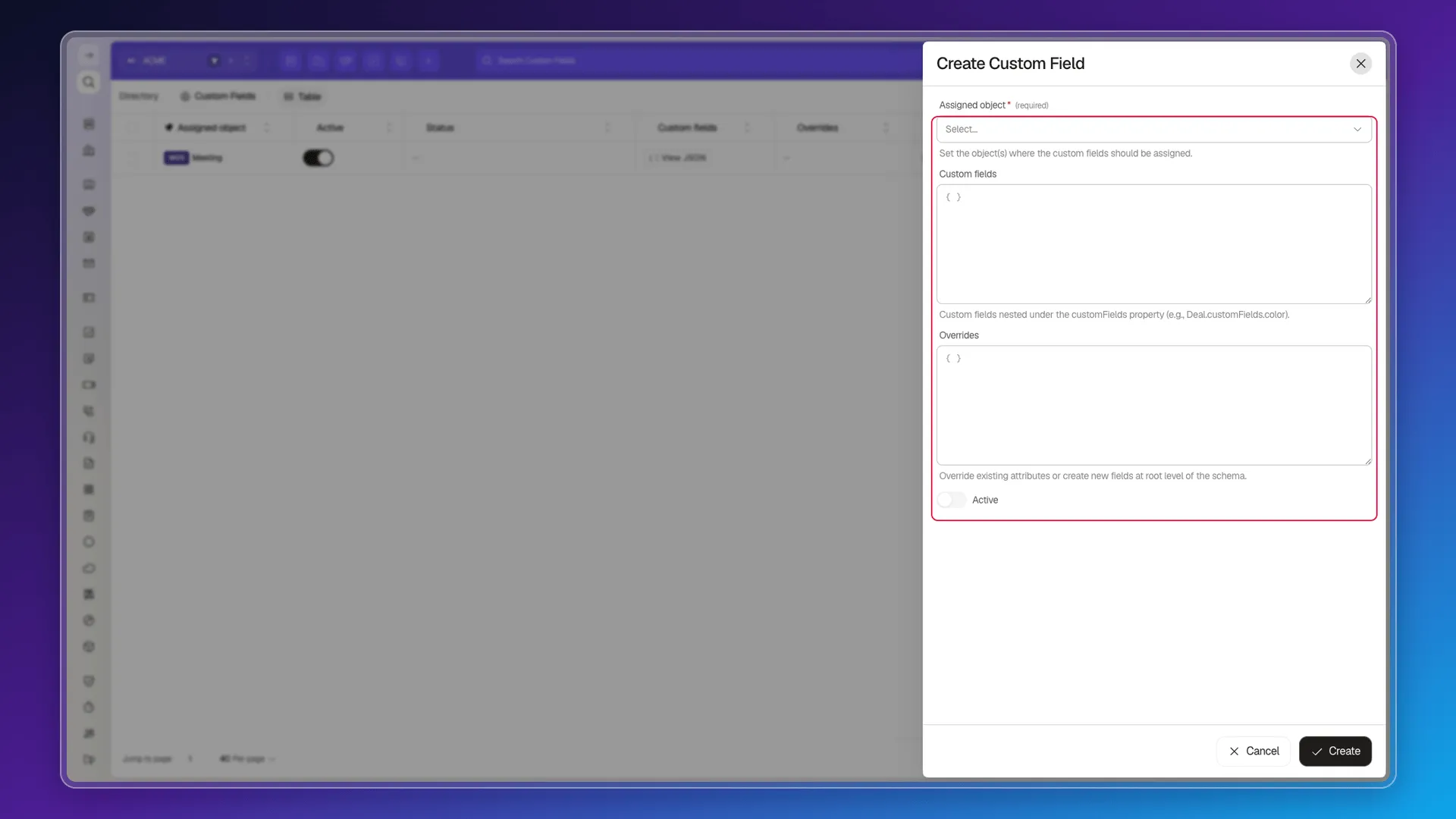
Section titled “Adding an object to the list”The create button opens Create Custom Field, with four controls:
- Assigned object (required) — a searchable selector listing every system object. This is the object the fields get assigned to.
- Custom fields — the JSON Schema for the fields, which end up nested under the
customFieldsproperty (for example,Deal.customFields.color). - Overrides — to modify existing attributes or create new fields at the root level of the schema.
- Active — arrives switched off.
Editing an object’s schema
Section titled “Editing an object’s schema”Selecting Edit on an object’s row turns Custom fields into a text box where you write the JSON Schema by hand: there’s no visual form to create the property. There’s also an Overrides box to modify or add attributes at the root level of the schema. To add a validation rule (format, range, etc.), see Property validation rules.
This is the only way to create or edit properties: Prolibu has no visual form editor.
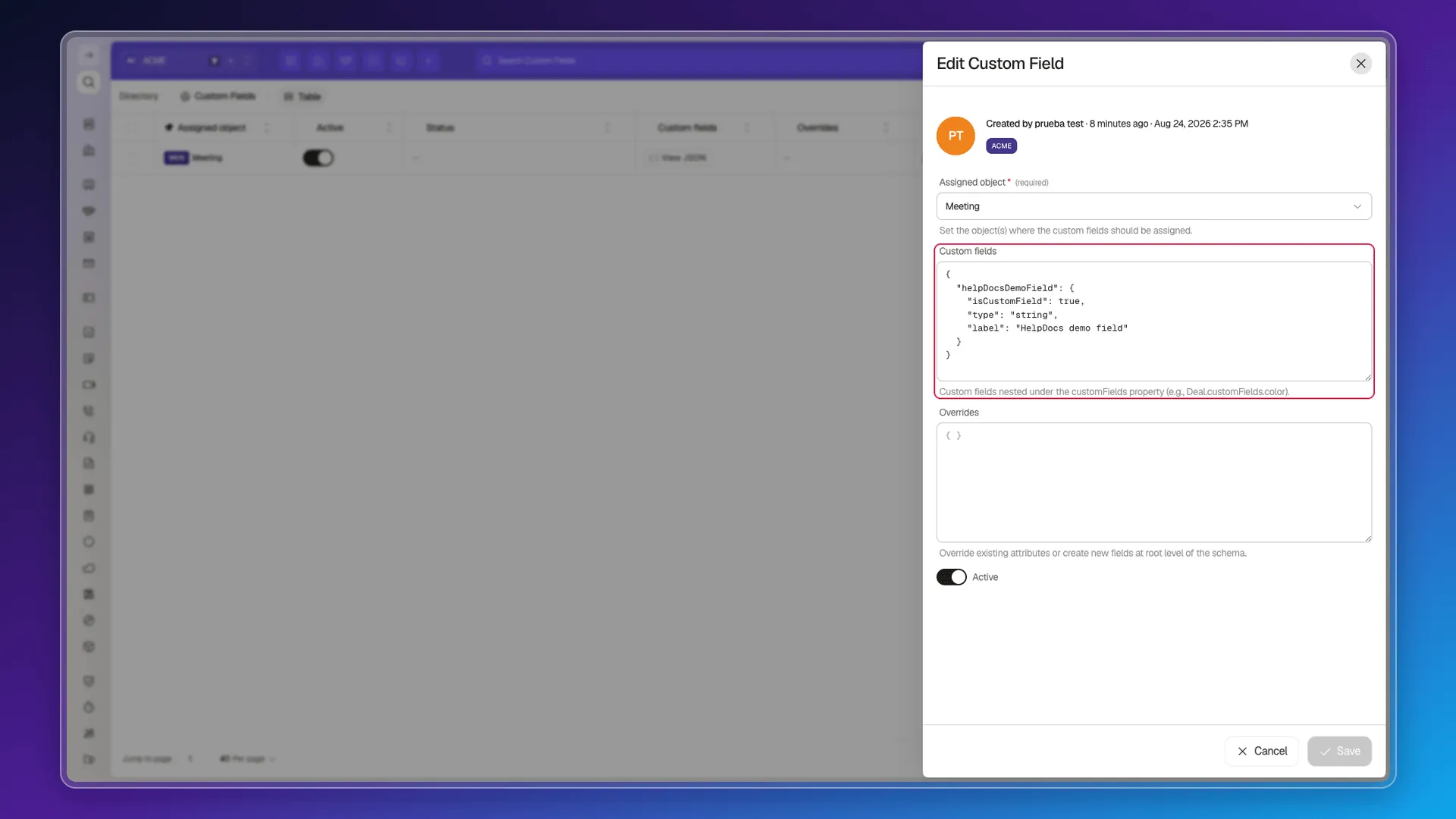
Important: this only applies to fields you add inside customFields. Prolibu’s default properties — like Email — already ship with their own built-in validation (the Email field requires a valid email format on save) and that validation isn’t edited from this screen; those fields are documented in Properties.
Once active, a custom field behaves like any other: you can show it as a column in Views and columns and fill it from the import file.
Custom Fields adds properties to the objects that already exist in the system.
Frequently asked questions
Under Development → Custom Fields, on that object's row, with the Active switch.
No, there's no visual form — the Custom fields box is a text editor for the JSON Schema.
Because the table only lists objects that already have custom fields or overrides configured. In a fresh workspace it comes up empty, with the Create your first record state.
Was this article helpful?
Thanks for your feedback!