
Shortcuts
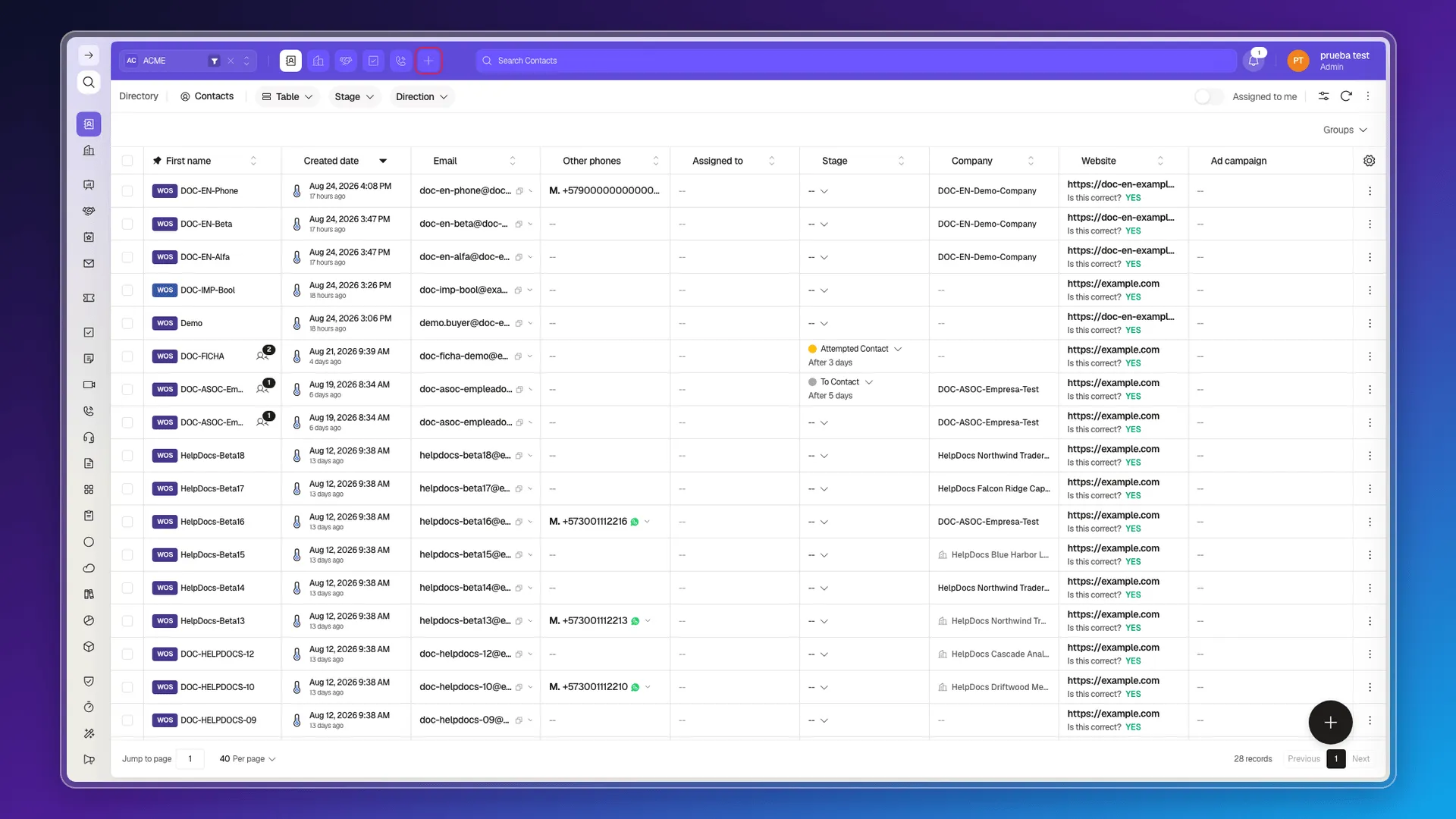
Shortcuts open the modules you use every day from the top bar, so you do not need to open the full menu whenever you switch tasks.
Open a shortcut
Section titled “Open a shortcut”On the top bar, select the icon for the module you want to open. Prolibu Suite keeps these shortcuts available while you move through the application.
Customize the list
Section titled “Customize the list”- On the top bar, select Customize shortcuts.
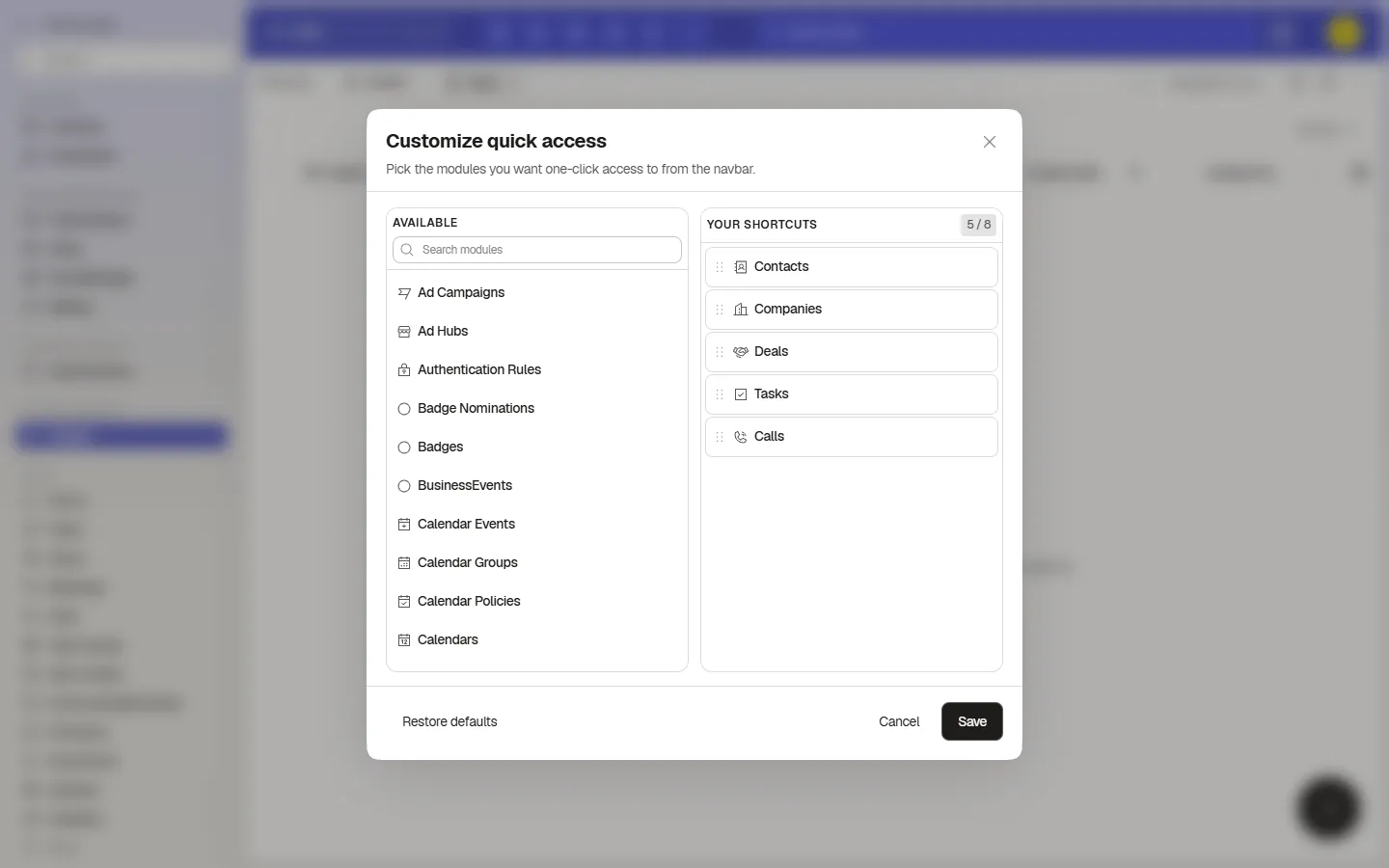
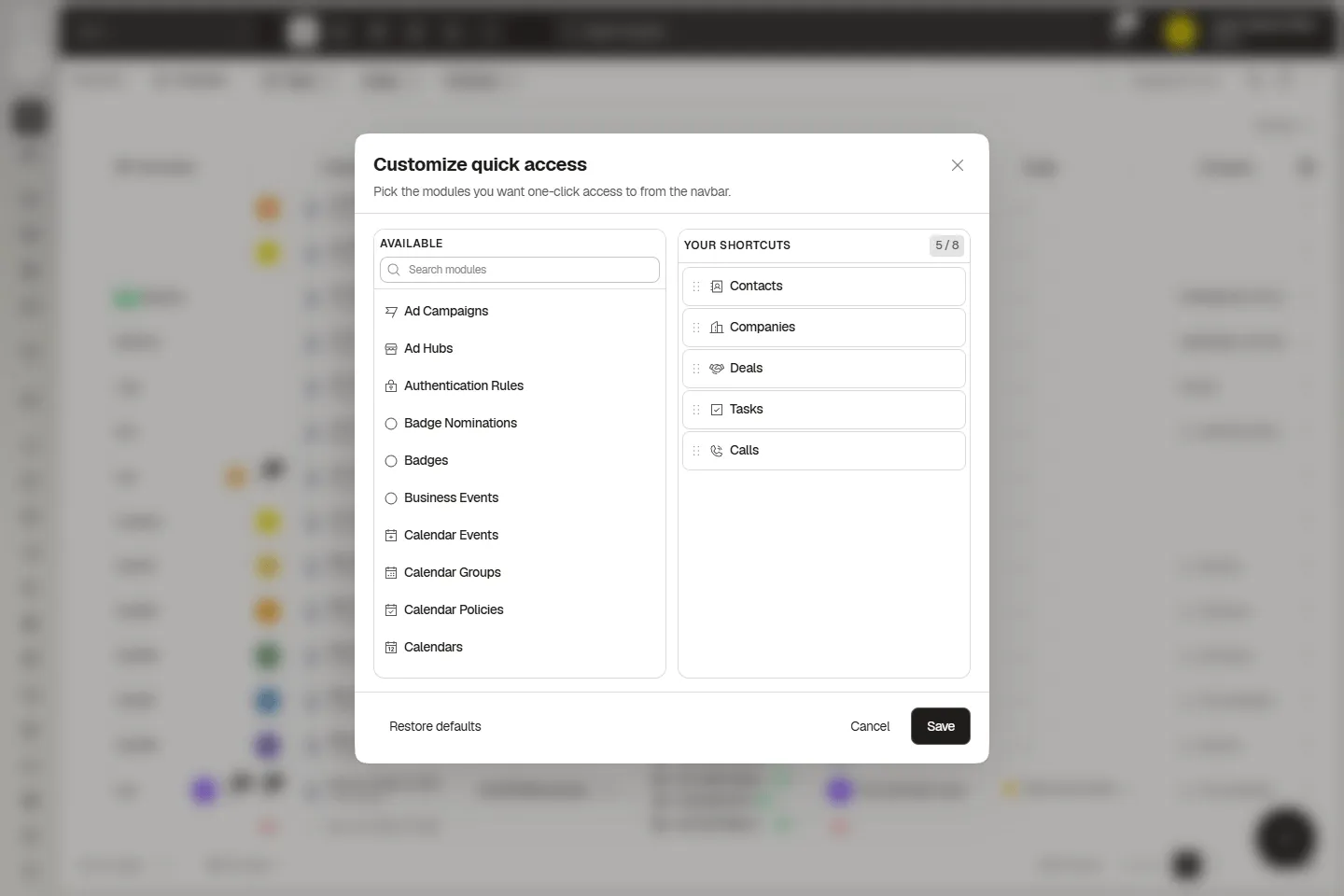
- Find the module you want to keep close at hand in the list on the left.
- Select Add next to the module. It appears under Your shortcuts.
- To remove one, select the Remove button with the
xbeside that shortcut. - Select Save to apply the change.
You can keep up to eight shortcuts. The window shows your current count, for example, 5 / 8.
Check the result
Section titled “Check the result”After saving, return to the top bar: the modules you added are available there, and the ones you removed no longer appear. If the list does not change, open Customize shortcuts again and make sure you selected Save, not Cancel or Close.
🎥 Video coming soon.
Frequently asked questions
From the top bar in Prolibu Suite, without opening the full menu.
Yes. This guide explains how to open customization and save the shortcuts you use every day.
Was this article helpful?
Thanks for your feedback!