
Workspaces
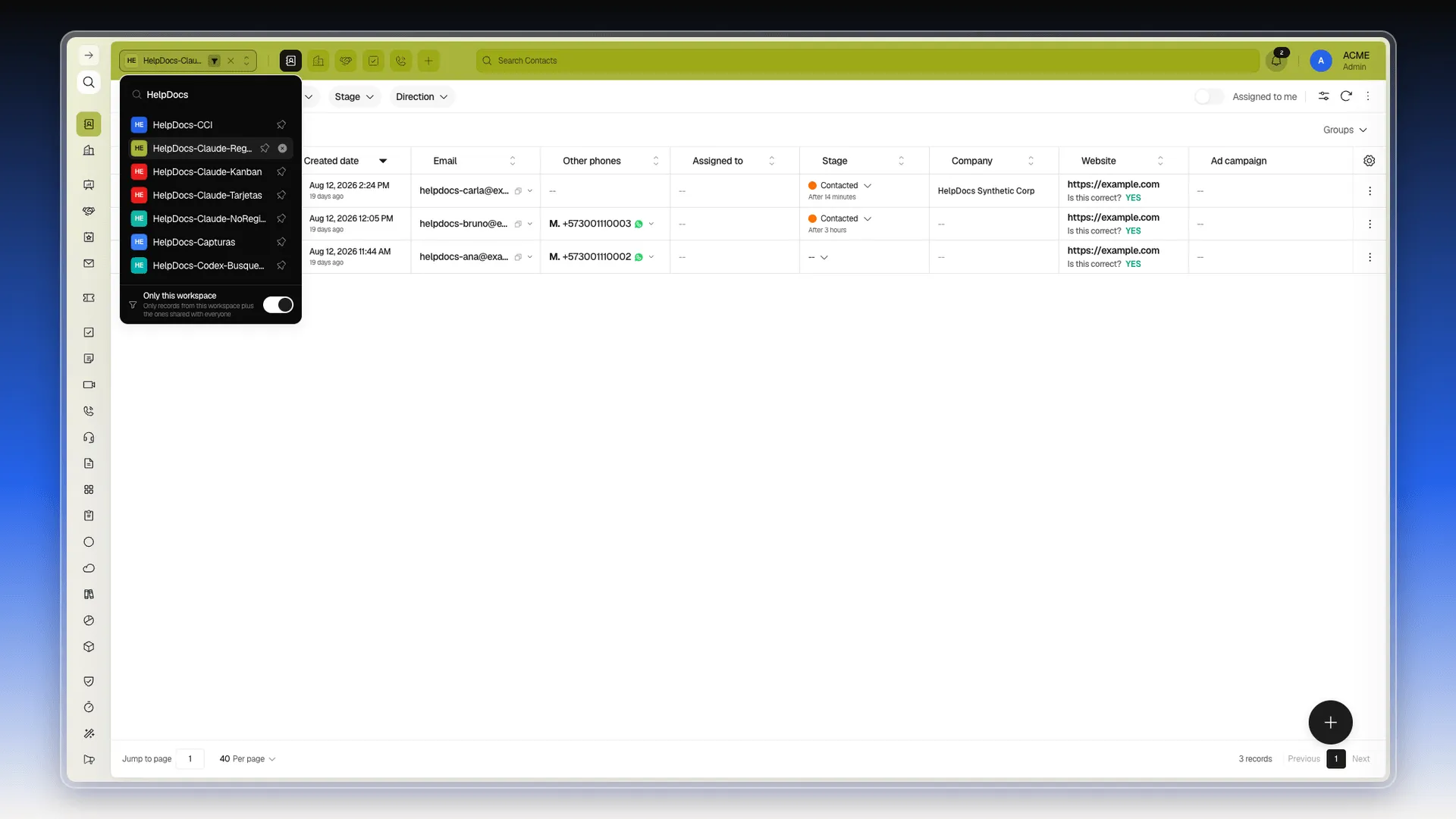
A workspace determines the data you see in Prolibu Suite. You can switch it from the top bar without leaving the module or route you are working in.
Prolibu doesn’t have a Projects object that groups a team’s or client’s tasks and deliverables into its own record. A workspace is the closest concept in the product, but it’s different: it isn’t a task container — it’s a context switch, for which account or client company you’re viewing at that moment inside Prolibu Suite.
Open the selector
Section titled “Open the selector”- In the top bar, select the current workspace name or its initials avatar (or None if no workspace is active).
- Use the Search field to narrow the list when you need another workspace.
Identify the current workspace
Section titled “Identify the current workspace”The active workspace is always shown in the top bar, beside its initials. When you choose another one, its name and avatar update immediately. In addition, the entire top bar changes color to the active workspace’s assigned color — a quick visual cue for which context you’re working in, without having to read the name.
Ordering workspaces
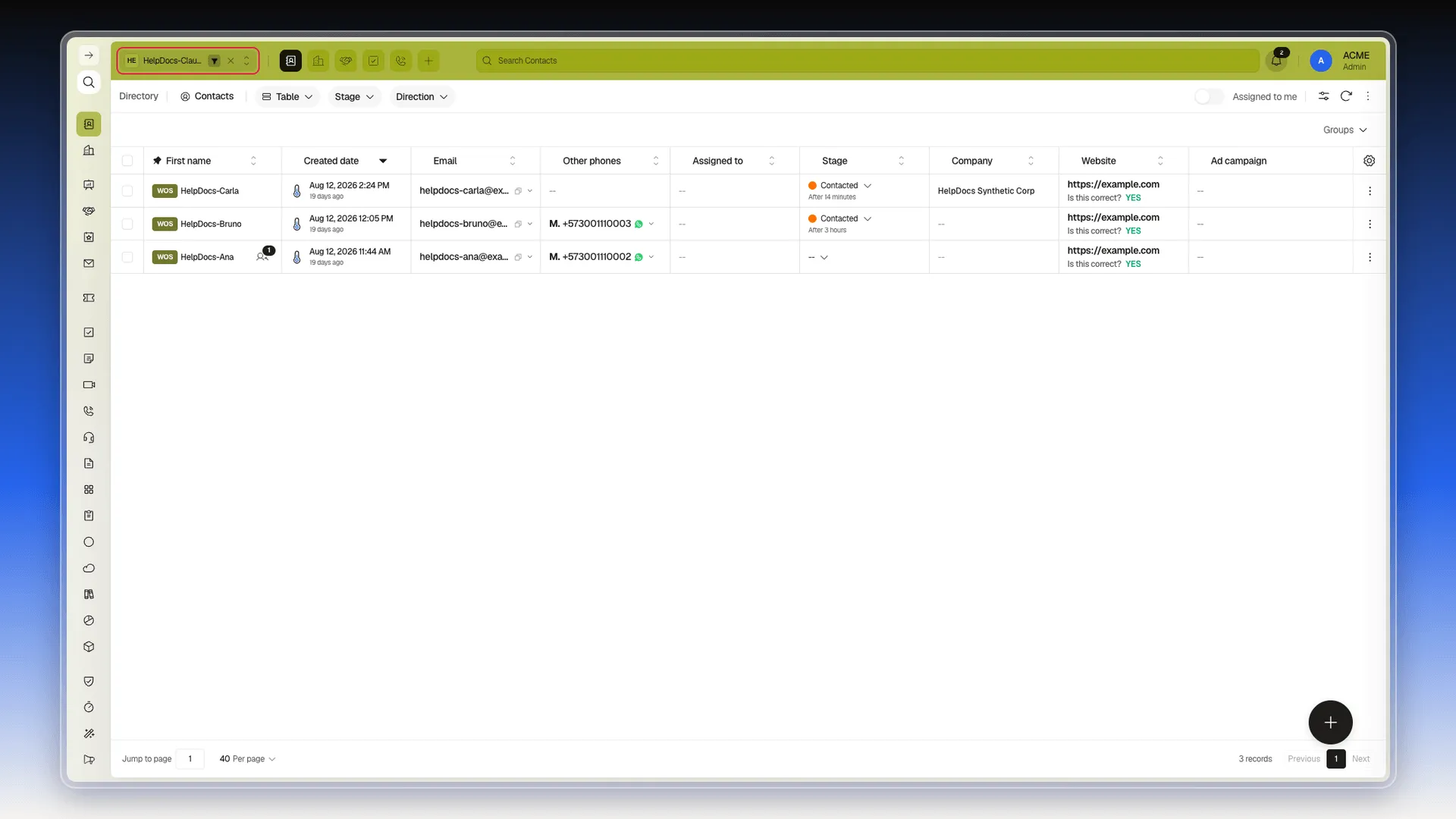
Section titled “Ordering workspaces”Each row in the selector shows the workspace avatar and its name, and the active workspace’s row also has a button to deselect it. There is no way to pin or reorder workspaces from the selector: checked on two accounts, the rows offer no Pin button and no drag handle, not even on hover. The list order cannot be changed by hand.
To find a specific one in a long list, use the Search field at the top.
Search for a workspace
Section titled “Search for a workspace”- Open the selector.
- Enter part of the name in Search.
- Select the workspace in the list.
Live search
Section titled “Live search”Results change as you type. You do not need to press Enter or use a search button.
Partial text and capitalization
Section titled “Partial text and capitalization”Search finds partial text. Typing mark or MARK both return a workspace named Marketing, so search is case-insensitive.
Text with no matches
Section titled “Text with no matches”When you enter text that matches no workspace, the selector shows a No results message. Clear the text to browse the available list again.
Switch workspaces
Section titled “Switch workspaces”- Open the workspace selector.
- Search for the name if it is not visible.
- Select the workspace.
When switching workspace in the staging UI, Prolibu Suite kept the Contacts route and reloaded its data in the new context — you remain in the same module but see records from the workspace you chose. Next to the active workspace’s name there’s an “Only this workspace” icon (confirming the view is scoped to that context) and a × button to deselect it and return to the None state, which shows data without a workspace filter.
Workspace access
Section titled “Workspace access”The workspaces you can reach are the ones listed in the selector. System → Workspaces is the admin screen that lists them with their code and color. To work in another workspace, it must appear in the top-bar selector; permissions for another account cannot be checked from the current session.
If you cannot see the workspace you need
Section titled “If you cannot see the workspace you need”Clear the text in Search to rule out that the filter is hiding it. If it still does not appear, the current session does not have that workspace available in the selector; you cannot add it from this screen.
🎥 Video coming soon.
Frequently asked questions
No. You can change workspace from the top bar without leaving the route you are working in.
Type part of its name in the Search field to narrow the selector results.
Yes. Each row in the selector has a Pin button; pinned workspaces stay at the top without a drag handle, and the rest can be reordered by dragging the icon on the left.
Yes. Next to the active workspace's name there's a (×) button to deselect it and return to the "None" state.
No. A workspace switches the data context you see (which account or client); it is not a task container or a record object like Deals or Contacts.
Was this article helpful?
Thanks for your feedback!