
Customize the board view
Regroup by another field
Section titled “Regroup by another field”Above the columns of the board view there are tabs — Stage, Priority (shown in the app language), and any other custom stage-type field — that regroup the same board by that field, without leaving the screen.
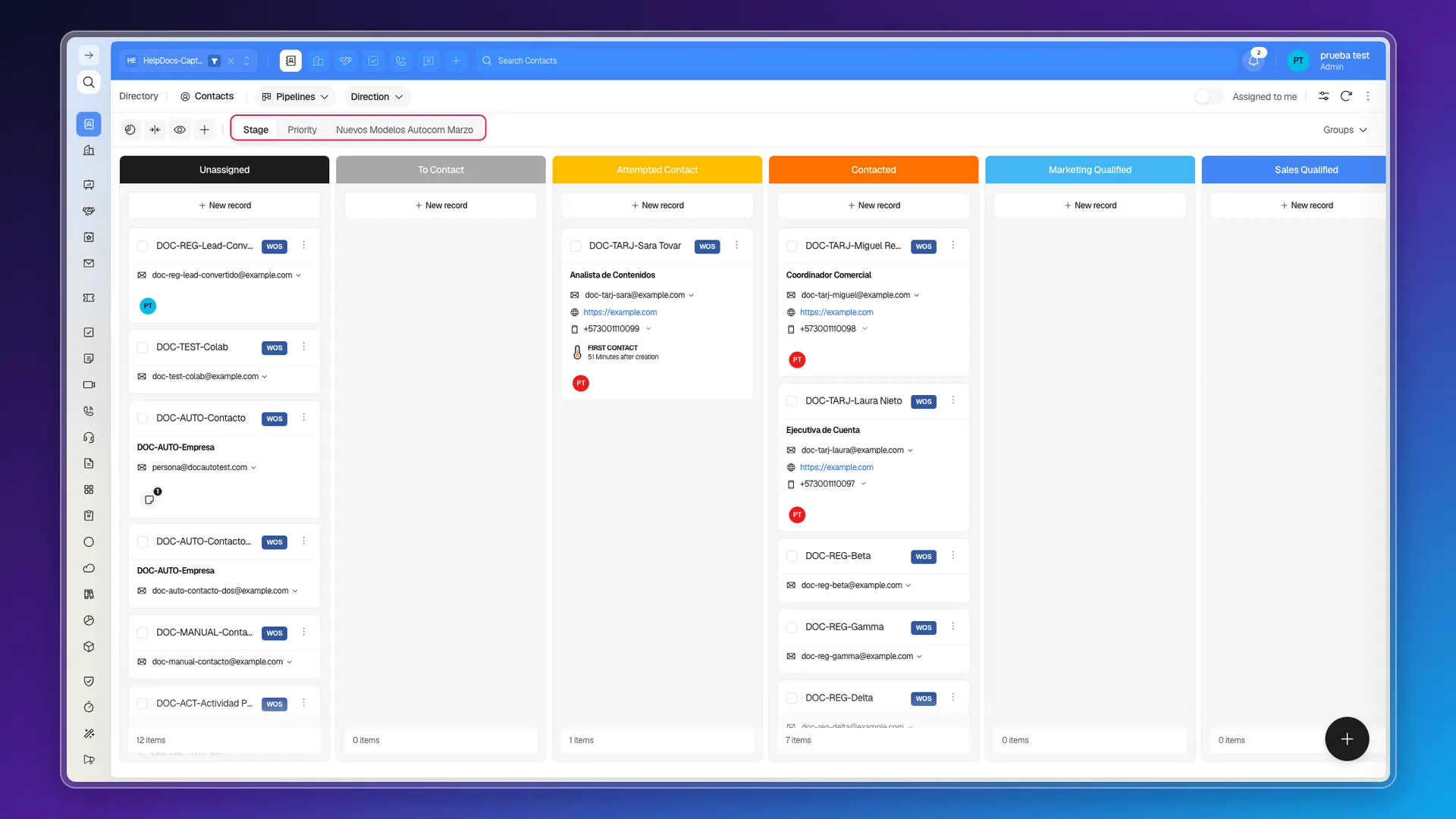
Collapse and reorder columns
Section titled “Collapse and reorder columns”Hovering over a column header reveals four icons: an arrow to collapse that column individually, a drag handle (⠿) to reorder it relative to the others, a search icon, and the three-dot menu. That last one opens the Stage menu, which here only offers Select visible (choose which properties that stage’s card shows) and Edit stage — it does not include a collapse or reorder option; those two actions live in the arrow and handle icons that appear on hover.
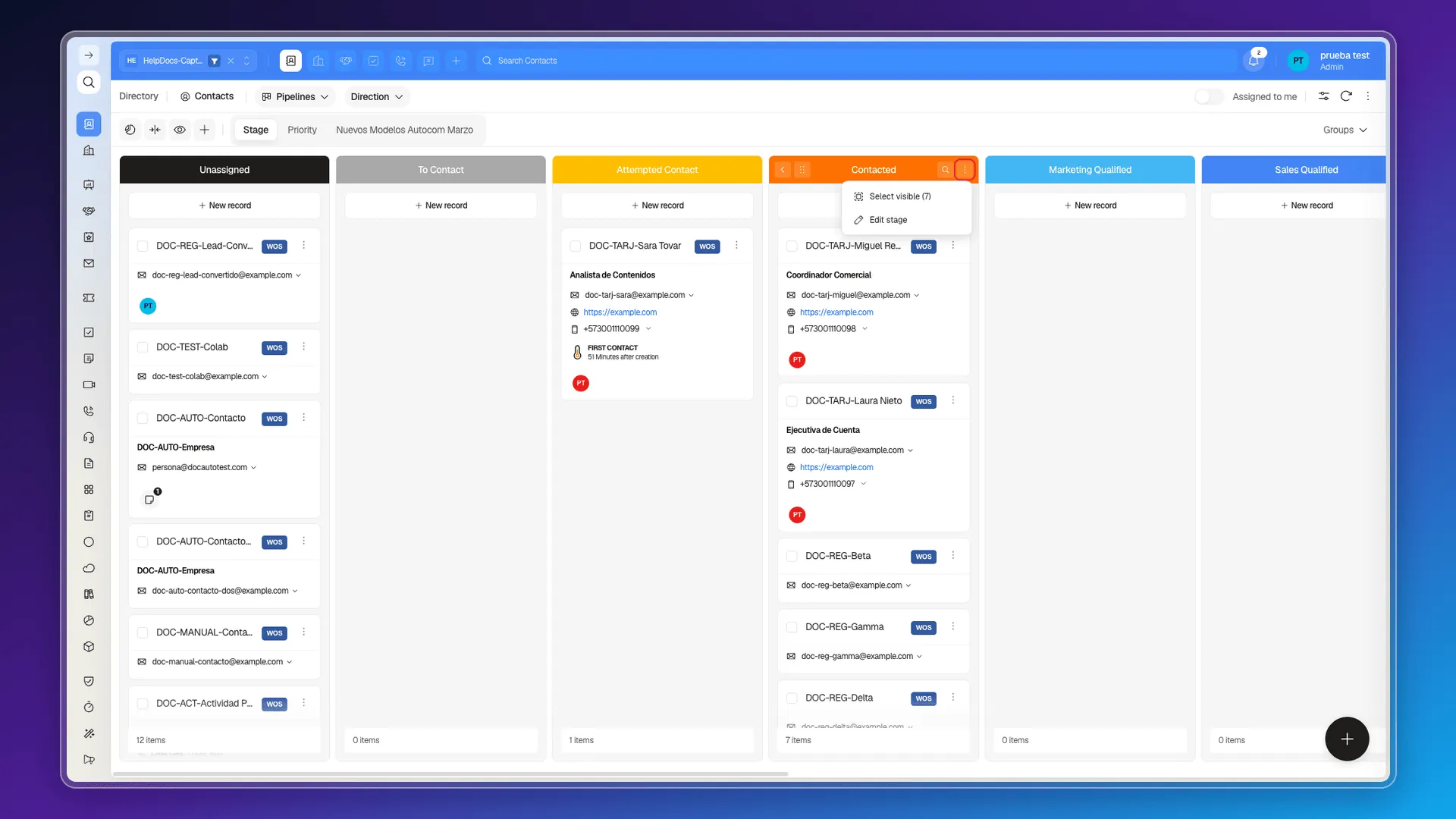
Collapse all collapses every column in one click, useful when the board has many stages and you only want to see the headers: here it revealed 11 stages total, more than the 5 normally visible without scrolling.
Add a new stage
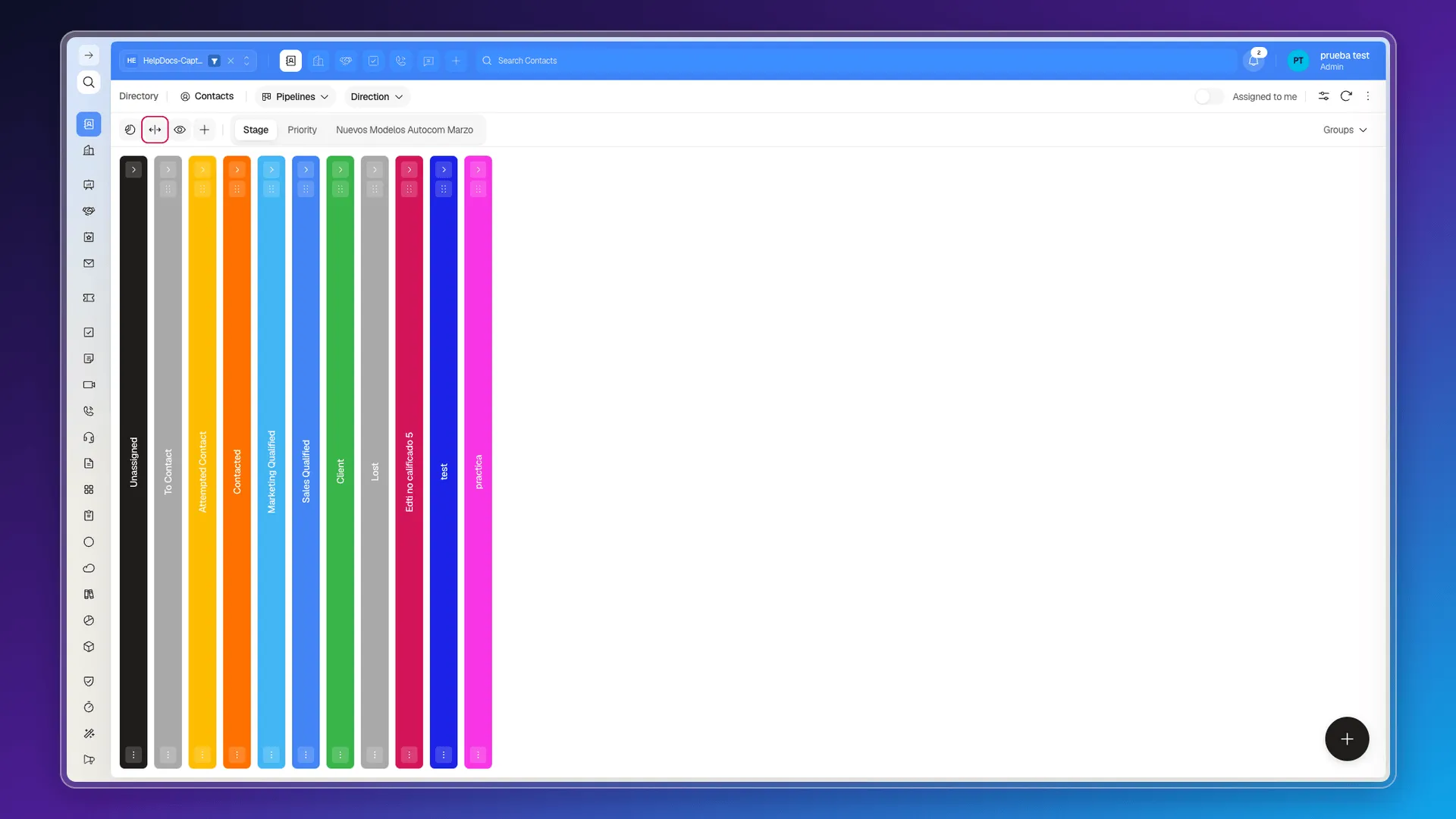
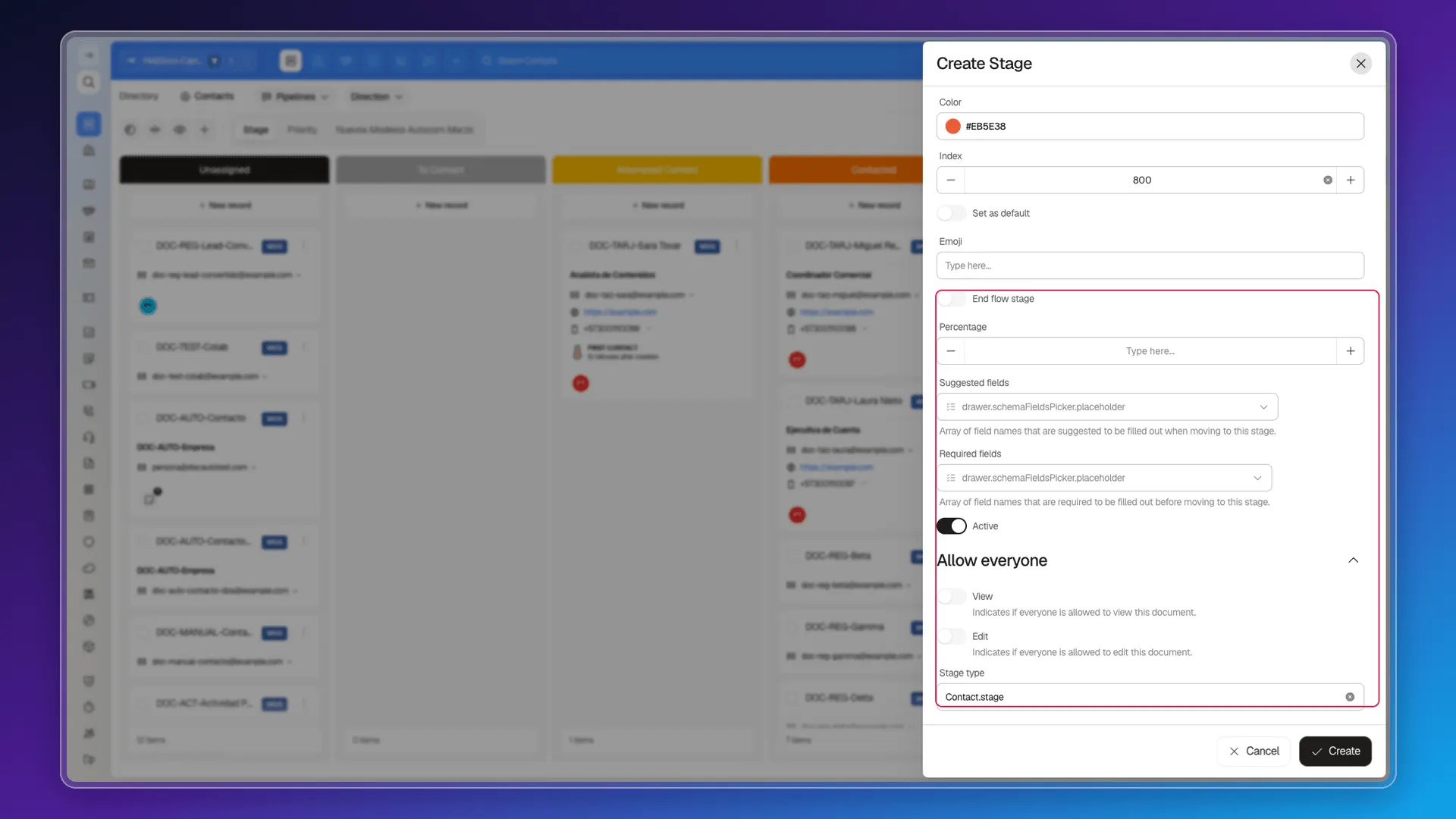
Section titled “Add a new stage”New stage opens the Create Stage panel, with thirteen fields in total: Stage (name, required), Description, Color, Index (position within the column order), Set as default, Emoji, End flow stage, Percentage, Suggested fields, and Required fields — see that article for what this last one does — plus Active. Remember stages are a table shared across the whole account, so a new stage becomes available for other pipeline objects too, not just Contacts.
The panel also has Allow everyone, with two switches of its own — View and Edit —: a permission control tucked inside a stage’s form, easy to miss if you only open it to organize the board. It closes with Stage type, a read-only field (it showed Contact.stage here) that fixes which object and pipeline that stage belongs to.
The panel scrolls; the rest of the thirteen fields — End flow stage, Percentage, Suggested fields, Required fields, Active, Allow everyone (View/Edit), and Stage type — continues below:
To choose what information each card shows instead of how the columns are organized, see Using cards on records.
Frequently asked questions
Yes. The tabs above the columns (Stage, Priority, and any custom stage-type field) regroup the same board by that field.
Yes, with the Collapse all button. Each column can also be collapsed individually by hovering its header and using the arrow that appears on the left — it's not inside the Stage menu (⋮), which only offers Select visible and Edit stage.
With the New stage button — keep in mind stages are a table shared across the whole account, so the new stage also becomes available for other objects.
Was this article helpful?
Thanks for your feedback!