
Use line items with deals
First things first: adding the proposal to the deal
Section titled “First things first: adding the proposal to the deal”A deal doesn’t come with a proposal. To create one, open the deal with Edit from its row menu and use the Create proposal button, at the bottom of the Primary section, below Close date.
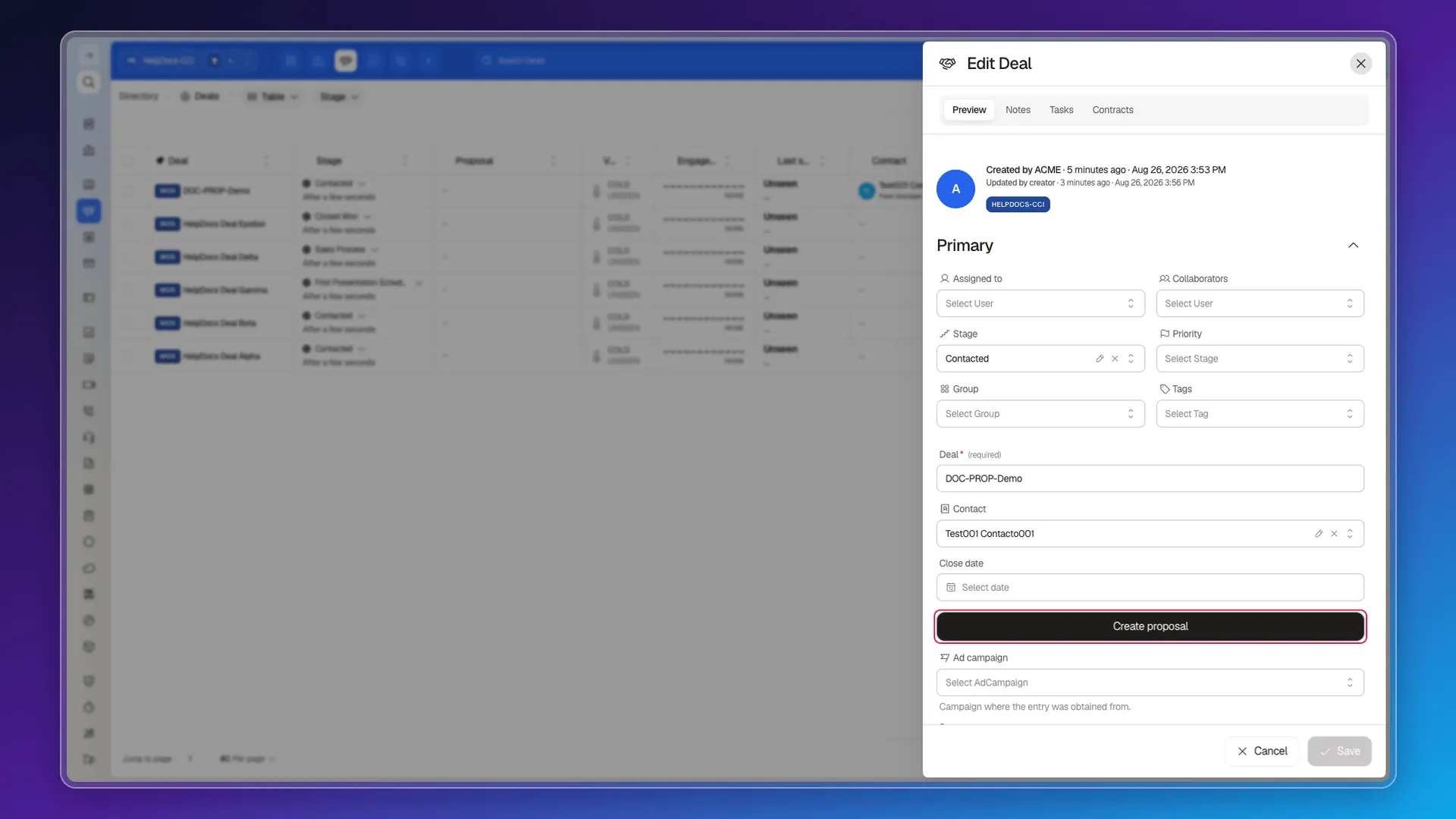
Once created, the proposal is tied to that deal and you can start building its lines.
Opening the builder for an existing proposal
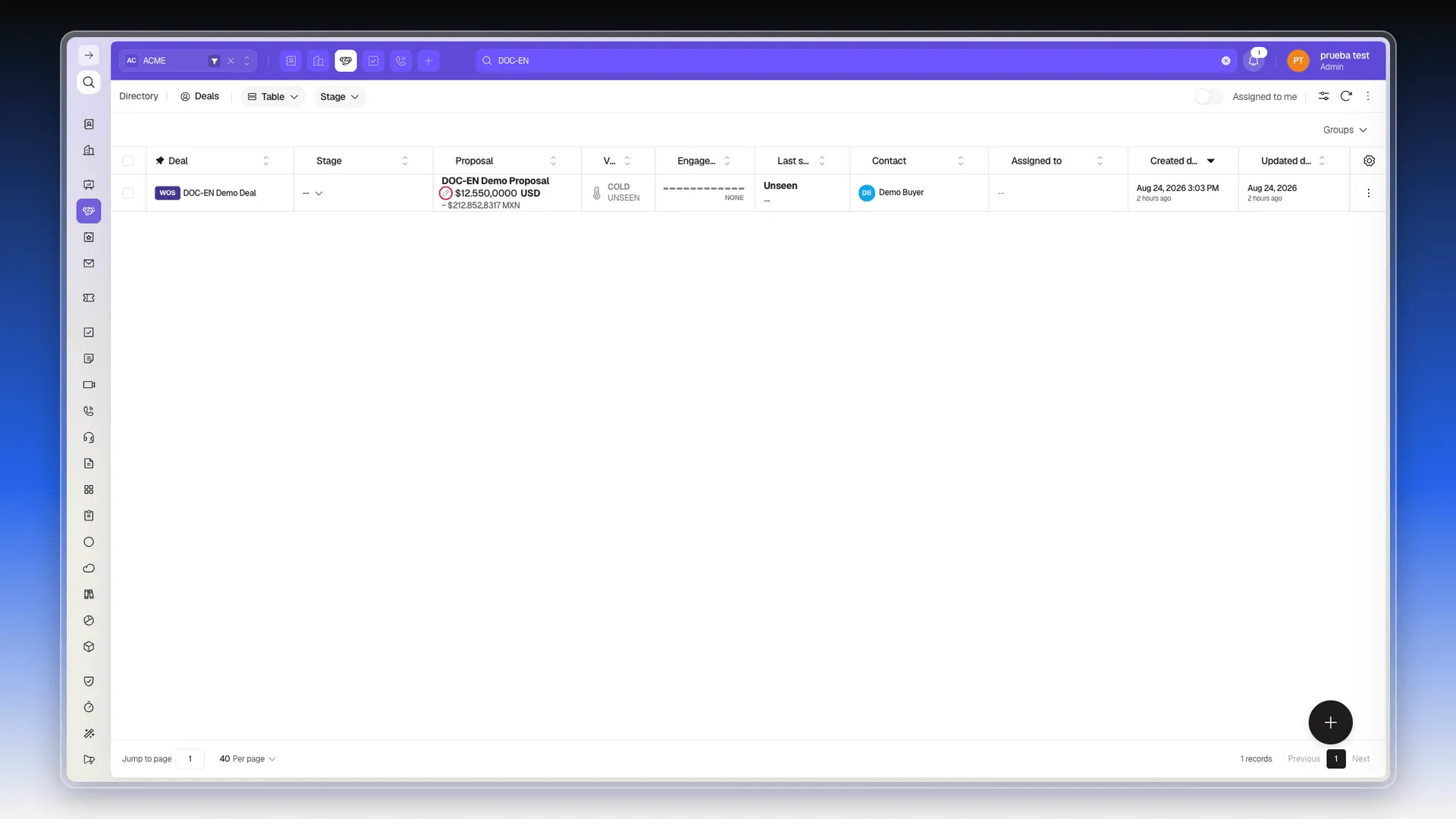
Section titled “Opening the builder for an existing proposal”Every deal that has a proposal shows it in the Proposal column of the Deals table: the proposal’s name on top and, below it, a pencil icon — Open builder — next to the total amount. That button opens the Quote Builder, the screen where a quote’s order line items are put together. Deals without a proposal show a dash in that column.
Adding products to the proposal
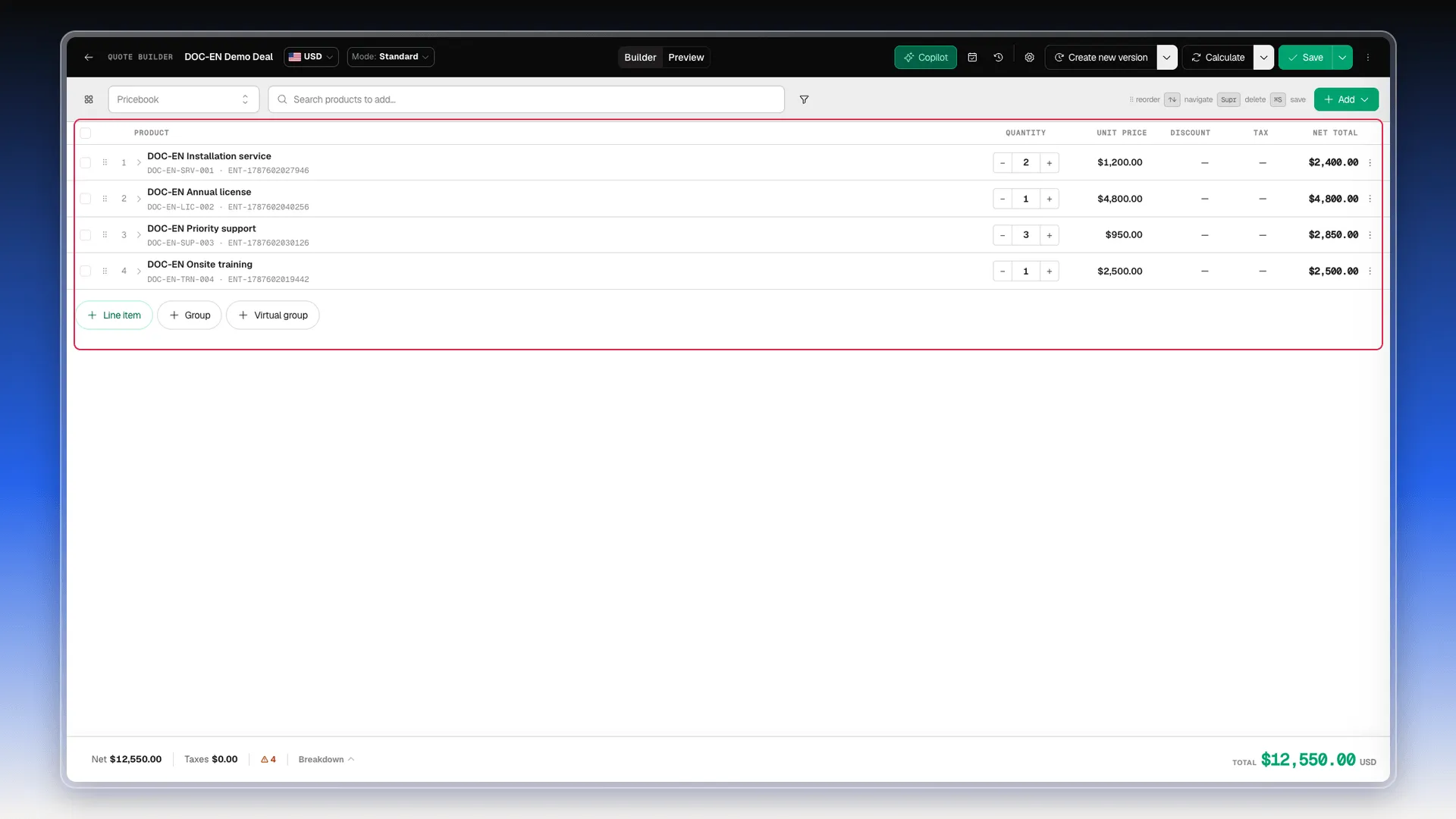
Section titled “Adding products to the proposal”The builder’s top bar has a Pricebook selector, a Search products to add… field that returns results from that pricebook, and an Add button on the right. If you need a line that isn’t from the catalog, the bottom of the table offers other ways to add content: Line item (a row without a catalog product), Group and Virtual group, to organize several lines together.
When lines are grouped, the group heads its block with the name, the item count and its own Subtotal.
Quantity, price, discount and tax per line
Section titled “Quantity, price, discount and tax per line”Each row in the table has its own columns: Quantity (with the − / + buttons or the text field), an editable Unit price, Discount, Tax (for example 16%, applied per product, not on the proposal total) and Net total, which recalculates on its own. The ⠿ icon on the left of each row lets you drag it to reorder, and the ⋮ menu at the end opens its actions. The bar also lists keyboard shortcuts: arrows to navigate between lines, Supr to delete the selected one, and ⌘S to save.
Totals and summary before sending
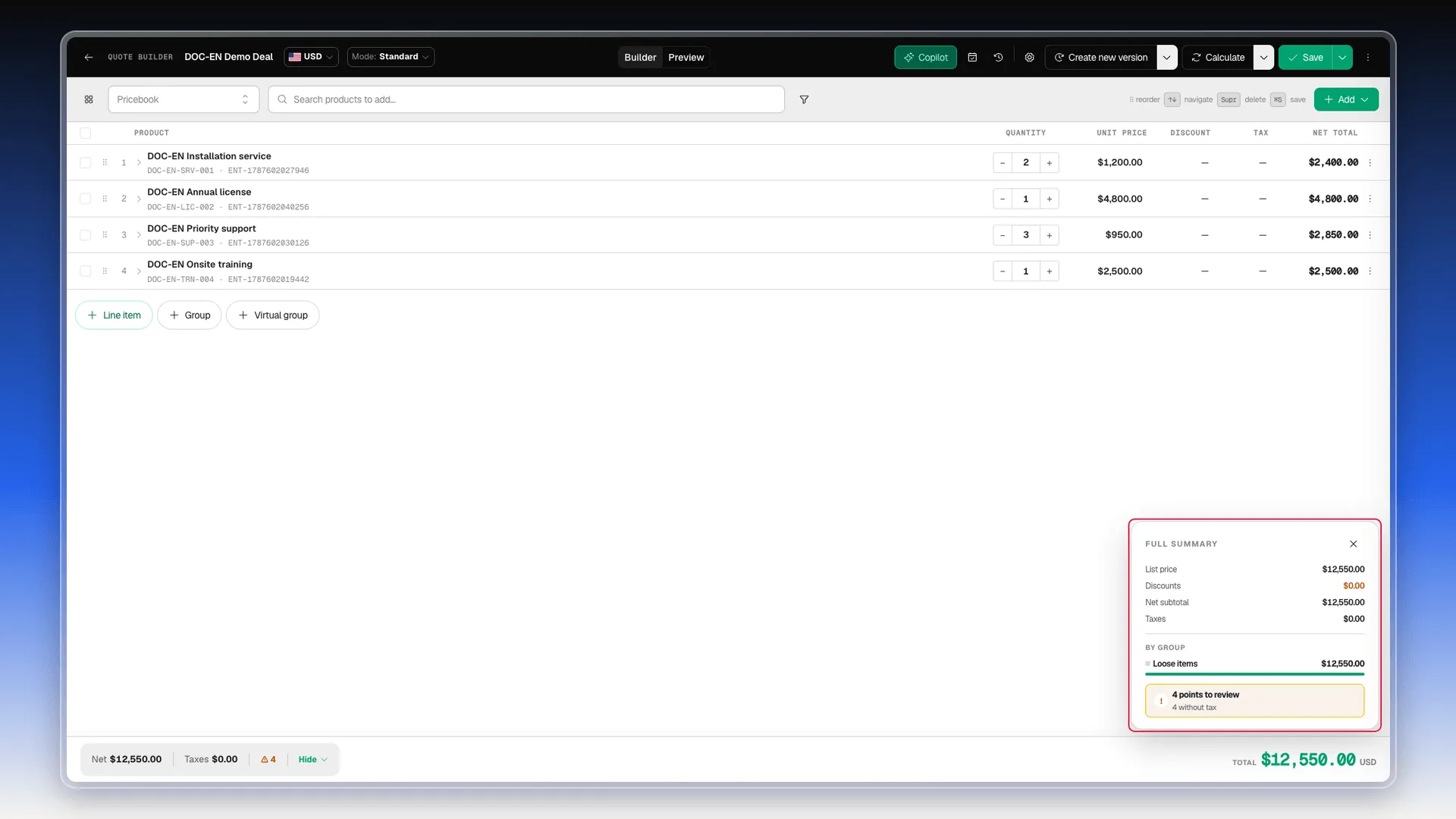
Section titled “Totals and summary before sending”The builder’s footer shows Net, Taxes and the TOTAL in the quote’s currency, plus a warning counter when something needs attention. Select Breakdown to open Full summary: List price, Discounts, Net subtotal, Taxes and the total by group. The panel closes with a notice: “Everything is ready to send” when the quote is ready, or a count of what still needs review when it isn’t.
What else is in the builder
Section titled “What else is in the builder”The top bar also gives access to the quote’s currency, to the Mode selector (for example Standard), to the Builder / Preview pair that switches between editing and the client-facing view, and to the Calculate and Save buttons, each with its own dropdown. Further right sit Quote settings (currency, payments, validity and notes), Payment plan, History and Create new version / Version History.
Copilot opens an assistant panel with an “Ask me for a change…” field, but the interface itself marks it as Coming soon: today it only announces what it will do (add products, group items, adjust discounts and watch the margin). We don’t dig into the rest of those screens here, since they fall outside the order line items themselves.
Frequently asked questions
In the Deals table, Proposal column — the pencil icon next to the amount, labeled "Open builder".
From the catalog of the selected Pricebook, via the "Search products to add…" field. You can also create a Line item, a Group, or a Virtual group without starting from a catalog product.
Per line — each row has its own Tax column (for example 16%) and it rolls up into the overall summary.
In the builder's footer, the Breakdown button opens "Full summary" — List price, Discounts, Net subtotal, Taxes, the total by group, and a notice about whether it's ready to send or how many points are still to review.
Was this article helpful?
Thanks for your feedback!