
Create tasks
A task in Prolibu is a full record, not a note with a checkbox: it has an assignee, a stage, dates, estimated time, attachments, and dependencies on other tasks. That’s why there are two ways to create one, and it’s worth knowing which suits the moment.
From the Tasks module
Section titled “From the Tasks module”Go to Tools → Tasks and use New Tasks, top right. The Create Task panel opens with every available field.
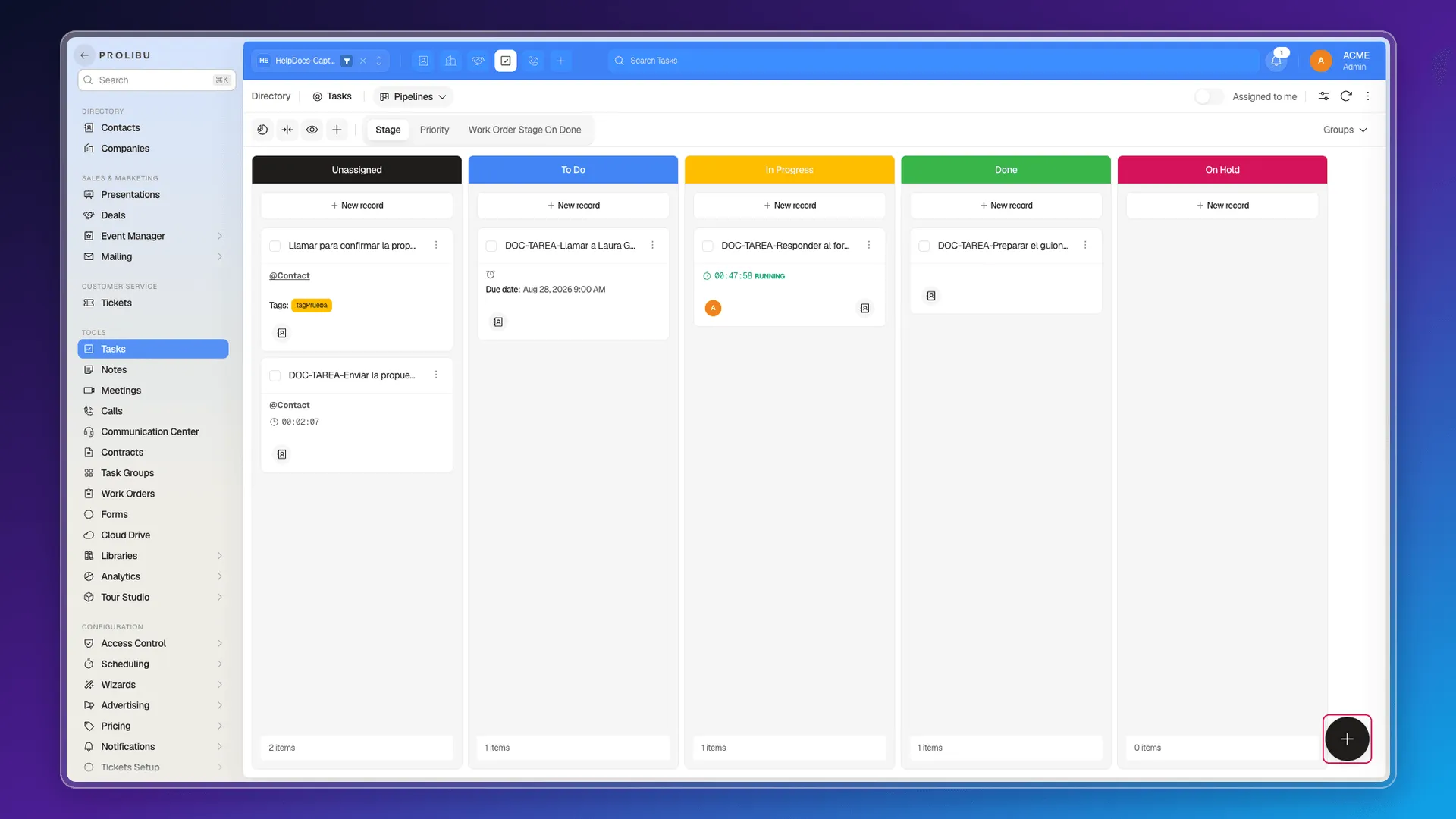
Two shortcuts lead to the same panel:
- In the Pipelines view, the New record button on each column creates the task already placed in that stage.
- In the Timeline view, Add task at the end of the list.
What the panel asks for
Section titled “What the panel asks for”The Main block at the top groups what classifies the task:
- Assigned to — the user responsible.
- Collaborators — people who follow along without owning it.
- Stage — the board column. In the accounts we tested these are To Do, In Progress, Done, and On Hold.
- Priority — it draws from the same account-wide stage catalogue, so it offers the same options as Stage. It does not ship with a Low/Medium/High set.
- Group — the task group it belongs to; the closest thing to a shared queue. See Use task queues.
- Tags.
Below that comes the body:
- Title — an editor with bold, italic, underline, lists, links, and
@mentions to ping a teammate. - Description — free text.
- Checklist — a checklist inside the task. It can’t be used today: type an item and the field returns
must be object,null, which blocks saving. To break a task down, use the real subtasks in the Timeline. - Attachments — up to 100 files, by dragging, pasting from the clipboard, or pulling from Cloud Drive.
- Comments.
- Dates — Start date and Due date, each with a calendar and a time in fifteen-minute steps.
- Time — Estimated and Spent time, in days, hours, minutes, and seconds, with +15m and +30m shortcuts. The clock starts on its own: move the task to the In Progress stage and its card begins counting, with a running-time badge.
- Company.
- Blockers — the four classic schedule relationships: Finish to finish, Finish to start, Start to start, and Start to finish.
- Work order stage on done — fill it in and the linked work order moves to that stage when the task is marked done.
As soon as you set a due date, Due reminder appears, with options from On the due date to 1 week before, plus a custom date. It’s covered in Set up task reminders and daily task digest emails.
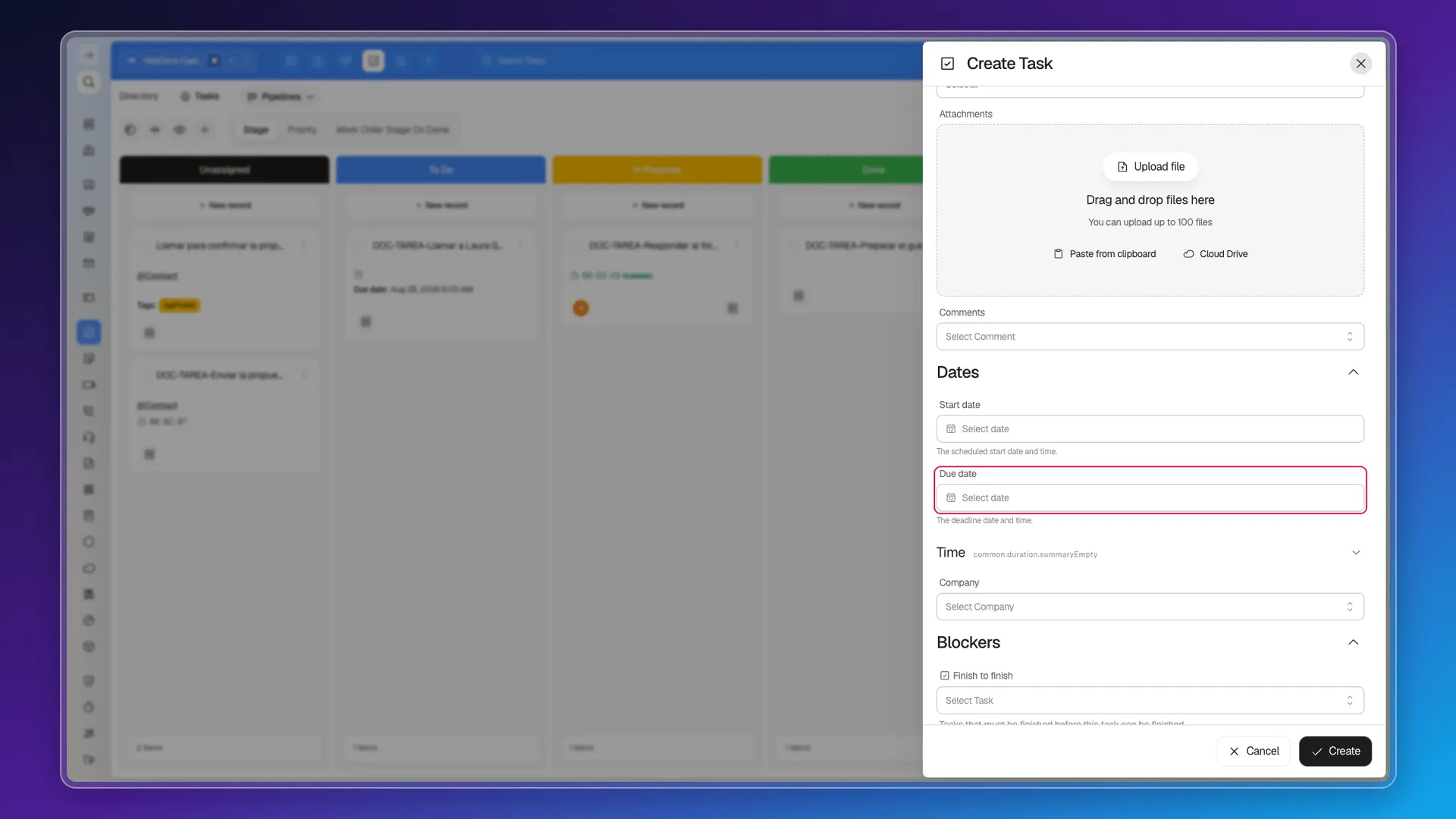
Finish with Create. The task gets a code of its own, along the lines of TSK-1787771542561, which you’ll see when you reopen it.
From a contact’s record
Section titled “From a contact’s record”Open the contact and go to the Tasks tab. The composer there is deliberately short: Assigned to, a text editor, and Add task.
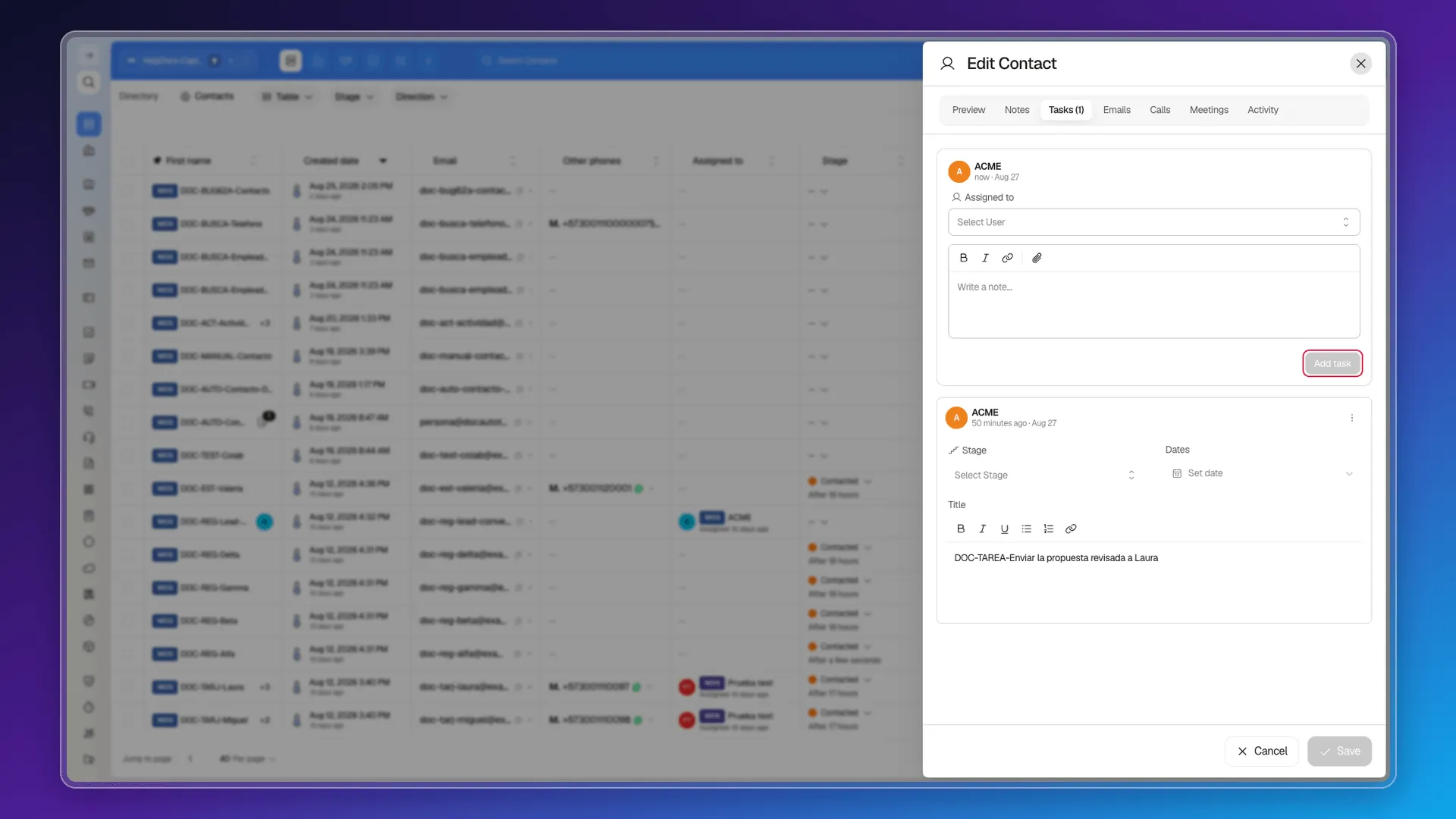
The task appears in the list on the same tab, and from there you can fill in Stage and Dates without leaving the record. It’s the natural route when you’re reading the contact’s history and don’t want to lose your place. See Assign tasks to contacts.
What the panel doesn’t ask for
Section titled “What the panel doesn’t ask for”Two fields you might expect are missing:
- Task type. There’s no choosing between call, email, or plain to-do. Calls and emails are modules of their own, with their own records.
- Repetition. You can’t flag a task to be recreated every two weeks. For a routine, clone the previous one from the card’s Actions menu.
Frequently asked questions
In Tools → Tasks with the New Task button, from a stage column in the Pipelines view, from the Timeline, or from the Tasks tab on a record.
No. Prolibu has no task type field; calls and emails are separate modules with their own records.
There's no automatic repetition. Each task is created once; for a recurring routine you create it again or clone the previous one.
The module's panel carries every field. The composer on a record only asks for an assignee and text, leaving the rest to edit later on the same card.
Was this article helpful?
Thanks for your feedback!