
Export tasks
Exporting tasks works the same as everywhere else in Prolibu: the download comes out of the More actions menu or the selection bar.
Exporting every task
Section titled “Exporting every task”In the Tasks module, open More actions and choose Export all.
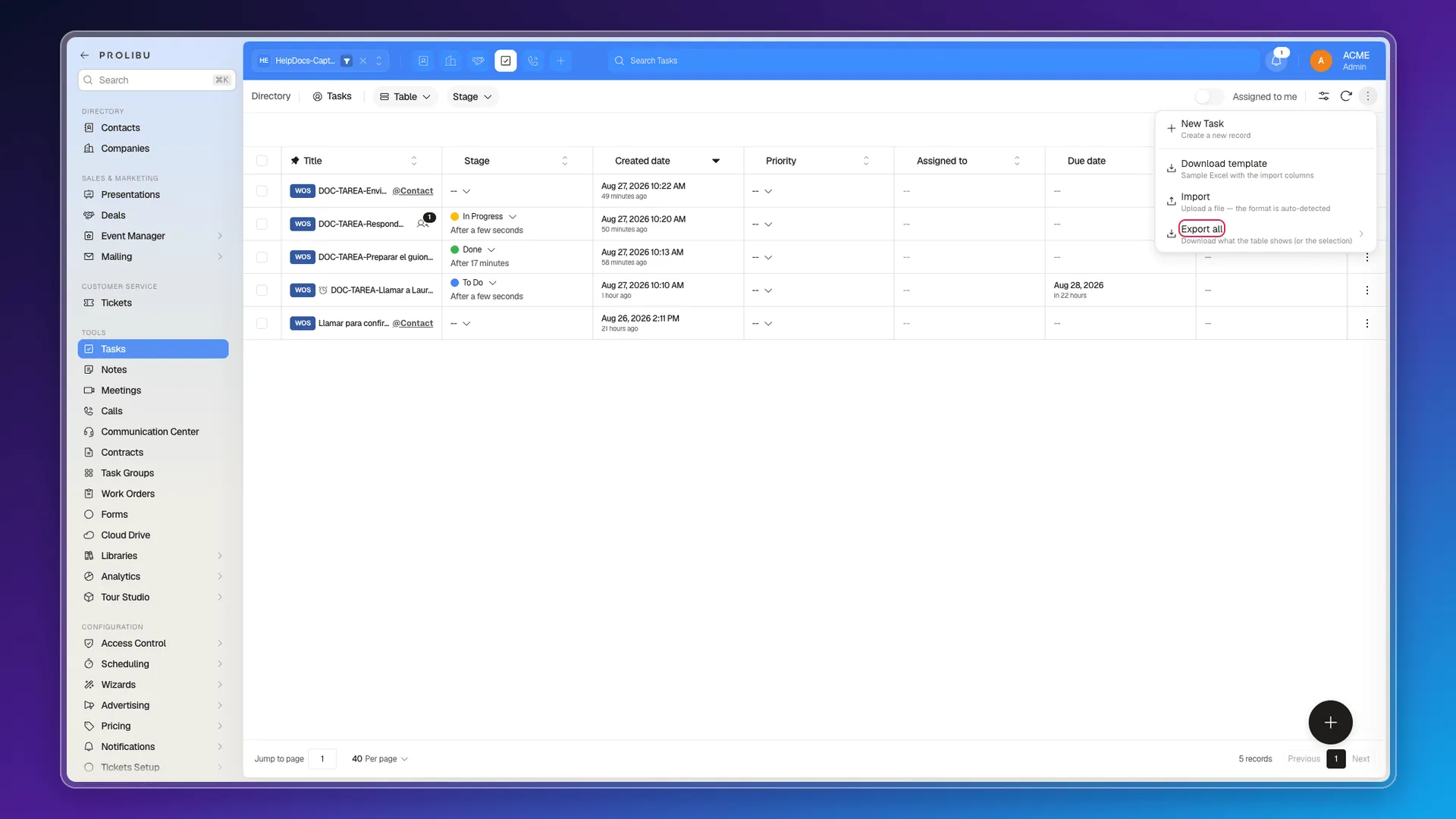
The submenu asks for two decisions. First the content type:
- Report — references come out with the record’s visible name. For a person to read.
- Data — references come out as IDs. For re-importing or feeding another system.
Then the format: Excel (.xlsx) or JSON (.json).
As in the other modules, Export all downloads every task, not the ones the table happens to be showing: whatever filter you have on does not narrow the file. There’s more detail in Exporting your records.
Exporting only some
Section titled “Exporting only some”Tick the checkboxes of the tasks you want and use Export selected in the bottom bar. The number in brackets confirms how many are coming out.
That’s the only way to narrow the download. The selection survives changing pages, so you can gather tasks from several pages into one file.
Before you export
Section titled “Before you export”If what you’re after is a specific slice — the overdue ones, one group’s, one person’s — filter first and tick the resulting rows. Filtering without ticking doesn’t change what Export all downloads.
Frequently asked questions
Under More actions → Export all, or by ticking rows and using Export selected in the bottom bar.
Excel (.xlsx) or JSON (.json), and under Export all you first choose between Report and Data content.
Not under Export all, which downloads every task in the module. To narrow it, tick the rows and use Export selected.
No. The download starts in the browser as soon as you pick the format.
Was this article helpful?
Thanks for your feedback!