
Filter tasks and manage task views
The Tasks module opens showing every task in the workspace, not just yours. That’s the first adjustment almost everyone wants to make.
Seeing only your tasks
Section titled “Seeing only your tasks”Turn on the Assigned to me toggle in the top bar. It filters on the Assigned to field with your user.
Quick filters
Section titled “Quick filters”Filters opens a panel with the Simple tab selected. At the top there are Stage buttons — To Do, In Progress, Done, On Hold — and below them, field by field:
- Created by me, a toggle.
- Created by and Assigned to, by user.
- Tags, Collaborators, and Company.
- Created date and Due date.
- Priority.
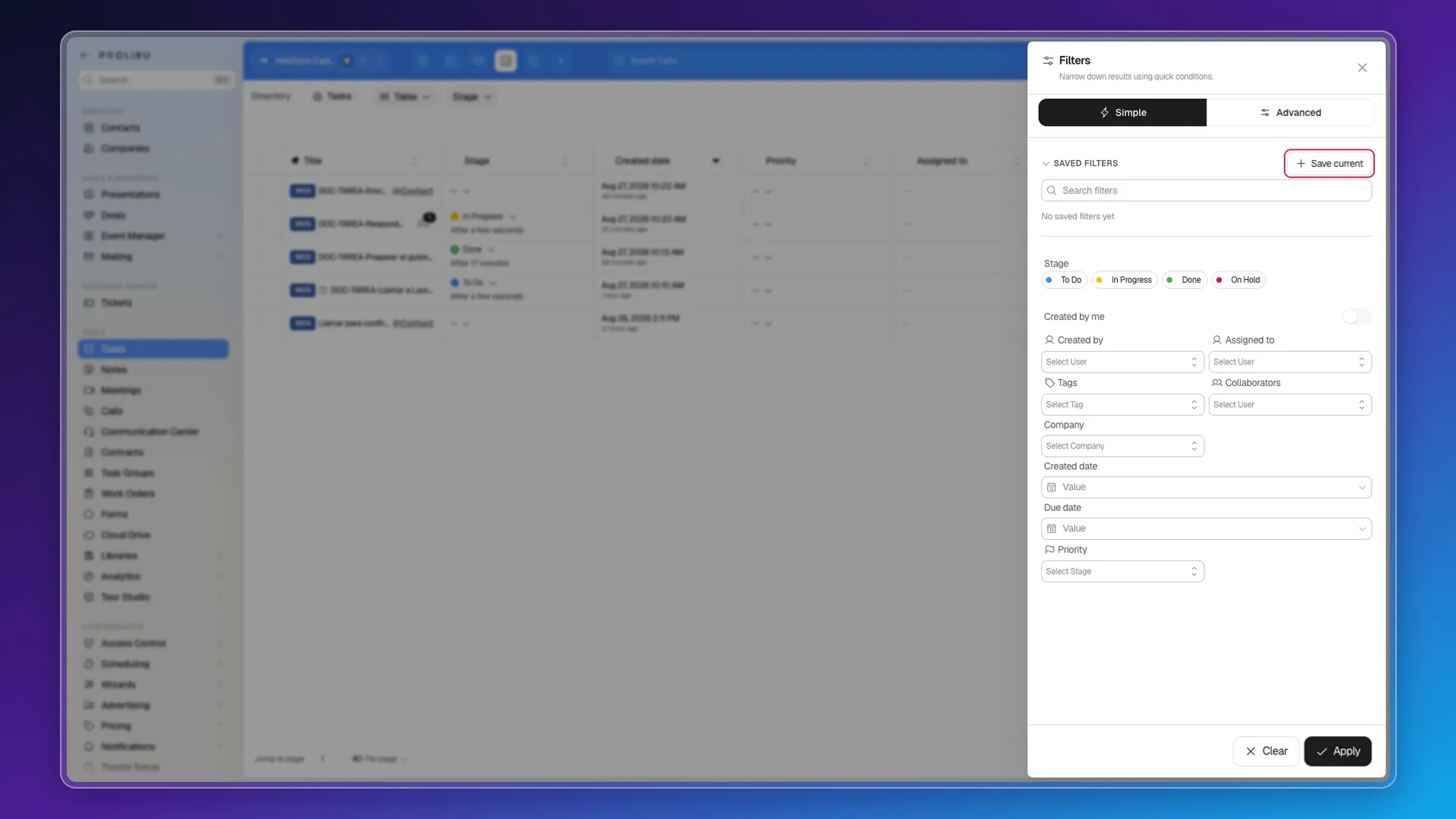
Apply narrows the table; Clear puts it back the way it was.
The usual to-do-list views get built here. Overdue is a Due date earlier than today; Due today, a Due date equal to today. Neither comes ready-made.
Advanced filter
Section titled “Advanced filter”The Advanced tab opens a condition builder. You choose Match all or any of the conditions and keep adding with Condition. Group nests a block of conditions inside another, which is how you express rules like “due this week AND (owned by Laura OR in the inbound group)”.
Saving a filter
Section titled “Saving a filter”In the same panel, SAVED FILTERS lists what you’ve already saved and Save current keeps whatever combination you have on at that moment. A search box helps you find them once they pile up.
It’s the equivalent of a saved view, with one difference in shape: saved filters don’t pin themselves as tabs above the table. You apply them from this panel.
Switching views
Section titled “Switching views”The picker next to Tasks in the breadcrumb changes how what you’ve filtered gets drawn:
- Table — rows and columns, with inline editing.
- Pipelines — a board by stage.
- Calendar — month, week, or day, placing each task on its due date.
- Timeline — a Gantt chart with subtask hierarchy and dependencies.
The filter survives the switch.
Frequently asked questions
With the Assigned to me toggle in the top bar. It's off by default, so the module opens showing the whole workspace's tasks.
Stage, Created by, Assigned to, Tags, Collaborators, Company, Created date, Due date, and Priority, plus whatever you add in the advanced filter.
Yes, with Save current in the Filters panel. The saved filter stays available to reapply whenever you want.
They don't ship with the product. You build them with a Due date filter and save it.
Was this article helpful?
Thanks for your feedback!