
Create and use message templates
A message template is a block of text you write once and reuse afterward, instead of typing it from scratch every time you talk to a contact. It’s Prolibu’s counterpart to what HubSpot calls “snippets” — same goal, with one difference: in Prolibu it’s a full module, with its own table, its own editor, and its own access control, not a small panel tucked inside another tool.
Open the module
Section titled “Open the module”Message Templates doesn’t appear in the side menu. There are two ways in:
- The command palette — press Ctrl + K (or Cmd + K on Mac), type
templatesand pick Message Templates under Pages. See Command palette. - Customize shortcuts, if you’ll be going there often: pin the module to the top bar and it’s one click away. See Shortcuts.
Create the template
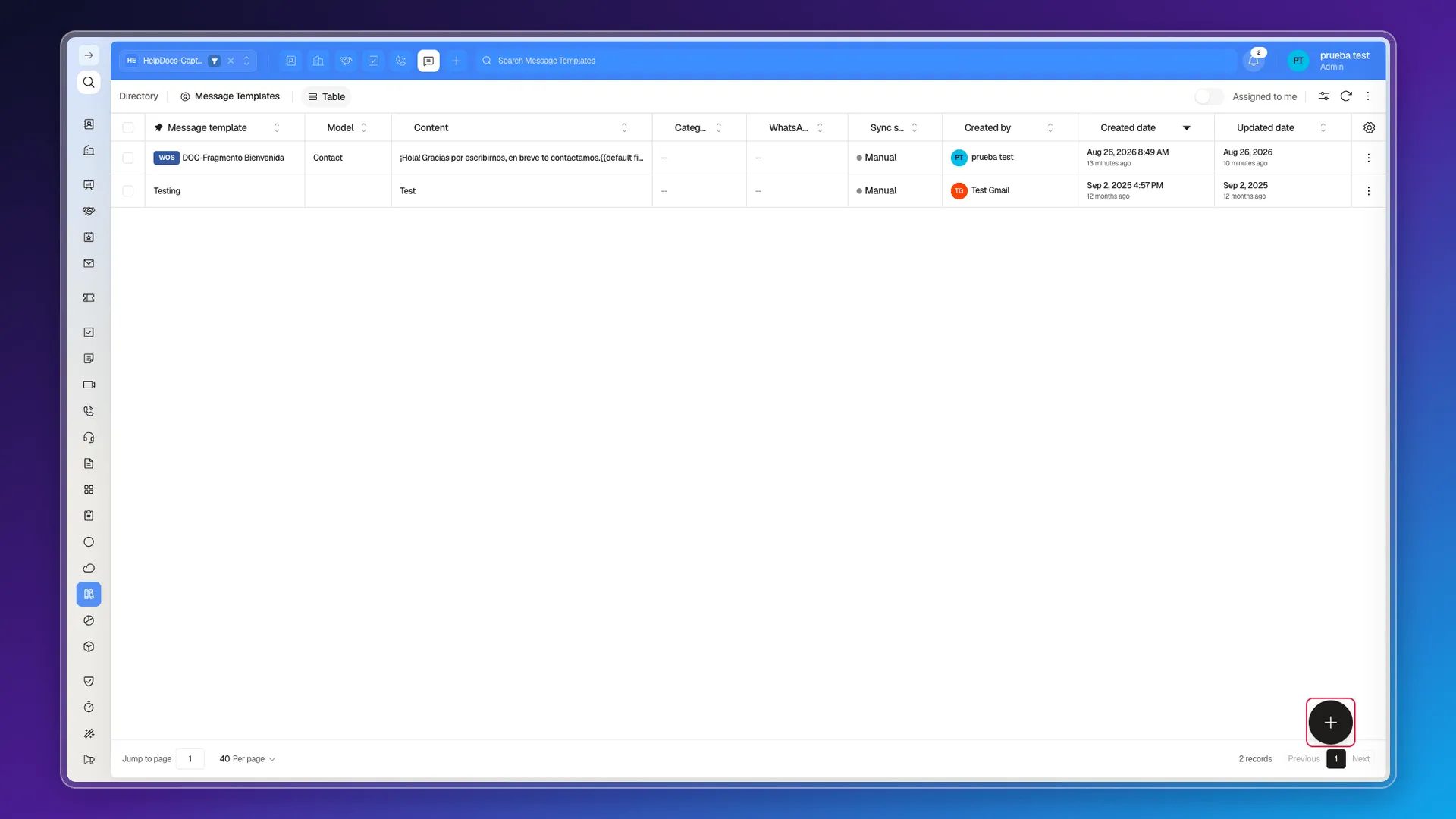
Section titled “Create the template”Press the + button in the bottom-right corner. The Create Message Template panel opens with two fields:
- Message template — the name, the only required field.
- Model — the record type it’s tied to: Contact, Company, Deal, Proposal, Quote, Meeting, Message, Call, Ticket, and the rest of the CRM’s objects show up in the list. You can leave it unset and pick it later.
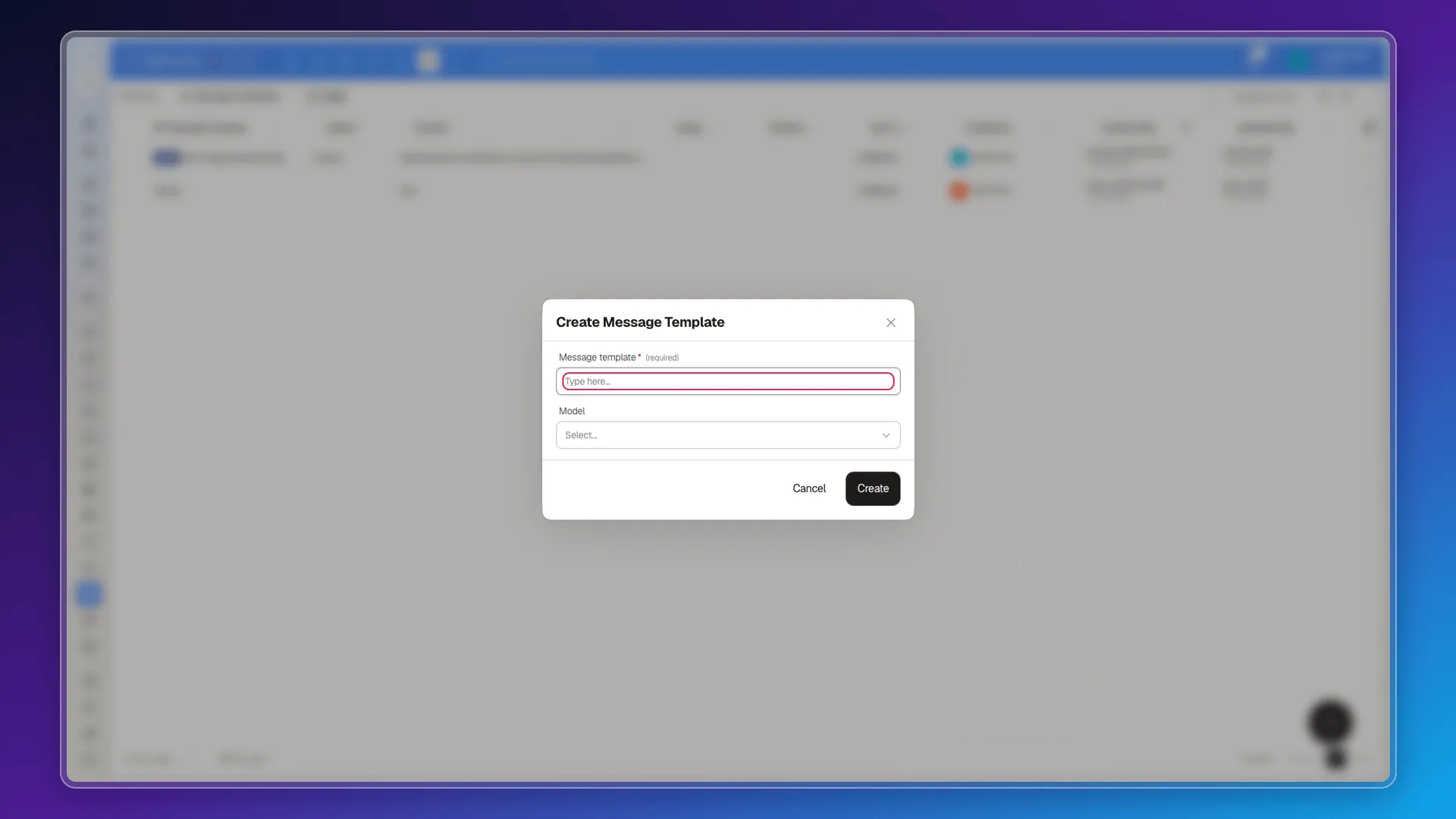
Confirm with Create. Prolibu opens the full template record so you can write the content.
Write the content
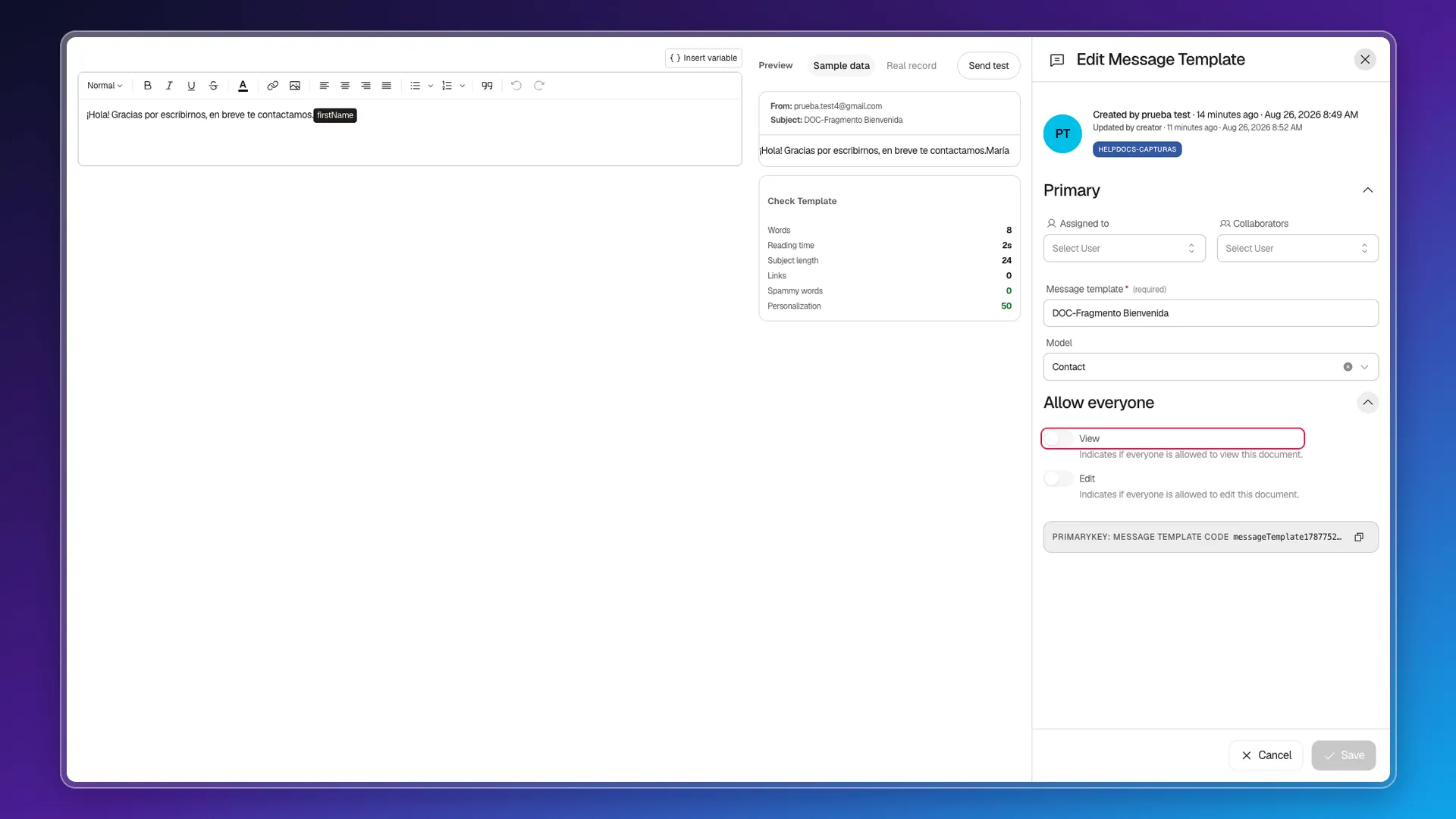
Section titled “Write the content”The record has three columns: the editor on the left, a Preview in the middle (with Sample data, Real record, and Send test tabs), and the record’s data on the right — Assigned to, Collaborators, the name, the Model, and the access controls.
The editor is a regular rich-text box: bold, italic, strikethrough, alignment, lists, quotes, and links, plus an icon for inserting images. Alongside whatever you type by hand, you can insert personalization tokens with the Insert variable button — see Personalize templates with variables.
While you write, the Check Template panel in the preview counts words, estimated reading time, subject length, links, spammy-sounding words, and how many personalization tokens you used, live.
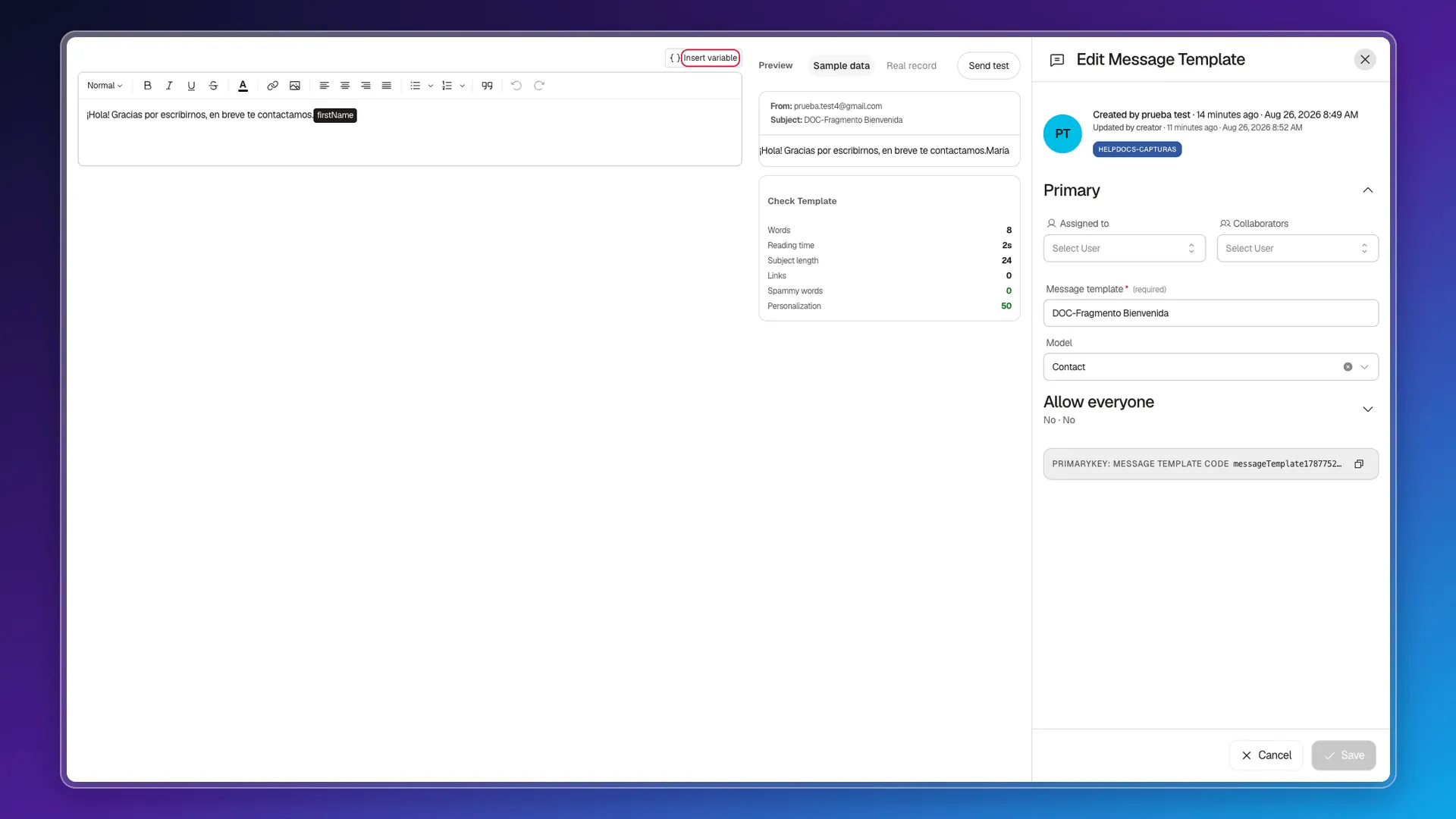
Save with the Save button at the bottom of the panel.
The editor changes depending on the Model
Section titled “The editor changes depending on the Model”We tried all 11 values of the Model picker one by one, creating a template with each, and the editor isn’t always the same:
- Contact, Company, Deal, Proposal, Quote, Meeting, Call, Email, and ProposalWizard open the text editor described above, with Insert variable available.
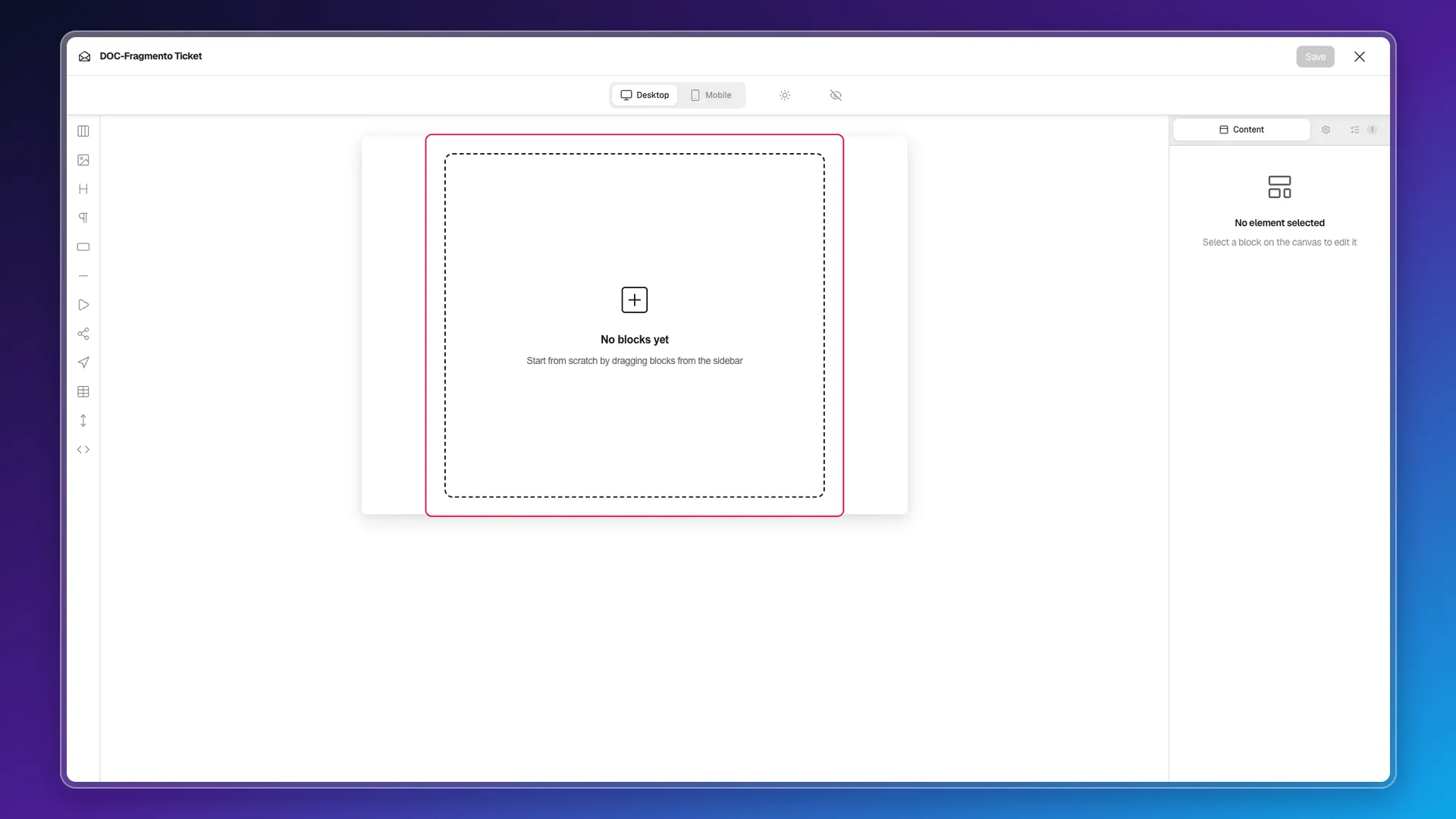
- Ticket opens a full-screen block-based design editor instead — you drag images, headings, buttons, tables, and dividers onto an email canvas, with desktop and mobile previews. There’s no Insert variable button.
- Message never got created: Prolibu asks for a Channel (
Channel is required for WhatsApp templates) before saving. That’s the WhatsApp Business template path, a different flow that needs a connected WhatsApp channel — this article doesn’t cover it.
Share access
Section titled “Share access”By default, a newly created template is visible only to its creator, its Assigned to user, and its Collaborators — the same permission model used by Directory records, explained in Assign access to records.
To open it up to the rest of the account, expand the Allow everyone section and turn on, separately:
- View — any user can open the template, even without being assigned or a collaborator.
- Edit — any user can modify it, not just view it.
Frequently asked questions
It's not in the side menu. Open it with the command palette (Ctrl or Cmd + K) by typing "templates", or pin it to the top bar from Customize shortcuts.
Only the name. You can leave the Model, the content, and the access settings for later.
It sets which record type the template belongs to — Contact, Company, Deal, Quote, Meeting, Ticket, and other objects show up in the picker. That's where the data for the personalization tokens comes from.
Only you, its assignee, and its collaborators. To let anyone in the account view or edit it, you have to turn that on by hand under Allow everyone.
No. Contact, Company, Deal, Proposal, Quote, Meeting, Call, Email, and ProposalWizard use the text editor with personalization tokens. Ticket opens a completely different block-based design editor, meant for emails with images and columns.
Was this article helpful?
Thanks for your feedback!