
Work with groups
A group is a working unit with a name of its own: a branch, a sales team, a territory. It isn’t a loose mark on the record — it has its own collaborators, it can point at a company, and it can carry its own stages. Records join it through the Group field on their record.
Contacts and Deals work the same way here, but each module keeps its own list: the groups you see in the Contacts table aren’t the ones you’ll see in Deals.
What a group holds
Section titled “What a group holds”Open a group to edit it and this is what defines it:
| Field | What it’s for |
|---|---|
| Group (required) | The name it goes by across the application. |
| Collaborators | The users who work in it. |
| Description | Free text to spell out its scope. |
| Company | Ties the group to one company, where that applies. |
| Custom stages | A pipeline of its own for that group, apart from the general one. |
| Tags | Cross-cutting classification, same as on any record. |
Each group also carries a group code of its own, which is what identifies it uniquely.
Assign a record to a group
Section titled “Assign a record to a group”On the contact’s or the deal’s record, the Group field sits in the Main section. Open it and pick one from the list.
If the selector comes up empty, there’s no group available for that record yet; the + Group button at the foot of the selector creates one without leaving the record.
To assign the group to many records at once, use Editing records in bulk with the records already ticked in the table.
Narrow the table to one group
Section titled “Narrow the table to one group”Groups, at the top right of the table, opens the list’s search.
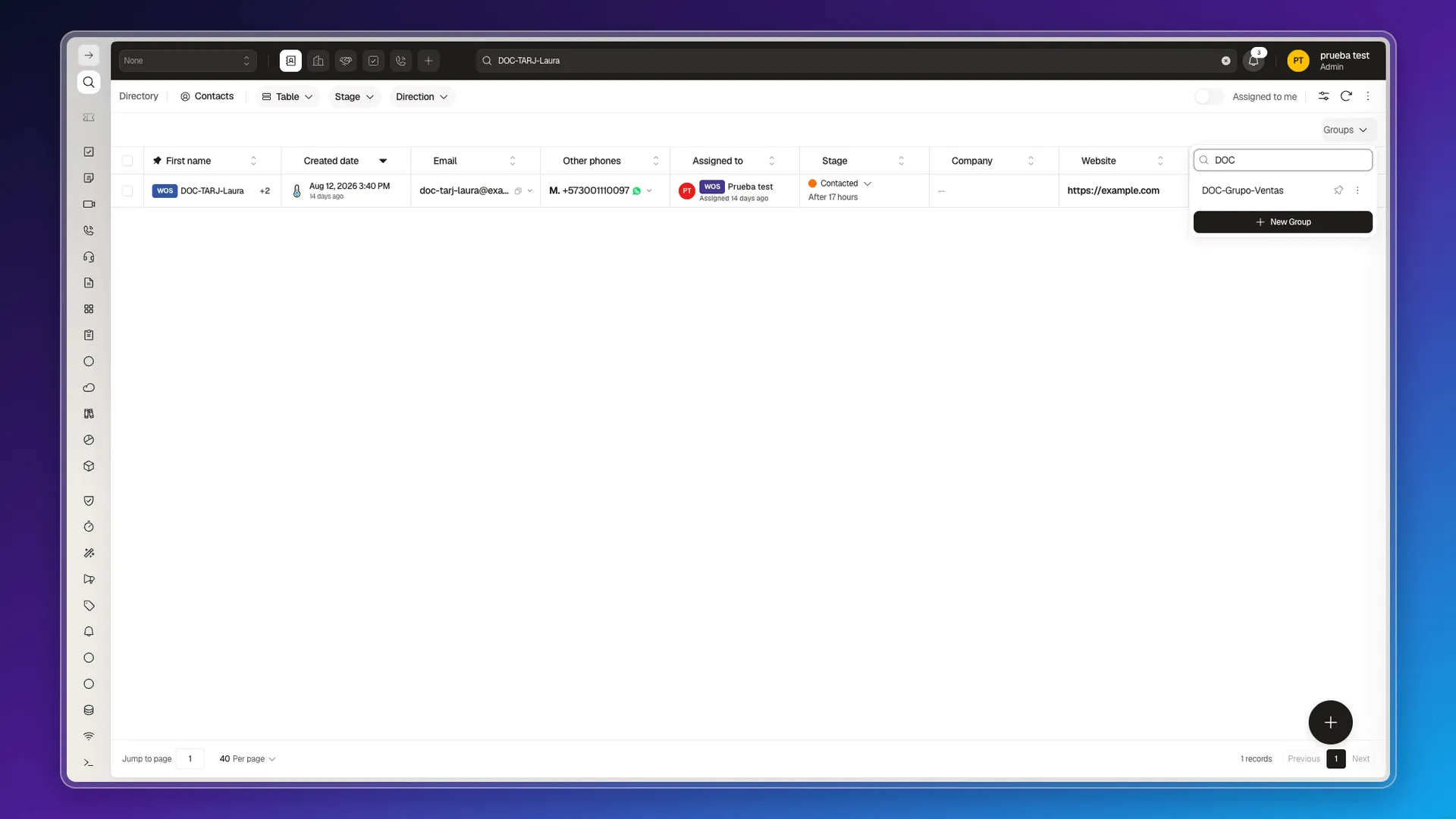
From there you can:
- Search by name, with the field at the top.
- Pin a group with the pin, so it comes first once the list grows.
- Select a group, and the table shows only its records.
- Create a new one with New Group, at the bottom of the list.
With a group active the bar changes: its collaborators’ avatars appear, along with a button to add someone else, a pencil that opens Edit Group, and the group’s name with an × beside it. That × brings the full table back.
Groups against lists, tags and filters
Section titled “Groups against lists, tags and filters”Groups is not the same as Contact lists: they’re two separate sections of the Directory module. Groups works — you can search, pin, create, and narrow the table with it. Contact lists is another section, meant for campaign audiences, that doesn’t load its data today.
The full comparison between the four ways of putting records together is in How to group records.
Frequently asked questions
A working unit with a name of its own — a branch, a team, a territory — with its own collaborators and, where needed, its own stages. Records join it through the Group field on their record.
No. Contacts and Deals both carry the Group field on the record and the Groups selector in the table bar, but each module keeps its own list of groups.
Select Groups in the table bar and pick one. The table narrows to that group and its name stays in the bar; the × beside it brings the full table back.
With New Group, at the bottom of the Groups selector, or with + Group from the Group field on a record.
No. Groups is a separate, working module for grouping records from their record; Contact lists is another module, meant for campaign audiences, that doesn't load today — see Turn a view into a segment.
Was this article helpful?
Thanks for your feedback!