
Completed tasks
Prolibu has no “completed” tick next to the title. A task is finished by moving it to the stage that closes the flow, which in the accounts we tested is called Done.
Completing a task
Section titled “Completing a task”From the Pipelines view, drag the card to the Done column. It’s the most direct move when you’re looking at the board.
From the Table view, open the dropdown in that row’s Stage column and pick Done. The change saves immediately, with no confirmation dialog.
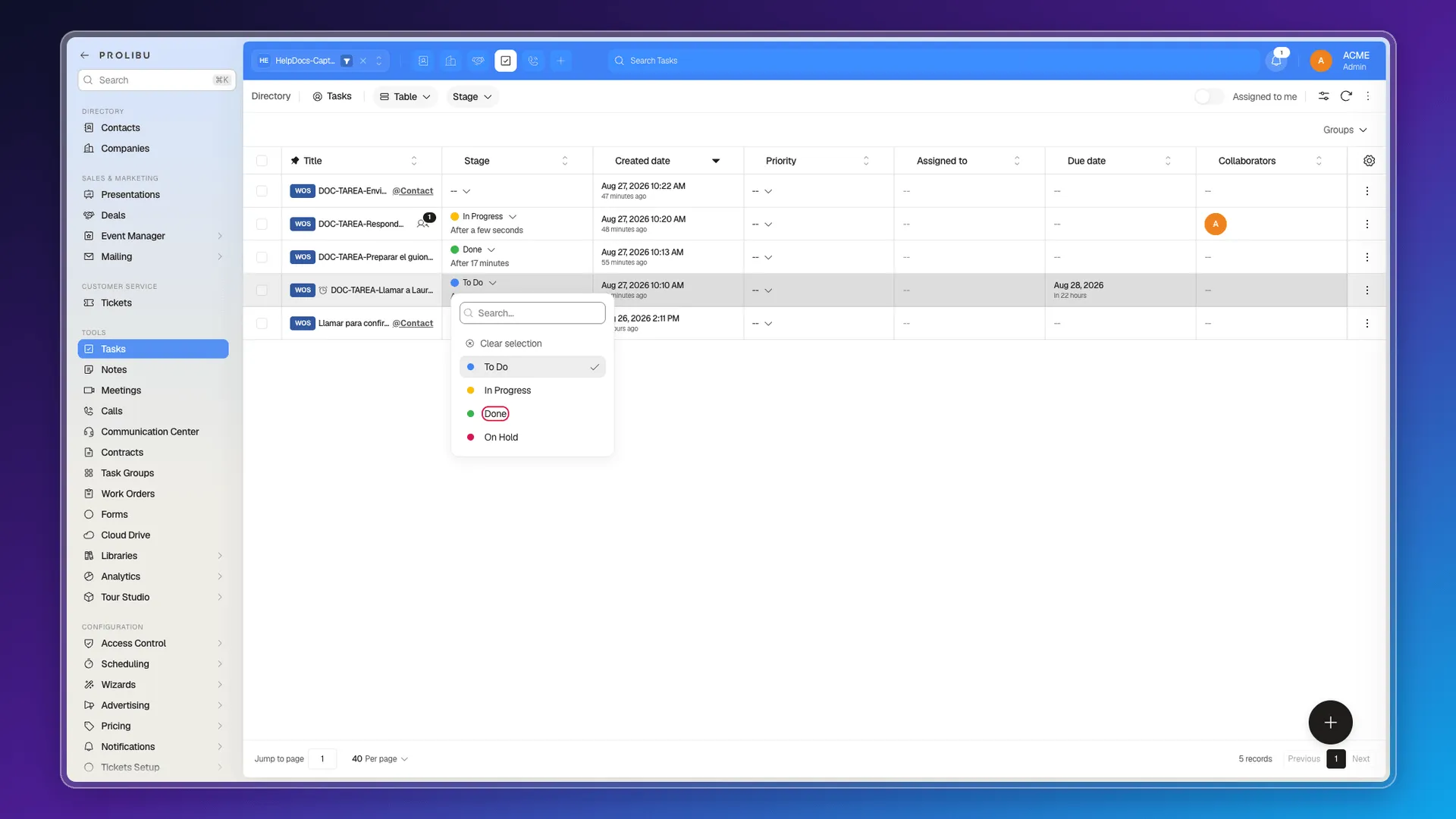
You can also change the stage from the task’s panel, or from the task card in the Tasks tab of a record.
The checkbox completes nothing
Section titled “The checkbox completes nothing”Every card and every row has a checkbox on the left. It’s easy to read it as “mark as done”, but it only selects: what it does is enable the bulk action bar at the bottom. To call the task finished you have to touch its stage.
Closing several tasks at once
Section titled “Closing several tasks at once”Tick the checkboxes of the tasks you want to close and, in the bar that appears at the bottom, choose Edit selected. In the dialog, pick the Stage field, set Done, and apply. The same value is written to every ticked task.
It’s the usual route after a run of calls: filter, tick, and close them together instead of row by row.
What happens next
Section titled “What happens next”A completed task isn’t archived or hidden. It stays in the table and in the board’s Done column. If you’d rather stop seeing them, filter by stage and save that filter.
If the task had a Work order stage on done, this is the moment the linked work order moves to the stage you named.
Frequently asked questions
By moving it to the Done stage, either dragging the card in the Pipelines view or picking Done in the table's Stage column.
No. That checkbox selects the task so you can apply bulk actions; it doesn't change its stage.
Yes. Tick the ones you want, use Edit selected, choose the Stage field, and apply Done to all of them.
It stays in the Done column and keeps showing up in the table. It isn't archived and doesn't disappear from the view.
Was this article helpful?
Thanks for your feedback!