
Filter and complete tasks in views
Once the list is narrowed with a filter, what’s left is clearing it. In Prolibu that happens in bulk, from the view itself.
Working on what you filtered
Section titled “Working on what you filtered”Apply the filter and stay in the Table view. Tick the checkboxes of the tasks you’re about to touch — the header checkbox ticks every task on the page — and use the bar that appears at the bottom.
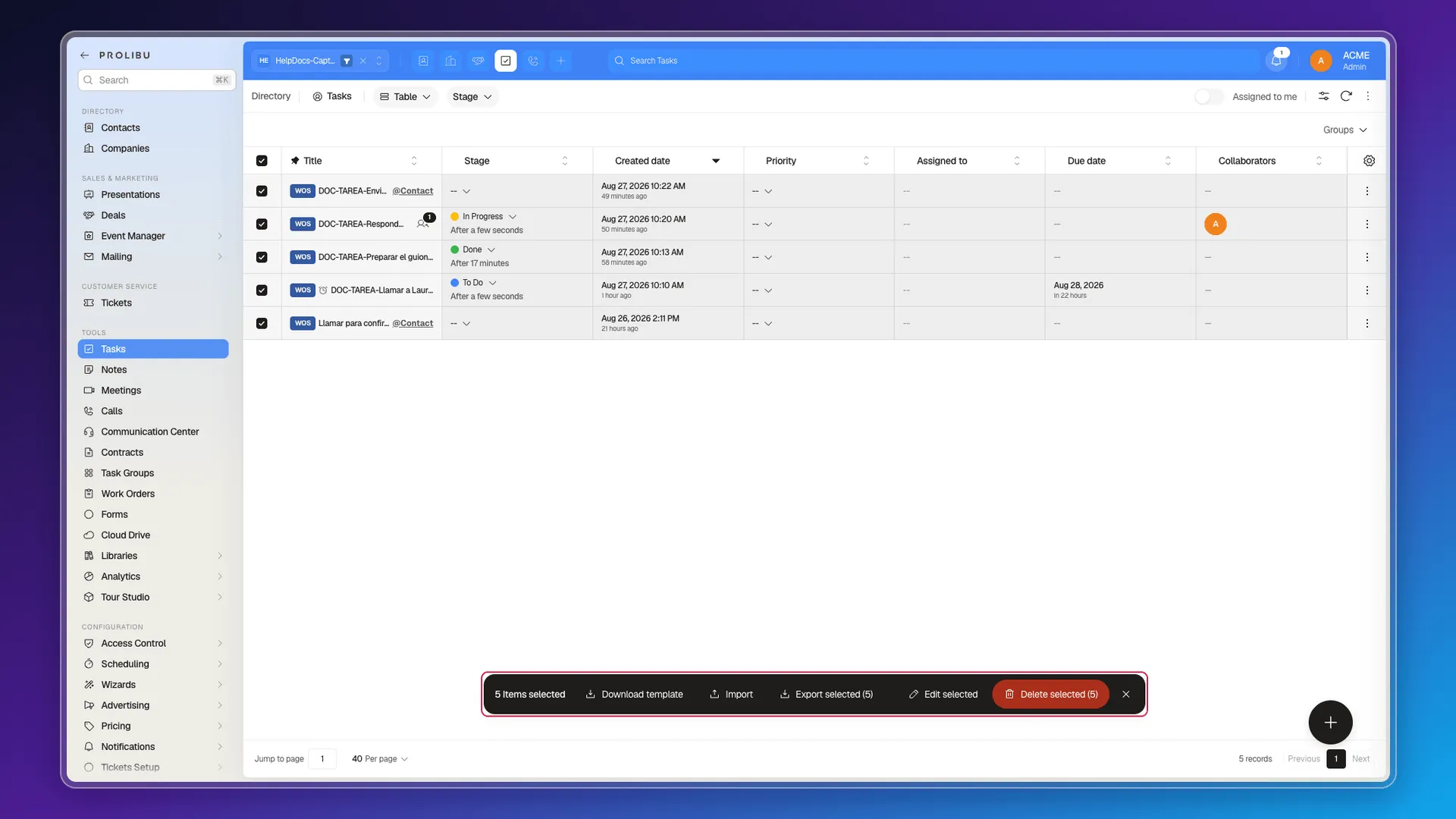
From there:
- Edit selected — changes fields across every ticked task. This is how they get closed: field Stage, value Done.
- Export selected — downloads only those tasks.
- Delete selected — removes them, with no way back.
To push tasks back instead of closing them, the same dialog has Dates · Due date: set the new date and it applies to all of them.
Working on the board
Section titled “Working on the board”In the Pipelines view, dragging cards from one column to another beats opening each task. Every column also has its own Search in stage… and a Stage menu with Select visible, which ticks everything in that column at once.
What isn’t there
Section titled “What isn’t there”There’s no run-through mode: nothing that drops you into the first task on the list, takes you to the associated contact’s record, lets you log it, and pushes you to the next one with an arrow. There’s no Reschedule button inside such a run either.
The closest thing is opening the task, resolving it, closing the panel, and going back to the filtered list, which keeps your filter.
Frequently asked questions
No. Prolibu has no run-through mode that walks you from one task to the next; you go back to the view after each one.
Filter, tick the checkboxes, and use Edit selected to set Done on all of them at once.
Yes, with Edit selected and the Dates · Due date field, even across several tasks at once.
Was this article helpful?
Thanks for your feedback!