
Add or remove contacts from a list
List membership is managed from the list, not from the contact’s record. Open Contact lists, select the list, and work on the Contacts field.
Add contacts
Section titled “Add contacts”Opening the Contacts field reveals a selector with a search box on top and the available contacts below, each with a name and an email. Type in Search to narrow the list and click every contact you want to add.
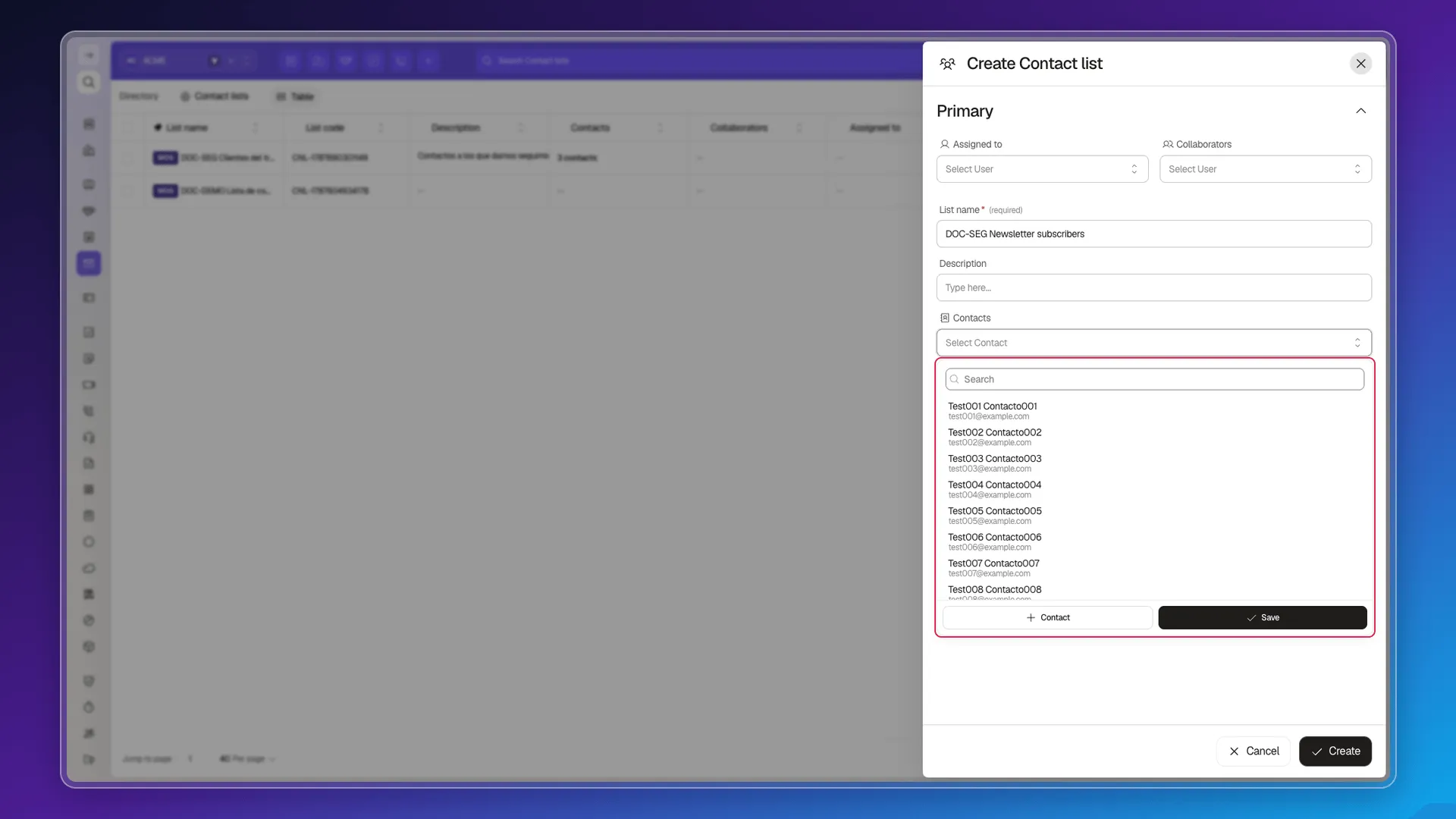
If the contact doesn’t exist yet, the + Contact button inside the selector opens the creation form without taking you out of the list.
Once you’re done checking, press Save inside the selector to apply the selection to the field, then Save on the list panel so the change is recorded. These are two separate confirmations: the first closes the selector, the second saves the list.
Remove contacts
Section titled “Remove contacts”Every contact already in the list shows as a chip with an x next to it. Press it to take them out, then save the list.
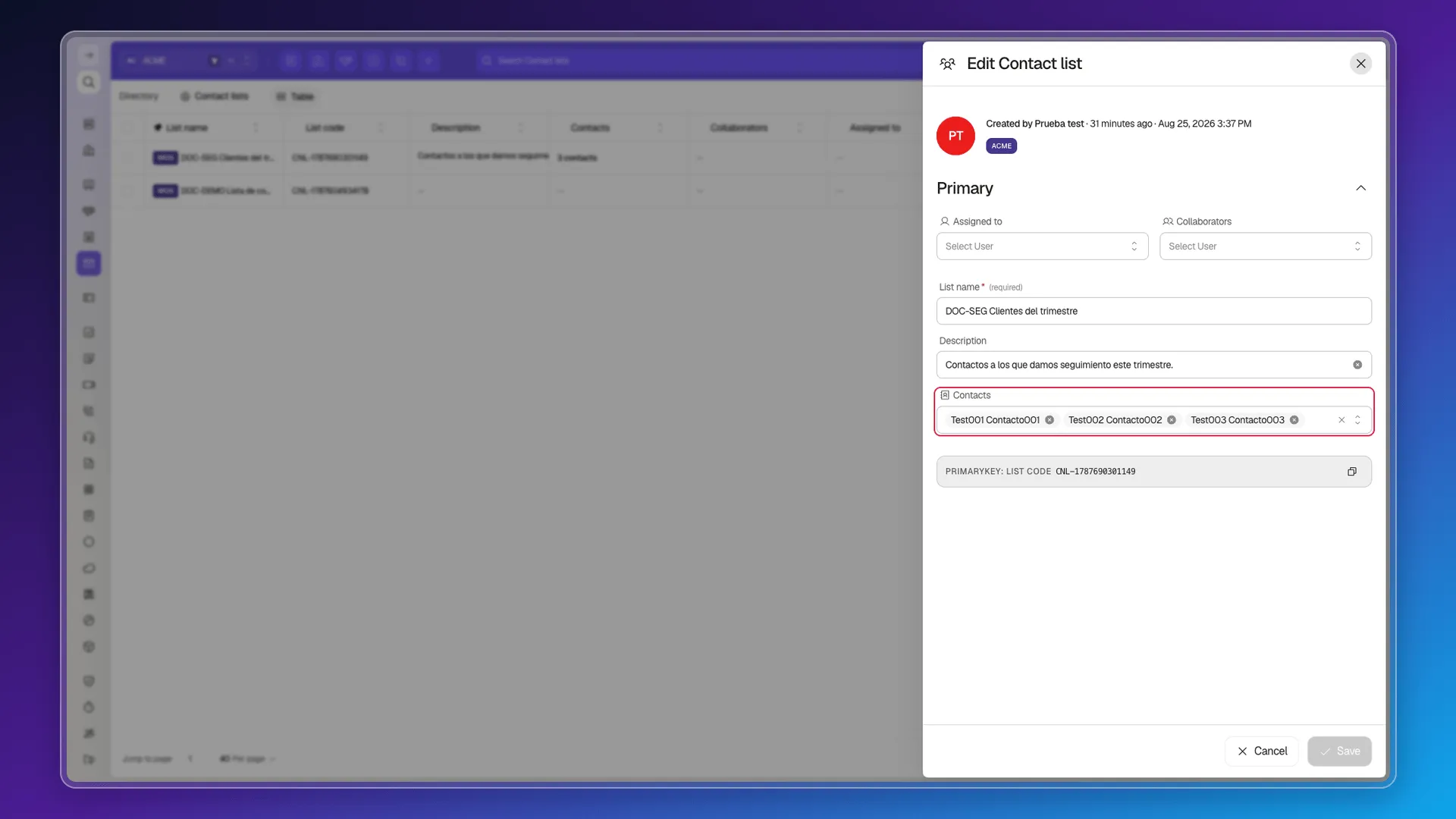
Removing someone from a list doesn’t delete them: the contact stays in the Directory with their whole history, they just stop belonging to that group. To delete them for real, see Delete records from the CRM.
Fill a list from a file
Section titled “Fill a list from a file”For many contacts at once, the route is the lists module’s own import: More actions > Download template gives you an Excel file with a ContactList sheet, and the contacts column takes several emails separated by commas.
A row like this creates the list with both members in one go:
| contactListName | contacts |
|---|---|
| Newsletter subscribers | ana@example.com,luis@example.com |
Upload the file with More actions > Import. The rest of the process — progress panel, error log — works like any other module: see Understanding the import tool.
Three things we checked that are worth knowing before you build the file:
- The comma is the separator, and it’s the only one that works. With a semicolon or a pipe, the whole cell is read as a single name and the row is rejected with “Document not found by primary key”.
- The column replaces, it doesn’t add. If you import onto a list that already exists (by giving its
contactListCode), the contacts in the file take the place of whatever was there. Repeating the same list across several rows doesn’t accumulate either: the last one wins. - So to add to an already-populated list without losing what’s in it, the file has to carry the whole list — the old members and the new ones — or you make the change by hand in the Contacts field.
Frequently asked questions
From the list itself. Open it under Contact lists and use the Contacts field; it isn't managed from each contact's record.
Not from the table. Edit selected offers no list field. To load many at once, use the lists module's import with the contacts column.
Separate the emails with commas. Semicolons and pipes don't work — the row is rejected with "Document not found by primary key".
Press the x on their chip in the Contacts field and save. The contact leaves the list but still exists in the Directory.
Yes. The contact selector has a + Contact button that opens the creation form right there.
Was this article helpful?
Thanks for your feedback!